


Losing your carefully curated Spotify playlists, "Liked" songs, and albums is undoubtedly a frustrating experience. Whether you are switching accounts/devices, reinstalling AudFree converter, or simply looking to safeguard against the accidental loss of your music collection, creating a backup of your Spotify library is always a wise move.
Thanks to the newly introduced 'Backup' and 'Restore' features in AudFree Spotify Music Converter and AudFree Streaming Audio Recorder, you can now back up and restore your Spotify library more easily than ever before. In this way, you can access your Spotify music library flexibly and forever.
How to Back Up Spotify Music Library and Restore
It is easy to use AudFree program's Backup and Restore feature. Just follow the simple steps below to start saving your library at once.
Step 1. Download, install and open AudFree Spotify Music Converter on your Windows or Mac computer. Or, open AudFree Streaming Audio Recorder and tap the Spotify option on the main screen. Then log in to your Spotify account.

Step 2. Click on the 'Music Library Backup & Restore' icon at the top-right corner of the tool's interface.
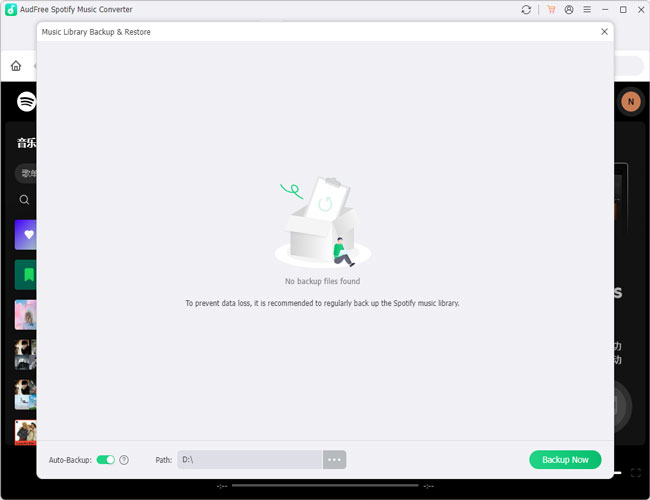
Step 3. Now, choose the storage location under the Path option and tap the 'Backup Now' button at the bottom-right corner of the tool. Then it will automatically backup and save your Spotify music library.
Step 4. Once done, your Spotify music library will be saved and you can click the 'Open Folder' icon to view your Spotify database (.json). Also, you can customize the backup file name for management.
Step 5. To restore your Spotify music library, you need to log in to AudFree tool with another Spotify account. Then tap 'Music Library Backup & Restore' > 'Restore' and confirm to Restore your Spotify library backups to your current account.
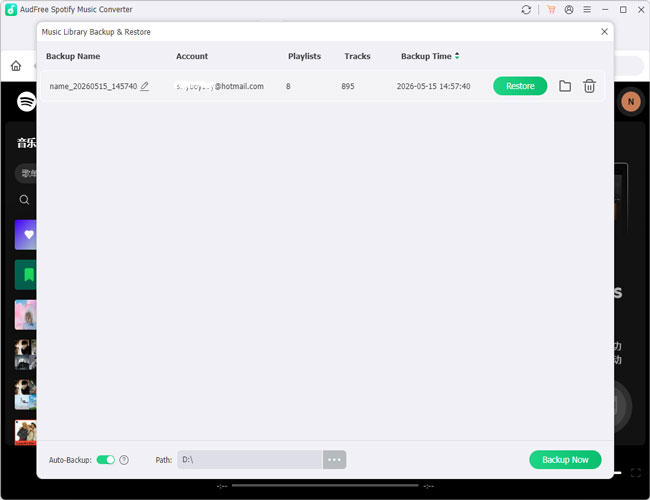
You can turn on the Auto-Backup option at the bottom of the AudFree program. Once enabled, your Spotify music library will be backup automatically each time the program launches.


