


Quick Answer: Can you keep Spotify music forever? Yes, but you need third-party tools like AudFree Spotify Music Converter to make it, as Spotify downloads are temporary files within the Spotify app.
It could be the biggest disadvantage that all the downloaded Spotify music and playlists will disappear automatically once your Premium subscription expires. This can be frustrating for users who want to keep Spotify music forever after canceling Spotify Premium. Fortunately, there are 3 legal ways on how to keep downloaded Spotify songs permanently after unsubscribing.
See also: How to Keep Tidal Downloads Forever


Part 1. Can You Keep Downloaded Music from Spotify after Cancelling?
No, Spotify downloads can't be kept forever after canceling Premium. Spotify downloads are protected by DRM and they are only cached files within the Spotify app. They are valid for a limited time, and the length of time varies depending on the type of subscription you have. Premium users can keep their downloads for up to 30 days without an internet connection as long as the Premium subscription remains active. After that, they need to go online again to maintain the downloaded Spotify tracks. Once the subscription ends, those downloaded songs won't be available for offline playback anymore.
What's more, Spotify's music catalog may change frequently. In this case, some songs become unavailable due to licensing agreements, regional restrictions, label decisions, or artist requests. If Spotify removes a song from its catalog, your downloaded tracks may also disappear.
Other Common Situations Where Spotify Music Disappear
| Situation | Can You Still Access Spotify Downloads? |
|---|---|
| Free Trial Expires | ❌ |
| Change / Log Out of Spotify Account | ❌ |
| Reinstall Spotify App | ❌ (Usually need to download again) |
| Replace your phone or computer | ❌ (Downloads won't transfer automatically) |
| Clear Spotify cache/data | ❌ (Downloads may disappear) |
| Device fails account verification | ❌ (Offline playback may stop) |
Part 2. 3 Best Ways to Keep Spotify Music Forever
If you want to keep Spotify downloads forever, here are three ways for you to do that. Before staring, you can take a quick comparison of them.
| Method | Type | Best For | Limitations |
|---|---|---|---|
| Convert Spotify Music to Local Files | Converter | Users who have a large Spotify libraries | Requires conversion software |
| Record Spotify Music | Audio Recorder | Users who want to record a few songs | Time-consuming |
| Back Up Spotify Playlists | Playlist Backup Tool | Protecting playlist information | Can't save audio |
Method 1. Convert Spotify Music to Local Files via AudFree Spotify Music Converter
Spotify files can be downloaded as cache files with your Premium plan. That's the reason why you don't truly keep downloaded music from Spotify. If you'd like to permanently download music from Spotify, the best way is to download Spotify songs to your computer locally for keeping them forever even if ending the premium subscription.
As a result, you'd better get help from a professional third-party tool - AudFree Spotify Music Downloader. It is able to batch download Spotify music, playlists, albums, podcasts, audiobooks, etc. to common audio files, like MP3, FLAC, WAV, M4A and M4B and export them to the destination folder on your computer locally. Besides, it will keep full ID3 tags and original quality of Spotify music content.
After that, you can not only keep Spotify songs forever but also listen to them on any device offline even without Spotify app and without Spotify Premium. What's more, you can back up your Spotify favorite permanently even if Spotify's catalog changes.
AudFree Spotify Music Downloader

- Download Spotify music, songs, playlists, etc. on your computer locally
- Convert Spotify music to MP3, WAV, FLAC, M4A, etc.
- Keep Spotify music forever for offline playback without limits
- Work at 13X faster speed, edit music quality and parameters
Now, follow the steps below to use AudFree Spotify Converter to download and save Spotify songs forever.
- Step 1. Add Spotify music/playlists to AudFree Spotify Music Converter

- When opening AudFree Spotify Music Downloader, you will see the built-in Spotify web player in this main screen. Then log in to your Spotify account, find and drag songs from Spotify to AudFree's big + button at the right side. Alternatively, you can tap the audio content, click the '+' > 'Add to list' button to load Spotify files. Before adding music to AudFree, you can tap the Backup icon at the top-right corner in AudFree to backup your Spotify music library.
- Step 2. Set output format and enhance audio quality

- To enhance the Spotify audio listening experience, you're suggested to click the 'Menu' > 'Preferences' and 'Conversion' option to set bit rate as 320 kbps and sample rate as 48,000 Hz. Besides, you can customize the output format as MP3 or other audio formats for playback on any device.
- Step 3. Download and keep Spotify music forever

- After all settings are done, you can simply click the 'Convert' button to download Spotify music without premium on your computer. You can locate all Spotify downloads by hitting on the 'Converted' > 'Open Folder' button, it will bring you to the destination folder including offline Spotify files. Now, you can keep Spotify downloads forever even without subscribing Spotify Premum anymore. You can also transfer Spotify music to external hard drive, USB drive, SD card, mobile device, MP3 player, car, etc. for backup and offline playback forever.
AudFree Streaming Audio Recorder is another tool for you to download and keep music from Spotify forever on any device. Besides that, you can use it to download and save music from YouTube Music, Apple Music, Amazon Music, SoundCloud, Qobuz, Pandora, Tidal and so on.
Method 2. Record Spotify Music to Local Files
Besides using a desktop conversion tool, you can keep Spotify songs forever via audio recorder such as Audacity to record the audio as local files. However, recording software captures the audio output in real time, which is time-consuming. Besides, there are fewer output audio formats than professional converters.
To start, you just install Audacity or other audio recording tool on your computer. Then alter the audio settings such as output format, audio quality, etc. Next, open the Spotify app, find and play the track you want to record. Later, back to the recorder to start recording music from Spotify via Audacity. After that, stop recording and save Spotify music as local files on your computer forever.
Method 3. Back Up Spotify Playlists and Music Information
In addition, you can back up Spotify playlists that you have created over time to keep Spotify music forever. This helps preserve the playlist information such as playlist names, song titles, track URLs, etc. even if you change accounts, switch platforms, or lose access to Spotify. However, playlist backup doesn't save the actual music files, it only saves information about your music library.
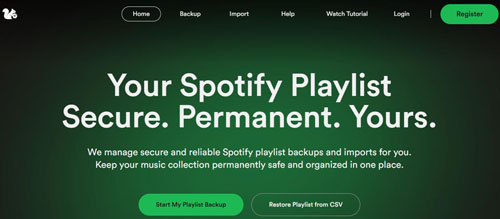
You can just use Playlist Backup tool online, go to Backup and choose Spotify, then log in to your Spotify account. Next, find and copy the link to the playlist you want to back up. Later, go back to Playlist Backup webpage, paste the link address into the text box and tap Backup. At last, you can export Spotify music to CSV file on your computer for backup and keep forever.
Part 3. How to Save and Play Spotify Music Forever Anywhere
Now that you've downloaded Spotify music on your computer locally, it's time to move your Spotify downloads to external hard drive or other devices to enjoy offline. This can be a smart move, especially if you have a large music library that takes up a lot of space on your computer's hard drive. Below, follow us to learn how to keep Spotify downloads forever on a USB drive, SD card, cloud storage, car, mobile, MP3 player, etc.
How to Keep Spotify Music Forever on USB Drive

Step 1. Insert your USB drive into an available USB port on your computer.
Step 2. Navigate to the Spotify files and move Spotify music to the USB drive.
Step 3. You can select multiple files or folders by holding down the Ctrl key while clicking on each item.
Step 4. Right-click on the selected files or folders and choose Copy from the context menu.
Step 5. Navigate to the USB drive in File Explorer. It should appear as a new drive under This PC.
Step 6. Right-click on an empty space in the USB drive folder and choose Paste.
Step 7. Once the copy is complete, safely eject the USB drive by right-clicking on its icon in File Explorer and choosing Eject from the context menu.
Step 8. That's it! Your Spotify music should now be safely stored on your USB drive. Then you can use Spotify music on your car, TVs, audio systems, etc. through the USB drive.
How to Keep Spotify Downloads Forever on SD Card

Step 1. Insert the SD card into your device's SD card slot.
Step 2. Go to the folder where your local music is stored.
Step 3. Select the Spotify music files and move Spotify music to the SD card.
Step 4. Tap and hold on the selected files until a menu appears.
Step 5. Tap Move or Cut from the menu.
Step 6. Navigate to the folder on the SD card where you want to move the files.
Step 7. Click on Paste to move the selected files to the SD card.
After that, you can insert the SD card with Spotify music into your Android phone/table, portable music players, car, etc. for keeping and playing forever.
Part 4. FAQs about Keeping Spotify Songs Forever
Is It Legal to Keep Spotify Music Forever?
It depends on how you use the music. Saving Spotify songs as local files for personal, offline listening is fundamentally different from distributing or sharing copyrighted music. However, selling, uploading, or publicly sharing Spotify music without authorization may violate copyright laws and Spotify's Terms of Use. Please ensure you use the saved music responsibly and comply with relevant copyright laws and licensing terms.
Can I Keep My Spotify Music If I Switch to Another Music Streaming Service?
Switching to another streaming service does not automatically migrate or preserve your Spotify music. While you can use playlist migration tools to transfer your playlists, your Spotify offline downloads cannot be transferred along with them. If you wish to continue listening to these songs offline after switching services, it is best to save them as local audio files in advance.
How Much Storage Do I Need to Keep Spotify Music Forever?
The required storage space depends on the number of songs and the audio format you choose. MP3 files typically take up less space, whereas lossless formats like FLAC require more storage but offer superior sound quality. If you plan to archive a large music library, using an external hard drive or solid-state drive (SSD) is recommended.
Part 5. In Conclusion
Here are three ways for you to keep Spotify music forever. You can do that via converting, recording or backup based on your needs.
If you have a large music library, using AudFree Spotify Music Converter is your best choice. With it, you can download Spotify songs to the computer locally and keep them forever for free. You can also store your downloaded songs on an external hard drive like SD card to keep them safe and accessible at all times. Now, just enjoy your favorite Spotify music without worrying about losing it due to subscription cancellations or other issues.

Chief Editor


