


Enjoying Apple Music on Sonos is one of the easiest ways to bring high-quality music into every room of your home. Whether you want to stream Lossless Audio, experience immersive Dolby Atmos music, or control playback with your voice, Sonos offers deep integration with Apple's streaming service.
In this guide, you'll learn how to connect Apple Music to Sonos using the official Sonos app, optimize audio quality, enable hands-free voice control, and discover an alternative method for keeping your favorite Apple Music tracks permanently available - even without an active subscription.


Part 1. How to Connect Apple Music to Sonos Using the Official Sonos App
The easiest way to play Apple Music on Sonos is by linking your Apple Music account directly through the Sonos app. Once connected, your Sonos speakers stream music directly from Apple's cloud servers over your home Wi-Fi network.
Unlike AirPlay or Bluetooth wireless playback, your phone or tablet simply acts as a controller in this method. After you start playback, the speakers continue streaming independently, so your music won't stop if you receive a phone call, open another app, or even leave the house.
Beyond the official Sonos and Apple Music integration, there is a more flexible and stable way to stream your favorite tracks. By playing local, lossless Apple Music files directly through your Sonos speakers - a method we will explore in detail in Part - you can ensure an uninterrupted, high-fidelity listening experience
How to Set Up Apple Music for Sonos and Stream via Sonos App
On iOS or Android Devices:
Step 1. Verify that your smartphone or tablet is connected to the same Wi-Fi network as your Sonos ecosystem.
Step 2. Launch the Sonos app and tap the 'Settings' gear icon in the navigation bar.

Step 3. Select 'Services & Voice > Add a Service/Add Music Service' under the music and content sub-menu.

Step 4. Locate Apple Music from the alphabetical catalog, or search for it.
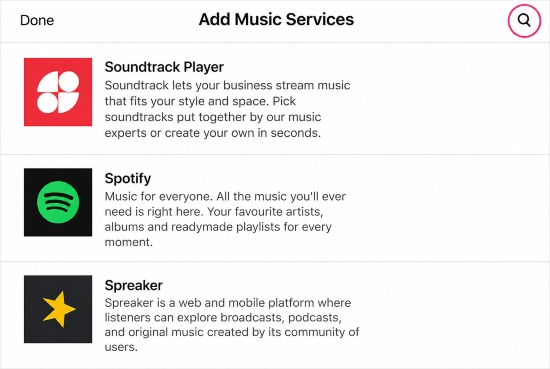
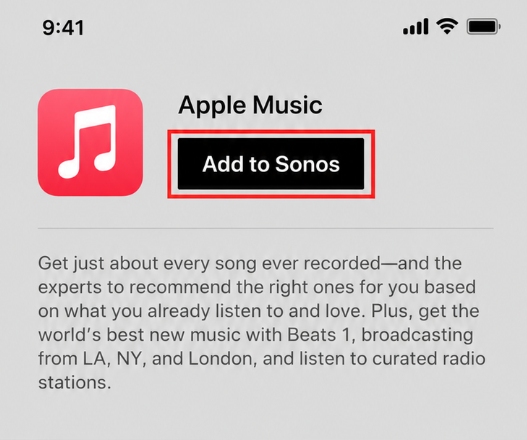
Step 5. Tap 'Add to Sonos' and select whether you are linking an existing subscription or starting a trial.
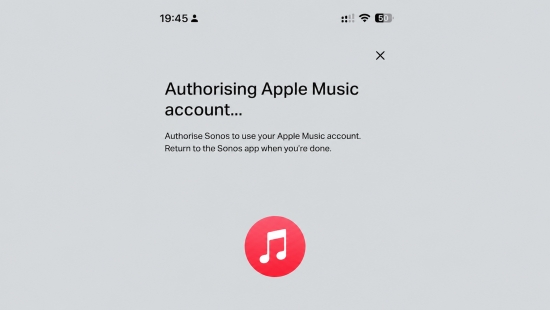
Step 6. Follow the on-screen prompts to automatically redirect to the Apple Music app, enter your Apple ID credentials, and authorize the connection.
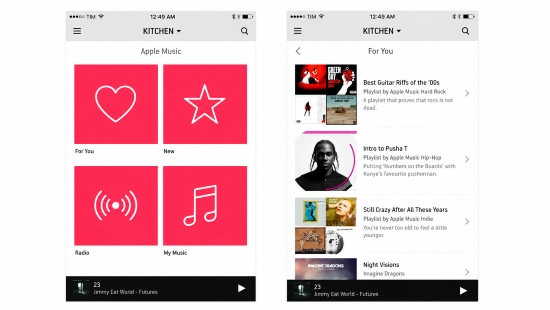
Step 7. Once linked, return to the Sonos app. Apple Music will be available under your 'Browse' tab.
On Mac or Windows Desktop Sonos Controllers:
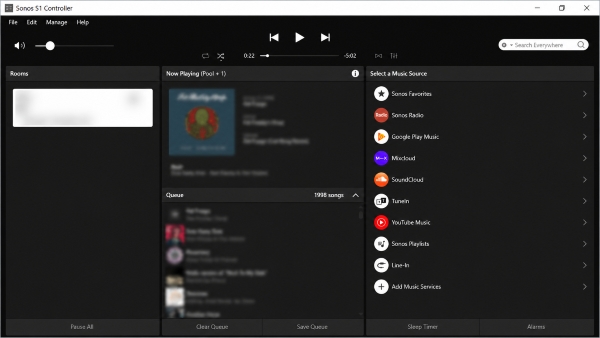
Step 1. Open the desktop Sonos Controller application on your PC or Mac.
Step 2. Navigate to the right-hand panel and click on 'Add Music Services'.
Step 3. Choose Apple Music from the streaming platform choices and sign in.
Step 4. Follow the authentication prompts to sign into your Apple ID and securely authorize the handoff to your Sonos system.
Step 5. After authentication, Apple Music will appear in your music services library.
Step 6. Start browsing albums, playlists, and radio stations directly from the desktop controller.
Benifits: Enjoy High-Quality Audio with Apple Music on Sonos
One of the biggest advantages of using the native Sonos integration is that it supports Apple's premium audio formats over Wi-Fi.
- Lossless Audio: Compatible Sonos speakers can stream Apple Music Lossless at up to 24-bit/48 kHz, delivering significantly better sound quality than standard compressed streaming.
- Dolby Atmos & Spatial Audio: If you own supported models such as the Sonos Arc Ultra, Beam (Gen 2), or Era 300, Apple Music can also play Dolby Atmos tracks for a more immersive, three-dimensional listening experience.
Limitations of Official Apple Music Playback on Sonos
Although the native Sonos integration offers an excellent listening experience, it also comes with several limitations that many users don't realize until later.
- No Local Downloads on Sonos: Downloading songs in the Apple Music app does not transfer them to your Sonos speakers. Sonos devices do not include user-accessible storage for saving Apple Music tracks locally. Every song is streamed from Apple's servers whenever you press Play.
- DRM Encryption Roadblocks: Even if you have downloaded your entire Apple Music library onto your iPhone or Mac for offline listening, those files are locked in a secure M4P format protected by Digital Rights Management (DRM). If your residential broadband internet connection drops, your Sonos speakers cannot access, read, or decode those cached mobile files over your local network.
- Subscription Tethering: Your Apple Music library remains tied to your subscription. If you ever decide to pause or cancel your monthly Apple Music subscription, your entire cloud ecosystem, custom playlists, and linked catalog access across your Sonos app disappear instantly.
Part 2. How to Download and Play Apple Music on Sonos Without Subscription (Local Files)
If you want to maintain permanent access to your curated Apple Music playlists without a recurring monthly subscription fee, or if you need a reliable offline playback setup that remains completely immune to internet service outages, AudFree Apple Music Converter provides the ultimate solution.
This dedicated desktop software allows you to seamlessly decode and extract songs, full albums, and personalized playlists from Apple Music, saving them directly onto your computer's local hard drive. Operating at fast batch-conversion speeds, AudFree transforms encrypted files into open audio formats like MP3, FLAC, or WAV while preserving original ID3 metadata tags (including artist names, high-resolution album artwork, track orders, and genres).
By storing unencrypted, bit-perfect copies of your Apple Music tracks on a local drive or NAS setup, you can access them anytime via the Sonos Local Music Library path. This gives you high-fidelity, 100% offline playback that never requires an internet connection or an active monthly subscription.
AudFree Apple Music Converter

- Remove DRM protection from Apple Music losslessly
- Convert Apple Music to MP3, WAV, FLAC, M4A, etc.
- Hi-Res audio quality up to 24-bit, 192kHz supported
- Work at 17x faster speed with full metadata kept
Steps to Download and Stream Apple Music on Sonos via AudFree
- Step 1. Configure Apple Music Output Parameters for Sonos

- Launch AudFree Apple Music Converter on your Mac or Windows computer. Click the top-left 'AudFree Apple Music Converter' icon > 'Preferences' to open the audio settings window. Here, you can change your target output format to MP3 for standard versatility, or choose FLAC to preserve original high-fidelity sound. And you can also adjust audio channels, sample rates, and bitrates to match your sound preferences, then click 'OK'.
See also: How to Convert Apple Music to FLAC
- Step 2. Add Apple Music to AudFree Conversion List

- Browse the playlists within the built-in Apple Music web player, and click the '+' button to load them to the conversion list.
- Step 3. Batch Convert Apple Music for Sonos

- Click the 'Convert' button to begin removing DRM protection from your Apple Music tracks and downloading them locally to your computer. Once the process is complete, simply click the 'Converted' icon in the top right corner to access your unprotected audio files. From there, you are all set to play lossless Apple Music on your Sonos speakers without any restrictions!
- Step 4. Launch the Sonos Desktop App

- Open the desktop version of the Sonos Controller application on your computer. Look at the top system taskbar menu, select the 'Manage' dropdown list, and click on 'Music Library Settings'.
- Step 5. Map and Sync the Local Folder with Apple Music on Sonos

- Click the 'Add' option (on Windows) or the '+' (Plus) sign (on macOS). Select 'My Music' folder or browse to the exact folder path where AudFree exported your converted files. Follow the on-screen permissions prompts to allow Sonos to index the directory. You can now access your converted Apple music via the 'Music Library' menu on any Sonos controller completely offline.
Looking to play Spotify or Tidal on your Sonos just like the method described above? For users with multiple streaming subscriptions, using the AudFree Streaming Audio Recorder is a much more versatile choice. It fully supports offline playback extraction across a wide variety of platforms, including Tidal, Qobuz, Spotify, and SoundCloud.
Part 3. How to Play Apple Music on Sonos without Sonos App (AirPlay & Casting)
If you prefer the user interface, personalized recommendations, and search mechanics of Apple's native software over the Sonos app layout, you can bypass the Sonos Controller completely using direct wireless streaming protocols.
Method 1. Via Apple AirPlay 2 (For iOS and Mac Users)
Apple AirPlay 2 utilizes a high-bandwidth local Wi-Fi connection to cast audio streams straight from Apple devices to compatible Sonos speakers, like the Era 100, Era 300, or other models.

Step 1. Launch the native Apple Music app on your iOS device and start playing any track.
Step 2. Swipe down from the top-right corner of your screen to pull up the system 'Control Center'.
Step 3. Tap the 'AirPlay' audio indicator icon (concentric rings with a triangle base) inside the media playback card.
Step 4. Select your target Sonos speaker or preset speaker grouping from the list. Your Apple Music tracks will instantly stream over Wi-Fi.
While AirPlay 2 supports CD-quality (16-bit/44.1kHz) stereo playback, Apple's transmission protocol downmixes Dolby Atmos spatial audio streams into standard stereo when transmitting to third-party speakers. For true multi-dimensional surround sound, you must use the native Sonos app setup outlined in Part 1.
Method 2. Via Android Apple Music App
If you use the Apple Music app on an Android device, you can use the built-in casting tools to route audio over Wi-Fi to compatible Sonos hardware.

Step 1. Open the Apple Music application on your Android smartphone.
Step 2. Tap on any song to bring up the full 'Now Playing' media screen.
Step 3. Look for the 'Cast' icon located near the top or bottom of the active playback window.
Step 4. Tap the icon and select your local Sonos speaker system from the pop-up device menu to transfer the stream.
Method 3. Via Bluetooth
If you are running into local Wi-Fi router connectivity issues or setting up a portable speaker outdoors, you can use a direct Bluetooth connection to stream Apple Music to Sonos speakers.
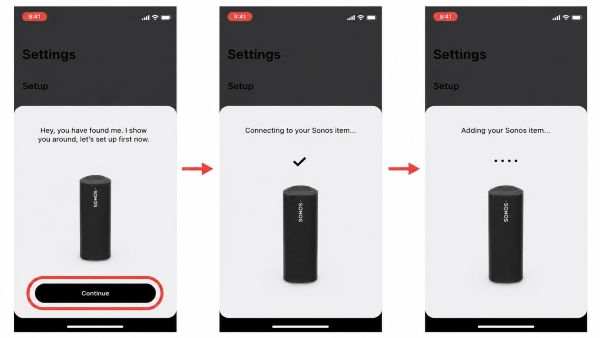
Step 1. Locate the physical Bluetooth pairing button on the rear chassis of your compatible Sonos speaker (such as the Era 100, Era 300, Move 2, or Roam 2).
Step 2. Press and hold the button until the front LED status indicator flashes a blue light sequence, signaling pairing readiness.
Step 3. Open the Bluetooth Settings menu on your source phone or computer.
Step 4. Select your Sonos speaker model from the scanned device listings to pair it. Once connected, open Apple Music and play your tracks directly.
Part 4. Bonus Tip: Controlling Apple Music on Sonos via Voice Assistants (Alexa & Siri)
One of the best benefits of combining Apple Music and Sonos is the ability to use hands-free voice commands. You can set this up through either Amazon Alexa or the Apple ecosystem.
1. Setup Voice Control via Amazon Alexa
If your Sonos speaker features a built-in microphone array (such as the Sonos Era 100, Era 300, Arc, or Beam), you can make Apple Music your default voice playback engine.

Step 1. Open the 'Amazon Alexa App' on your phone.
Step 2. Tap 'More' in the bottom menu and select 'Skills & Games'.
Step 3. Search for Apple Music, tap it, and select 'Enable to Use'. Follow the prompts to sign into your Apple ID.
Step 4. Once enabled, go to 'Settings > Music & Podcasts' within the Alexa app.
Step 5. Tap 'Default Services' and change your default music library and station options to 'Apple Music'.
Step 6. You can now speak directly to your speaker: "Alexa, play my Chill Mix on Apple Music" or "Alexa, play the latest album by Taylor Swift".
See also: How to Play Apple Music on Alexa
2. Setup Voice Control via Siri (Apple HomeKit Integration)
While you cannot speak directly to a Sonos speaker to invoke Siri (as Siri is exclusive to Apple hardware), you can use your iPhone, iPad, or Apple Watch to send voice commands to your Sonos system.
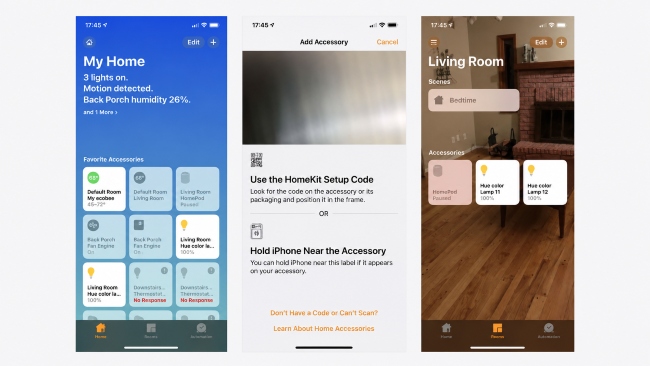
Step 1. Open the native 'Apple Home App' on your iOS device.
Step 2. Tap the '+' (plus) icon in the top right corner and choose 'Add Accessory'.
Step 3. Tap 'More Options' or select 'Don't Have a Code' or 'Can't Scan?', then select your Sonos speaker from the nearby list to add it to a specific home room.
Step 4. Once added, you can raise your iPhone or speak to a HomePod: "Hey Siri, play Apple Music in the Living Room" or "Hey Siri, skip this track on the Patio speaker".
Part 5. Fix Apple Music Not Working on Sonos (Quick Troubleshooting)
If your Apple Music stream in Sonos unexpectedly pauses, drops connection, or fails to initialize, use this quick checklist to restore your audio system.
1. Fixing "No Selections Available" and "Database Browsing Errors"
The Root Cause: This occurs when secure security tokens between Apple's account servers and Sonos's network infrastructure become desynchronized after background software updates.
- The Fix: Open your Sonos application, head to 'Settings > Services & Voice > Apple Music', and click 'Remove Account'. Reboot your phone or computer, re-enter the menu, choose 'Add a Service', and re-authenticate your account to create a fresh secure connection token.

2. Eliminating Track Skipping and Playback Buffering Drops
The Root Cause: High-latency local network drops or heavy 2.4GHz Wi-Fi radio frequency congestion can prevent speakers from maintaining real-time multi-room audio synchronization.
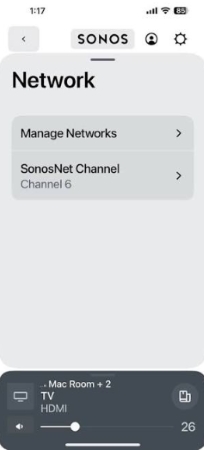
- The Fix: Log into your home router's settings panel and change your 2.4GHz Wi-Fi channel selection to a less congested option (channels 1, 6, or 11 are recommended). For ideal stability, connect one primary Sonos speaker directly to your internet router with an Ethernet cable to trigger SonosNet, a private mesh network reserved exclusively for your speakers.
3. Fixing Missing iCloud Music Library Playlists
The Root Cause: If custom playlists created on your iPhone fail to appear inside the Sonos app interface, it is usually because the "Sync Library" cloud option is disabled within your Apple device settings.
- The Fix: On your iPhone, open 'Settings > Music' and ensure the 'Sync Library' toggle switch is turned on. Give your system a few minutes to update its iCloud indexing across your connected devices.

Part 6. FAQs about Apple Music on Sonos
Can I play Apple Music Lossless audio quality directly through Sonos?
Yes. When streaming Apple Music natively through the official Sonos Controller app over a stable Wi-Fi network, Sonos supports streaming quality up to 24-bit, 48kHz. This provides a clear upgrade over standard compressed Bluetooth options.
Why can't I use Apple AirPlay 2 to stream Dolby Atmos tracks to my Sonos Era 300?
Apple's AirPlay 2 transmission protocol currently downmixes spatial audio streams into standard linear PCM stereo format when transmitting to standalone third-party speakers. To hear true multidimensional Dolby Atmos audio on supported Sonos hardware, you must select and play the tracks directly within the official Sonos App.
Will my downloaded Apple Music files still play on Sonos if I cancel my subscription?
No. Standard tracks downloaded within the official Apple Music app are protected with digital encryption and will become unplayable once your subscription plan ends. To keep your tracks permanently available for offline use on your Sonos system, you need to convert and download them into unprotected formats using AudFree Apple Music Converter before your subscription terminates.
Part 7. Final Verdict: What's the Best Way to Use Apple Music with Sonos?
There are several ways to enjoy Apple Music on Sonos, and the best option depends on your listening habits. Some users prioritize the highest possible audio quality, while others value convenience, hands-free control, or the ability to keep their music permanently.
The table below compares the most popular methods for streaming Apple Music on Sonos, helping you quickly choose the one that best fits your needs.
| Streaming Method | Best For | Max Audio Quality | Internet Required | Voice Control | Keep Music After Subscription Ends | Subscription Required | Overall Rating |
|---|---|---|---|---|---|---|---|
| Native Sonos App | Everyday streaming, multi-room playback | Lossless (Up to 24-bit/48kHz) + Dolby Atmos | ✅ | ✅ | ❌ | ✅ | ★★★★★ |
| AirPlay 2 | Streaming from iPhone, iPad, or Mac | CD-Quality Lossless (Up to 16-bit/44.1kHz) | Depends (Available offline with an active plan) | ✅ | ❌ | ✅ | ★★★★☆ |
| Android Casting | Android users without AirPlay | Standard Compressed | Depends (Available offline with an active plan) | Limited | ❌ | ✅ | ★★★★☆ |
| Bluetooth | Quick, casual listening (supported models only) | Compressed audio | Depends (Available offline with an active plan) | Limited | ❌ | ✅ | ★★★★☆ |
| AudFree Apple Music Converter + Local Library | Permanent offline playback and local music management | Lossless MP3, FLAC, WAV, AIFF, etc. | ❌ | Limited | ✅ | ❌ | ★★★★★ |
In Short
If you're an Apple Music subscriber looking for the simplest and most seamless experience, the Native Sonos App is the best overall choice. It offers direct integration with Apple Music, supports multi-room playback, and unlocks Lossless Audio and Dolby Atmos on compatible Sonos speakers.
If you primarily listen from an iPhone, iPad, or Mac, AirPlay 2 provides an easy way to cast music directly to your Sonos system. For Android users, built-in casting offers similar convenience, while Alexa and Siri make controlling Apple Music on Sonos even easier with hands-free voice commands.
However, if you want to enjoy Apple Music on Sonos without relying on an internet connection or maintaining an active subscription, building a local music library is the most flexible solution. By converting your Apple Music tracks to standard audio formats with AudFree Apple Music Converter, you can import them into your Sonos Music Library and play them anytime - without DRM restrictions or subscription limitations.

Staff Editor


