


"Can Philips Hue sync with Spotify?" Yes. Now, Philips Hue offers a deep and native integration directly inside the Hue app. It pulls metadata from Spotify in real-time to create a light script that matches the tempo, genre, and mood of your tracks perfectly.
So in this post, we will show you how to connect Spotify to Philips Hue officially and how to fix common sync issues. Besides, we will provide a powerful method to you to create a lag-free and offline music-and-light show without connecting to WiFi network.


Part 1. How to Connect Philips Hue to Spotify Officially
Now, we will walk you through how to link Spotify to Philips Hue to sync your lights via the official and easiest way. But it requires specific hardware. Before you open the app, ensure you have the following three requirements:
1. A Philips Hue Bridge (v2): You must have the square v2 Bridge to handle the rapid data transfer.
2. Color-Capable Hue Lights: White Ambiance bulbs will only dim; for the full effect, you need "White and Color Ambiance" bulbs or Play Bars.
3. An Active Spotify Account: Spotify Free or Premium both work perfectly.
You can't use Spotify with Philips Hue via the 'Bluetooth-only' connection.
How to Connect Spotify to Philips Hue
After that, follow these steps to set up the light show.
Step 1. Open the Philips Hue app and click the Settings option in the bottom-right corner.
Step 2. Choose 'Entertainment areas' from the menu and click the '+' button to create a new one.
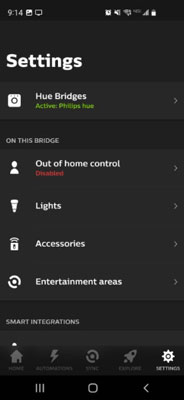
Step 3. Select 'Listening to music' as the priority and give a name to your area.
Step 4. Choose your lights and the app will show a virtual room with a TV/Speaker icon. Then drag the lights on the screen to match their physical location in your room. The app uses this 3D map to direct sound accurately. After that, tap 'Done'.
Step 5. Go back to the main menu and choose the Sync option at the bottom center of the Hue app.
Step 6. Click the Get Started button on the Spotify card to proceed to log in to your Spotify account.
Step 7. Once connected, you will return to the Hue app. Then choose the Entertainment Area you just created.
Step 8. Open the Spotify app to play any song. Then switch back to the Hue app and click the Sync icon (Play button) on the screen. Now, your lights will immediately react to the beat!
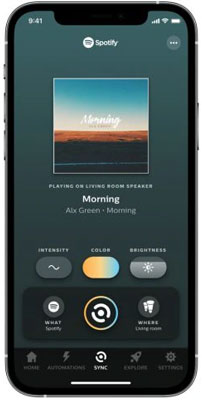
How to Customize Your Experience with Spotify Philips Hue
Besides, you can use the customization tools in the Philips Hue to tweak how the lights behave.
Intensity Settings:
Under the Sync option, there is an Intensity slider.
Subtle: Good for dinner parties or background jazz. Lights will gently fade between colors.
Moderate: The default setting. Good for pop and rock.
High/Intense: Best for EDM, Techno, or high-energy parties. The lights will strobe and flash rapidly.
Color Palettes:
By default, Hue pulls the prominent colors from the album art of the song playing. However, you can override this. Tap the Color Palette icon to choose a preset mood, such as "Miami" (Pinks and Teals) or "Nebula" (Purples and Blues), ensuring your room matches your specific aesthetic regardless of the album cover.
View also: What Is Spotify Color Palette
Part 2. Troubleshooting Philips Hue Spotify Common Issues
While using Spotify with Philips Hue, there are some common errors that you may encounter. Let's check them out and learn how to fix them.
Issue 1: 'Bridge Not Found' or Connection Failed on Spotify Philips Hue
This usually happens because the Hue Bridge and your phone are on different network frequencies (2.4GHz vs 5GHz), or the Bridge firmware is outdated.
Fix: Go to Hue app's Settings > Software Update and ensure your Bridge is on the latest version. Also, reboot your Wi-Fi router.
Issue 2: Spotify Audio Delay on Philips Hue
Since Philips Hue Spotify native integration uses a cloud-to-cloud connection (Spotify Server > Hue Cloud > Your Bridge > Your Lights), lag can occur if your internet is slow.
Fix: Ensure you are not downloading heavy files on other devices. If using Bluetooth speakers, the delay might be in the audio, not the lights. Try connecting your speaker via Aux cable to test.
Issue 3: Spotify Songs Greyed Out on Philips Hue
The native Hue integration relies on Spotify's metadata. Occasionally, certain podcasts or local files uploaded to Spotify will not trigger the light scripts because the metadata is missing or DRM-protected differently.
Fix: Download and save Spotify music as local files.
Part 3. Bonus Tips: How to Use Philips Hue with Spotify Offline
However, the native Spotify Philips Hue integration requires a stable internet connection, a specific hardware setup, and doesn't work with offline local files. Besides, it will drain your phone battery as the app must stay active. So, we are here to share an alternative way that lets you download Spotify music for offline playback and then you are able to enjoy Spotify with Philips Hue without Internet and lag issue.
To begin with, we'll need a professional third-party tool named AudFree Spotify Music Converter to download and convert Spotify music to local music files. It is capable of converting Spotify music to MP3, FLAC, WAV, AIFF, M4A, and M4B without quality loss.
AudFree Spotify Music Converter offers a long-term free trial version for Mac and Windows users to fully try out its features before purchasing. After you successfully installed it on your computer, you can follow the simple steps below.
Step 1. Launch AudFree Spotify Music Converter. Find the Spotify music you want to download and add them into AudFree software.
Step 2. Go to 'Menu' > 'Preferences' > 'Conversion' to select output format and other audio parameters as you like.
Step 3. Click the 'Convert' button to start to download Spotify songs for offline playing with Philips Hue.

Step 4. Download and install Philips Hue Sync desktop app on your computer.
Step 5. Connect it to your Bridge and choose your Entertainment Area.
Step 6. Choose and play the converted Spotify music via any media player on your computer.
Step 7. In the Hue Sync app, set the 'Audio Source' to 'System Sound'. Then choose Music mode and tap Start Light Sync. The app will now listen to your playing Spotify music from your computer's audio output in real time.
To get Spotify music for Philips Hue, here is another tool that you shouldn't miss. It is AudFree Streaming Audio Recorder, which can also download and save Spotify music as common audio files for offline playback. What's more, it supports Apple Music, YouTube Music, SoundCloud, Deezer, Qobuz, etc.
Part 4. FAQs about Spotify with Philips Hue
Can I Use Siri/Alexa/Google Assistant to Control Spotify Philips Hue Sync?
Yes. Once you have linked Spotify to Philips Hue, you can use voice commands to ask Alexa, Siri or Google Assistant to control playback.
How Many Philips Hue Lights Can I Sync with Spotify at Once?
You can sync a maximum of 10 lights at once. This is because the Philips Hue 'Entertainment Area' (which is required for the high-speed Spotify sync) has a hard limit of 10 synchronized lights per area to prevent network lag. Though you can have up to 50 lights connected to your Bridge, only the 10 you select for your specific Entertainment Area will react to the music simultaneously.
My Philips Hue Lights Are Flashing Too Much. How Do I Stop It?
Go to the Sync tab in the Hue app. Lower the intensity slider to the left (Subtle). Alternatively, verify that you haven't accidentally set your 'Background Music' entertainment area to 'Intense'.
Part 5. In Conclusion
Connecting Philips Hue to Spotify is one of the most rewarding smart home upgrades you can make. For most users, using the native Philips Hue app with Spotify is the perfect solution, as it's free, easy to set up, and works wirelessly.
However, if you want to play offline, or if you want to sync a curated playlist of local tracks without worrying about internet buffering, AudFree Spotify Music Converter is your secret weapon. By converting your favorite Spotify playlists to local high-quality audio, you can make the music and the lights never stop.

Chief Editor


