


Switching music platforms is really a common phenomenon today. Many users start with YouTube or YouTube Music because of its massive video library, remixes, and live performances. Later, they moved to Apple Music for its superior sound quality, better device integration, curated playlists, and lossless audio support.
But here's the problem:
There is no official one-click method to transfer YouTube or YouTube Music to Apple Music directly. The two platforms operate differently, and content licensing restrictions prevent native transfers.
So, how can you transfer YouTube to Apple Music smoothly? Keep reading to discover the fastest, most reliable ways to migrate your YouTube library today.


Part 1. How to Convert YouTube/YouTube Music to Apple Music (Lossless Audio)
If your goal is to keep YouTube songs permanently - whether from YouTube or YouTube Music - enjoy higher audio quality, and add these songs to Apple Music as local files, then converting YouTube content into Apple Music-compatible formats is the most reliable solution.
Here, two powerful tools from AudFree can help:
- AudFree Streaming Audio Recorder
- AudFree Audio Capture
1. How to Move YouTube Music Playlist to Apple Music via AudFree Streaming Audio Recorder
AudFree Streaming Audio Recorder is a versatile, professional all-in-one YouTube Music downloader designed to download and convert streaming audio into common formats with lossless sound quality and complete metadata.
It is a powerful advanced tool specializing in batch downloading YouTube Music playlists, albums, and tracks from YouTube Music and nine other major streaming platforms. In addition to lossless format, it supports multiple output formats, including MP3, FLAC, WAV, M4A, M4B, and AIFF.
AudFree Streaming Audio Recorder

- Convert YouTube music to MP3, WAV, FLAC, and more
- Download YouTube entire albums or playlists in bulk up to 30X speed
- Ad-free output with original audio quality
- Automatically recognize and retain ID3 tags
- Available for Windows and macOS
How to Download Songs from Youtube Music to Apple Music via AudFree Streaming Audio Recorder
To ensure compatibility with Apple Music local files, choose formats such as MP3, AAC, WAV, AIFF, or ALAC.
- Step 1. Set Output Format of YouTube Music

- Launch the AudFree Streaming Audio Recorder for YouTube on your windows or mac computer. Click the menu icon > Preferences > Conversion, then choose any format above as an output format. You can also customize the bitrate, sample rate, and audio channels. Under the Output tab, select your preferred destination folder and enable ID3 tag retention.
- Step 2. Add YouTube Music Tracks for Conversion
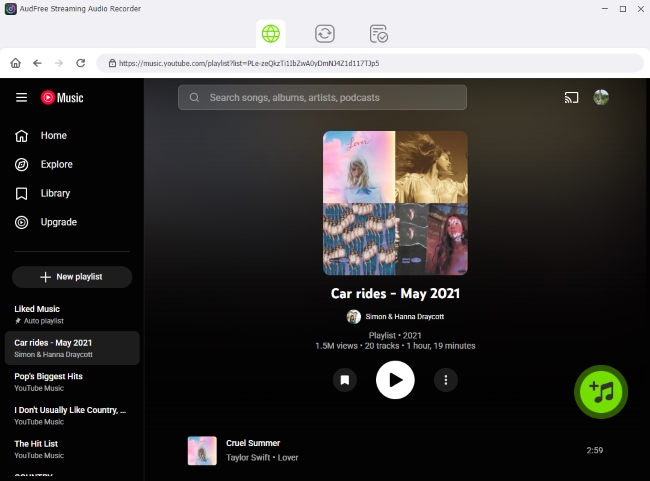
- After saving your preferences, click the YouTube Music icon on the main interface and sign in to your account via the built-in web player. Browse to the YouTube Music songs, playlists, or albums you want, then tap the green '+' button to add them to the conversion list. There is no limit to the number of tracks you can add at one time.
- Step 3. Start Conversion From YouTube Music to Apple Music-Compatible Files

- Go to the Converting tab and click Convert button. The AudFree converter will begin downloading and converting YouTube Music to your selected format in bulk. Once finished, all converted files will appear in your selected output folder and can also be accessed under the Converted section.
- Step 4. Transfer YouTube Music to Apple Music via iTunes on Windows

- Install and open iTunes on your computer and sign in with your Apple Music account. Click File > Add File to Library or Add Folder to Library, then select your converted YouTube Music files. They will be imported into your Apple Music library and can be synced across devices.
Pros and Cons of AudFree Streaming Audio Recorder
Supports batch downloading entire YouTube Music playlists, albums, and tracks (up to 30X speed);
Exports multiple Apple Music-compatible formats (MP3, FLAC, WAV, AIFF, M4A, etc.);
Compatible with over 10 main streaming services for lossless download;
Keeps original audio quality and automatically retains full ID3 tags
Requires software installation (not web-based);
Free trial has limitations (lifetime free trial: first 30 seconds export)
2. How to Export YouTube or YouTube Music Playlist to Apple Music via AudFree Audio Capture
Another effective way to sync YouTube playlists to Apple Music is by using AudFree Audio Capture. With this tool, you can record YouTube audio (from YouTube & YouTube Music) and save it to your computer as local files, then upload those local files to Apple Music.
The software automatically recognizes ID3 tags, and you can edit them manually if needed. It also allows you to customize output parameters such as format, channel, encoder, bitrate, and sample rate. Supported formats include MP3, FLAC, AAC, WAV, M4A, M4B, and more, over 16+. The recorded YouTube songs will be saved as high-quality local files, allowing you to play them on Apple Music even without a network connection.
In addition, AudFree Audio Capture can record audio from any application on your computer. Overall, it's a flexible solution for enjoying YouTube music within Apple Music without limitations.
AudFree Audio Capture

- Record audio from YouTube losslessly
- Capture all types of audio from your computer
- Convert recorded YouTube audio to MP3, FLAC, WAV, AAC, etc.
- ffer cut, merge and modify info functions of each audio
- Easily transfer YouTube tracks to Apple Music
How to Download Songs from YouTube to Apple Music
Below is a step-by-step guide on how to use AudFree Audio Capture to record audio from YouTube and sync it to Apple Music.
- Step 1. Launch AudFree Audio Capture

- Please install and open the AudFree Audio Capture on your computer (Windows or Mac). The AudFree program works well both on Windows and Mac computers. On the main window, you will see the Select/Add an App section. You can click on the '+' option to add Chrome browser to the program.
- Step 2. Choose output audio formats

- Please hit the Format section on the bottom of the program. Then you can select the output format you want. Also, you can click on the Settings icon to process to refine the channel, encoder, bit rate and sample rate according as needed. It is recommended to choose AIFF or WAV as the output format to keep the best audio quality from YouTube.
See also: How to Download YouTube Music to WAV
- Step 3. Start recording audio from YouTube

- Close the settings window. Then go to the 'Select/Add an App' section to choose the target web browser, like Chrome. Next, click 'Start' to go to enter the YouTube web page via the browser. Play the YouTube video containing your desired music or your favorite YouTube playlist. The AudFree YouTube to Apple Music Converter will rip audio from videos or songs on your computer and you can see the recording process in real time.
- Step 4. Edit and save YouTube audio records

- After clicking Stop to finish the whole YouTube audio recording, you can touch the Edit ID3 Tags icon to edit the ID3 tags and tap Trim to trim the recordings. Then click the Save button to store the playlists of YouTube on your computer. You can locate the downloaded audio in the destination folder by hitting the History > Search icon.
- Step 5. Copy YouTube/YouTube Music Playlist to Apple Music via Apple Music App on Mac

- Click File > Add to Library (or Import) and select the your converted YouTube files from your destination folder. After importing, click File > Update Cloud Library to sync your songs to Apple Music. Now you can play YouTube songs in Apple Music anytime and on any device.
Pros and Cons of AudFree Audio Capture
Records audio from YouTube, YouTube Music, and any audio on computer;
Supports 16+ output formats with customizable bitrate & sample rate;
Built-in editing tools (trim, cut, merge, edit ID3 tags)
Works in real-time recording (slower than direct conversion tools);
Requires manual playback during recording;
Audio quality depends on source playback quality (up to lossless)
Part 2. How to Transfer YouTube Music Playlist to Apple Music Free Online via Soundiiz
If you don't need to download physical audio files and simply want to migrate your library, online playlist transfer services like Soundiiz or TuneMyMusic are the most convenient solutions. These tools "match" your YouTube tracks with the versions available in the Apple Music catalog.
Below, we'll use Soundiiz as our primary example.
✅ Platform Versatility: Supports over 40+ major streaming services, including Spotify, Tidal, and Deezer.
✅ Efficiency: High-speed transfer capabilities for large music libraries.
✅ Free Tier: Allows you to import playlists from YouTube to Apple Music of up to 200 tracks at no cost.
✅ Smart Management: Batch edit, merge, or join playlists across different platforms.
✅ Synchronization: (Premium) Automatically keep your YouTube and Apple Music playlists synced.
Step 1. Visit the Soundiiz official website and click "Start for free". You can sign in using your Google, Facebook, or Apple account, or simply create an account with your email.

Step 2. Hit the Transfer option on the left of the interface. Select YouTube as the source service and Apple Music as the destination service. Then hit the Start button.

Step 3. Choose a target category from playlists, albums, artists or tracks to transfer. Click Confirm my selection.

Step 4. Please configure your audio from YouTube to Apple Music and then hit the Save configuration option.

Step 5. In this step, you can select your favorite tracks and hit Confirm > Begin the transfer. The process will start and you will add songs from YouTube to Apple Music.

Pros and Cons of Soundiiz
No software installation required (100% web-based);
Supports 40+ streaming platforms, including YouTube Music and Apple Music;
Free tier allows a playlist transfer up to 200 tracks
Does not generate local audio files;
Relies on track matching - some songs may not transfer accurately;
Full sync and automation require Premium subscription
Part 3. Comparison of YouTube to Apple Music Tools
We have explored three distinct methods for migrating your music from YouTube to Apple Music: AudFree Streaming Audio Recorder, AudFree Audio Capture, and Soundiiz. While all three are effective, they serve different purposes. To help you choose the right tool for your workflow, refer to the comparison table below.
| Features | AudFree Streaming Audio Recorder | AudFree Audio Capture | Soundiiz |
|---|---|---|---|
| Price | $29.95/month; $69.95/year; $159.95/lifetime | $14.95/month; $44.95/year; $89.95/lifetime | • Creator: $9.50/month; $75/year • Premium: $5/month; $36/year |
| Creates Local Files | ✅ | ✅ | ❌ No (playlist matching only) |
| Batch Playlist Support | ✅ (bulk conversion up to 30X speed) | ⚠️ Limited (real-time recording) | ✅ |
| ID3 Tags Preservation | ✅ | ✅ | ❌ |
| Available Services | YouTube Music + 9 major streaming platforms | Any desktop app or browser audio | 40+ streaming platforms |
| Output Formats | lOSSLESS, MP3, FLAC, WAV, AIFF, M4A, and M4B | MP3, FLAC, AAC, WAV, M4A and more (16+) | CSV, TXT, XSPF, JSON, XML, and URL files |
| Free Trial/Plan Limit | Limited conversion in trial version (30 seconds) | Limited recording time in trial (1 minute) | Playlist transfer up to 200 tracks; no automatic syncs |
| Supported OS | Windows & macOS | Windows & macOS | Web-based (works on all systems) |
| Audio Quality Control | ✅ Lossless & customizable bitrate/sample rate | ✅ High-quality recording with full parameter control | ❌ No control (depends on Apple Music catalog version) |
| Speed | Very fast (up to 30X batch conversion) | Real-time recording speed | Fast cloud-based playlist matching |
| Technical Difficulty | Easy (built-in web player) | Moderate (requires recording workflow) | Moderate (Transfer workflow online) |
| Rating | ★★★★☆ | ★★★☆☆ | ★★★☆☆ |
Part 4. FAQs About Adding YouTube to Apple Music
What is the specific difference in audio quality between YouTube Music and Apple Music?
YouTube Music streams at up to 256 kbps AAC for Premium users. Apple Music also uses 256 kbps AAC as its standard format but additionally offers Lossless audio (up to 24-bit/192kHz) and Dolby Atmos spatial audio at no extra cost. Overall, Apple Music provides higher maximum audio quality and more advanced sound options than YouTube Music.
Can you add YouTube videos directly to Apple Music?
No. Apple Music does not support importing YouTube videos directly. You must first convert the YouTube video into a supported audio format such as MP3, AAC, WAV, or AIFF, then manually add the file to your Apple Music library via iTunes or the Apple Music desktop app.
Are there any free YouTube-to-Apple Music downloaders?
There are some free online YouTube downloaders available, e.g., Y2Mate or YTDown, but they often have limitations such as lower audio quality, ads, file size restrictions, or unstable performance. Professional tools like AudFree typically offer better quality control, metadata preservation, and more reliable conversion results.
Conclusion
If you want better sound quality and a more stable music ecosystem, moving from YouTube Music to Apple Music is a smart choice. With audio tools, like AudFree Streaming Audio Recorder or AudFree Audio Capture, you can convert YouTube songs into lossless formats, while online services help transfer playlists quickly. Choose the method that fits your needs - quality preservation or fast syncing - and enjoy seamless playback on Apple Music on your devices.

Staff Editor


