


Listening to radio on a PC is convenient, but it usually requires an active internet connection. If you want to save your favorite radio shows, music broadcasts, news programs, or talk shows for later, recording or downloading the audio to your computer is a practical solution. You can then listen offline, organize recordings into a local library, or transfer compatible audio files to other devices.
Fortunately, there are several ways to save radio audio on a PC offline for free. In this guide, we'll explain how to download radio to your PC for offline listening using AudFree Streaming Audio Recorder and Audacity, including their free features, limitations, and differences.

Part 1. Can You Download Radio to PC Offline?
Yes. You can save internet radio audio to your PC for offline listening for free, but the available options depend on the type of broadcast and whether the station offers downloadable content. Here are two common methods to consider.
1. Download on-demand radio shows and podcasts: Many radio programs are also published as podcasts. If an episode is available for download on the station's official website, through an RSS feed, or on a supported podcast platform, you may be able to save it directly to your computer. This is usually the simplest option when you want to listen to a specific show offline.
2. Record live internet radio streams: If a radio station broadcasts live without offering downloadable audio, you can use an audio recording tool to capture the stream as it plays. This approach may be useful for saving live music, news, sports commentary, and other broadcasts for later listening.
Not all radio stations offer downloadable shows, archived broadcasts, or podcast episodes. If a download option is available, you can usually save the radio audio directly to your computer. However, some stations only support online playback or limit downloads to selected programs.
For free offline listening, the best method depends on what you want to save. If you're looking for a specific archived show, check the station's official website first. When a downloadable podcast version is available, you can often get the episode directly without recording it in real time.
However, this option won't work for every station or program. If you want to save live broadcasts or radio content without a direct download option, an audio recording tool may be a more practical choice. Below, we'll introduce two types of recording tools and walk you through how to use them, so you can choose the method that best suits your needs.
Part 2. How to Download Radio on PC for Offline Listening for Free
If a radio station doesn't offer a direct download option, a dedicated radio recording tool can help you save audio for offline listening. AudFree Streaming Audio Recorder provides a built-in Radio section where you can browse available stations, select a show, and save its audio directly to your computer. This makes it easier to build a local audio library without relying on an internet connection every time you want to listen.
One advantage is that AudFree's radio recording downloading features are completely free to use. You can record radio programs without a preset recording-time limit or a paid upgrade requirement for these features. It also lets you choose an output format and adjust audio parameters to suit your needs.
Beyond radio, AudFree offers a dedicated podcast-to-MP3 downloading feature, giving you another way to save available podcast episodes for offline playback. Its separate streaming-music features support services such as Spotify, Apple Music, and TIDAL, among others. However, the latter music-service features are paid, and the free trial generally lets you access only the first 30 seconds of each track. They should not be confused with the free radio and podcast features covered in this guide.
AudFree Streaming Audio Recorder

- Record multi-hour talk shows, DJ sets, or news segments with no file length limits, hidden fees, or paywalls
- Capture audio directly from the web stream, eliminating background noise, system notification sounds, and microphone interference
- Compatible with more than 10 major streaming music services
- Works as both a stream recorder and a dedicated podcast to MP3 downloader
How to Record and Download Radio on Computer for Free with AudFree
- Step 1. Download and launch AudFree Streaming Audio Recorder
- Visit the official AudFree website, download the Windows or Mac version of AudFree Streaming Audio Recorder, and launch the program.
- Step 2. Find a radio station or show
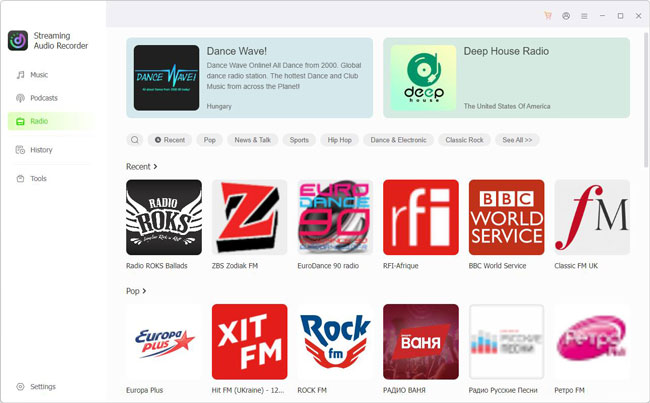
- Open the 'Radio' section in the left sidebar. You can search for a station by name or browse the available radio content through the built-in interface. Select a station or show that you want to listen to and save.
- Step 3. Configure the output settings
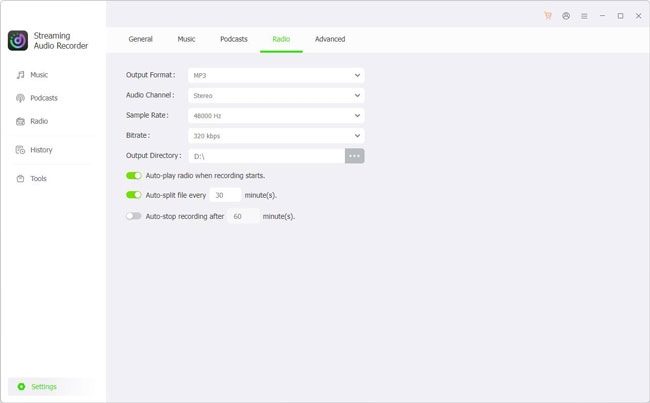
- Open 'Settings' in the bottom-left corner and select 'Radio'. Here, you can choose the output format and adjust available audio parameters, such as bitrate and sample rate. If you prefer to split long recordings into smaller files, you can also configure automatic splitting at a chosen interval, such as every 30 minutes.
Check the source's audio quality before adjusting the output settings. For example, if a station streams at 64 kbps or 128 kbps, choosing a much higher output bitrate will not restore audio detail that isn't present in the original stream.
- Step 4. Record and save the radio audio to PC
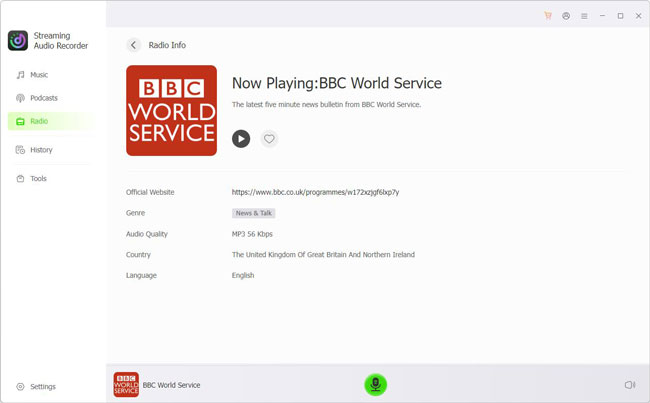
- Click the 'Record' icon to start capturing the selected radio stream. The audio is recorded in real time, so the recording will continue as the broadcast plays. When you've captured the section you need, click 'Stop' to finish. The saved audio will be available on your computer and listed in the 'History' section.
- You can select the Radio filter at the top of History to find your saved radio recordings and manage your local audio files for offline playback.
Record live streams without hidden trial restrictions or time caps;
Search and connect to web broadcasts directly inside the UI;
Export to MP3/M4A and automatically slice long broadcasts into chunks;
Includes a built-in podcast to MP3 downloader for on-demand show archives
Capturing a 2-hour program requires 2 hours of real-time streaming;
Final audio clarity depends strictly on the source broadcast's bitrate;
Premium music streaming conversion features require a paid license
Part 3. Alternative Free & Open-Source Method to Record Radio on Computer
If you prefer a free, open-source solution, Audacity is another option for recording internet radio on a PC. Unlike a dedicated radio downloader, Audacity is a general-purpose audio editor that can capture audio playing through your computer, provided your operating system and recording configuration support it.
This method is particularly useful if you want to record a live broadcast, trim unwanted sections, or export the finished recording in a format such as MP3 or WAV. However, Audacity does not function as a radio directory or podcast downloader, so you need to find and play the radio stream separately.

How to Record Radio to Computer for Free with Audacity
- Step 1. Download and install Audacity
- Visit the official Audacity website, download the version compatible with your computer ( Windows, macOS, or Linux), and install and launch the program.
- Step 2. Open the radio stream on web browser in your pc
- Visit the radio station's official website and start the live stream. If multiple streams are available, choose the one you want to record. Close other tabs or apps playing audio to avoid capturing unrelated sounds.
- Step 3. Configure the recording device for radio

- In Audacity, open the audio setup controls. On Windows, select 'Windows WASAPI' as the audio host, then choose the loopback recording device corresponding to your current playback output, such as your speakers or headphones. Also check the recording channels and sample rate, then make a short test recording to confirm that the audio is being captured.
WASAPI loopback captures audio played through a compatible Windows output device without using a microphone. On macOS and Linux, the setup differs depending on the available audio devices and system configuration. If the recording meter doesn't respond while the radio is playing, check that you've selected the correct playback and loopback devices.
- Step 4. Record the radio station in PC, Mac, or Linux
- Click 'Record' in Audacity, then play the radio stream in your browser. Let it run until you've captured the desired content, then click 'Stop'. Review the recording to check for silence, interruptions, or unwanted system sounds.
Keep in mind that recording happens in real time. Capturing a three-hour broadcast generally takes three hours, so disable unnecessary notifications and avoid playing other audio during the session.
- Step 5. Edit and export the radio recording on computer offline
- If necessary, trim unwanted sections, such as silence at the beginning or end, and preview the edited track. Then open the File menu and choose the available audio export option. Select MP3 for a widely compatible compressed file or WAV for uncompressed audio. Choose a filename and destination folder, then complete the export.
- Finally, open the saved file in a local media player to confirm that it plays correctly without an internet connection.
No paid subscription is required to record and edit audio;
Available for Windows, macOS, and Linux, although recording setup varies;
Trim unwanted sections and adjust recordings before exporting;
Save radio recordings on pc in formats such as MP3, FLAC, WAV
You must find the station and start playback yourself;
Capturing a live broadcast takes as long as the content you want to save;
Selecting the correct loopback device can be confusing, especially when multiple audio outputs are available;
You may need to trim recordings and export files manually
Part 4. Which Free Radio Download Method Should You Choose?
Both AudFree Streaming Audio Recorder and Audacity can help you save radio audio on a PC, but they serve slightly different needs. The right choice depends on whether you prioritize convenience, podcast downloads, recording controls, or audio editing.
| Feature | AudFree Streaming Audio Recorder | Audacity |
|---|---|---|
| Cost | Radio & Podcast features are Free; full streaming modules require activation | 100% Free & Open-Source |
| Live Radio Support | Dedicated built-in radio recording module | Records live playback via system audio loopback |
| Podcast Episodes | Direct downloading & extraction for supported feeds | Manual real-time recording during playback |
| Audio Quality Customization | ✅ Yes (Bitrate, sample rate, format, etc.) | ✅ Yes (Advanced editing, export settings) |
| Built-in Radio Directory | ✅ | ❌ |
| Real-Time Capture | ✅ | ✅ |
| ID3 Tag Preservation | ✅ | ❌ |
| Auto-Split Radio | ✅ | ❌ |
| Workflow | Search title > Click to download/record | Configure audio host > Search for internet radio on web > Play and record in real time |
| Ease of Use | 5/5 (Streamlined UI for quick radio & podcast grabs) | 2/5 (Requires manual device & loopback setup) |
In short, you can combine both approaches with official downloads: check the radio station's website first and use a direct download whenever one is available. If the station only offers live streaming, consider using a recording tool to save the broadcast for offline listening.
Choose AudFree if you want a simple way to save radio shows and podcast episodes to your PC for offline listening. Its dedicated podcast feature lets you download on-demand episodes without recording them in real time. Features such as automatic track splitting, retained ID3 tags, and unrestricted downloads can also reduce manual work, so you spend less time organizing files and more time listening.
Choose Audacity if you prefer a free, open-source audio recorder with built-in editing tools. It can capture live broadcasts through a compatible Windows audio input, allowing you to trim recordings and export them in your preferred format. However, you'll need to configure the recording device and locate the radio stream yourself. Recording system audio may also capture notification sounds or other background audio, so you may need to adjust your settings before recording.
Part 5. FAQs About Downloading Radio to PC Offline
Is It Legal to Save Radio on a PC for Offline Listening?
It depends on the content, your location, and how you use the recording. Downloading files that a broadcaster explicitly makes available for download is generally the clearest option. Recording a live broadcast for personal use may be subject to copyright law, licensing restrictions, and the station's terms of service. Please do not redistribute recordings or use them commercially without the necessary permissions.
Can I Schedule Radio Recordings on My PC for Offline Listening?
Yes, provided your recording software supports scheduled recording or you configure a suitable scheduling workflow. Audacity includes a Timer Record feature in supported versions, which can start and stop a recording at specified times. You should test the setup beforehand and ensure your PC remains powered on, the radio stream is accessible, and the correct audio input is selected.
What Determines the Audio Quality When Recording Internet Radio?
The recording quality depends largely on the radio station's original bitrate. A 128 kbps stream uses less data, while a 320 kbps stream can preserve more audio detail. Recording at a higher bitrate cannot improve the quality of a lower-bitrate source.
Part 6. In Conclusion
Downloading radio to a PC for offline listening is possible through official episode downloads, podcast feeds, and audio recording tools. The best method depends on whether the station offers downloadable content or only a live stream. For live broadcasts, remember that recording usually requires real-time playback.
AudFree Streaming Audio Recorder offers a convenient option for supported radio and podcast content, with its dedicated radio and podcast downloading feature available for free independently of its paid streaming-service modules. Alternatively, Audacity provides a completely free, open-source way to record and edit radio audio manually. Choose the method that best fits your listening habits, and check the relevant content permissions before saving broadcasts for offline use.

Staff Editor


