


Nintendo Switch is a great console for gaming on the go, but what if you want to listen to your favorite Apple Music songs while playing The Legend of Zelda: Tears of the Kingdom, Animal Crossing: New Horizons, Mario Party Superstars, or other games? Unfortunately, there is no official Apple Music app for Nintendo Switch, and the console does not natively support playing music files from a USB drive or microSD card.
However, that doesn't mean you have no options. In this comprehensive guide, we will explore the official status of the Apple Music Nintendo Switch app, detail the best working methods to listen to Apple Music on Nintendo Switch while gaming, and show you how to access the Apple Music Web Player on Switch using a hidden browser setup.


Part 1. Is There an Official Apple Music App on Nintendo Switch?
No. As of October 2026, Nintendo Switch, Switch OLED, and Switch Lite do not have an official Apple Music app. Unlike supported smartphones, computers, and smart TVs, the console cannot install Apple Music as a native application.
This means you cannot simply download Apple Music from the Nintendo eShop, sign in with your Apple Account, and stream your playlists directly on the console. The Switch also lacks a built-in music player that lets you browse and play ordinary MP3 files stored on a microSD card or USB drive.
The primary reason behind this limitation comes down to system resources and background processing:
- System Resource Allocation: Nintendo prioritizes RAM and CPU allocation strictly for game performance to ensure smooth gameplay across demanding titles.
- Background Audio Limitations: Nintendo Switch Operating System does not support persistent background audio playback while running games. When you launch a game, the console automatically suspends or closes active media processes.
- DRM Protection: Apple Music uses FairPlay Digital Rights Management (DRM) protection for its streaming library, which requires specific media framework integrations that the Switch OS currently lacks.
Fortunately, you can still enjoy Apple Music alongside your games by using another device or an external audio setup. The most suitable method depends on whether you want to hear game audio and music together, or play music independently through your TV or speakers.
Part 2. How to Listen to Apple Music on Nintendo Switch While Gaming
If you want to enjoy Apple Music while playing Nintendo Switch games, the key is to separate music playback from the console itself. Since the Switch cannot run Apple Music natively, you can use a second device or a compatible audio setup to play music alongside your game. Here are two methods provided for you.
Method 1. Listen to Apple Music While Playing Nintendo Switch with Dual-Audio Headphones
Some gaming headphones support simultaneous audio from two sources, such as Bluetooth audio from a smartphone and wireless or wired audio from a gaming device. With a compatible model, you can listen to Apple Music on your phone while hearing game sound from your Nintendo Switch through the same headset.
Unlike ordinary Bluetooth headphones, which typically connect to one audio source at a time, dual-audio headphones can mix audio from supported connections, for example, the SteelSeries Arctis Series.
What You'll Need to Play Apple Music While Gaming on Nintendo Switch
- A Nintendo Switch, Switch OLED, or Switch Lite.
- An iPhone or Android phone with an active Apple Music subscription, or music available for offline playback.
- Gaming headphones that explicitly support simultaneous audio mixing from two devices.
How to Listen to Apple Music While Playing Nintendo Switch Games with Dual-Audio Headphones
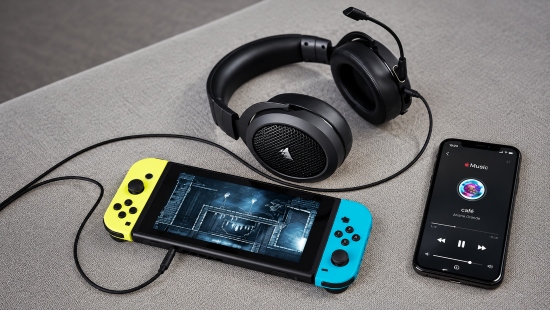
Step 1. Plug your headset's 2.4 GHz USB-C or USB-A wireless transmitter into your Nintendo Switch or the Switch dock when playing on a TV. Follow the headset manufacturer's instructions to establish the connection.
Step 2. Turn on your headset and connect it to the console. If your headset supports Bluetooth audio directly, open the Switch HOME Menu and go to 'System Settings > Bluetooth Audio > Pair Device', then select your headset when it appears. Confirm that you can hear the game's audio.
Step 3. Open Bluetooth settings on your iPhone, iPad, or Android device, and select your headset to pair.
Make sure your headset supports simultaneous connections and audio mixing, as connecting to two devices does not always mean you can hear both audio sources at once.
Step 4. Open the Apple Music app, choose your preferred playlist or album, and start playback. Your music should play alongside the game audio if your headset supports this feature and both connections are configured correctly.
Step 5. Use the independent volume dials on your headset or the volume controls on your mobile device to balance the game sound effects and background music to your preference.
No need to modify your Switch or install unofficial software;
Lets you listen to Apple Music while gaming without relying on native Apple Music support on the console;
Audio quality depends on the headset, connection, and playback settings
Requires a compatible headset with simultaneous audio mixing;
You may need to purchase a suitable headset or wireless transmitter;
Audio balance and connection stability depend on the specific devices, internet, and setup;
Dual-device connectivity and volume controls vary by headset model
Method 2. Play Apple Music on Nintendo Switch TV Mode Using a USB Drive and AudFree
When playing your Nintendo Switch in Docked Mode on a big screen, you might want game sound coming through your TV or home theater setup alongside your favorite Apple Music tracks. Since inserting a USB drive directly into the Switch dock will not trigger any native media playback, the solution is to feed your converted local files directly into your Smart TV or Soundbar USB port.
However, downloaded songs from Apple Music are encoded in protected M4P format, which non-Apple media players cannot read. To bypass this restriction, you can use AudFree Apple Music Converter to convert your tracks into DRM-free MP3 files.
This tool lets you easily download Apple Music tracks and playlists to your PC or Mac. Once saved, you can transfer your files to a USB drive to play them on your Nintendo Switch. Naturally, these files can also be played on any device that supports audio formats like MP3, M4A, FLAC, WAV, AIFF, and M4B.
AudFree Apple Music Converter

- Save entire Apple Music playlists directly to your computer
- Convert Apple Music files to MP3, FLAC, WAV, and more
- Retain 100% original audio fidelity (up to 320 kbps or 24-bit/192kHz)
- Automatically save complete metadata and album artwork
- Batch-process multiple Apple Music tracks simultaneously at up to 17X speed
How to Play Apple Music on Nintendo Switch Offline via AudFree
- Step 1. Download and Add Apple Tracks to AudFree Conversion List

- Install and launch AudFree Apple Music Converter on your computer. Launch it and log in. Browse Apple Music songs or playlists you want to prepare, choose them, and click the '+ ♫' button to load them into the conversion list.
- Step 2. Reset Output Parameters of Apple Music Tracks for Nintendo Switch

- Tap the 'AudFree Apple Music Converter' button from the menu bar and go to 'Preferences'. Here, you can set the output format to MP3, which offers maximum compatibility across all Smart TVs, media players, and soundbars. You can also customize the Audio Channel to Stereo, Sample Rate to 48000 Hz, and Bitrate to 320 kbps to maintain maximum audio fidelity. Finally, click 'OK' to save all settings.
- Step 3. Download and Convert Apple music to MP3 for Nintendo Switch

- Click the large 'Convert' button at the bottom right. AudFree will remove the DRM protection from Apple Music and batch-process your selected tracks into standard MP3 files stored on your computer's local hard drive. Once completed, click the 'Converted' tab icon to locate your converted Apple Music tracks.
- Step 4. Play Apple Music MP3 Files Through a USB Drive While Gaming on Nintendo Switch

- After converting your Apple Music tracks into compatible local audio files, you can copy them to a USB flash drive and check whether your Smart TV supports USB music playback alongside an active HDMI input. This may let you listen to your saved music while playing Nintendo Switch games on your TV, without relying on the console to play Apple Music directly.
- Connect a USB flash drive to your computer and transfer the converted Apple Music files to it. Format the drive using a file system supported by your TV, such as FAT32 or exFAT, if necessary.
- Insert it into an available USB port and open the TV's built-in media player or USB media app.
- Select your saved MP3 files and start playback through the TV's speakers or connected sound system.
- Change the TV's main input to the HDMI port connected to your Switch.
- If your TV supports USB audio playback in the background while displaying another input, you can listen to your Apple Music songs while gaming. Otherwise, you'll need a separate audio player or a compatible dual-source audio setup.
See also: How to Transfer Apple Music to USB Drive
This method depends on your TV's specific capabilities. Many Smart TVs stop USB media playback when you switch HDMI inputs, so confirm that your model supports background audio playback before relying on this approach. It does not enable native Apple Music playback on the Nintendo Switch.
See also: How to Play Apple Music on Android TV
Stream local audio files from Apple Music on TV without an active internet connection;
No paid Apple ID required after download;
Smooth, lag-free audio playback while playing games on your Nintendo Switch;
Keep a permanent local backup of your Apple Music collection in lossless quality;
Reuse converted audio from Apple Music across TVs, media players, and car stereos
Nintendo Switch cannot scan and play Apple Music from USB drives directly;
Some TVs disable USB media when switching to the HDMI input
To download music from other platforms for your Nintendo Switch, AudFree Streaming Audio Recorder offers an easy workaround. It supports 10+ major streaming services - such as Spotify, Tidal, and Amazon Music - and retains original lossless audio quality with simple, batch conversion steps.
Part 3. How to Stream Apple Music on Nintendo Switch via Hidden Web Browser
If you do not want to use external hardware or convert local audio files, you can access the Apple Music Web Player directly on your Nintendo Switch.
Although the Nintendo Switch does not display a dedicated internet browser app on its Home screen, it features a built-in hidden browser used for Wi-Fi authentication. By modifying your console's Primary DNS settings, you can unlock this browser and surf the web.
But this method is unstable and cannot run in the background while you play games. As soon as you exit the web player or minimize the browser, audio playback will stop instantly.
Method 3. Access Apple Music Web Player on Nintendo Switch
Step 1. From the Switch HOME Menu, go to System Settings > Internet > Internet Settings.
Step 2. Click on your currently active Wi-Fi network and select Change Settings.
- Scroll down to DNS Settings and change it from Automatic to Manual.
- Select Primary DNS and enter the custom DNS address 045.055.142.122 (SwitchBru DNS).
- Leave Secondary DNS as 000.000.000.000 and click Save to confirm.
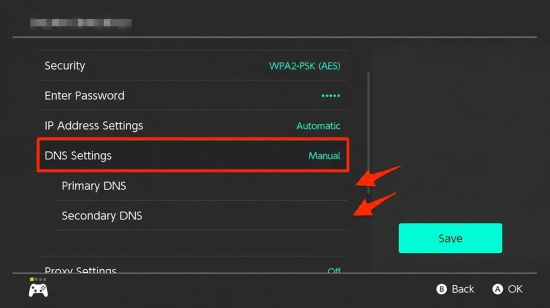
Step 3. Select Connect to This Network and the Switch will perform a network test.
Step 4. After a few seconds, a prompt will appear stating "Registration is required to use this network". Click Next.
Step 5. You will be greeted by the SwitchBru hosted landing page. Click Enter URL or use Google Search within the interface to navigate to music.apple.com.

Step 6. Once the Apple Music Web Player loads, click Sign In at the top right corner, enter your Apple ID credentials, and access your personal library, playlists, and favorited albums.
No need for headphones, dongles, or prior downloads;
Play Apple Music natively on your Nintendo Switch without extra devices
Clunky UI with no optimization for the Switch browser or media player;
Frequent network lag and buffering issues;
Cannot stream Apple Music in the background while gaming
Part 4. FAQs About Apple Music Nintendo Switch
Can I play MP3 files directly from the Nintendo Switch microSD card?
No. The Nintendo Switch OS does not include a native media player or local file browser for audio files stored on the microSD card. Inserting MP3 files onto your Switch's microSD card will only occupy storage space; the console will not recognize or play them.
Does Apple Music work in the background on Switch OLED or Switch Lite?
No. All models within the Nintendo Switch family - including the standard Switch, Nintendo Switch Lite, and Nintendo Switch OLED Model - share the exact same operating system architecture and background audio restrictions. None of these models can run the Apple Music Web Player or any media app in the background while a game title is active.
Part 5. In Conclusion
Although there is no official Apple Music app for Nintendo Switch, you still have several ways to enjoy Apple Music while gaming. The best option depends on your console model, headphones, and existing audio equipment.
If you want to hear Apple Music and game audio simultaneously, dual-audio headphones connected to both your Switch and phone are often the most convenient solution. If you primarily play in TV mode, you can explore local audio playback through a compatible TV or external media player, using AudFree to prepare supported audio files where appropriate. Just remember that the Switch itself cannot directly play MP3 files from a USB drive or microSD card.
The hidden-browser workaround is another possibility, but it is less reliable and may not support Apple Music playback. With these workarounds, you can enjoy a perfect fusion of custom soundtrack audio and high-quality Nintendo gaming.

Staff Editor


