


Console gamers have long faced a dilemma: either enjoy the game's immersive sound design or listen to their favorite music via other devices. Fortunately, modern gaming systems have solved this issue with background audio support. If you're an Xbox user and an Apple Music subscriber, you're in luck.
Thanks to the official partnership between Microsoft and Apple, the Apple Music app is now available directly on Xbox consoles. Whether you're using an Xbox One, Xbox Series S, or Xbox Series X, you can easily access and stream your Apple Music library while gaming. However, while the official app offers great convenience, it still relies on an internet connection and comes with several limitations.
In this guide, you'll learn how to set up and play Apple Music on your Xbox for seamless background playback. We'll also introduce an alternative USB-based solution that lets you enjoy your Apple Music collection offline for a more stable and uninterrupted listening experience.


Part 1. Is Apple Music Available on Xbox?
Yes. Apple Music is officially available on Xbox consoles through a dedicated app that can be downloaded directly from the Microsoft Store. Once installed, you can sign in with your Apple Music subscription and access your entire music library, playlists, albums, and recommendations on your console.
The Apple Music app is supported on the following Xbox models:
- Xbox Series X: Runs the application with blazing-fast load times, native 4K dashboard rendering, and fluid multi-app switching.
- Xbox Series S: Provides the same Apple Music features and interface as the Series X.
- Xbox One / One S / One X: Fully support Apple Music streaming, although app performance may be slightly slower on older hardware.
One of the biggest advantages of the Xbox Apple Music app is its Background Audio feature. This allows you to keep Apple Music playing while gaming, browsing the dashboard, or using other apps without interrupting your music. You can easily control playback, skip tracks, or adjust volume while staying focused on your game.
Apple Music is not available on Xbox 360. Since Microsoft discontinued support for the Xbox 360 years before the Apple Music app was released, the console cannot install the app from the Xbox Marketplace. In addition, the Xbox 360's web browser does not support the modern technologies required to run the Apple Music web player.
If you're using an Xbox 360 or prefer to listen to Apple Music on any Xbox console without an internet connection, you can skip ahead to Part 4 to learn how to play Apple Music offline via a USB drive.
Part 2. How to Set Up and Play Apple Music on Xbox for Background Gaming
Setting up Apple Music on Xbox is quick and straightforward. With the official Xbox Apple Music app, you can access your music library directly from your console and keep your favorite songs playing while you game. Follow the steps below to get started.
Step 1. Install the Apple Music App on Xbox
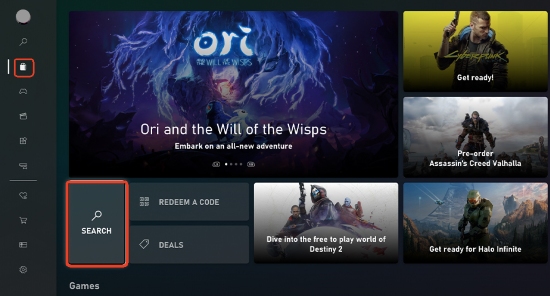
1. Turn on your Xbox console and press the 'Xbox' button on your controller to open the Guide menu.
2. Select the 'Store' icon and use the 'Search' feature to look for Apple Music.
3. Select the official Xbox Apple Music app from the search results.
4. Click 'Install' and wait for the app to download.
Step 2. Authenticate Your Apple ID Account
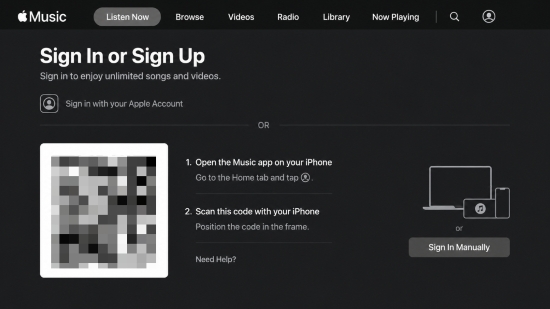
1. Launch the Apple Music app from your 'My Games & Apps' section.
2. Select 'Start Listening' or click the 'Sign In' button on the welcome screen.
3. A QR code and sign-in instructions (e.g., activate.apple.com) will appear on your TV screen.
4. Open the camera app on your smartphone, scan the QR code, and log in with your Apple ID credentials.
5. Once your phone confirms authorization, your Xbox dashboard will automatically refresh and display your personalized library, custom playlists, and smart recommendations.
Step 3. Play Apple Music While Gaming

1. Select an album or a personal playlist within the Xbox Apple Music app and hit Play.
2. Once the music starts, press the physical 'Xbox' button in the center of your controller to return directly to the home dashboard.
3. Launch your video game of choice (e.g., 'Forza Horizon, Halo, or Starfield'). Your music will continue playing in the background while you game.
If your music is overpowering the game's sound effects, press the Xbox button once mid-game to pull up the overlay Guide. You will see a dedicated Apple Music widget at the top. Here, you can pause, skip tracks, or use the Audio Balance Slider to perfectly blend your music volume with the game's audio output.
Bonus: Can You Use Apple Music Web Player on Xbox?
Yes. If you prefer not to install the Apple Music app, you can also access your Apple Music library through the Microsoft Edge browser on Xbox.

Step 1. Press the 'Xbox' button and go to 'My Games & Apps > Apps'. Here, open Microsoft Edge.
Step 2. Visit the Apple Music web player and sign in with your Apple ID. Now, you can browse your library and start streaming music directly from the browser.
While this method works, it is generally less convenient than using the official Xbox Apple Music app. The web player is designed primarily for desktop and mobile browsers, so navigation can feel slower when using an Xbox controller. In addition, browser-based playback does not offer the same seamless experience as the native app and may not support background playback during gaming sessions.
For the best experience, we recommend using the official Apple Music app whenever possible.
Part 3. Features and Limitations of the Xbox Apple Music App
The official Apple Music app for Xbox makes it incredibly convenient to stream music directly on your Xbox. Once signed in, you can access your playlists, albums, recommendations, and favorite tracks while continuing to play games in the background. For casual listening, the experience is smooth and user-friendly.
However, like most cloud-based streaming services, the Xbox Apple Music app comes with several limitations that may affect your gaming and listening experience.
✅ Stream over 100 million songs directly from Apple Music
✅ Play music in the background while gaming
✅ Access your personal library, playlists, and recommendations
✅ Control playback through the Xbox Guide menu
✅ Sync your listening activity across Apple devices
For many users, these features are more than enough. But if you're a competitive gamer or prefer offline playback, there are some important restrictions to consider.
Limitation 1. Internet Connection Required
The Xbox Apple Music app relies entirely on online streaming. Unlike some mobile devices, Xbox does not allow you to download Apple Music tracks to the console's internal storage for offline playback.
If you frequently experience unstable Wi-Fi or internet outages, relying solely on streaming can be frustrating.
Limitation 2. Potential Impact on Online Gaming Performance
For most users with a fast internet connection, streaming music and gaming simultaneously won't cause noticeable issues. However, when playing competitive online titles such as Call of Duty, Apex Legends, Fortnite, or EA Sports FC, network performance becomes much more important.
Because Apple Music continuously streams audio in the background, it shares network resources with your game. On slower connections or crowded home networks, this can occasionally contribute to increased latency, temporary ping spikes, buffering interruptions, and less stable online gameplay.
While the impact is usually minor on modern broadband connections, gamers who prioritize low latency often prefer local audio playback whenever possible.
Limitation 3. Limited Offline Flexibility
Unlike the mobile version of Apple Music on your phone, the Xbox Apple Music app does not support offline track caching. You cannot pre-download an album to your console's internal SSD storage to protect your performance against network outages.
Limitation 4. Audio Quality Restrictions
The Xbox console app streams audio in standard compressed AAC formats to conserve system memory. If you possess a high-end home theater setup or use premium studio monitors plugged into your console, you will not be able to access Apple Music's premium 24-bit Lossless or Spatial Audio (Dolby Atmos) tiers through the streaming app layout due to system processing constraints.
Part 4. How to Play Apple Music on Xbox Offline via USB (The Ultimate Solution)
As we mentioned, the official Apple Music app on Xbox offers a convenient way to stream music, but it isn't the ideal solution for every gamer. If you're a competitive player who wants to minimize network usage, someone with an unstable internet connection, or an Xbox 360 user without access to the native Apple Music app, playing music from a USB drive is the most reliable option.
Xbox consoles include a built-in Media Player app that can read and play audio files stored on an external USB drive. Because the music is played locally rather than streamed from the internet, playback remains stable regardless of network conditions. This means no buffering interruptions, no dependency on an active Apple Music subscription during playback, and no concerns about temporary internet outages.
The challenge? Apple Music files are heavily encrypted with FairPlay DRM protection and cached in a proprietary M4P or ALAC format that the console cannot read. To unlock this feature, you must use a desktop program like AudFree Apple Music Converter on a Mac or Windows PC to download your Apple music into standard, unprotected local audio files that are Xbox-compatible, including FLAC, WAV, AIFF, MP3, and M4A.
Why Choose AudFree Apple Music Converter?

- Remove DRM from Apple Music songs without quality loss
- Download and convert Apple Music to MP3, FLAC, WAV, AIFF, M4A, etc.
- Batch convert songs and playlists at up to 17x faster speed
- Keep ID3 tags and support editing other audio parameters
- Work on both Windows and Mac computers and help play Apple Music across all Xbox consoles models
How to Download Apple Music for Xbox and Play Smoothly
This method is intended for personal use only and are illegal for commercial use. Please always comply with applicable copyright laws and avoid distributing converted files to others.
- Step 1. Load Apple Music Songs to AudFree Conversion List

- Download and install the software to you computer and launch it. Log in to your Apple Music account within the built-in web player. Then browse your library and navigate to songs you want to play on Xbox. Click '+' to add them to the conversion list.
- Step 2. Set Apple Music Output Settings for Xbox

- Xbox reads various local audio formats, including FLAC, WAV, ALAC, AIFF, MP3, AAC, WMA, and OGG. Now, click 'AudFree Apple Music Converter > Preferences' to choose Apple Music output format, like MP3, FLAC, or WAV. You can also customize some advanced audio parameters like audio channel, sample rate, and bit rate as needed.
- Besides, you can define the output folder and enable ID3 tags for a better organization. Don't forget to save all the preferences.
- Step 3. Convert Apple Music Tracks for Xbox Consoles

- Click the 'Convert' button at the bottom-right corner to launch the converting process. Once complete, the clean and standard audio files that Xbox supported will be saved to your computer locally.
- Step 4. Transfer Converted Apple Music to Xbox via USB Drive
- Plug an external USB flash drive into your computer, and create a root directory folder named exactly Music in it. Locate the destination folder on your computer where the unprotected Apple Music songs are stored. Transfer your newly converted Apple Music files directly into this folder.
- Step 5. Connect and Play Apple Music on Your Xbox

- 1. Plug your USB drive into one of the open USB Type-A ports on the front or back of your Xbox One or Series X/S console.
2. Open the Xbox Guide menu, navigate to 'My Games & Apps', and launch the official Media Player application (if you don't have it, download it instantly from the store).
3. Select your connected USB drive name. The app will automatically scan the Music directory.
4. Select a song or folder to begin playback. Just like the official Xbox Apple Music app, you can now exit to the home screen and boot any game. The USB playback layout integrates perfectly into the Xbox Guide menu overlay for seamless mid-game volume balancing.
Want to use tracks from Spotify, Tidal, or Qobuz while gaming? The AudFree Streaming Audio Recorder is the perfect all-in-one companion solution. It records clean, lossless audio from 10+ major streaming networks simultaneously, building an unrestricted, permanent local music library for your Xbox USB media playback.
Why Choose USB Playback Over Official Apple Music App
| Feature | Official Apple Music App | AudFree USB Playback |
|---|---|---|
| Internet Required | ✅ | ❌ |
| Offline Playback | ❌ | ✅ |
| Works on Xbox 360 | ❌ | ✅ |
| Vulnerable to Network Issues | ✅ | ❌ |
| Local File Ownership | ❌ | ✅ |
| Background Gaming Music | ✅ | ✅ |
For gamers who prioritize reliability, offline access, and long gaming sessions without interruptions, AudFree USB playback remains one of the most flexible ways to enjoy Apple Music on Xbox.
Part 5. Apple Music Not Working on Xbox? Common Fixes
If you prefer using the official Xbox Apple Music application and run into playback, sign-in, or connection issues, try the following troubleshooting tips.
1. Inactive Apple Music Subscription Status
It sounds obvious, but the app will refuse to stream if your account has entered a billing retry loop or your trial has lapsed. You can quickly verify your account status on an iPhone or iPad by going to 'Settings > [Your Name] > Subscriptions', or by checking the Account section inside the Apple Music app on a desktop computer.
2. The Perpetual Black Screen Bug
If the Apple Music app launches into a frozen black screen, it usually means the console's system memory allocation or Quick Resume state has crashed.
- Press the 'Xbox' button on your controller to open the Guide.
- Highlight the Apple Music tile and press the 'Menu' button (the three horizontal lines).
- Select 'Quit' from the pop-up menu, then relaunch the app from scratch to clear the frozen cache.
3. The Activation QR Code Loop
If the on-screen QR code fails to load or won't accept your phone's security handshake, your console's network card cache is likely desynced. You can force a deep network reset with these steps:
- Navigate to 'Settings > General > Network Settings'.
- Select 'Advanced Settings' and click on 'Alternate MAC Address'.
- Choose 'Clear' and allow the console to reboot.
Once your Xbox restarts, the network handshakes will refresh, allowing the QR authorization to connect cleanly.
4. Stuttering or Choppy Audio Playback
If your music cuts in and out specifically while you are running heavy, graphics-intensive video games, it is usually caused by a processing conflict with high-overhead spatial audio rendering formats.
- Navigate to 'Settings > General > Volume & Audio Output'.
- Under the headset or speaker audio dropdown, change the format to 'Stereo Uncompressed'.
Switching off resource-heavy rendering like Dolby Atmos or Windows Sonic drastically frees up system bandwidth, giving you smooth, stutter-free background playback.
If your Xbox Apple Music app is still giving you trouble after trying these fixes, you can contact official Xbox Support or Apple Customer Service for further technical assistance. However, if you want to bypass app glitches, network lag, and subscription errors once and for all, remember that the offline USB playback method in Part 4 is your ultimate bulletproof solution.
Part 6. FAQs About Apple Music on Xbox
Do I need an active Xbox Game Pass subscription to use Apple Music?
No. Media streaming applications are entirely separate from Microsoft’s gaming subscriptions. You do not need any tier of Xbox Game Pass (or an Xbox Network account) to download or use the app. The only financial requirement is a valid, active Apple Music subscription ($10.99/month) to authorize your account.
Does streaming Apple Music on an Xbox Series X utilize a lot of bandwidth?
Yes, over time. Because the Xbox Apple Music app streams all audio live over the cloud rather than caching tracks to your internal SSD, every song consumes active network data. While a single hour of streaming isn't massive, listening to music for several hours a day while gaming can easily eat up several gigabytes of data per week. This is an important factor to consider if your home internet has a strict monthly data cap.
Can I control the Apple Music on Xbox from my phone/iPhone?
No. The Xbox version of Apple Music does not support Apple 'AirPlay' or a remote 'Connect' casting ecosystem (unlike Spotify). To adjust playback settings, skip tracks, or balance sound properties, you must use the built-in Xbox controller Guide overlay interface.
Does Apple Music support Dolby Atmos on Xbox?
No. While your Xbox hardware and home theater system might fully support Dolby Atmos for games and Blu-rays, the official Apple Music Xbox app is strictly locked to 256 kbps stereo AAC. Premium audio features like Dolby Atmos, Spatial Audio, and Lossless (ALAC) are completely unsupported across the entire Xbox family.
In Conclusion
The native Apple Music app for Xbox gives a fantastic utility for casual gaming sessions, allowing you to access over 100 million tracks directly from your console UI with minimal initial effort.
However, if your gaming style revolves around highly competitive online multiplayer matches where low ping values and zero network lag determine your success, relying completely on active cloud streaming leaves your setup vulnerable to local bandwidth congestion and unexpected dropouts.
Ultimately, taking matters into your own hands by using a physical storage device remains the absolute most stable path forward for hard-core console players. By downloading and converting your premium Apple Music playlists to open digital media formats using AudFree Apple Music Converter, you completely isolate your audio library from system updates, avoid streaming latency, and gain absolute, uncompromised control over your local background soundtrack on Xbox.

Staff Editor


