


Have you ever used Spytify Spotify Recorder? Marketed as a free and open-source recorder for Spotify, Spytify is assuredly sought-after. However, user feedback are diametrically opposed on it. Some of them suffer from its limited applicability, audio routing errors, missing metadata, etc. And some hold that the recording performance is a waste of their time. They want a convenient alternative.
This review explains its safety and usage, and presents two powerful Spytify alternatives for both Windows and Mac users.


Part 1. Spytify Spotify Recorder Overview
What Is Spytify?
Spytify is a cost-free Spotify recorder, focusing on recording Spotify music on Windows only. Natively hosted on GitHub, this tool operates by precisely capturing the audio output from your desktop streaming applications. Because it records analog soundwaves, rather than attempting to decrypt the platform's protected servers, it is able to completely bypass Digital Rights Management (DRM) restrictions. Separately, it records Spotify music with free subscription with 160kbps output quality while recording music from Spotify premium subscription with 320kbps output.
Besides, this software is extremely lightweight and consumes very few resources. During recording, it rarely utilizes more than a tiny fraction of the computer's CPU performance. Also, featuring "Mute Ads" option, it prevents commercial ads from being recorded when cooperating with free Spotify account.
During recording, all ID3 tags like title, album, artist are kept untouched. Other than that, advanced spying technology makes it possible to automatically split recorded songs into separate Spotify tracks. This is equivalent to a mode of multitasking, which ensures continuity of the recording process.
Key Features of Spytify Spotify Recorder
✅ High-quality recording: Spytify records music from Spotify in high-quality 320kbps MP3 format.
✅ Automatic track splitting: This Spotify recorder automatically splits tracks and removes ads and silence.
✅ ID3 tags support: It adds ID3 tags to recorded songs, including artist name, album name, and track title.
✅ No sound loss: It guarantees that the recorded Spotify music will not lose any sound quality.
✅ Easy to use: It has a user-friendly interface that makes recording music a breeze.
✅ Free and open-source: Spytify is completely free to use and open-source, which means anyone can contribute to the development of the software.
Part 2. Is Spytify Safe?
It is necessary to take the system security as a top priority when downloading utility apps from unofficial sources. Since Spytify is not officially registered or distributed via the Microsoft Store, Windows Defender often issues an unsettling "Unknown Publisher" warning regarding its installer upon the program's initial launch. However, these security alerts are, in reality, merely a "side effect" of the open-source software's developers choosing to bypass Microsoft's costly certification process. The software itself is inherently secure and contains absolutely no hidden malicious payloads.
As Spytify underlying codebase is publicly hosted on GitHub, the code remains fully transparent and is subject to continuous scrutiny by the community. This open-source architecture ensures that the application behaves exactly as advertised. The true source of user anxiety and technical confusion almost invariably stems from a completely different component, specifically, the audio driver required by the software, rather than from actual malware.
To record high-quality audio streams while avoiding the capture of intrusive background noise, such as email alerts or system notifications, Spytify routes the audio playback signal through a "Virtual Audio Cable". This process creates a distinct, invisible audio device within your operating system, dedicated exclusively to processing the music stream cleanly. Occasionally, however, routine Windows system updates may misidentify this newly created virtual audio cable as your actual physical speakers, resulting in a sudden loss of system audio and causing alarm among users.
This is, in fact, merely a simple driver routing conflict, easily resolved via Windows' "Sound Properties" settings, and is by no means a viral infection.
Part 3. How to Use Spytify to Record Spotify Music
With Spytify, users can record high-quality audio from Spotify. But you also have to put up with some of its shortcomings. If you don't mind, you can follow the tutorial below to get Spytify download on your device and use it to record favorite Spotify music for free.
How to Install Spytify Spotify Recorder
Step 1. Go to the official Spytify Github page on your Windows device.
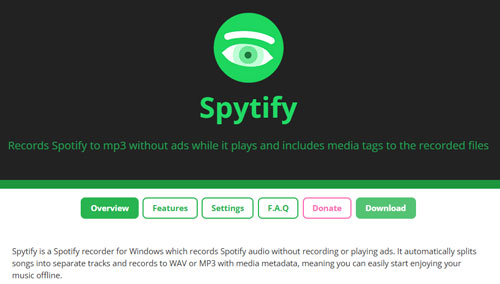
Step 2. Click on the "Download" button and select "Download ZIP".
Step 3. Extract the downloaded ZIP file.
Step 4. Open the extracted folder and run the "Spytify.exe" file. When prompted by Windows Defender, click "More info" and select the "Run anyway" option.
How to Use Spytify to Record Music from Spotify
Step 1. Open Spytify on your Windows computer.
Step 2. Next, head to "Settings" to select output path, output quality, output format, etc.

Step 3. Now, click "Start" and Spotify app will automatically launch.
Step 4. Play any song in Spotify and Spytify will start record the playing track from Spotify to your local computer.
Step 5. Wait until the recording is done. Press the "Stop" button to complete the process.
Step 6. Whereafter, you can use the "Open output directory" option at the bottom right corner to find the recorded Spotify files on your local folder.
Part 4. Is Spytify Worth It?
Though Spytify is free to use and without a Spotify Premium account, there are still some cons that you need to know.
1. No macOS support: Spytify is available on Windows OS only. If you are an Apple user or Android user, you can't install this tool on your device.
2. Low audio quality: The output sound quality depends on your Spotify tier. If you have a Spotify Free account, you can only get max 160kbps audio files.
3. 1X real-time speed limit: As an audio recorder, it records music tracks at real-time. If you have a large playlist to record, it may take up much of your time.
4. Support Spotify only: Spytify only supports to record music from Spotify. If you want to record sound from other music services, you need to seek an alternative.
5. Fewer features: You can't edit audio info, save lyrics and more within Spytify tool.
Part 5. Best Alternatives to Spytify for Mac/Windows
After learning the drawbacks of Spytify above, you may want to find an alternative to it to record Spotify music. Here we will provide you with two powerful tools.
1. AudFree Spotify Music Converter (Batch Downloading)
For users who have a large music library, prefer batch downloading and high-quality music, AudFree Spotify Music Converter is credibly at the top of the list of Spytify alternative. It is a specialized music converter and downloader for Spotify. Thanks to its superior conversion technology and lossless quality output, AudFree Spotify Music Converter stands out from its peer group.
Running at 13X quicker speed, it converts and downloads Spotify music to MP3, M4A, FLAC, WAV, etc. within minutes for offline listening on any player and device without limits. To provide more flexibility in output, it creates a user-defined option, which allows users to customize output quality and parameter as different needs.
Requiring no Spotify Premium subscription, you are free to use it on either Windows and Mac. Besides, it supports to retain full ID3 tags and allows you to customize metadata based on your needs.
AudFree Spotify Music Downloader

- Download Spotify songs, playlists, albums without Premium
- 13X speed to convert Spotify music to MP3, FLAC, WAV, etc.
- Keep 100% original sound quality and ID3 tags of Spotify
- Adjust output channel, sample rate, bit rate, etc. as you like
- Step 1. Add Spotify music to AudFree Spotify Music Converter

- First, please download and install AudFree Spotify Music Converter on your computer. Launch it and you will see the Spotify web player within the tool. Search for any tracks, playlists, or albums in Spotify web player, then click "+" > "Add to list" button to load.
- Step 2. Set output format and parameters

- When Spotify tracks are uploaded, move your mouse over a three-line icon on the top right and choose "Preferences" from its drop-down list. On Preferences window, hit on "Conversion" to bring out the format window. Here, set output format, channel, sample rate, bit rate, etc. in the basis of your own requirements. Once done, remember to save settings by clicking "OK".
- Step 3. Convert and download Spotify music for free

- Now, it's your time to start converting and downloading Spotify music without Premium with the help of the "Convert" button. With a quick conversion speed, the whole process won't take you much time. Upon completion, press the "Converted" button which is marked by a red number on the bottom to quickly locate the downloaded Spotify files on your computer locally.
If you want a tool to record from not only Spotify, you can use AudFree Streaming Audio Recorder. This powerful tool can record and download music from Spotify, YouTube Music, Amazon Music, Tidal, Apple Music, SoundCloud, Deezer, Qobuz and more with high quality and full ID3 tags.
2. Audacity (Free and Open-Source)
If you want to free alternative to Spytify to record and download Spotify music for free, Audacity is your choice. It allows you to capture any sound from your computer. And it is available on Windows, Mac and Linux OS. What's more, you can edit audio tracks within the program.
However, it is quite difficult for beginners. Besides, you need to manually start and stop the recording. And you need to type the ID3 tags for the recorded tracks by yourself.
View also: How to Record Spotify Music with Audacity
Part 6. Compare Spytify vs Its Alternatives
That's all for Spytify Spotify Recorder and 2 alternatives to Spytify. To give you a comprehensive insight into these Spotify software, below is a table that clearly and thoroughly compares each feature of them.
| Feature | Spytify | AudFree Spotify Music Converter | Audacity |
|---|---|---|---|
| Price | Free | $14.95/mon | Free |
| Compatible OS | Windows | Mac, Windows | Windows/Mac/Linux |
| Ad-Free | ✅️ | ✅️ | ❌ |
| Supported Output Format | MP3, WAV | MP3, FLAC, AIFF, M4A, M4B, WAV | MP3, WAV, OGG, etc. |
| Output Quality | Max 320kbps | Lossless / 320kbps | Lossy |
| Conversion Speed | Real time | 13X faster speed | Real time |
| Clean Interface | ❌ | ✅️ | ❌ |
| Customize Output Quality | ❌ | ✅️ | ❌ |
| Edit Function | ❌ | ❌ | ✅️ |
| Keep ID3 Tags | ✅️ (Automatic) | ✅️ (Automatic) | ❌ (Manual) |
| Score | ⭐️⭐️⭐️ | ⭐️⭐️⭐️⭐️⭐️ | ⭐️⭐️⭐️ |
Part 7. FAQs about Spytify
Is It Legal to Use Spytify to Record Spotify Music for Personal Offline Listening?
Yes, in most jurisdictions, recording streaming music files for purely personal and non-commercial use is 'fair use'. However, distributing, selling, or publicly sharing such files is strictly illegal and also constitutes a violation of the streaming platform's terms of service.
Does Spytify Support Gapless Playback for Spotify Live Albums?
No, it does not. Spytify identifies track boundaries by detecting brief moments of complete silence within the audio stream. Since live concert albums and continuous DJ mixes lack these silent gaps, the software will either merge the entire album into a single file or incorrectly split the tracks at the wrong timestamps.
How Do I Fix the Spotify Podcast Skipping Error on Spytify?
Because podcasts and audiobooks lack standard song metadata, Spytify's ad-blocking filter may mistakenly identify them as advertisements and skip them. To successfully record this content, open Spytify's Advanced Settings and toggle on the 'Record everything' switch. Please note that enabling this option will temporarily disable the ad-skipping feature.
How Do I Fix Common Setup and Audio Routing Errors on Spytify?
The most common error is a complete loss of sound on your computer; this typically occurs when the Windows operating system incorrectly designates the newly installed 'Virtual Audio Cable' as your default audio playback device. To resolve this issue, open the Windows 'Sound Control' panel and manually reassign your physical speakers or headphones as your primary audio output device.
Part 8. In Conclusion
Spytify is better for tech-savvy Windows users who want to save Spotify music for free. However, it takes a lot of time for recording.
If you want a powerful tool and prefer high quality, AudFree Spotify Music Converter is your choice. It can batch convert and download songs, playlists, albums from Spotify to local files with lossless quality at 13X speed. Also, it offers more features, such as audio parameter customization, editing ID3 tags, and so on.

Chief Editor


