


Praised for its lightweight design, customizable interface, and audiophile-grade playback engine, Foobar2000 is primarily used for local files and radio. Yet, a core question remains: Can it play SoundCloud? Many listeners want to leverage Foobar2000's tools to organize, equalize, and enhance tracks beyond the basic SoundCloud web player.
This complete guide is for anyone who wants to integrate fresh SoundCloud remixes, independent artists, or DJ sets into their Foobar2000 environment. We detail the most effective method to play SoundCloud on Foobar2000, concluding with a dedicated FAQ section to address user issues.

Part 1. Can Foobar2000 Work with SoundCloud?
Foobar2000 is, at its core, a local-file audio player. Although it can handle certain online streams through custom components or protocol handlers, direct SoundCloud integration is no longer supported. Changes to SoundCloud's platform and API have made previous workarounds unreliable or completely non-functional.
1. No Official SoundCloud Plugin on Foobar2000
Foobar2000 currently does not include a built-in SoundCloud streaming feature. Earlier third-party components (such as foo_soundcloud or various URL resolver scripts) depended on older versions of the SoundCloud API. Due to significant changes in the API and track-access rules, most of these components are now unmaintained or incompatible. Therefore, Foobar2000 cannot reliably stream every SoundCloud track in the way that a web browser or the official app can.
2. No Support for SoundCloud Go+ Offline Downloads
Besides, Foobar2000 does not support offline files from SoundCloud Go+. These downloads are encrypted and are designed to be played only within the official SoundCloud app. Foobar2000 or any other third-party media player cannot import, convert, or recognize these protected files.
The Command-Line Decoder Wrapper component claims to support 'any audio format' when paired with a suitable command-line decoder. However, this does not include encrypted streaming service files from major streaming services. This limitation applies not only to SoundCloud's protected files but also to files from services like Spotify and Tidal.
In short, Foobar2000 can play SoundCloud audio only when the audio exists as standard, unprotected files, while modern SoundCloud protections prevent direct streaming or offline-file access.
Part 2. How to Acquire SoundCloud Tracks for Foobar2000 via AudFree Streaming Audio Recorder
Since Foobar2000 cannot natively stream SoundCloud, the most effective solution is to acquire the tracks as DRM-free local files. The AudFree Streaming Audio Recorder provides an easy and clean workflow for users who wish to preserve songs, DJ mixes, or podcasts for personal listening and integration.
This tool captures audio output directly from your system while preserving the highest possible quality. Once processed, the resulting audio files are saved in formats fully compatible with Foobar2000, such as MP3, WAV, FLAC, AIFF, M4B, or M4A. This method is suitable for:
• Personal offline listening
• Creating organized playlists
• Enhancing SoundCloud tracks with Foobar2000 DSPs
• Building a portable music library
Why Choose AudFree Streaming Audio Recorder?

- Store SoundCloud audio in FLAC, AIFF, WAV, MP3, and other Foobar2000-compatible formats
- Capture audio from SoundCloud and other major streaming sources (e.g., Spotify, Tidal)
- Provide high-fidelity audio capture with original quality retained
- Support efficient batch capture of SoundCloud playlists and albums
- Fully compatible with both Windows and macOS
How to Process SoundCloud Tracks Using AudFree Streaming Audio Recorder
Before starting, ensure the AudFree tool is installed on your computer by clicking the 'Download' button above.
- Step 1. Launch AudFree Streaming Audio Recorder

- Launch the AudFree Streaming Audio Recorder application. You will see icons for various streaming platforms, including SoundCloud. You may need to activate your account within the tool to access all features.
- Step 2. Customize SoundCloud Output Settings for Foobar2000

- Navigate to the 'Menu' > 'Preferences' > 'Conversion' settings. Here, you can define your preferred output audio format (e.g., AIFF or FLAC is often recommended for Foobar2000). Adjust key parameters like bitrate, sample rate, and audio channels as needed. In the 'Output' tab, select the destination folder for your final files. Click 'OK' to save these settings.
- Step 3. Prepare SoundCloud Content for Foobar2000

- Click the SoundCloud icon within the AudFree interface and sign in to your Go or Go+ account. Browse to select the specific tracks, playlists, or albums you intend to capture. Click the green '+' button to stage the tracks for the capture list.
- Step 4. Initiate the Capture Process

- Go to the 'Converting' page and click the 'Convert' button to begin the audio acquisition process (e.g., storing the SoundCloud audio as AIFF files). Once completed, you can locate your processed SoundCloud tracks on your PC under the 'Converted' tab.
Part 3. How to Add and Play SoundCloud Audio in Foobar2000
Once all SoundCloud tracks are successfully stored as local files on your computer, the next step is integrating them into Foobar2000's library. This is where Foobar2000 truly shines, offering playback features and customization far deeper than most other players.
Add SoundCloud Audio to Foobar2000's Library:
You have two primary ways to introduce your newly acquired SoundCloud tracks into Foobar2000:
Method A. Quick Addition (Temporary Playlist)
Step 1. Launch Foobar2000, and click File > Add file.../Add folder... to instantly load your SoundCloud tracks into the current playlist of Foobar2000.
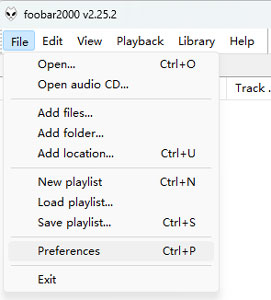
Method B. Media Library Integration (Permanent)
This method adds the files to your main indexed SoundCloud collection for permanent management.
Step 1. Go to File > Preferences > Media Library.
Step 2. Designate the Folder Click the + Folder button, then navigate to the directory where your local SoundCloud files are saved. Click Apply.
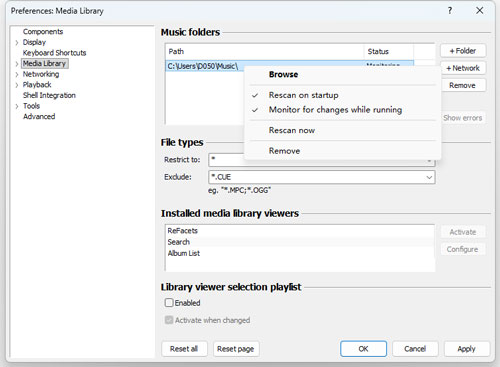
Step 3. Now, Foobar2000 will automatically scan and index the new files, making them searchable and manageable within the library view.
Step 4. Once indexing is complete, you can use Foobar2000 to freely organize and play your SoundCloud music offline, leveraging the player's full feature set.
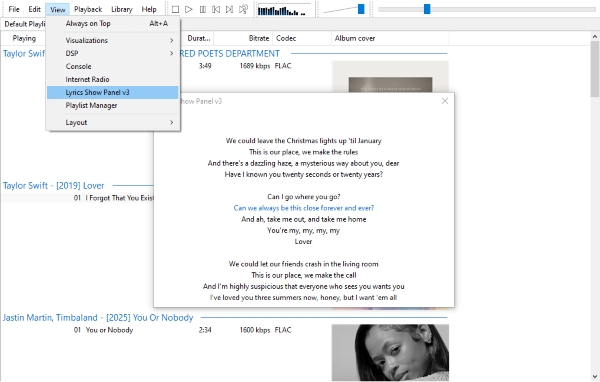
For an immersive experience, consider installing the Lyric Show Panel v3 component. If the SoundCloud audio includes lyric files preserved by AudFree Streaming Audio Recorder (if SoundCloud provided), foobar2000 can display them automatically. After installing the component, you'll be able to view synchronized lyrics while your SoundCloud tracks play.
Part 4. FAQ about Using Foobar2000 with SoundCloud
Why does foobar2000 fail to fetch SoundCloud metadata or album art?
Foobar2000's ability to display metadata and album art for SoundCloud tracks hinges on the audio capture tool used. Because streaming services do not provide open access to their file information, a high-quality capture application must be able to:
• Retrieve: Fetch the track name, artist, album art, and other ID3 tags during the capture process.
• Embed: Automatically write this information directly into the resulting local audio file (e.g., MP3 or FLAC).
If the tool successfully embeds the data, Foobar2000 will display the metadata and artwork automatically when the file is added to the library. You can verify this information by right-clicking the track title and selecting Properties. Furthermore, you can customize your Playlist columns (by right-clicking the column header) to display any specific embedded details of the song.
How do I improve the SoundCloud audio experience using DSPs or equalizers in Foobar2000?
This is one of the main advantages of using Foobar2000 with local files.
• Access: Go to File > Preferences > View > DSP > Equalizer.
• Enhancement: Use the built-in Equalizer (EQ) to sculpt the sound for your specific speakers or headphones. You can add more advanced components like the HDCD Decoder or Resampler to the Active DSP column.
How do I organize SoundCloud tracks inside Foobar2000 library view?
Organizing your tracks relies on Foobar2000's powerful Media Library functions and proper file tagging.
• Source Folder: Ensure all your captured SoundCloud files are located in a folder that you have added to your Media Library.
• Facets/Browser: Use the Facets or Album List panel to browse your library by Artist, Album, Genre, or Date - all derived from the file's embedded metadata.
• Custom Tags: If you want a specific organization (e.g., separating 'SoundCloud Originals'), you can manually edit the files' metadata using the Properties window, adding a custom tag like SOURCE and setting the value to SoundCloud. You can then create a custom search or Facet view based on this tag.
With proper tags and autoplaylists, foobar2000 can organize hundreds of SoundCloud tracks cleanly and automatically.
Conclusion
Foobar2000 cannot stream SoundCloud directly and does not support SoundCloud Go+ offline files. However, with the help of a high-quality streaming audio recorder, you can capture SoundCloud tracks legally for personal use and enjoy them in foobar2000 with full access to its powerful DSP tools, equalizers, tagging system, and advanced library management.
Whether you're organizing large playlists, cleaning up metadata, or enhancing audio with DSPs, Foobar2000 offers a far more customizable listening experience than the SoundCloud web player. With the steps above, you can enjoy any SoundCloud track inside Foobar2000, one of the most flexible music players available.

Staff Editor


