


Foobar2000 is an ideal music player for audiophiles and power users. What's more, it is great to listen to local music libraries due to its modular architecture, ultra-low memory footprint, and bit-perfect playback capabilities. Apple Music is a leading music service that offers millions of songs for users to listen to. However, the Apple Music app lacks the customizable functions that users crave. In this case, you switch to using Foobar2000 to play Apple Music songs.
Yet, when you import Apple Music downloads to Foobar2000, it fails. Why? Because Apple Music is encoded in M4P audio files that Foobar2000 is not fully compatible.
So, how do you solve this? In this article, we will show you the complete tutorial to bypass this limit and how to play Apple Music on Foobar2000 on Windows, Mac and mobile devices.


Part 1. Why Use Foobar2000 to Play Apple Music
Before learning how to play Apple Music on Foobar2000, let's find out why you switch to Foobar2000 to play Apple Music tracks. Apple Music focuses on a visual and 'browse-first' experience, which Foobar2000 is designed for efficiency and fidelity. You can learn more details in the table below.
| Feature | Apple Music App | Foobar2000 |
|---|---|---|
| System Resource Usage | High, often consumes 500MB+ RAM and a large CPU, leading to the old machine running slowly | Low, even with a very large playlist, it rarely exceeds 50MB RAM usage |
| Audio Path & Fidelity | Standard OS mixer (DirectSound/CoreAudio); may have resampling issue | Bit-perfect; supports WASAPI (Exclusive Mode) and ASIO output, allowing you to bypass Windows mixing |
| Support Skin Customization | ❌ (You can only use Apple's default dark/light mode and layout) | ✅ (Unlimited, fully skinnable interface 'Columns UI' and customizable layout) |
| DSP/EQ Capabilities | Basic graphical EQ | Advanced DSP chain; support for VST plugins, MathAudio Room EQ and Crossfeed for headphones, and high-quality Resamplers (SoX) |
| Supported Files | Limited (Can only play AAC, ALAC, MP3, WAV, and AIFF formats) | Multiple (Plays FLAC, Opus, Vorbis, DSD, SACD, ISOs) |
| Mobile Syncing | iTunes Sync: Requires a USB cable or WiFi syncing that depends on the specific 'Apple Devices' app | Built-in FTP Server: supports to drag and drop any files wirelessly from any computer directly to the phone's storage, without using iTunes |
| Extensibility | ❌ (Closed-source software) | Open component architecture: Offers thousands of user-created components (e.g., lyrics display, music spectrum, Discord Rich Presence) |
However, you can't directly play Apple Music on Foobar2000 due to Apple Music files are encrypted with Apple's FairPlay DRM. So, you need a converter to convert Apple Music to Foobar2000-supported audio files first.
Part 2. How to Convert Apple Music for Foobar2000
Here, we can meet AudFree Apple Music Converter, which specializes in converting Apple Music to a range of common audio formats, such as MP3, FLAC, WAV, AIFF, M4A, Lossless and M4B. It works at 17X faster speed to convert Apple Music in batch and keep 100% original Apple Music quality and ID3 tags.
Why Choose AudFree Apple Music Converter

- Convert Apple Music to Foobar2000-compatible MP3, AIFF, etc.
- Keep lossless Apple Music audio quality and ID3 tags
- Add Apple Music to Foobar2000 for offline playback
- Work at 17X fast speed while converting Apple Music streams
Since AudFree Apple Music Converter runs at 17X conversion speed when converting Apple Music that you'd like to add to Foobar2000, it won't take you much time. After the conversion, you can freely import the converted Apple Music to Foobar2000 for playback. Just refer to the following steps to do this.
- Step 1. Add Apple Music songs to AudFree

- Before using AudFree software, please make sure you have an active Apple Music account. After that, start the AudFree program and log in to your Apple Music account. Then click and select Apple Music tracks from the built-in Apple Music web player on AudFree main screen. Later, tap the big '+ music' icon > 'Add to list' to load tracks.
- Step 2. Define Apple Music output format as Foobar2000 supported format

- After you have added Apple Music that you'd like to play on Foobar2000, you can touch the 'menu' icon > Preferences to open the settings window, in which you can customize output format as MP3, FLAC or AIFF that can be recognized by Foobar2000. Besides, you can personalize other output audio parameters, like audio sample rate, bit rate, etc., if necessary.
- Step 3. Convert Apple Music to Foobar2000 compatible files

- Before starting to convert and download Apple Music, you can hit on the 'Output Directory' section to set the destination folder to store your converted Apple Music files, and then just press the 'Convert' button from the 'Converting' interface. AudFree Apple Music Converter will convert added Apple Music to the target audio files. When the conversion process finishes, you can locate all audio files on the destination folder. Alternatively, you can click the 'Converted' > 'folder' icon to find them.
Part 3. How to Add Apple Music to Foobar2000 on Computer and Mobile
Now, you have the local Apple Music files for Foobar2000. Follow the steps below to add and play Apple Music on Foobar2000.
How to Import Apple Music to Foobar2000 on Windows and Mac
Step 1. Just open Foobar2000 on your Mac or Windows computer.
Step 2. Click the 'File' > 'Add Folder' option to browse the local music folder on your computer.
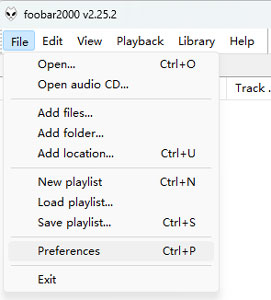
Step 3. Choose the file folder saving converted Apple Music songs, and click the 'Select Folder' option to upload Apple Music files to Foobar2000.
How to Add Apple Music to Foobar2000 on iOS and Android
Step 1. Open the Foobar2000 app on your iPhone, iPad or Android device.
Step 2. Click the Tools icon to head to settings.
Step 3. Choose FTP Server on the screen and enable it.
Step 4. Later, you will see an IP address on the screen (e.g., ftp://192.168.1.5:21). Please keep this screen open.
Step 5. Go to your Windows or Mac computer, open the Explorer or Finder.
Step 6. Type the FTP address displayed on your phone's screen in the address bar and press Enter.
Step 7. Now, you will see the internal storage of your Foobar2000 mobile app shown as a folder on your computer.
Step 8. Copy and paste the converted Apple Music files from your computer into the mobile FTP folder.
Step 9. Once transferred, quit the FTP server on your phone. Then Foobar2000 mobile will scan the newly added files.
After syncing, you can organize Apple Music library and play Apple Music on Foobar2000.
Part 4. Tips for Using Apple Music on Foobar2000
After importing Apple Music into Foobar2000, you can use these two settings to make full use of Foobar2000 with your audio files.
1. Enable Bit-Perfect Playback (WASAPI)
For Windows users, to bypass the Windows audio mixer and get bit-perfect audio to your DAC, you can follow:
Step 1. Download the WASAPI output support component from the official Foobar2000 website.
Step 2. Open Foobar2000, go to File > Preferences > Components > click Install and choose the downloaded files to install the component.
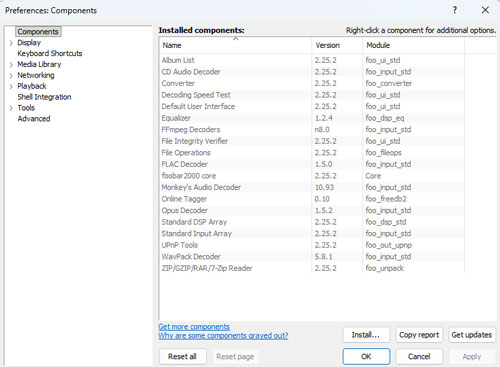
Step 3. Go to File > Preferences > Playback > Output.
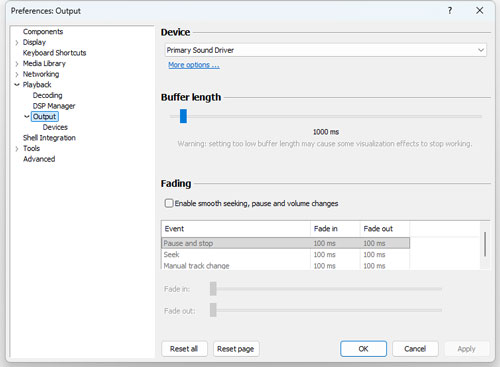
Step 4. Choose the WASAPI (event) or WASAPI (push) that corresponds to your DAC or speakers under the Device list.
2. Update Your Library Automatically
You can let Foobar2000 scan your output folder and update the library instantly. In this case, you don't need to import files to Foobar2000 manually every time.
Step 1. On Foobar2000, go to File > Preferences > Media Library.
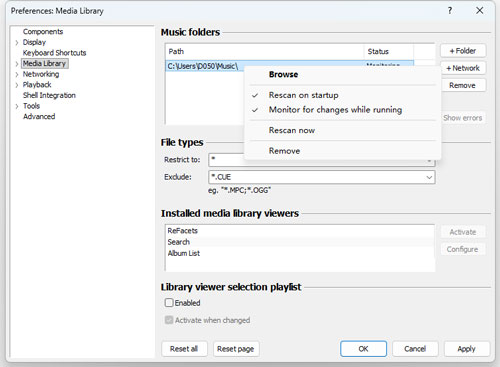
Step 2. Locate the Music folders list and make sure the folder where you store your converted Apple Music songs is added.
Step 3. Right-click the folder path on the window, check the 'Monitor for changes while running' option and tap OK.
Step 4. Now, whenever you convert and save Apple Music tracks to that folder, they will appear in your Foobar2000 library instantly.
Part 5. FAQs about Apple Music on Foobar2000
How Can I Tell If My Converted Apple Music on Foobar2000 Is Actually High-Res 24-bit/192kHz?
You can right-click the playing track on Foobar2000 and choose Properties > Details. Then you will see the sample rate and bits per sample.
How Do I Show Lyrics for the Converted Apple Music Songs in Foobar2000?
You need to install a component in Foobar2000 to show lyrics. Once installed, it will read the embedded lyrics tags that AudFree Apple Music Converter saved or it will search online databases automatically to show synchronized lyrics when you play the converted Apple Music tracks.
View also: How to Get Lyrics on Apple Music
Can Foobar2000 Play Apple Music Spatial Audio or Dolby Atmos Tracks?
In general, no. You will get the stereo mix and the standard lossless stream after the Apple Music conversion. The Dolby Atmos metadata is lost or downmixed to stereo during the process. Besides, Foobar2000 is a stereo-focused player.
Part 6. In Conclusion
Though there is no Apple Music Foobar2000 integration, tools like AudFree Apple Music Converter can help you. With it, you can convert Apple Music as local files for Foobar2000. And then you can import Apple Music files to Foobar2000 for offline use and playback without any issue.

Staff Editor


