


As one of the most popular streaming platforms, SoundCloud is easy to discover and share music, especially for independent artists, DJs, and podcasters. However, many users eventually face the same problem: how do you back up SoundCloud tracks safely and access them outside the SoundCloud app?
This is where Dropbox comes in. Whether you want to sync SoundCloud uploads automatically, create a permanent backup of your own tracks, or simply keep a secure cloud copy of important audio files, connecting SoundCloud to Dropbox can be extremely useful. By the end, you'll know exactly which method works best for your needs.

Part 1. Why Connect SoundCloud to Dropbox?
SoundCloud is an excellent streaming platform for discovering and sharing music, but it isn't built for long-term storage or reliable backups. Tracks can be removed, accounts may be suspended, and offline access is restricted by subscriptions and app limitations. Dropbox, by contrast, is designed for file ownership, stability, and long-term access across devices. Linking SoundCloud to Dropbox gives you more control over your audio and ensures your content is never tied to a single platform.
Below are three key reasons why syncing SoundCloud to Dropbox makes sense.
1. Secure Backup of SoundCloud Tracks
SoundCloud tracks can disappear for many reasons - copyright takedowns, accidental deletions, or account issues. Backing up your audio to Dropbox ensures you always retain access to your files, regardless of what happens on SoundCloud.
This is especially valuable for:
- Independent Artists: Safeguarding original masters
- DJs: Archiving long-form mixes that are difficult to re-record
- Podcasters: Keeping a library of original episodes
2. Cross-Device and Offline Access
Dropbox provides a seamless sync environment across multiple devices. By moving your "Liked" tracks from SoundCloud or original uploads to Dropbox, you gain the easiest access from any desktop, mobile device, or web browser. More importantly, you can utilize Dropbox's Offline Folders, allowing you to listen to your music without an internet connection and without being tied to the SoundCloud app's interface or restrictions.
In other words, you can access all your SoundCloud anytime, whether online or offline.
3. Archiving and Storage Management
Most creators use SoundCloud as a publishing platform, not a vault. Dropbox is optimized for long-term archiving, offering features like version history and file recovery (up to 30 days on free plans). By syncing SoundCloud content to Dropbox, you can offload local storage while keeping your high-resolution files organized and retrievable for future use.
In short: With Dropbox, your SoundCloud audio remains safe, always accessible, and under your full control.
Part 2. How to Sync SoundCloud to Dropbox Automatically via Zapier
If your goal is to automatically sync SoundCloud activity to Dropbox - such as backing up playlists, liked tracks, or uploading metadata rather than the actual audio files - Zapier is one of the most practical solutions available for you.
What Is Zapier?
Zapier is an automation platform that connects different online services through workflows called "Zaps". Each Zap acts as a bridge between two apps, allowing them to communicate and perform actions automatically.
In this case, Zapier can monitor activity on SoundCloud and trigger actions in Dropbox - without any manual work once the setup is complete.
Zapier counts a "Task" each time an action runs successfully. The free plan typically includes up to 100 tasks per month with a 15-minute polling interval. Higher limits and faster sync intervals require a paid subscription.
What Zapier Can - and Can't - Sync from SoundCloud to Dropbox
Once you connect your SoundCloud account to Dropbox via Zapier, Zapier can monitor your SoundCloud account for new likes and automatically log that information into a Dropbox file, saving them in files (TEXT/CSV) or folders of Dropbox. It can also monitor new SoundCloud uploads from your following artists with RSS-based update detection.
According to its workflow, Zapier cannot download protected streaming-only audio from SoundCloud to Dropbox. Extracting SoundCloud DRM-restricted content is also unavailable. It only syncs your liked tracks' metadata (Artist, Track Title, Album Name) instead of offering a way to listen to SoundCloud tracks as audio files in Dropbox.
In short, Zapier syncs metadata only - such as artist name, track title, and playlist info - not the audio itself.
How to Link SoundCloud to Dropbox Using Zapier
Step 1. Prepare your Accounts
Visit Zapier.com, sign up for a free account, and log in.
Step 2. Create a Destination Folder
Open Dropbox on your computer or mobile device. Create a new folder (e.g., "My SoundCloud Archive") where you want Zapier to save your track data.
Step 3. Configure the SoundCloud
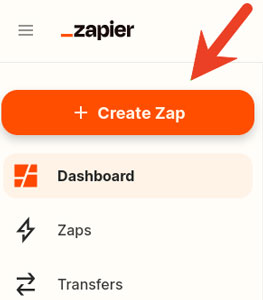
Trigger Back in Zapier, click the "Create Zap" button. Search for SoundCloud, follow the prompts to enter your SoundCloud credentials and authorize Zapier to access your account. Then choose a trigger such as "New Track I Like" or "New Track in Playlist".
Step 4. Configure the Dropbox Action
Search for Dropbox as the action app and select "Create Text File" (or CSV, depending on your preference).
Step 5. Test and Activate
Select your newly created Dropbox folder as the destination. Run a quick test to ensure a file appears in Dropbox, then click "Publish". Once activated, Zapier will run automatically in the background whenever new SoundCloud activity matches your trigger.
Pros and Cons of Using Zapier
Fully automatic syncing;
No software installation required;
Ideal for ongoing playlist or activity tracking
Cannot back up actual audio files;
Limited by SoundCloud's API permissions;
Free plan has usage caps (100 tasks/month);
Not suitable for full music library preservation
Part 3. How to Upload SoundCloud Audio Files to Dropbox for Permanent Backup
If you want permanent access and full ownership of your SoundCloud music, simple syncing won't suffice. The most reliable solution is to download SoundCloud tracks as local audio files first, then upload them to Dropbox for long-term backup and access.
Because most SoundCloud streams are protected and cannot be downloaded directly, you'll need a dedicated tool to save the audio files locally. Don't worry, here is a practical tool for you.
AudFree Streaming Audio Recorder is a powerful solution that lets you download high-quality SoundCloud music while removing DRM restrictions. Once the tracks are saved locally, you can easily upload them to Dropbox and access your SoundCloud library anytime - without relying on the SoundCloud app or an internet connection.
Why Choose AudFree Streaming Audio Recorder?

- Download SoundCloud tracks in MP3, FLAC, WAV, and more
- Batch-convert SoundCloud playlists, albums, and multiple tracks at once
- Ultra-fast conversion speed of up to 65×
- Preserve original audio quality with full ID3 tags and metadata
- Enjoy seamless SoundCloud playback across devices after uploading to Dropbox
How to Download Songs from SoundCloud to Dropbox via AudFree Streaming Audio Recorder
- Step 1. Install and Launch AudFree Streaming Audio Recorder

- Download and install AudFree Streaming Audio Recorder on your Windows or Mac computer. Launch the program and activate your license to unlock all features. You'll see 10 supported streaming platforms on the home screen.
- Step 2. Set the Output Format for Dropbox

- Click the menu > Preferences > Conversion. Here, choose an output format such as MP3, FLAC, or WAV, and customize bitrate, sample rate, and audio channels as needed. Under the Output tab, select your destination folder and enable ID3 tag preservation.
- Step 3. Add SoundCloud Tracks to Conversion List

- Click the SoundCloud icon in the main interface and sign in to your account. Browse to the track, playlist, or album you want, then click the green "+" button to add it to the conversion list.
- Step 4. Start Converting SoundCloud Tracks for Dropbox

- Click Convert to start downloading. AudFree tool will process the tracks at high speed while preserving audio quality. Once finished, go to the Converted section to locate your DRM-free SoundCloud files om your computer.
- Step 5. Upload Downloaded SoundCloud Files to Dropbox

- Open Dropbox on your computer or visit Dropbox.com. Drag and drop the downloaded SoundCloud files into your Dropbox folder, or use the Upload option. Once uploaded, your music will automatically sync across all connected devices.
- Now your SoundCloud tracks are securely backed up and accessible anytime - no app restrictions, no expiration.
Pros and Cons of Using AudFree Streaming Audio Recorder
True permanent backup of SoundCloud audio files;
No reliance on SoundCloud subscriptions or apps;
High-quality, DRM-free output formats;
Fast batch processing with full metadata retention;
Works seamlessly with Dropbox and other cloud storage
Requires software installation;
Not a free solution;
Desktop use only (Windows & Mac);
Part 4. FAQs About Adding SoundCloud to Dropbox
Is it legal to download SoundCloud and upload it to Dropbox?
It depends entirely on the content and its intended use. While backing up your own original tracks or audio explicitly marked for download is generally acceptable, downloading third-party content without permission may violate copyright laws and SoundCloud's Terms of Service. While personal use is often viewed as a "gray area", you should remain cautious. Always ensure you have the legal right to store and archive any audio files you sync to Dropbox.
Does deleting the track on SoundCloud delete it from Dropbox?
No. Once a file is uploaded to Dropbox, it exists independently. Deleting a track on SoundCloud will not remove it from your Dropbox storage unless you manually delete it there. This is one of the main reasons users create Dropbox backups in the first place.
Is IFTTT better than Zapier for syncing SoundCloud to Dropbox?
It depends on your specific needs. For professional or large-scale syncing, Zapier is usually the better choice. For simple personal automations, IFTTT may be sufficient.
• Choose IFTTT if you want a budget-friendly, simpler solution. It is much cheaper (often offering more automated runs for less) and is perfect for simple "if I like a song, save the info to Dropbox" tasks. It's the better choice for casual listeners and personal archiving.
• Choose Zapier if you need advanced organization. While more expensive and limited on the free tier, Zapier allows for "multi-step" workflows - such as cleaning up track titles, filtering by specific genres, or sending the data to multiple folders and apps simultaneously. It is the better choice for creators and power users who need precise data management.
In Conclusion
While SoundCloud doesn't provide a direct way to upload music to Dropbox, there are still reliable and practical solutions depending on your goals. By choosing the right method, you can protect your SoundCloud content, access it across devices, and ensure your music is never lost.
• If you want automatic syncing, Zapier offers a hands-off way to connect SoundCloud to Dropbox.
• If you need permanent backup and full control, uploading SoundCloud audio files you own (using AudFree Streaming Audio Recorder) directly to Dropbox is the safest approach.

Staff Editor


