


Netflix dropped offline download support for its Windows desktop app in 2026, and Mac users are still left without a native solution. These new restrictions make it incredibly frustrating if you want to watch your favorite shows during long flights, subway commutes, road trips, or when trying to save mobile data.
Fortunately, you don't have to be stuck with a blank screen when internet access is unstable or unavailable. In this guide, we will show you exactly how to bypass these latest limitations and watch Netflix offline on Mac, Windows PCs, Chromebooks, phones, TVs, and gaming consoles. We will also cover current platform restrictions and answer frequently asked questions. Let's dive right in!


Part 1. Can You Watch Netflix Offline?
Yes, Netflix supports offline viewing, but only on certain devices and apps. The official download feature is available through the Netflix mobile app and some desktop environments. Once downloaded, movies and TV episodes can be watched without an internet connection until the download expires.
However, not all Netflix titles are downloadable due to licensing restrictions. Some movies and shows may only be available for streaming. Additionally, downloaded content is protected by DRM (Digital Rights Management), meaning downloads can only be played inside the Netflix app and cannot be transferred freely between devices. Here is what you need to know about Netflix offline downloads:
- Subscription Required: Only Netflix subscribers can download content. And different subscription tiers have different limits on downloading videos.
- Device Compatibility: Downloads work only on certain devices: Android, iPhone, iPad, Amazon Fire tablets, and some Chromebooks.
- Available Titles Only: You can only download content marked as "Available for Download".
- Limited Watching Areas: Some country-exclusive Netflix titles may be unavailable to watch in other areas even if you downloaded them previously.
- Expiration Dates: Downloads may expire after 48 hours or up to 30 days once you start watching.
- Download Restrictions and Caps: Individual movies and TV shows can only be downloaded a restricted number of times per year (studio licensing agreements). Additionally, plan-specific caps apply: while Standard or Premium tiers allow up to 100 active downloads, the Standard with Ads plan strictly limits users to 15 total downloads per device per calendar month.
Currently, Netflix officially supports offline downloads on:
| Device Type | Official Offline Support |
|---|---|
| iPhone & iPad | ✅ |
| Android Phones & Tablets | ✅ |
| Windows PC | ❌ |
| MacBook/iMac | ❌ |
| Chromebook | ✅ (Android app) |
| Smart TVs | ❌ |
| Game Consoles | ❌ |
If you are using a device that lacks an official download feature, or if you are simply tired of dealing with Netflix's strict offline restrictions, there is a perfect solution to eliminate all your frustrations: AudFree Netflix Video Downloader. This practical software is designed to bypass official limitations by recording and saving your favorite shows and movies as standard, DRM-free video files (HD). It supports popular output formats such as MP4 and MKV, making the downloaded videos compatible with virtually any device and media player.
With AudFree, you're no longer restricted by Netflix's official offline limits. Whether your device supports Netflix downloads or not, you can enjoy offline playback more freely. In addition, there are no expiration dates, download caps, or device restrictions once the videos are saved locally.
AudFree Netflix Video Downloader

- Convert Netflix videos to MP4 and MKV formats at 5X speed without DRM
- Download Netflix videos to computers with original audio and subtitles forever
- Remove all Netflix download limits for users
- Watch Netflix movies/episodes/shows on all devices at any time
- Save 5.1 surround audio/AD audio of Netflix videos in HD quality
Part 2. How to Watch Netflix Offline on Mac/Win/Chromebook
Over the last few years, watching Netflix offline on desktops and laptops has become increasingly difficult due to major app overhauls and stricter streaming restrictions. While you can no longer download content natively through a standard browser or the updated Windows app, you can still access offline playback using the right workarounds. Here is exactly how the process works across different PC platforms today.
Netflix version 6.99.5 was the last Windows release to officially support offline playback. Ever since the app transitioned into a web app, the download option is no longer available.
1. How to Watch Offline Netflix on Mac/Windows
Whether you are on Windows or macOS, downloading Netflix content natively is no longer officially supported on desktop computers. To bypass this restriction, you will need to rely on a dedicated third-party utility. As highlighted earlier, AudFree Netflix Video Downloader is an intuitive tool that unlocks offline playback for the entire Netflix catalog. Because the software functions identically on both operating systems, we will be using the Mac version for the following step-by-step demonstration.
View Also: How to Download Netflix Movies on Mac
Step 1. Install AudFree Netflix Video Downloader on your computer.

Step 2. Log into your Netflix account via the built-in browser.

Step 3. Browse and download Netflix movies, shows, and episodes.
You can enter the video details page, and click the Download Arrow at the bottom right. Then it will analyze the video information. You can select all episodes, shows, and movies in the pop-up window and click the Download button to start downloading.

Step 4. Head to the "History" tab to find your stored Netflix downloads and watch them whenever you want.

2. How to Watch Netflix Offline on Chromebook
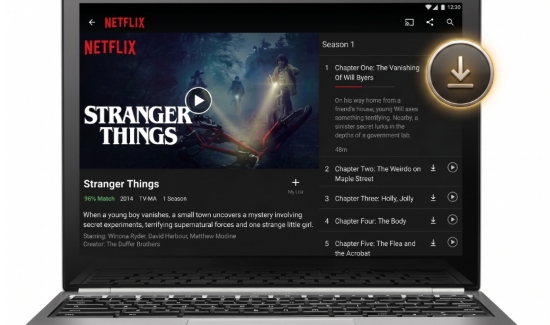
Unlike traditional Windows and Mac computers, Chromebooks are a unique exception. Because ChromeOS can run mobile applications, you can officially download Netflix content by using the Android version of the app. As long as your Chromebook supports the Google Play Store, you can install Netflix and download videos exactly as you would on a smartphone.
Nearly all Chromebooks launched in or after 2019 natively support Android apps. If you are using an older model built before 2019, you can check Chrome OS' compatibility list here to see if your device qualifies.
Step 1. Open the Google Play Store on your Chromebook and install the official Netflix app.
Step 2. Launch the Netflix app and log in with your Netflix subscription account.
Step 3. Browse the movies or TV shows you want to watch offline. If a title supports downloads, you'll see the 'Download' icon (the downward-facing arrow) next to it. Tap the icon to save the video locally to your Chromebook.
If your Chromebook is an older model that doesn't support Android apps, or if you simply want to bypass Netflix's official download caps and expiration timers, you can use AudFree Netflix Video Downloader to download titles on a PC or Mac first, then easily transfer the standard files to your Chromebook. Then you can watch Netflix movies on your Chromebook offline without limits.
Past Workarounds: The Windows Legacy App Downgrade (Now Dead)
In previous years, some users relied on older versions of the Netflix Windows application to preserve offline download capabilities. By downgrading the app and blocking updates, users could continue downloading content even after Netflix changed its system.
However, this workaround is no longer effective in 2026. Netflix now requires newer authentication and DRM systems that prevent legacy versions from functioning properly. Most downgraded apps either fail to launch or cannot access Netflix servers anymore.
If you are a tech enthusiast who still wants to test this method as an experiment, the historical process looked like this
Step 1. Completely uninstall the current Netflix PWA from your PC.
Step 2. Go to the Microsoft Store and turn off automatic updates. Just click profile photo > Settings > turn off App Updates.
Step 3. Download Download Netflix version 6.99.5 from a trusted mirror source, such as Google Drive archives shared by users online.
Step 4. Open Windows Terminal and run the following command to install the legacy Netflix app package:
Add-AppxPackage.\Downloads\4DF9E0F8.Netflix_6.99.5.0_neutral_~_mcm4njqhnhss8.AppxBundle
Step 5. Open the downgraded Netflix app and check whether the download feature is still available on your system. If so, you can download Netflix videos on your laptop.

That said, this method is outdated and highly unstable today. For a safer and more reliable Netflix offline viewing experience, it's recommended to use officially supported Netflix apps or dedicated tools like AudFree Netflix Video Downloader for offline playback.
Part 3. How to Watch Netflix Offline on Phone [iOS/Android]
If you love watching Netflix on your portable smartphone or tablet, the good news: downloading for offline viewing is a breeze! Whether you're using an iPhone, iPad, Android device, or Amazon Fire Tablet, here's how to download Netflix movies to watch offline on your Netflix mobile app:
Step 1. Open the Netflix app on your portable devices and log into your account.
Step 2. Look for downloadable content under the "Available for Download" section, or search for specific titles.
Step 3. If the title has a download icon next to the Play button, tap it to start downloading.
Step 4. Once downloaded, head to My Profile > Downloads to watch your content offline, even when you're in airplane mode or in a no-signal zone.

Part 4. How to Watch Netflix Offline on TV/Game Console
Sometimes you may want to watch Netflix offline on TV due to an unstable household network. While some game consoles, like the Steam Deck, are suitable for trips, they balance portability and screen size. Read this part to extend Netflix's offline feature on these devices!
Watch Netflix On TV Without Internet
Watching Netflix on Apple TV and other smart TVs is easy when you're connected to the internet. But how to watch Netflix on smart TV without internet? Don't worry, here are some workarounds for you.
Option 1. Connect Netflix to TV from phone to watch Netflix downloads.
You can download Netflix videos on your Android/iPhone first, then connect your phone to TV with an HDMI cable to cast Netflix to the TV. This way, you can watch downloaded Netflix offline on TV.

Option 2. Download Netflix videos via AudFree Netflix Downloader and transfer them to TV.
Netflix downloads are in encrypted formats that cannot be transferred among devices. Therefore, you need the aid of AudFree Netflix Downloader to download DRM-free Netflix videos that are compatible with your TV. Then, you can move the files to a USB drive and watch Netflix offline on your TV. Alternatively, you can cast or screen mirror the downloaded Netflix videos to your smart TV via Bluetooth.
Option 3. Share your mobile data with your TV using a mobile hotspot for an instant internet connection. But this may consume a large volume of your mobile data, which can be very expensive.
Watch Netflix Offline On the Game Console Without Internet
While streaming Netflix on game consoles like PS4, Xbox, and Steam Deck is easy, offline viewing requires a few extra steps. Here's how to watch Netflix offline on game consoles:
Step 1. Download Netflix videos using AudFree Netflix Downloader in MP4 or MKV format. Here is the detailed user guide.
Step 2. Transfer the Netflix downloads to a USB drive or SD card.
Step 3. Plug the drive into your game console and enjoy your Netflix shows without an internet connection.
To ensure successful offline playback, you must install a compatible media player app on your console. For PlayStation 5 and PlayStation 4, the USB drive must be formatted as FAT32 or exFAT. On Xbox Series X and Series S and other Xbox consoles, the storage device should use exFAT or NTFS formatting. As for Steam Deck, there are generally no strict file system limitations for local media playback.
View Also: How to Watch Netflix on Switch
Part 5. FAQs on Watching Netflix Offline
What Does Netflix 'This Title Can No Longer Be Watched Offline 10016' Mean?
This means you've reached the yearly download limit for that title. You'll need to wait until the limit resets (usually in a year) or watch the title online.
Why Do Netflix Offline Downloads Expire?
Netflix offline downloads expire mainly because of licensing agreements between Netflix and content owners. Movies and TV shows on Netflix are licensed for limited periods, and download availability is controlled to prevent permanent distribution of copyrighted content.
Depending on the title, some downloads may expire after a certain number of days if left unwatched, while others may expire shortly after you start playback. Unwatched downloads typically stay valid for up to 30 days. However, once you press play, you'll only be given 48 hours to 7 days to finish watching before the file automatically expires.
Where Are Netflix Offline Downloads Stored on Your Device?
Netflix downloads are usually stored inside a protected app folder on your device rather than as regular video files. On Android devices, the files are encrypted and tied directly to the Netflix app, meaning they cannot normally be copied, transferred, or played with other media players. The exact storage location varies depending on the device and operating system, but Netflix intentionally restricts direct file access due to DRM protection and licensing requirements.
However, if you download your Netflix videos using AudFree, the resulting DRM-free files will be saved by default to your local drive at C:\Users[YourAccount]\Documents\AudFree Netflix Video Downloader. Alternatively, you can easily customize the output folder and save your videos to any specific directory you prefer.
Can I Watch Netflix Offline On A Plane?
Yes, Netflix offline downloads are specifically designed for such situations. Before boarding the plane, simply download the movies or shows you want to watch while connected to Wi-Fi or mobile data. Once downloaded, you can open the Netflix app and enjoy the content offline during the flight without needing an internet connection. Just make sure your downloads have not expired before traveling.
View Also: How to Watch Netflix on A Plane
What Happens to My Downloaded Titles If I Travel to a Different Country?
If you travel internationally, the availability of your downloaded content changes due to regional copyright laws. When your device connects to the internet in a new country (such as the airport Wi-Fi upon landing), Netflix automatically scans your location and compares it to local streaming rights. If a movie you downloaded in your home country is not licensed for streaming in your destination country, the downloaded file will instantly display an error block, become greyed out, or refuse to play.
However, if you keep your device entirely offline (in Airplane Mode) throughout your trip, you can usually watch your downloaded files until the standard app authentication timer requires an internet check-in.
Can You Force Netflix Downloads to Store Onto an External SD Card?
Yes, but this feature is strictly limited to Android smartphones, Android tablets, and Amazon Fire tablets that feature expandable storage slots. If your device supports it, you can manually open the Netflix app, navigate to App Settings, look for the Download Location menu, and swap the storage path from Internal Storage to SD Card. This allows you to bypass internal memory limits and cache large video libraries.
Note that this option is completely unavailable on Apple devices (iPhones/iPads) and desktop computers, which lack expandable, hot-swappable storage compatibility within the native app settings.
View Also: How to Store Netflix Downloads on SD Card
Conclusion
Offline viewing remains one of Netflix's most valuable features. Whether you're traveling, managing a strict mobile data plan, or bracing for unreliable internet access, downloading content ensures your favorite movies and shows are always within reach. Armed with the workarounds and official steps highlighted in this guide, you now have everything you need to build your own permanent, unrestricted offline library.

Staff Editor


