


If you often use the Spotify desktop app on a Windows or Mac computer, you might have noticed the Hardware Acceleration button in the Settings section. But most people might not know what it is. So, this article will try to give a brief explanation of Spotify hardware acceleration. Also, we will show whether you should enable or disable it, how-tos, and troubleshoot common issues with it.

Part 1. What Is Hardware Acceleration in Spotify
First, let's learn what is Spotify hardware acceleration and what does Spotify hardware acceleration do?
Hardware acceleration is a process that allows a software application to offload specific tasks to specialized hardware components in your computer. Instead of forcing the Central Processing Unit (CPU) to handle every single calculation, the software "delegates" certain jobs to the Graphics Processing Unit (GPU) or other dedicated chips. This delegation is designed to make the application run faster and more efficiently by leveraging the strengths of each component.
When you run the Spotify app, which is built on the Chromium Embedded Framework (CEF), the software is essentially a specialized web browser. This framework relies heavily on GPU acceleration to render visual elements such as album art, smooth-scrolling playlists, and the various animations that populate the user interface. By offloading these visual tasks to your graphics card, Spotify ensures that your main processor is free to handle other background applications or system processes.
It is noted that CPU is a "generalist" designed to switch between many different types of tasks rapidly. In contrast, GPU is a "specialist" built specifically for parallel processing, which is ideal for the graphical rendering tasks found in modern apps. When hardware acceleration is enabled, Spotify is effectively hiring a specialist to take over the visual heavy lifting, which typically results in a snappier, more responsive user experience.
Moreover, the hard acceleration can make your operations on the Spotify app go smoother, for example, when you scroll through playlists. It's because the rendering of the interface is offloaded to the GPU instead of having to do CPU do all the work. Generally speaking, this setting has no big impact on most listeners, and that's why Spotify has enabled it by default.
Part 2. Does Hardware Acceleration Affect Spotify's Sound Quality?
No, hardware acceleration has no impact on the actual audio quality of your Spotify streams. Spotify uses the Ogg Vorbis format for Desktop and AAC for Web/Mobile. Both are decoded via software-based libraries (like Libvorbis) that do not require GPU assistance. The audio signal itself is decoded using the same algorithms regardless of whether this setting is toggled on or off.
The actual sound quality you hear is determined by your Streaming Quality settings in the Spotify app (which range from 24kbps to 320kbps) and your physical audio hardware. Sound quality will be noticeably improved if you get an excellent sound card for your computer and play music using great headphones or speakers. If you want to have a better listening experience, you should focus on your headphones, external speakers, or a dedicated Digital-to-Analog Converter (DAC). Hardware acceleration is a graphical and performance setting, not an acoustic one. Also, volume equalization affects the sound, so you can use Spotify equalizer to make music sound better.
Though Spotify hardware acceleration doesn't change the "quality" of the sound, it can affect the stability of the playback. If your GPU is struggling or your drivers are outdated, enabling hardware acceleration might cause the app to "hang" or "stutter". To the listener, this might sound like a drop in audio quality, but it is actually a technical interruption in the data stream rather than a change in the audio bitrate.
Part 3. Should I Turn on/Turn Off Spotify Hardware Acceleration
It depends on your needs to enable or disable hardware acceleration in Spotify. Here we will explain the details to you.
You should turn on Spotify hardware acceleration if:
1. You are using a modern computer with a dedicated graphics card (NVIDIA RTX, AMD Radeon).
2. You value smooth animations and a responsive user interface while browsing your library.
3. You do not experience any audio skipping or UI flickering during your daily use.
You should turn off Spotify hardware acceleration if:
1. You are a gamer who notices frame rate drops or "micro-stuttering" in your games while Spotify is open in the background.
2. You are using older hardware or a laptop with very weak integrated graphics.
3. You are traveling and need to maximize your listening time, as enabling it will drain your battery faster.
4. You are experiencing the "Spotify skipping track" bug where music pauses when you scroll through the app.
View also: How to Fix Spotify Keeps Skipping Songs
Part 4. How to Enable/Disable Spotify Hardware Acceleration
Spotify natively enables hardware acceleration when you install the Spotify desktop app for the first time. Now, let's take a look at where to find the hardware acceleration on Spotify and turn it off/on.
Via Spotify's Menu Bar
On Windows:
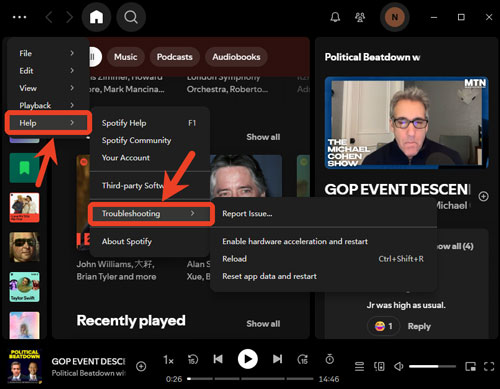
Step 1. Open the Spotify app for Windows app, then click the three-dot icon at the top-left corner on the screen.
Step 2. Next, choose Help > Troubleshooting, then tap 'disable hardware acceleration and restart' or 'enable hardware acceleration and restart'.
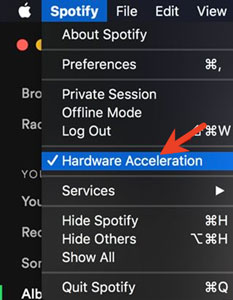
On Mac: Tap the Spotify option in the top menu bar of your Mac and look for the Hardware Acceleration option from the list to enable or disable it.
Via Spotify's Settings Screen
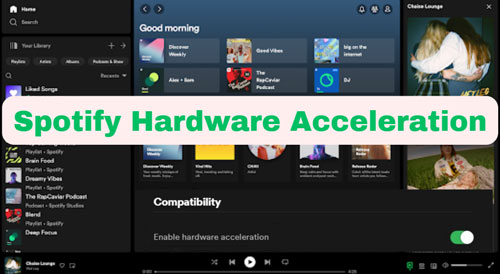
Alternatively, you can tap your Spotify profile on the screen and go to Settings. Then just scroll down and toggle on or off the Enable Hardware Acceleration button under the Compatibility section.

Part 5. Troubleshoot Common Issues of Spotify Hardware Acceleration
After enabling or disabling hardware acceleration on Spotify, users may encounter some bugs, like Spotify is still lagging or else. So, in this part, we will help you resolve these issues.
1. Clear Spotify App Cache: Go to Spotify app's Settings > Storage > Clear Cache. This will fix UI hanging better than toggling the GPU settings.
View also: How to Clear Spotify App Cache
2. Update Graphics Drivers: Make sure your drivers are up to date if you want to turn on hardware acceleration on Spotify. Just go to update it by checking the website of your manufacturer like NVIDIA, AMD, or Intel.
3. Disable 'Hardware-Accelerated GPU Scheduling' in Windows: If Spotify is still causing game lag, you can go to your Windows System Settings > Display > Graphics > Default Graphics Settings, then turn off the system-wide acceleration.
4. Update Windows or macOS System: You can also try to update your computer's system to solve the issue.
Part 6. FAQs about Hardware Acceleration on Spotify
Can I Enable Hardware Acceleration in Spotify Web Player?
No. The Spotify Web Player doesn't offer the hardware acceleration option. If you still want it, you can go to your web browser's settings to enable it.
Will Turning Hardware Acceleration Off Stop Spotify from Using My GPU Entirely?
Mostly, yes. When disabled this feature, the Chromium framework that runs Spotify will shift almost all visual rendering tasks back to your CPU. While your GPU might still handle basic Windows window management, Spotify will no longer be "taxing" it for UI animations or high-resolution album art rendering.
Can I Use Hardware Acceleration on Spotify for iPhone or Android?
No. There is no manual 'Hardware Acceleration' toggle in the settings menu of the mobile versions of Spotify for iOS and Android. On mobile devices, the operating system (iOS or Android) automatically manages how much of the GPU or CPU is used to render the app. Besides, modern mobile processors are designed with dedicated hardware for media decoding and interface rendering. If your mobile app is lagging when opening Spotify, it is usually due to a low battery, poor internet, or a full storage cache.
Is Hardware Acceleration Available on Spotify for Linux?
Yes, but on many Linux distributions like Ubuntu, Debian, or Fedora, the hardware acceleration toggle is often hidden or missing from the Graphical User Interface (GUI). Because Linux systems vary wildly in how they handle graphics drivers (X11 vs. Wayland, NVIDIA vs. AMD Open Source drivers), the Spotify app often defaults to a "safe mode". So, you can enable it by launching Spotify from terminal with a specific command. To disable it, use spotify --disable-gpu. To enable it, use spotify --enable-gpu-rasterization.
View also: How to Play Spotify on Linux
Part 7. Extra Tips: How to Play Spotify Offline Anywhere without Hardware Acceleration
At last, many users may want to play Spotify music without any system lag or 'skipping'. Downloading the Spotify songs for offline listening on other lighter media players would be a good solution to avoid most of the streaming problems. But it requires a Spotify Premium subscription. And once the subscription expires, all the downloaded music will be gone as well.
To save you from it, we here introduce AudFree Spotify Music Downloader. It lets users download Spotify songs with 100% original quality and full ID3 tags using a Spotify free account. You will be able to keep Spotify music forever and play them offline smoothly, so there will be no more any streaming problems like sudden pauses or skips.
With the latest technology, AudFree Spotify Music can run at 13X speed to download all Spotify songs/albums/playlists/podcasts/audiobooks. You can also select the output format for Spotify to MP3, WAV, FLAC, etc. There is also a built-in function that allows you to customize your Spotify songs by defining bit rate and sample rate to enhance the listening experience.
AudFree Spotify Music Converter offers a free trial for Windows and Mac versions. So, you can download and install it to test its performance first.
With this professional software installed on your computer, you can complete the downloading process within 3 simple steps.

Step 1. Launch the AudFree Spotify Music Converter on your computer and you will see the built-in Spotify Web Player on the interface. Find the music you would like to download and add it to AudFree tool.
Step 2. Go to Menu > Preferences > Conversion, and define output format and other parameters according to your needs.
Step 3. Click the Convert button to start to download Spotify music to computer at a rapid speed.
A few moments later, you can locate the downloaded Spotify songs from the output folder on your computer. Then you can move them to other media players for playback without the streaming issue.
Here is an alternative to AudFree Spotify Music Converter. That is AudFree Streaming Audio Recorder. It not only supports to convert music from Spotify but also from YouTube Music, Apple Music, Amazon Music, SoundCloud, Qobuz, etc. So, if you stream music from multiple services, don't miss this powerful tool.
Part 8. In Conclusion
The Spotify Hardware Acceleration setting is a powerful feature for optimizing your app's performance. But it is not available for all situations. For those with modern and high-performance machines, it provides a silky-smooth visual experience. For those with specialized needs, such as gamers or those on older hardware, disabling it can provide much-needed stability. By understanding this feature, you can take full control over your computer's resources. Whether you choose to optimize your settings or move toward an offline library with AudFree tools, the goal remains the same: an uninterrupted and high-quality listening experience.

Chief Editor


