


Quick Answer: You can't directly use Spotify with Mixvibes Cross DJ as there is no integration between them. To make it, you need to get Spotify music as Cross DJ-supported audio files via tools like AudFree Spotify Music Downloader. Then you can import Spotify music to Cross DJ for mixing online and offline.
As one of the best DJ software apps, Mixvibes Cross DJ has many features that other competitors don't. For example, its BeatGrid editor works perfectly that can any problems with BPM. In addition, Mixvibes Cross DJ is one of the few DJ software that supports users to import music in multiple ways. DJs can sync music playlists from iTunes and even other DJ software, including Rekordbox, Traktor, and Virtual DJ.
Some music producers prefer to search for music from Spotify for mixing with Cross DJ. However, Spotify isn't integrated with Mixvibes Cross DJ. Besides, you can't directly add Spotify music to Cross DJ due to its DRM protection. If you are one of the Spotify music lovers, you probably don't have to worry about this issue. In this article, you will find a reliable method on how to import Spotify music to Mixvibes Cross DJ for use with ease.


Part 1. How to Get Spotify Music for Mixvibes Cross DJ
From the above, you have learned the reasons why you can't use Spotify with Cross DJ. So in this part, let's get the solution.
AudFree Spotify Music Downloader is able to convert Spotify to MP3, FLAC, WAV, AIFF, M4A, M4B, and different universal formats. Also, it can batch download Spotify tracks, albums, podcasts, audiobooks, and playlists as local audio files without any quality loss.
With the assistance of this intelligent program, it is easy and simple to stream Spotify music to Mixvibes Cross DJ within all metadata contained, including track numbers, albums, artists, titles, cover art, etc. That helps a lot in tags editing and tracks mixing in Mixvibes Cross DJ.
AudFree Spotify Music Downloader

- Download songs, albums, podcasts, audiobooks and playlists from Spotify
- Convert Spotify songs to MP3, M4A, FLAC, etc. for Cross DJ
- Keep 100% metadata and 100% audio quality
- Run at 13X faster speed, support altering output parameters
Before you start to use this amazing converter, please read this notice first. This method is only for personal or educational use. You should not use this tool to pirate or distribute music. Then let's check the detailed tutorial below.
- Step 1. Load Spotify music to AudFree

- Launch AudFree Spotify Music Downloader on the desktop. In the built-in Spotify web player, open the playlist that you want to download, hit the '+' icon and press the 'Add to list' button to load it to AudFree.
- Step 2. Reset the output parameters for Spotify music to Mixvibes Cross DJ

- On the Windows computer, please locate and click the menu icon on AudFree. Then tap the "Preferences" > "Conversion" tab. On the Mac computer, just open Mac's menu, and then choose "AudFree Spotify Music Converter" > "Preferences" > "Conversion" option. Now, you can reset the output format and other settings for your Mixvibes Cross DJ. Besides, you can customize the output file name and output folder by Artist/Album, Album/Artist, etc. for better organization on Mixvibes Cross DJ.
Choose the Right Audio Format for Spotify on Cross DJ:
| Format | Cross DJ Loading Latency | Memory & CPU Usage | Main Advantage | Main Drawback |
|---|---|---|---|---|
| 320 kbps MP3 | Ultra-low (instant loading) | Low | Smaller file size; wide compatibility | Lossy compression |
| 16-bit / 44.1kHz WAV | Low | Moderate | Lossless audio | Large files |
| FLAC (Lossless) | Moderate | Moderate to High | Lossless with efficient storage | Not compatible with some platforms |
| 256/320 kbps M4A | Ultra-low (instant loading) | Low to Moderate | Good quality-to-size ratio; works with iTunes and Apple Music app | Not compatible with some platforms |
In the AudFree program, you can set the format to MP3 / 320 kbps / 44,100 Hz / Stereo. This is the optimal configuration for balancing Cross DJ database loading speed with live audio quality.
- Step 3. Download Spotify music for Mixvibes Cross DJ

- Click the big "Convert" tab on the Converting list page to start converting. When the conversion goes over, please visit the "Converted" section where you can check all converted files on your local computer.
To download music for use on Mixvibes Cross DJ, you can also use AudFree Streaming Audio Recorder. This tool can download tracks, podcasts, audiobooks and radios from Spotify, YouTube Music, Apple Music, Amazon Music, SoundCloud, Audible, Pandora, Qobuz, Deezer and so on with original quality and full ID3 tags.
Part 2. How to Import Spotify Music to Mixvibes Cross DJ
Now you have downloaded Spotify playlists onto your local computer. Then you can transfer those unprotected local Spotify files to Mixvibes Cross DJ on your computer and mobile devices through the following way.
Mixvibes Cross DJ only works on Mac, Android and iOS devices currently.
Way 1. Add Spotify Songs to Cross DJ from the Local Folder (For Mac)
Step 1. In Cross DJ for Mac app, click the "File" > "Collection" > "Import Directory" option.
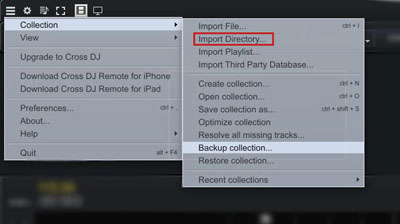
Step 2. Browse and select the "Converted" folder that contains the local Spotify music files, then hit OK.
Step 3. When the loading is done, the Spotify files will show in the Collection view of the Cross DJ browser.
Way 2. Import Spotify Tracks to Cross DJ from iTunes / Apple Music Library (For Mac)
Before starting, please add the converted Spotify music files to your iTunes or Apple Music library first.
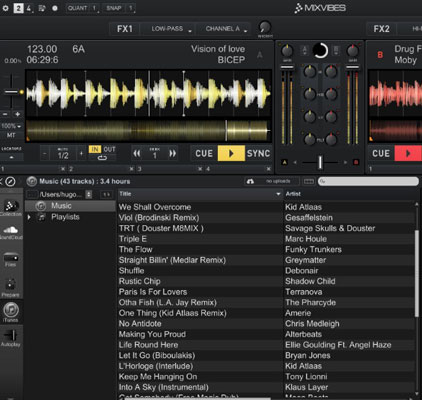
Step 1. In the browser dock of Cross DJ, find the iTunes or Apple Music icon to open the library.
Step 2. Browse the track you would like to add from your iTunes or Apple Music library.
Step 3. Drag and drop the tracks to the "Collection" icon in the dock.
Way 3. Add Spotify Music to Mixvibes Cross DJ (For iOS/Android)
First, you need to transfer the local Spotify music to your iOS or Android phone or tablet from your computer.
For iPhone or iPad, move Spotify files via AirDrop or upload the files to iCloud Drive from your Mac computer. Or, you can connect your iOS device to your computer via a USB cable and sync Spotify music via iTunes or Finder.
For Android, connect your device to your computer via a USB cable and move the local Spotify files to the Music folder on your Android's internal storage.
After that, follow the steps below to import and mix Spotify music with Cross DJ.
Step 1. Start the Cross DJ app from your Android or iOS device.
Step 2. Touch the 'Music Note' icon on the screen to open the library browser.
Step 3. Locate and tap the 'Files' option (on iOS) or the 'Local Music' / 'Folders' option (on Android).
Step 4. Look for the folder that contains the transferred Spotify music in your mobile device and choose it to import to Cross DJ. Later, Cross DJ app will analyze the files and you can then mix them directly.
Part 3. How to Fix Spotify Music with Mixvibes Cross DJ Common Problems
In this part, you can check the common issues of Spotify on Mixvibes Cross DJ and the fixes to each problem below.
Issue 1: Cross DJ Can't Detect My Imported Spotify Music Files
Fix: First, you need to confirm that the local Spotify music files are stored locally on your device. Also, check whether the files were moved after being imported. Or, rescan or re-import the folder if necessary.
Issue 2: Cross DJ Loads the Spotify Track But There Is No Sound
Fix: Go to the audio preferences menu within the Cross DJ application. Assign "Master" directly to your computer's built-in speakers or a connected DJ audio interface. Then check the physical volume knob and the on-screen crossfader to ensure they are both centered.
Issue 3: Cross DJ Won't Analyze Spotify Track's BPM
Fix: Manually tap out the beat using the Cross DJ app's built-in TAP button while the track is playing. Or, you can replace the problematic Spotify music file with a higher-quality, unencrypted version.
Part 4. FAQs about Spotify to Mixvibes Cross DJ
Is It Legal to Use Spotify with Mixvibes Cross DJ?
No, you can't legally use Spotify music with Cross DJ for public DJ performances. Spotify explicitly stipulates that its streaming service and associated features are intended solely for private, non-commercial listening. You are not permitted to play music from the service in public settings such as nightclubs, private events, or live streams. If you intend to use local Spotify audio files in DJ software, you must personally obtain the necessary legal authorization to store and play that music. Copyright laws strictly regulate the use of digital files, while specific requirements for public performance licenses vary depending on your location and the specific venue.
Is There Any Alternative Way to Mix Spotify Music with Cross DJ?
Yes, as Mixvibes Cross DJ supports SoundCloud Go+, you can transfer Spotify playlist to SoundCloud first via Soundiiz or other playlist transfer tools. Then you can log in to SoundCloud account within the Cross DJ app and start mixing Spotify music.
Part 5. Final Verdict
Though there is no Spotify Cross DJ integration for you to mix Spotify music directly. You can use AudFree Spotify Music Converter to get local Spotify music files and then import them to Mixvibes Cross DJ for use without any limitation. Besides that, you can add these Spotify music tracks to other DJ software like Serato, DJUCED, etc. for mixing offline easily.

Chief Editor


