


Discord has become one of the most popular communication platforms for gamers, creators, and online communities. Many users enjoy sharing what they are listening to while chatting with friends. Platforms like Spotify have native integrations with Discord, allowing your current track to appear automatically through Rich Presence. Unfortunately, SoundCloud still does not offer a built-in integration with Discord.
Even so, it doesn't mean it's impossible to show SoundCloud on Discord. In 2026, there are several reliable workarounds that allow you to display SoundCloud tracks in your Discord status or share music directly in servers. Whether you're using a Windows/Mac computer or a mobile device, tools like PreMiD, Kizzy, and music bots can help bridge the gap.
In this guide, you'll learn how to connect SoundCloud to Discord on desktop and mobile devices, show your listening activity with Rich Presence, and share SoundCloud music easily with friends.

Part 1. How to Make Discord Show SoundCloud on Desktop/Mobile (Rich Presence)
Since SoundCloud does not have an official Discord integration, the easiest way to display your listening activity is by using third-party Rich Presence tools. These tools read the currently playing track and send that information to Discord.
Method 1. Use PreMiD (Desktop)
PreMiD is one of the most popular Rich Presence tools for Discord. It supports hundreds of websites, including SoundCloud, and works through a browser extension combined with a desktop application.
Once configured, your Discord profile will display the track you're listening to on SoundCloud in real time.
Ensure that 'Share activity with all servers' is enabled within your Discord permissions; otherwise, your SoundCloud Rich Presence may not be visible to others.
How to Link SoundCloud to Discord via PreMiD on Desktop
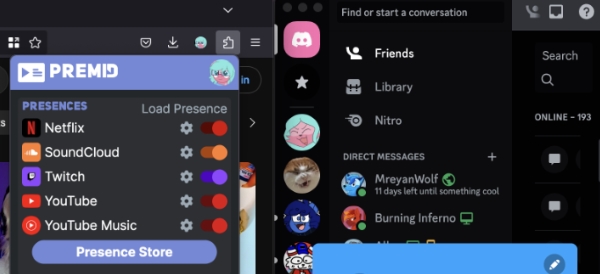
Step 1. Visit the official PreMiD website and download the desktop application. Then install the browser extension for your preferred browser (Chrome, Edge, or Firefox).
Step 2. Launch the PreMiD desktop app and log in using your Discord account. Make sure Discord is running in the background.
Step 3. Open the PreMiD 'Store' and search for SoundCloud. Then install the SoundCloud presence module.
Step 4. Open the SoundCloud website in your browser and start playing a track. PreMiD will automatically detect it and display the song title and artist in your Discord status.
Pros and Cons of Using PreMiD
Displays track title, artist, and playback progress;
Works with most major browsers;
Easy to set up and customize
Requires installing both a desktop app and browser extension;
Only works when listening to SoundCloud through a browser
Method 2. Use Kizzy (Android)
If you primarily listen to SoundCloud on your phone, Android users can use Kizzy to simulate SoundCloud Discord Rich Presence.
Kizzy allows you to manually or automatically display your activity status on Discord, making it appear as if you are listening to SoundCloud.
Due to Apple's background process and system-wide security restrictions, iOS does not currently support tools like Kizzy.
How to Show SoundCloud on Discord with Kizzy on Android
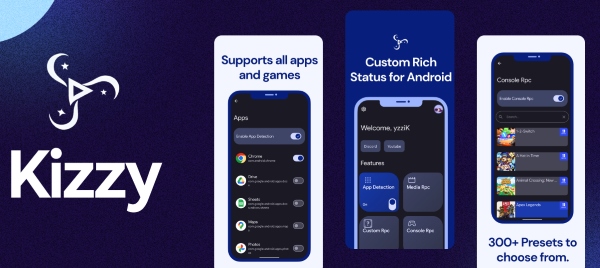
Step 1. Download Kizzy from the Google Play Store and log in using your Discord account.
Step 2. Choose the option to create a new Rich Presence status.
Step 3. Enter details of this new Rich Presence status for SoundCloud Discord integration, such as:
- App name: SoundCloud
- Song title: Young And Beautiful
- Artist name: Lana Del Rey
- Visuals: You can also upload the SoundCloud icon and enable a playback progress bar for a more immersive look
Step 4. Once enabled, the presence will appear in your Discord profile as if you are playing music from SoundCloud.
Pros and Cons of Using Kizzy
Works on Android devices;
Fully customizable presence (text, icons, and timers);
Simple interface with a quick setup process
Not available for Apple devices;
Requires manual updates when songs change;
Unlike PreMiD, it doesn't always automatically detect song changes
Bonus Tip: "Registered Games" Workaround (PC)
Another simple trick is to use Discord's Registered Games feature. Discord allows you to manually add programs to your activity status. By renaming a program to 'SoundCloud', you can make Discord display it as your current activity.
How to Make Discord Show SoundCloud via Registered Games

Step 1. Open Discord Settings, go to Activity Settings > Registered Games.
Step 2. Click Add Games, and select a running browser or media player.
Step 3. Rename the activity to 'SoundCloud'.
While this method doesn't show the exact track name, it still indicates that you are listening to SoundCloud.
This workaround is useful if you simply want your friends to know you're using SoundCloud on Discord without installing extra tools.
Part 2. How to Share SoundCloud Music in Discord Servers via Bots
Another popular way to add SoundCloud to Discord is through music bots. Instead of displaying your listening status, bots allow you to stream SoundCloud tracks directly inside a Discord voice channel.
Several Discord bots support SoundCloud playback, allowing server members to listen together, including FredBoat, Hydra Bot, Jockie Music, and so on. These bots can fetch songs directly from SoundCloud URLs and stream on Discord.
How to Play SoundCloud in Discord Using a Bot
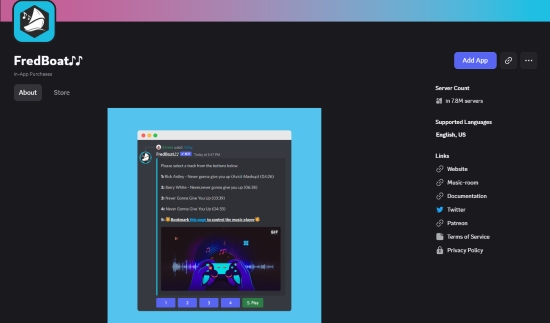
Step 1. Visit the official website of your chosen bot and invite it to your Discord server. Make sure you have server permissions. Take Fredboad as an example, you can go to the official website to get it or click the down arrow of your ID > App Directory to find and download it.
Step 2. Enter any voice channel in your server.
Step 3. Copy the SoundCloud track URL and paste it with the play command.
/play https://soundcloud.com/artist/song

Step 4. The bot will stream the track into the voice channel so everyone can listen together.
Pros and Cons of Using Discord Bot
Listen to SoundCloud together in real time;
Supports playlists and queues;
Easy to control with chat commands
Some bots have limited uptime;
Certain servers restrict music bots;
Audio quality may vary depending on the bot
Despite these limitations, music bots remain one of the most social ways to enjoy SoundCloud music on Discord.
Part 3. How to Show SoundCloud on Discord via Spotify Bridge
Another effective workaround is to bridge SoundCloud music through Spotify. Because Spotify has an official integration with Discord, any track playing in Spotify can automatically appear in your Discord status through Rich Presence.
However, the key challenge is: how do you move SoundCloud songs into Spotify so they can be displayed in Discord?
Spotify allows users to add local audio files to its library. If you download SoundCloud tracks to your computer first and then import them into Spotify, those songs can be played just like normal Spotify tracks - and they will also appear in your Discord status.
To do this efficiently, you will need a professional downloader. One reliable option is AudFree Streaming Audio Recorder, which can download and convert music from multiple streaming platforms, including SoundCloud, Spotify, Tidal, and Apple Music.
This tool allows you to save SoundCloud tracks locally in high quality and upload them to Spotify's local library, making them compatible with Discord's Spotify Rich Presence feature.
In addition, AudFree can download SoundCloud tracks, playlists, and albums in batches at up to 65× faster speed, while preserving the original audio quality and ID3 tags.
Make sure the downloaded SoundCloud files are in a Spotify-supported format. Spotify supports common formats such as MP3, WAV, and FLAC.
Key Features of AudFree Streaming Audio Recorder

- Convert SoundCloud to FLAC, MP3, WAV, and more at up to 65X speed
- Download SoundCloud tracks, playlists, and albums for offline playback
- Support batch downloading with original audio quality and preserved ID3 tags
- Fully compatible with Mac and Windows computer
Phrase 1. How to Download SoundCloud and Upload Them to Spotify via AudFree Program
Step 1. Install and launch AudFree Streaming Audio Recorder on your computer. Go to Menu > Preferences > Conversion, and choose an audio format supported by Spotify, such as MP3, WAV, or FLAC. Here, you can also customize other settings, including bitrate, sample rate, and audio channels as needed. Next, you can select an output folder and enable ID3 tag preservation under the Output tab.

Step 2. Use the built-in SoundCloud web player inside the AudFree program to find the track or playlist you want. Click the '+' icon to add the selected songs to the conversion list, then press Convert. The software will begin downloading and converting the tracks to your computer. Once the process is finished, all downloaded SoundCloud files will be saved in your selected output folder.

Step 3. Open the Spotify desktop app, then go to Profile Picture > Settings. Scroll down to Library > Show Local Files, and turn this option on. Next, click 'Add a Source' and select the folder where your downloaded SoundCloud songs are stored. Spotify will automatically scan the folder and add those files to your Local Files library.

Step 4. Once imported, your SoundCloud downloads will appear in Spotify's library. You can now play them like any other track in Spotify. When the music is playing, the track will also be visible in your Discord status thanks to Spotify's native Rich Presence integration.
Phrase 2. How to Connect Spotify to Discord
After importing the SoundCloud songs into Spotify, you just need to connect Spotify to Discord.
Step 1. Launch Discord, log in to your account, and go to User Settings > Connections.

Step 2. Click the Spotify icon and log in to your Spotify account to authorize the connection.

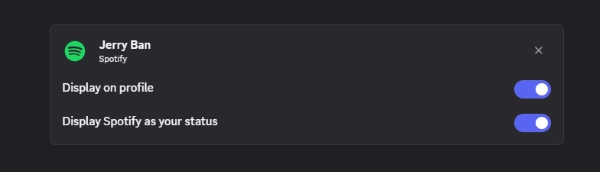
Step 3. After linking the accounts, enable the following options: 'Display on profile' & 'Display Spotify as your status'. Now, whenever you play music in Spotify, including the SoundCloud songs you imported, your current track will automatically appear in your Discord profile.
Pros and Cons of Using Spotify Plus AudFree Streaming Audio Recorder
Download SoundCloud music locally for permanent access;
Supports multiple audio formats compatible with Spotify;
Batch download tracks, playlists, and albums efficiently;
Preserves original audio quality and ID3 metadata;
Allows SoundCloud tracks to be used with Discord Rich Presence via Spotify
Requires installing additional desktop software;
Spotify mobile may require syncing to play local files;
The process involves multiple steps (download → import → play)
Part 4. In Conclusion
Although SoundCloud still doesn't provide a native integration with Discord, there are several practical methods to connect the two platforms in 2026.
If you want to display your listening activity automatically, tools like PreMiD offer the best Rich Presence solution for desktop users. Android users can simulate the same effect using Kizzy. Meanwhile, Discord's Registered Games feature provides a quick workaround without installing additional tools.
For community listening experiences, music bots such as FredBoat and Hydra Bot make it easy to stream SoundCloud tracks directly in Discord voice channels. Alternatively, you can bridge SoundCloud music through Spotify to take advantage of Discord's built-in integration via AudFree Streaming Audio Recorder.
By choosing the method that fits your device and listening habits, you can easily share your favorite SoundCloud music with friends and make your Discord profile more interactive.

Staff Editor


