


"Can I upload music to Tidal?" Yes. Now, Tidal has launched the official 'Tidal Upload' feature, allowing casual users to upload local music files to Tidal for playback or artists to upload their copyrighted tracks to Tidal. But how to do that?
In this complete guide, we will walk you through how to upload songs to Tidal on mobile and desktop devices. Also, we will guide you on how to manage the Tidal uploads within the Tidal app.

Part 1. How to Upload Music to Tidal on Mobile
Before uploading songs on Tidal, you need to make sure that you have the Tidal-supported audio formats like MP3, FLAC or WAV. Besides, ensure you are 18+ and live in the selected regions and countries, such as US, UK, Canada, EEA (European Economic Area) and Switzerland. What's more, you need to have a valid Tidal subscription and have the latest version of the Tidal app.
You can't upload audio tracks that already exist on Tidal and your uploads is not eligible for royalty earnings on Tidal. Besides, you can't upload content protected by third-party copyright, cover songs, remixes or audio tracks.
After confirming the above, you can start to upload your own music to Tidal on Android or iOS mobile devices.
Step 1. Open the Tidal app on your mobile device and tap the Upload icon in the bottom menu bar.
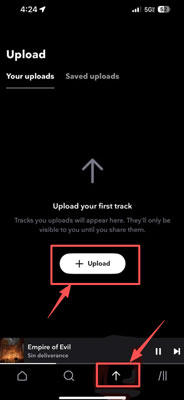
Step 2. On the Upload interface, click the + Upload button at the lower-right of the screen.
Step 3. Choose 'Upload a track' from the pop-up screen, then locate and select the audio file you want to upload to Tidal from your phone's local storage.
After that, your music files will be uploaded to Tidal app.
Part 2. How to Upload Songs to Tidal on Computer
If you have a large library of high-resolution WAV or FLAC audio files for uploading to Tidal, you need to use a computer to proceed. You can use the Tidal desktop app or Tidal Web Player to start.
Step 1. Open the Tidal desktop app or visit Tidal Web Player, then log in to your Tidal account.
Step 2. Find and click the 'Upload' option in the left-side panel of the screen.
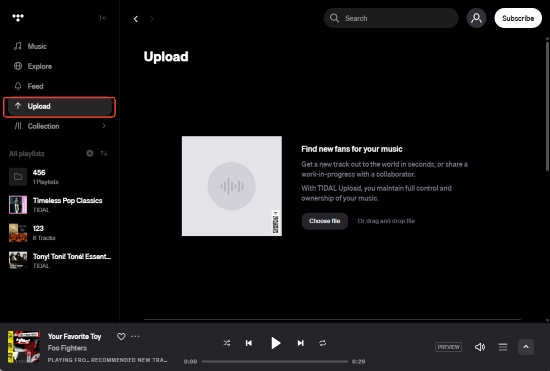
Step 3. Click the '+ Upload' button at the upper-right of the Upload interface.
Step 4. Now, you can browse your hard drive, choose your audio file, and proceed to upload the songs to your Tidal library.
Part 3. How to Manage Your Tidal Uploads
After adding music files to Tidal, follow these tips to manage them in your Tidal library.
1. Edit Track's Metadata
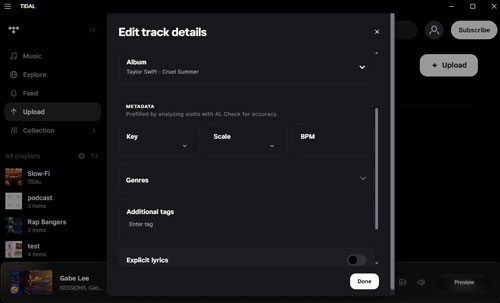
When you upload a track to Tidal, it will automatically detect and fill in the track's Key, Scale, and BPM (Beats Per Minute). If the metadata is wrong, you can correct it. Just locate the uploaded track, tap the three-dots icon and choose 'Edit' to override the details manually.
2. Organize Albums and Artwork
You can group your audio tracks into an album to make your collection tidy for easy access.
While uploading a track to Tidal, you can choose to add it as an album. Then you can edit the album info such as title and so on. Also, you can upload a cover image for the album.
3. Visibility and Privacy Controls
It is noted that all uploaded tracks on Tidal are private by default. That means only you can see and listen to them.
So, if you are an artist who wants to share your music with others, you can change the visibility settings. Just toggle the 'Share on Tidal' option to make your track public.
If you just want to share a track with a collaborator, you can set an album to 'Unlisted' and share the track link to others directly.
4. Delete Tidal Uploads
To delete tracks or albums from Tidal Uploads, you can click the three-dots icon and then choose 'Delete' to remove the content from your Tidal library.
Part 4. FAQs about Uploading Songs to Tidal
How Many Tracks Can I Upload to Tidal?
You can upload up to 200 individual tracks to your Tidal account. Besides, each individual track can be up to 5 GB in size.
Do Listeners Need a Tidal Subscription to Hear My Uploaded Tracks?
No, all Tidal users can listen to the music you uploaded as long as you set the music to public.
What Can I Do If My Uploaded Music to Tidal Has a Copyright Flag on It?
If your content was flagged incorrectly, you can contact Tidal Support and choose 'I want to file an appeal of a Tidal Upload copyright flag' from the list.
If you want to transfer audio tracks from other platforms to Tidal, you need to capture the track locally via a tool like AudFree Streaming Audio Recorder in advance.
Part 5. How to Play Tidal Songs Offline
Tidal subscribers can save Tidal music for offline listening. But it is limited to mobile devices. For users who want to keep Tidal music for playing anywhere, we recommend using AudFree Tidal Music Downloader.
It allows you to download Tidal music files with lossless quality (up to 24-bit/192kHz FLAC). Besides, it supports to output Tidal music to MP3, WAV, M4A, and more. Moreover, this tool retains the complete metadata of Tidal audio tracks, such as title, artist, album, etc.
Now, follow the steps below to download and save Tidal music offline for personal and non-commercial playback forever.
- Step 1. Add Tidal music files to AudFree Tidal Music Converter

- Open AudFree Tidal Music Downloader, then find the track, playlist, or album you like to download from the built-in Tidal web player. After that, press the '+' > 'Add to list' button to add it.
- Step 2. Modify output parameters of Tidal music

- Click the 'menu' icon, then choose the 'Preferences' > 'Conversion' option. Now, you can adjust the output audio settings, such as format, sample rate, channel, and so on. Later, tap 'OK'.
- Step 3. Download and save Tidal music for offline playback

- Start to download Tidal music by hitting the 'Convert' button in the Converting list interface. Once the conversion is complete, click the 'Converted' option to find the converted files in your computer's local folder. After that, you can keep the converted Tidal songs forever and listen to them offline anywhere and anytime.
Part 6. In Conclusion
Now, you can easily upload music to Tidal with the Tidal Upload feature. Just follow the detailed steps above to start to build your custom music library. However, there are limits for listening Tidal music offline.
If you want to keep Tidal music for offline playback without any restrictions, you can get help from the AudFree Tidal Music Converter. It is professional and legal to use. With it, you can get Tidal songs offline and listen to them on any device you want.

Staff Editor


