


Yoto cards are an innovative way to bring audio content to children, providing a device that plays pre-loaded audio without the need for a screen or internet connection. It offers a variety of content like music, stories, and podcasts, which makes it perfect for educational and entertainment purposes. However, Apple Music, being a streaming service, doesn't have native support for Yoto cards. So, how can you play Apple Music on Yoto?
In this guide, we'll show you the process to add Apple Music to your Yoto cards, from converting music to playing it via Bluetooth. We'll also discuss and answer some of the most common FAQs about using Apple Music with Yoto out of your Apple Music subscription.


Part 1. Can You Add Apple Music to Yoto Card?
Before diving into the specifics, it's essential to understand whether Apple Music is compatible with Yoto. In short, you cannot use Apple Music on Yoto directly. This means you cannot simply log in to your Apple Music account on the Yoto app or device and stream music directly.
However, this doesn't mean all hope is lost. By converting your Apple Music tracks into a compatible format and transferring them onto Yoto cards, you can enjoy your favorite Apple music without the need for an internet connection. Additionally, there are workarounds like using Bluetooth for streaming directly to the Yoto player.
While Yoto supports a variety of upload formats, its servers eventually transcode all files into a standardized format for seamless playback. The most compatible formats include MP3 (highly recommended) and M4A/AAC. You can also upload WAV files, though their large size means they will be heavily compressed during the optimization process.
The following sections outline each method in detail. To learn how to successfully add Apple Music content to your child's Yoto library, please continue reading.
Part 2. Best Way to Convert Apple Music for Yoto Player (Lossless & Offline)
It is noted that Apple Music is protected by digital rights management, which limits users from enjoying Apple Music songs on other devices. So, the best way to listen to Apple Music on the Yoto Player offline is to remove the protection from Apple Music first.
As we mentioned above, Yoto cards support audio files like MP3 and M4A, so to use Apple Music on a Yoto player, you'll need to convert your tracks into a file format that Yoto supports.
AudFree Apple Music Converter is the tool you need. It can get rid of the limitations of Apple Music files and save them as local audio files. Also, it can download and convert Apple Music to MP3, M4A, etc. for Yoto card. This software preserves the lossless quality of the original Apple Music tracks. Besides, all metadata of the Apple Music songs will be fully kept while working at an ultra-fast speed.
After the conversion, you will get local Apple Music files and you can put Apple Music on Yoto card/player for playback offline without any restrictions.
AudFree Apple Music Converter

- Remove DRM from Apple Music and save as local files
- Convert Apple Music to MP3 or other formats that Yoto supports
- Convert music content from Apple Music at a 17X faster speed
- Preserve lossless sound quality for Yoto Apple Music
Now, tap the 'Download' button above to download and install AudFree Apple Music Converter on your Windows or Mac computer. Besides, you need to have a valid Apple Music account. After that, follow the steps below to convert Apple Music to Yoto player compatible audio files.
- Step 1. Load Apple Music Songs to AudFree Apple Music Converter

- After installing the program to your desktop, then browse the Apple Music songs you want to play on Yoto. Then tap the '+ ♫' icon at the right on the screen and click the 'Add to list' button to load them into AudFree program.
- Step 2. Set Output Format for Apple Music Yoto Player

- Hit the "menu" icon > 'Preferences' to open the output audio settings window. Now, you can choose the Yoto-compatible format MP3, M4A, or WAV. Also, you can customize other output audio parameters, like bit rate, sample rate, etc. for Apple Music on Yoto card. After that, tap 'OK' to apply.
See also: How to Convert Apple Music to M4A
- Step 3. Convert Apple Music for Yoto Card

- In the final step, click the 'Convert' button at the bottom-right corner in the Converting window to start converting Apple Music files for Yoto player. Once converted, tap the 'Converted' icon with a red spot to locate all the local Apple Music files on your computer. These files can now be transferred to Yoto cards and you can put Apple Music on Yoto card for offline playback.
The following section explains how to associate these Apple Music files with your physical Yoto cards.
Want more music for your Yoto Player? The AudFree Streaming Music Converter supports high-quality DRM removal for Spotify, YouTube Music, Tidal, and more. With support for 10 major streaming services and competitive pricing, it is an efficient solution for transferring external music libraries to your Yoto ecosystem.
Part 3. How to Create MYO and Add Apple Music to Yoto Card on Computer/Phone
Yoto cards use a feature called MYO (My Own Yoto) cards, which are blank cards that can be programmed with your own audio content. In this section, we will show you a detailed tutorial on how to add Apple Music to Yoto cards for offline playback on computer and mobile devices. Let's start.
How to Make Yoto Card from Apple Music on Computer or Phone
Via Yoto Card Website on Computer:
Step 1. Visit the Yoto Card webpage on your Windows or Mac computer. Then you can start to make your own Yoto cards for Apple Music.
Step 2. Tap the blue 'Add Playlist' card icon and you can add Apple Music files to a card.

Step 3. Type a name and describe the playlist you create.
Step 4. Choose 'Random Art' or 'Upload Art' to customize the look of your card.
Step 5. Tap the orange 'Add Audio' icon to choose and upload the local Apple Music files to the Yoto card.

Step 6. When uploaded, click the 'Create' button at the bottom. Now, you successfully put Apple Music on Yoto card.
Via Yoto Card and Yoto App on Phone:
First, you need to transfer the converted Apple Music files from your computer to your Android or iOS device.
Step 1. Start the Yoto app from your mobile phone or tablet. Then head to the 'My Library' section.

Step 2. Pick up the 'Make Your Own' > 'Make playlist' option. Then enter the name for your playlist.
Step 3. Choose the 'Add audio files (MP3 / M4A)' option. Then you can select local Apple Music files you want to add to Yoto card.

Step 4. Once added, click the 'Done' button to put Apple Music on Yoto.
Step 5. After uploading Apple Music to Yoto card, you can open the playlist you made in the Yoto app. Then hit the 'three-dots' icon and choose the 'Link to a card' option.

Step 6. Now, insert your Yoto card into your Yoto Player. Then click on the 'Link' button in the app. Later, it will play Apple Music on Yoto Player offline once connected.

You can control Apple Music playback via the Yoto player. You can twist the left button on the Yoto player to turn up the volume. Besides, when you unplug the Yoto card from your player, the Apple Music songs will stop. But the music will play again when you plug it in again.
How to Add and Play Apple Music on Yoto Player via Yoto App
To start, please transfer downloaded Apple Music songs from your computer to your Android or iOS phone or tablet.
Step 1. Download, install and start the Yoto app from your Android or iOS device. Then sign in to your Yoto account.
Step 2. Locate and tap the 'Library' section at the bottom of the screen
Step 3. Tap the top-right '+' icon on the screen.
Step 4. Pick up the 'Add Audio' option.

Step 5. Select the converted Apple audio files you want to add from your mobile device's local folder.
Step 6. Give a name and choose the right category (e.g., music, story, etc.) for your audio file.
Step 7. Click on the 'Save' button to put Apple Music on Yoto library in the app.
Step 8. Link your Android or iOS mobile device and Yoto Player under the same Wi-Fi network. Once connected, you can start to play Apple Music on Yoto Player from the Yoto app.
Part 4. Alternative Method: Play Apple Music on Yoto via Bluetooth (Simple & Fast)
If you don't want to go through the process of converting and transferring files, there's an alternative method: using Bluetooth to play Apple Music directly from your phone to the Yoto player.
To begin, ensure there is no card in the player. Then, double-click the right-hand orange button until the Bluetooth icon appears on the display.
Step 1. First, ensure your Yoto player has Bluetooth enabled. Check the Yoto app or the device settings to make sure it's ready to pair with another Bluetooth device.
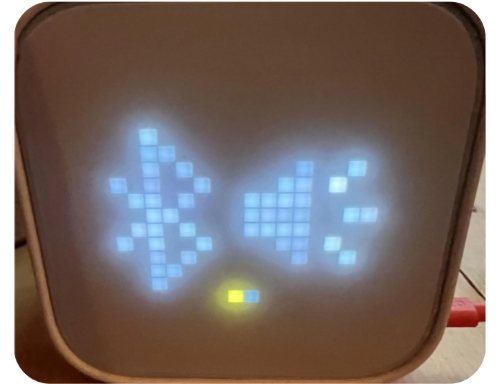
Step 2. On your phone, turn on Bluetooth and look for the Yoto player in the available devices list. Once found, pair the phone with the Yoto player.
Step 3. Open the Apple Music app on your phone and start playing your desired tracks. The audio will stream directly from your phone to the Yoto player via Bluetooth.
This method is quick and easy, but it does require an active internet connection and Apple Music subscription for streaming. Also, your phone will need to stay nearby since it's acting as the music source.
Part 5. FAQs about Yoto and Apple Music
How to Add Music from iTunes to Yoto Card?
If you've purchased music through iTunes, you can transfer it to your Yoto card in the same way you'd transfer Apple Music tracks. First, convert the files to MP3 format using a converter tool online, then add them to a MYO card via the Yoto app on your computer or phone.
Can I Use Songs from My Apple Music Streaming Subscription on a Yoto Card?
No, you cannot directly. Apple Music tracks are protected by Digital Rights Management (DRM), which prevents you from transferring them directly to Yoto. To make them playable on Yoto, you need to convert these Apple Music to DRM-free MP3 or M4A files using a converter like AudFree Apple Music Converter.
Why Won't My MYO Card Relate to the Local Files I Downloaded from Apple Music?
There are several reasons why this might happen. First, double-check that your Apple Music tracks are not DRM-protected. Yoto players cannot read encrypted Apple Music streaming files. Second, if your Apple Music files work everywhere else but the Yoto player still shows an error, the card may have a hardware defect known as a 'batch error'. If the NFC chip is faulty, please reach out to Yoto Support to request a replacement.
Can I Play Apple Music on Yoto Player Offline?
Yes, you can. By using an Apple Music converter and a 'Make Your Own' (MYO) card, adding Apple Music to your Yoto Player for offline playback is simple. This method doesn't just allow for offline Apple Music listening, it provides a permanent way to enjoy your Apple Music collection on the Yoto ecosystem.
In Conclusion
While Yoto doesn't natively support Apple Music, there are multiple ways to get your favorite tracks onto the device. The best method for you depends on your preferences: If you want to enjoy Apple Music offline without streaming, converting the files to MP3 and adding them to a MYO card is a great option (with AudFree Apple Music Converter). Alternatively, if you're okay with streaming, using Bluetooth is a simple and fast method to get music playing on your Yoto player.
Whether you're using Yoto for educational purposes, bedtime stories, or just for music, getting Apple Music onto the device opens up a whole new world of possibilities. With these methods, you can enjoy the best of both worlds - Apple Music and Yoto - together.

Staff Editor


