


For runners, gym-goers, and anyone who prefers a distraction-free listening experience, the Mighty music player has become a popular alternative to carrying a smartphone. Small enough to clip onto your clothing and designed for offline playback, it lets you enjoy music without notifications, calls, or a bulky device in your pocket.
But if you're an Apple Music subscriber, you may be wondering: Can you use Apple Music on Mighty?
Unfortunately, the short answer is no. Mighty does not officially support Apple Music, nor can it play downloaded Apple Music songs directly. While this may sound disappointing, it doesn't necessarily mean you have to give up listening to your favorite Apple Music playlists during workouts.
In this guide, we'll explain why Mighty isn't compatible with Apple Music, whether downloaded Apple Music tracks can be transferred to the device, and the practical options available if you still want to enjoy your Apple Music library in a phone-free offline setup.
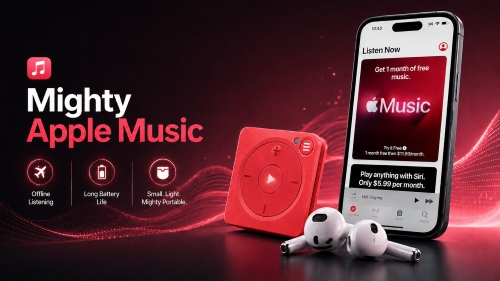

Part 1. Does Mighty Work with Apple Music?
No. Mighty does not support Apple Music, and there is currently no official integration between the two platforms.
Unlike traditional MP3 players, Mighty isn't designed to play locally stored music files. Instead, it functions as a dedicated offline streaming player that syncs playlists from supported music services through the Mighty mobile app. At the time of writing, the supported services include Amazon Music, while Spotify support is being phased out. Apple Music has never been added to the list of compatible platforms.
See also: How to Play Apple Music on MP3 Players
Here's a quick overview of the current compatibility:
| Music Service | Compatible with Mighty? |
|---|---|
| Apple Music | ❌ |
| Spotify | ✅ |
| Amazon Music | ✅ |
| Local MP3 Files | ❌ |
If your entire music library is stored in Apple Music, you won't be able to sign in with your Apple ID, sync playlists, or download songs to Mighty using the official app.
That said, if your goal is simply to listen to Apple Music offline without carrying your phone, there are still some practical workarounds, which we'll explore later in Part 4 or Part 5 of this guide.
Part 2. Why Doesn't Mighty Support Apple Music?
Many users assume that since Mighty can store music offline, it should also be able to play Apple Music downloads. However, the limitation isn't the storage capacity - it's how both platforms are designed.
Several factors prevent Apple Music from working with Mighty.
Reason 1. Apple Music Downloads Are DRM-Protected
Songs downloaded from an Apple Music subscription aren't standard audio files like MP3 or FLAC. Instead, they're protected by Apple's Digital Rights Management (DRM) technology, which encrypts the music and restricts playback to authorized devices and apps linked to your Apple Music account.
Even if the files are stored on your device, they can't simply be copied elsewhere and played freely.
See also: How to Remove DRM from Apple Music
Reason 2. Mighty Relies on Official Streaming Integrations
Mighty isn't an open music player that accepts files through drag-and-drop. Instead, it synchronizes playlists through officially supported streaming services using its companion app.
Because Apple Music has never provided this type of integration for Mighty, the device has no way to authenticate your Apple Music account or sync your library.
Reason 3. Apple and Mighty Operate in Different Ecosystems
Apple Music is designed primarily for Apple's own ecosystem, including iPhone, iPad, Mac, Apple Watch, HomePod, and selected third-party devices with official support.
Mighty, on the other hand, focuses on a lightweight, screen-free experience built around supported streaming partnerships rather than universal music playback.
As a result, the two ecosystems simply don't connect.
Part 3. Can You Transfer Downloaded Apple Music to Mighty?
Unfortunately, the answer is still no.
One common misconception is that downloading songs from Apple Music creates ordinary music files that can be copied to another device. In reality, downloading only stores encrypted versions of the songs for offline listening within the Apple Music app.
This means you cannot:
- Copy downloaded Apple Music files to Mighty;
- Drag and drop Apple Music songs onto the device;
- Import Apple Music tracks through the Mighty app;
- Use a USB connection to transfer Apple Music downloads.
Even if you could get the downloaded files on your computer via some third-party tools, Mighty wouldn't recognize them because it doesn't function as a traditional MP3 player with local file support.
In other words, the limitation isn't just Apple's DRM protection - it's also the way Mighty itself is designed. Since the device only synchronizes content from supported streaming services, manually transferring audio files isn't an available option.
So, if you want to continue using a Mighty player, you'll need to think beyond direct file transfers.
Part 4. How to Use Apple Music on Mighty via Spotify (Indirect Workaround)
Although Mighty doesn't natively support Apple Music, there's still an indirect way to enjoy a similar listening experience on your Mighty device.
Instead of syncing Apple Music to Mighty, you can first transfer your Apple Music playlists to Spotify, then use the official Mighty app to sync those Spotify playlists for offline playback.
The workflow looks like this: Apple Music → Playlist Transfer Tool → Spotify → Mighty Sync.
While this doesn't actually bring your Apple Music songs onto Mighty, it allows you to listen to the same albums and playlists, provided they're also available in Spotify's catalog.
Here's how it works.
Phase 1. Transfer Your Apple Music Playlists to Spotify
The easiest way to move your playlists is with a playlist migration tool. These services scan your Apple Music playlists, match the songs with Spotify's catalog, and automatically recreate the playlists in your Spotify account.
Popular options include TuneMyMusic, Soundiiz, and SongShift (for iPhone and iPad). In this guide, we'll use TuneMyMusic as an example.
Step 1. Open TuneMyMusic and choose Apple Music as the source music service.

Step 2. Sign in to your Apple Music account and select the playlists you want to transfer.
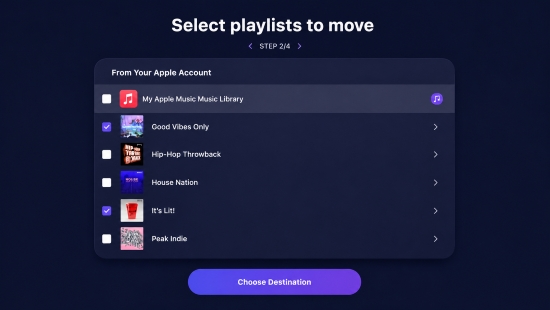
Step 3. Choose Spotify as the destination service and sign in to your Spotify account.
Step 4. Start the transfer and wait while TuneMyMusic recreates your playlists in Spotify.

Playlist transfer tools only migrate playlist information - they don't copy the actual audio files. Since Apple Music and Spotify have different catalogs and licensing agreements, some tracks may be unavailable or replaced with alternative versions on Spotify.
Phase 2. Sync Spotify Playlists with Mighty
Once your playlists have been recreated in Spotify, you can sync them to your Mighty player using the official Mighty Audio app. The steps below use Mighty Vibe as an example.
Step 1. Install the Mighty Audio app from the App Store (iOS) or Google Play Store (Android). Launch the app and sign in to your Mighty account, or create one if you're a new user.
Step 2. Charge the device if needed. Then press and hold the 'Play' button until the LED starts flashing green. Keep Bluetooth enabled on your phone and place the Mighty Vibe nearby.
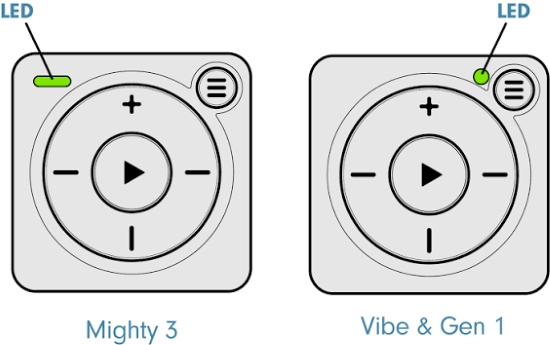
Step 3. Open the Mighty Audio app and tap the '+' button when prompted. When the LED turns blue, press the 'Play' button on the Mighty to complete Bluetooth pairing.

Step 4. In the Mighty app, select Spotify as your music service and tap 'Connect'. Sign in to your Spotify Premium account and authorize Mighty to access your Spotify library.

Please Make sure your phone is connected to Wi-Fi or mobile data throughout the setup and syncing process.
Step 5. Browse your Spotify library in the Mighty app, tap the '+' button next to the playlists or podcasts you'd like to download, and then tap Sync Now. Mighty will automatically download the selected content for offline playback.

Once syncing is complete, disconnect your phone and enjoy your favorite playlists directly from your Mighty player while running, working out, or commuting.
Lets you continue enjoying Apple Music in your existing Mighty player;
Uses the official Mighty syncing process;
Supports phone-free offline listening after synchronization;
No complicated device modifications are required
Requires switching from Apple Music to Spotify for playback;
A Spotify Premium subscription is typically needed for offline syncing;
Some songs may not transfer because of catalog differences;
Playlist artwork, likes, and listening history aren't always preserved;
Managing two music services can become inconvenient over time
If maintaining both Apple Music and Spotify feels like more effort than it's worth, there's another approach that many Apple Music users find much simpler. In the next section, we'll look at an alternative solution that delivers a similar offline listening experience without depending on Mighty or a second streaming subscription.
Part 5. Better Alternative: Play Apple Music Offline on a Compatible Device
If your ultimate goal is phone-free offline listening rather than using the Mighty device itself, switching to a portable device that supports local audio files is often a more practical solution.
Unlike Mighty, many MP3 players, digital audio players (DAPs), or WearOS devices allow you to transfer standard audio files directly via USB. Once your Apple Music songs are converted into common formats like MP3 or FLAC, they can be stored permanently and played without relying on streaming service integrations.
Phase 1. Convert Apple Music to Local Audio Files
Since Apple Music songs are DRM-protected, you'll first need to convert them into widely supported audio formats.
One reliable solution is AudFree Apple Music Converter, which is designed to save Apple Music tracks as local files while preserving the original audio quality and important metadata, including song titles, artists, albums, and artwork.
AudFree Apple Music Converter

- Convert Apple Music to MP3, WAV, FLAC, AIFF, etc.
- Preserve lossless audio quality whenever possible
- Keep ID3 tags and album artwork for better library organization
- Batch convert multiple tracks at once
- Fast conversion speed (17X) for large music collections
After conversion, your Apple Music library becomes standard audio files that can be transferred to many compatible devices for offline playback.
How to Convert Apple Music Songs via AudFree
Step 1. Install and launch AudFree Apple Music Converter on your Windows PC or Mac.
Step 2. Sign in to your Apple Music account within the built-in web player and select the songs, albums, or playlists you'd like to convert.

Step 3. Open the output settings through 'AudFree Apple Music Converter > Preferences' and choose your preferred format, such as MP3 or FLAC. You can also customize the sample rate, bit rate, and other audio parameters if needed.

See also: How to Convert Apple Music to FLAC
Step 4. Click the 'Convert' button and wait for the process to finish. Your converted songs will be saved locally on your computer.

Want offline playback from streaming apps other than Apple Music? You can use AudFree Streaming Audio Recorder to save audio from Spotify, TIDAL, and YouTube Music (over 10 streaming services) directly to your portable players.
Phase 2. Transfer Apple Music to a Compatible Player
Once the conversion is complete, simply connect your portable music player to your computer using a USB cable and copy the converted files into its Music folder.
Popular devices that support local audio playback include:
- Sony Walkman series
- FiiO digital audio players
- HiBy music players
- SanDisk Clip series
- Various Android-based MP3 players
- USB flash drives for car audio systems
- Some WearOS devices like Apple Watch
Because these devices play standard audio files, you won't need to synchronize through a streaming service or maintain multiple music subscriptions.
Mighty vs Compatible Offline Music Players
If you're deciding whether to continue using Mighty or switch to another portable player, the following comparison may help.
| Feature | Mighty + Spotify Workaround | Compatible Player + AudFree |
|---|---|---|
| Apple Music Support | Indirect method | ✅ (After conversion) |
| Requires Spotify | ✅ | ❌ |
| Two Streaming Services | ✅ (Usually) | ❌ |
| Offline Playback | ✅ | ✅ |
| Local File Playback | ❌ | ✅ |
| Permanent Music Library | ❌ | ✅ |
| Device Flexibility | Limited | High |
| Subscription Required | ✅ | ❌ |
For users who already own a Mighty and don't mind using Spotify, the playlist migration method can still be a workable solution.
However, if Apple Music is your primary streaming service, converting your library and using a player that supports local files is generally the simpler and more flexible long-term choice.
Conclusion
Although Mighty, whether Mighty 3 or Mighty Vibe, is an excellent screen-free music player for workouts and outdoor activities, it isn't compatible with Apple Music. Because Apple Music has never been integrated with the Mighty platform, you can't sign in with your Apple ID, sync playlists, or transfer downloaded songs directly to the device.
If you're determined to keep using Mighty, transferring your Apple Music playlists to Spotify and syncing them through the official Mighty app is currently the closest workaround. While effective, it requires maintaining a Spotify account and may not perfectly preserve every playlist.
For Apple Music subscribers seeking a simpler and more flexible solution, converting Apple Music songs into standard audio formats with AudFree Apple Music Converter and playing them on a compatible offline music player is often the better long-term option. It removes the dependency on streaming service compatibility and allows you to enjoy your favorite music on a wide range of portable devices whenever and wherever you like.

Staff Editor


