


Switching music streaming platforms can feel like moving to a new house. You look forward to the new features, the fresh interface, and better recommendations, but the thought of packing up your belongings - in this case, your meticulously curated music library - is daunting.
If you are planning to move from Apple Music to Deezer, you might be wondering whether you have to leave your years of music history behind. The good news is, you don't have to. This comprehensive guide will show you how to transfer your playlists seamlessly and, more importantly, how to save your favorite tracks so you can keep them forever, even after your Apple Music subscription expires.

Part 1. Can You Transfer Apple Music to Deezer?
The short answer is yes, but only part of your Apple Music library, and there are a few important limitations to understand.
Because music streaming services compete directly with one another, they don't offer a built-in "Export" button that lets users move their libraries to a rival platform. Apple Music and Deezer operate in separate ecosystems and use different streaming technologies. For example, Apple Music primarily streams in AAC and ALAC (Lossless) formats, while Deezer is best known for its FLAC HiFi streaming.
Fortunately, several third-party migration tools have been developed to bridge this gap. Rather than transferring the actual audio files, these services scan the metadata of your Apple Music library - including song titles, artists, albums, and playlists - and match each item with the corresponding version available in Deezer's catalog of more than 120 million tracks.
In other words, when someone says you can transfer Apple Music to Deezer, they actually mean transferring the structure of your music library, not the music files themselves. The playlists, favorite songs, albums, and artists are recreated in Deezer by matching metadata, while the original Apple Music files remain on Apple's servers.
Here's what typically transfers successfully:
| Library Item | Transfer Supported? |
|---|---|
| Playlists | ✅ |
| Liked/Favorite Songs | ✅ |
| Albums | ✅ |
| Artists | ✅ |
| Playlist Order | ✅/❌ (Not always, depends on the transfer tool and playlist) |
| Downloaded Apple Music Files | ❌ |
| Offline Playback | ❌ |
| Apple Music DRM-Protected Files | ❌ |
Most migration tools don't copy or convert audio files. Instead, they recreate your Apple Music playlists in Deezer by locating the same songs in Deezer's streaming library. As a result, while your library organization can usually be preserved, the downloaded music files themselves cannot be transferred.
However, metadata matching isn't perfect. It works well for mainstream releases that exist on both platforms, but some tracks may fail to transfer due to licensing differences, regional availability, exclusive releases, remastered versions, or metadata mismatches. As you'll see in the next section, these limitations mean that standard playlist migration tools rarely achieve a 100% successful transfer, especially for large or highly customized music libraries.
Part 2. How to Transfer Apple Music Playlist to Deezer
To move the bulk of your music library quickly, using a web-based playlist migration service is the most efficient route. Tools like Soundiiz and TuneMyMusic are officially supported by Deezer and can transfer hundreds of songs within minutes.
Here is a step-by-step guide using TuneMyMusic as an example to transfer music library from Apple Music to Deezer.
The free tier of TuneMyMusic is limited to 500 tracks. For larger music libraries, your best bet is to upgrade to the monthly premium plan for around $5.50, run your transfer, and then cancel the subscription right away so you are only charged for that single month.
Step 1: Select Your Source

1. Open your web browser and go to the official TuneMyMusic website.
2. Click on the "Let's Start" button on the homepage.
3. From the list of supported music platforms, select Apple Music as your source platform.
4. A pop-up window will appear asking you to log in with your Apple ID. This grants the tool permission to read your music library (it will not see your password or personal data).
Step 2: Choose Playlists to Transfer
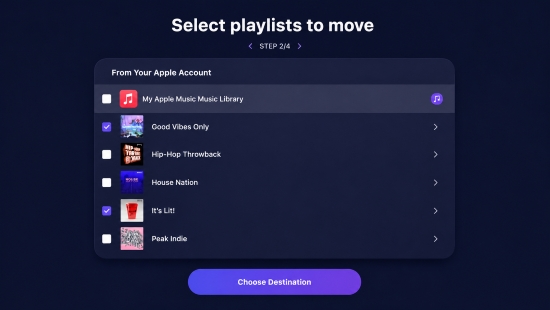
1. Once connected, the tool will display your entire Apple Music library.
2. Check the boxes next to the specific playlists, albums, or artists you wish to migrate. You can select everything at once if you want a complete relocation.
3. Click "Select Destination".
Step 3: Choose Your Destination and Sync
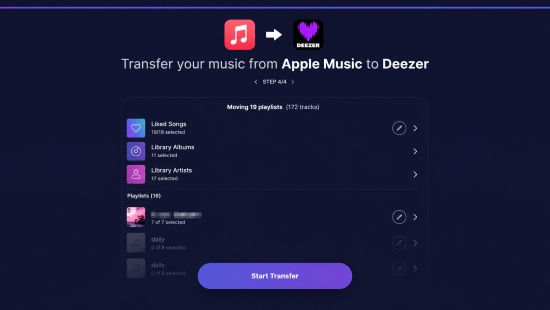
1. Select Deezer as your destination platform.
2. Log in with your Deezer credentials to authorize the connection.
3. Review the summary of the tracks you are about to move.
4. Click "Start Transfer".
With a premium subscription, once your accounts are linked, you can sync the two services automatically. Any song you add to your Favorites in Apple Music will instantly sync to Deezer.
A progress bar will show you the real-time status of your transfer. Once completed, open your Deezer app, and you will find your Apple Music playlists sitting in your new library.
Part 3. Limits of Standard Transfer: Why Some Apple Music Songs Didn't Transfer
If you follow the steps in Part 2, you might notice something frustrating when looking at your newly transferred Deezer playlists: the song count doesn't match. A playlist that had 100 songs on Apple Music might only show 85 songs on Deezer.
If any tracks fail to transfer, Deezer will display a summary of the missing songs once the process wraps up.
Why does this happen? Why do some songs refuse to transfer? There are three main reasons for this:
1. Regional Licensing and Catalog Discrepancies
Even though Deezer has a massive catalog, music licensing varies by country and platform. A specific indie track or a regional live album available on Apple Music might simply not exist on Deezer's servers. If a song isn't in Deezer's database, the tool cannot match it.
2. Grayed-Out or Discontinued Tracks
Over time, songs in your Apple Music library may become "grayed out" because Apple lost the rights to stream them, or the artist removed them. Migration tools ignore these dead links during the transfer process.
3. The DRM (Digital Rights Management) Barrier
This is the biggest hurdle. Any music you downloaded directly through your Apple Music subscription is encrypted with Apple's proprietary FairPlay DRM. This encryption ensures that the music only plays within the authorized Apple Music app and remains tied to an active subscription. Standard transfer tools only copy text data (metadata); they cannot move the actual audio files.
Furthermore, if you have old music files stored in your iCloud Music Library, or rare tracks you ripped from CDs years ago that aren't available on streaming platforms, standard migration tools will completely skip them.
If you want to keep your Apple Music songs permanently and upload them directly to Deezer, completely bypassing subscription limits and cloud-matching errors, you'll need a different approach.
Part 4. How to Keep Apple Music Before Switching to Deezer
If you want to ensure that 100% of your music makes the journey to Deezer - including rare tracks, unreleased audio, and grayed-out songs - you need to break free from the constraints of streaming encryption.
To truly keep your music forever and prevent it from disappearing when you cancel your Apple Music subscription, you must convert your tracks into DRM-free, high-quality local audio files (like MP3, WAV, or FLAC).
To achieve this, you can utilize a professional desktop software like AudFree Apple Music Converter. It bypasses DRM restrictions legally via virtual audio recording, giving you permanent ownership of the music you've discovered.
Unlike cloud transfer methods that rely entirely on metadata matching, this approach gives you an exact, flexible way to replicate your Apple Music library. As a result, you gain full control over your tracks - complete with unrestricted playback, local storage, and permanent long-term access.
AudFree Apple Music Converter

- Convert Apple Music to MP3, M4A, FLAC, etc. flexibly
- Batch processing Apple Music playlists for Deezer
- Preserve original audio quality and ID3 tags
- Allow to get Apple Music free forever
- Work on both Windows and macOS
How to Download Apple Music Tracks for Deezer via AudFree
- Step 1. Add Apple Music Songs to AudFree

- Download, install, and launch AudFree Apple Music Converter on your computer. The built-in Apple Music web player will open automatically. Sign in with your Apple ID, then browse your library for the playlists or albums you want to transfer. Click the "+" icon in the bottom-right corner, and select "Add to list" to load the tracks into the conversion queue.
- Step 2. Define the Output Format for Deezer

- Navigate to the "Preferences > Conversion" tab. Under Audio Format, select MP3 (as this is the only local format Deezer supports). Here, you can also optimize your quality settings by adjusting the Bitrate (320kbps is recommended for high quality), Sample Rate, and Channels. Under the "Output" tab, choose your preferred destination folder and ensure ID3 tag retention is enabled to keep your track metadata intact. Click "OK" to save your changes.
- Step 3. Convert and Save Apple Music for Deezer

- Click the "Convert" button in the bottom-right corner to begin the process. AudFree will strip the DRM protection and save the converted Apple Music tracks directly to your local storage. Once finished, you can view your files by clicking the Converted History icon within the program, or by opening your specified output folder.
Once this process is complete, these audio files belong to you. They will never expire, they do not require an internet connection, and they can be played on any device or uploaded to any platform - including Deezer.
If you need to sync playlists across other platforms beyond Apple Music - such as Spotify, Tidal, Qobuz, Pandora, or SoundCloud - AudFree Streaming Music Converter is your reliable, all-in-one solution. Supporting over 10 major streaming ecosystems, it ensures your favorite songs are saved in pristine quality for seamless playback on Deezer-supported devices or any other device.
Part 5. How to Import Local Music from Apple Music to Deezer
Now that you have successfully bypassed the DRM limitations and saved your missing Apple Music songs as local files, how do you get them into your Deezer ecosystem?
Deezer stands out from many other streaming services because it offers a native "My MP3s" upload feature. This allows you to integrate your personal, local audio files directly into your cloud library, making them streamable alongside Deezer's main catalog.
How to Upload Your Converted Apple Music Songs to Deezer:
Step 1. Open your desktop web browser and go to deezer.com.
Uploading local MP3 files must be done via the website, not the mobile app.
Step 2. Go to "Favorites" (the heart icon) and select the More tab.

Step 3. Tap on "My MP3s".
Step 4. Click the "Select MP3s to upload" button.

Step 5. Navigate to the folder on your computer where your converted Apple Music tracks are stored, choose the folder or the files and click upload.
Once uploaded, these tracks will be stored in your Deezer cloud account. You can add them to your Deezer playlists and stream them across all your devices, including your smartphone and tablet, completely filling the gaps left behind by standard migration tools.
Part 6. What to Expect After Switching from Apple Music to Deezer
Now that you've successfully transferred your Apple Music library to Deezer, it's helpful to understand how your listening experience may change. While both services offer excellent audio quality and extensive music catalogs, each has its own strengths and caters to different types of listeners.
See also: Apple Music vs Deezer
| Feature | Apple Music | Deezer |
|---|---|---|
| Audio Quality | AAC (256 kbps), Lossless (up to 24-bit/192 kHz), Hi-Res Lossless | MP3 (up to 320 kbps), FLAC (16-bit/44.1 kHz) |
| Spatial Audio | ✅ | ❌ |
| Music Discovery | Editorial playlists, personalized mixes, Apple Music Radio | Flow AI-powered endless recommendations, personalized mixes |
| Music Catalog | 100M+ songs | 120M+ songs |
| Offline Listening | ✅ | ✅ |
| Local Audio Files | Sync via the Apple Music app (iCloud) | Upload and manage MP3 files across devices |
1. Sound Quality and Spatial Audio
Apple Music offers Hi-Res Lossless at no extra cost, but it requires external hardware (like a DAC) to fully appreciate. Deezer's HiFi tier delivers CD-quality FLAC (16-bit/44.1 kHz), which is incredibly crisp, punchy, and perfectly suited for high-quality headphones. However, if you are a big fan of Dolby Atmos and spatial audio tracking, you might miss Apple's immersive audio engine, as Deezer remains strictly stereo-focused.
2. Music Discovery: Flow vs Smart Playlists
Apple Music relies heavily on human-curated editorial playlists and radio shows. Deezer, on the other hand, is famous for Flow - an AI-driven, infinite playlist that adapts entirely to your mood, genre preferences, and listening habits in real-time. Many users find Deezer's algorithmic recommendations to be superior for discovering obscure indie artists compared to Apple's more mainstream-focused algorithm.
Conclusion
Migrating from Apple Music to Deezer doesn't mean you have to sacrifice your music history. By utilizing web migration tools like TuneMyMusic or Soundiiz, you can effortlessly move the vast majority of your mainstream playlists in just a few clicks.
For the tracks that get left behind due to DRM restrictions and licensing issues, taking control of your library via the AudFree Apple Music converter allows you to preserve your favorite songs locally. By uploading those files back into Deezer's "My MP3s" section, you build a resilient, cross-platform music collection that is truly yours to keep forever. Enjoy your new musical home on Deezer!

Staff Editor


