


As the streaming landscape matures in 2026, platform-hopping has become a common trend among users seeking more competitive pricing or exclusive features. Apple Music and YouTube Music are two of the most popular services today, each with its own strengths. Apple Music excels in lossless audio quality, curated playlists, and Apple ecosystem integration, while YouTube Music stands out for its massive catalog, music videos, remixes, and free listening flexibility.
The good news is that in 2026, there are three practical ways to move Apple Music to YouTube Music - ranging from official free support to permanent library migration and online playlist transfer tools. Let's dive in!

Part 1. How to Transfer Apple Music Playlists to YouTube Music Free [Official Support]
If you're looking for a completely free and legal way to export Apple Music playlists to YouTube Music, Apple's official transfer feature is the best place to start. YouTube Music now supports direct playlist and library transfer from Apple Music, allowing users to migrate their content without downloading or converting any files.
What You Need
Before you begin the transfer, ensure you have the following:
- An active Apple Music or iTunes Match subscription
- An valid YouTube Music account
- A computer or a phone to perform the transfer
What You Can Transfer
Using the official Apple Music to YouTube Music transfer tool, you can move:
- Apple Music playlists (only the user-created and collaborative playlists)
- Saved albums
- Liked songs
However, it's important to note that this method works by matching tracks based on metadata rather than audio files. This means that:
- Curated Apple Music playlists (e.g., "Today's Hits")
- Playlists created by other users
- Non-music files (Podcasts, Audiobooks)
- User-uploaded local audio files (MP3s)
How to Import Apple Music Playlist to YouTube Music for Free Using Apple Service
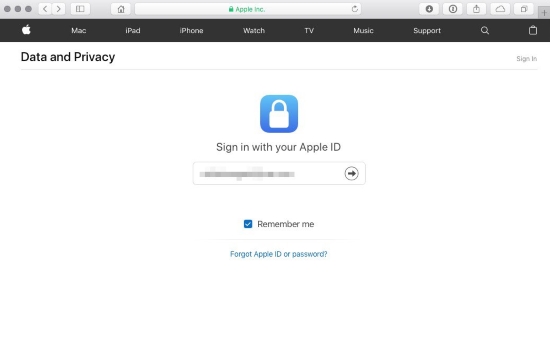
Step 1. Go to Apple's Data and Privacy page and log in with your Apple Account.
Step 2. Select the option "Transfer a copy of your data".
Step 3. Select Apple Music Playlists from the list of available data.
Step 4. Follow the prompts to sign in to your Google Account and grant Apple permission to add music to your YouTube Music library.
Step 5. Complete the request. You will receive an email notification (associated with your Apple Account) once the transfer begins and another when it finishes.
Depending on the size of your Apple Music library, the process may take anywhere from a few minutes to several hours. And because the tool matches songs by metadata, some tracks may not transfer if they aren't available in the YouTube Music catalog.
Pros and Cons of the Official Transfer Method
100% free and legal;
No third-party software required;
Fast and beginner-friendly;
Supports created playlists, saved albums, and liked songs
Songs are matched, not copied;
Some tracks may be missing or replaced, and not 100% correct match;
No offline files or permanent access;
Requires an active Apple Music or iTunes Match subscription during transfer
Part 2. How to Add Apple Music Library to YouTube Music [Permanent Access]
While the official Apple transfer method is convenient, it comes with some clear limitations. Most notably, once you cancel your Apple Music subscription, you immediately lose access to your original library. In addition, some content may not transfer properly, including unmatched songs, regional exclusives, and live versions. There's also an audio quality gap to consider: Apple Music supports Lossless audio, whereas YouTube Music caps streaming at 256 kbps AAC.
If your goal is to keep Apple Music songs permanently and upload them to YouTube Music as your own files - without relying on cloud matching - you'll need a different approach.
Using AudFree Apple Music Converter for Permanent Access
AudFree Apple Music Converter is designed to remove Apple Music DRM and convert Apple Music tracks into standard audio formats that YouTube Music fully supports, such as MP3, M4A, FLAC, and more.
Unlike cloud transfer methods that depend on metadata matching, this solution allows you to copy Apple Music playlist to YouTube Music - downloading Apple Music songs as local files and uploading them directly to YouTube Music. As a result, you gain full control over your music, including playback, storage, and long-term access.
AudFree Apple Music to YouTube Music Converter

- Convert Apple Music to MP3, M4A, FLAC, and more
- Batch processing Apple Music playlists for YouTube Music
- Preserve original audio quality and ID3 tags of each songs from Apple Music
- Allow permanent access without Apple Music subscription
- Work on both Windows and macOS
How to Copy Apple Music to YouTube Music with Permanent Access
- Step 1. Add Apple Music to AudFree Conversion List

- Download and launch AudFree Apple Music Converter on your computer. The built-in Apple Music web player will open automatically. Sign in with your Apple ID, browse your library, or playlists you want to transfer. Click the + icon in the bottom-right corner, then select Add to list to add them to the conversion list.
- Step 2. Choose Output Format for Apple Music to YouTube Music

- On Windows, click the menu icon at the top-right of the AudFree interface. On macOS, click AudFree Apple Music Converter in the top-left menu bar.
- Go to Preferences > Conversion, where you can customize output settings, such as Audio format (FLAC for lossless quality or MP3/M4A for broad compatibility), Bitrate, Sample rate, and Channels if needed. You can also select your preferred destination folder and enable ID3 tag retention under Output tab. Once configured, click OK to save your settings.
- Step 3. Convert Apple Music to YouTube Music-Compatible Format

- Click the Convert button in the bottom-right corner to start the conversion process. AudFree will remove DRM and save the converted Apple Music tracks to your local storage. When the process finishes, you can find all converted Apple Music files in the Converted history section within the program or your specified output folder.
- Step 4. Upload Playlist from Apple Music to YouTube Music

- Open the YouTube Music web player in your browser and sign in to your account. Click your profile icon in the top-right corner, then select Upload music. Choose the converted Apple Music files from your computer. Once uploaded, they'll appear under Your Library > Uploads, where you can stream, download, and organize them just like regular YouTube Music tracks.
Beyond copying Apple Music to YouTube Music, if you need to sync playlists from other platforms like Spotify, Tidal, Qobuz, Deezer, or SoundCloud, AudFree Streaming Music Cpnverter is your all-in-one solution. Supporting over 10 major streaming services, it ensures your downloads maintain lossless audio quality for the ultimate listening experience.
Pros and Cons of the Permanent Access Method
You truly 'own' your Apple Music songs and playlists;
No dependence on Apple Music apps or subscriptions;
Works even after your Apple Music subscription expires;
Preserves Apple Music's original, high-quality audio;
Enables offline playback across multiple devices
Requires a paid license for full Apple Music conversion;
Available only for Windows and macOS
Part 3. How to Export Apple Music to YouTube Music via TuneMyMusic
If you prefer not to install software and want a faster, more flexible alternative to Apple's official transfer method to migrate Apple Music to YouTube Music, online migration services are your best bet. Services like TuneMyMusic and Soundiiz specialize in moving libraries between platforms in just a few clicks, allowing you to move Apple Music playlists to YouTube Music with just a few clicks.
In this section, we'll use TuneMyMusic as an example to show you how to sync Apple Music playlists to YouTube Music quickly and easily.
The free version of TuneMyMusic is typically capped at 500 tracks. For larger libraries, you may need a one-time premium subscription (around $5.50/month), which you can cancel immediately after your transfer is complete.
Steps to Move Apple Music Playlist to YouTube Music via TuneMyMusic

Step 1. Visit the TuneMyMusic website using any web browser.
Step 2. Click the "Let's Start" button and select Apple Music as your source platform.
Step 3. Sign in with your Apple ID. You can then choose to transfer your entire library or pick specific playlists.
Step 4. Choose YouTube Music as the destination, and sign in to your Google account.
Step 5. Confirm your selection of playlists and click "Start Transfer". The tool will begin matching your Apple Music tracks to the YouTube Music catalog in real-time.
Pros and Cons of Using TuneMyMusic
No software installation required;
Works entirely online;
Supports multiple music streaming platforms;
Fast and easy to use;
Suitable for casual users
Free version has track limits;
Matching accuracy is not 100%;
Does not provide permanent audio files;
Requires granting a third-party service temporary access to your account data
Part 4. FAQs About Apple Music to YouTube Music
Will all my music from Apple Music be matched on YouTube Music?
It depends on which method you choose. Not necessarily. When using official method or third-party services like TuneMyMusic, songs are matched based on title, artist, and album metadata. If a track is region-locked, exclusive, live, or renamed, it may be skipped or replaced.
For 100% accuracy, the most reliable solution is to upload your own Apple Music files to YouTube Music. Using a tool like AudFree Apple Music Converter allows you to convert your Apple Music library into permanent local files (like MP3 or FLAC), which you can then upload directly to YouTube Music to ensure no track is ever missing.
Does YouTube Music offer the same audio quality as Apple Music Lossless?
Strictly speaking, no. Apple Music supports Lossless and Hi-Res Lossless audio (up to 24-bit/192kHz), while YouTube Music currently streams at a maximum of 256kbps AAC. However, there is a 'pro' workaround - If you use a tool to download Apple Music tracks as FLAC and then upload those files to your YouTube Music library, the platform will store and play back your high-quality files, bridging the gap between the two services.
Can you automatically sync your Apple Music library to YouTube Music?
Yes, but not through the official tools. While Apple provides a free "one-time" transfer, they do not keep the libraries in sync. If you want new songs added to Apple Music to automatically appear in YouTube Music or continuous automatic syncing from one to another, you will need a third-party subscription service like SongShift (iOS) or TuneMyMusic (Web). With a paid subscription, such services offer a 'Sync' feature.
Part 5. Compare Methods to Sync Apple Music to YouTube Music
Below is a clear comparison of the most popular ways to move Apple Music to YouTube Music, so you can choose the method that best fits your needs.
| Feature | Official Transfer | AudFree Apple Music Converter | TuneMyMusic |
|---|---|---|---|
| Best For | All Apple Music subscribers | Users who want permanent ownership | Power users managing multiple platforms |
| Transfer Type | Cloud-to-cloud | Local download | Cloud-to-cloud |
| Max Audio Quality on YouTube Music | 256kbps AAC | 192kHz 24-bit FLAC | 256kbps AAC |
| Free Limit | Unlimited | Unlimited (30-second free conversion) | Cap of 500 songs |
| Ease of Use | ⭐️⭐️⭐️⭐️ | ⭐️⭐️⭐️ | ⭐️⭐️⭐️ |
| Rating | ★★★★☆ | ★★★★☆ | ★★★☆☆ |
Each method serves a different purpose. If you want a quick and free transfer, Apple's official tool or TuneMyMusic will do the job. If you care about audio quality, ownership, and permanent offline access, converting and uploading local files remains the most powerful solution.
Conclusion
Transferring Apple Music to YouTube Music in 2026 is easier than ever - but the best method depends on your goals. By choosing the right approach, you can enjoy your Apple Music library on YouTube Music without losing playlists, favorites, or listening flexibility.

Staff Editor


