


Can't find the Spotify app on your Samsung Gear S3, S2, Gear Sport, or Gear Fit 2? What happened to it? In fact, there is no official Spotify app for Samsung Gear smartwatches anymore. That's because these watches run on the older Tizen operating system, while Samsung has switched to the newer Wear OS for all its latest smartwatches. Besides, Spotify has focused on the current platform, ending support for the older Tizen OS devices.
But the good news is that there is still a reliable and effective method to use Spotify on Samsung Gear watches offline without installing the Spotify app. This guide will walk you through the detailed tutorial. Let's get started.


Part 1. How to Get Spotify on Samsung Gear S3/S2/Fit 2/Sport Watch [Best Solution]
Though you can't install Spotify on Samsung Gear anymore, here is a workaround. That's to sync Spotify music files from your mobile phone to the watch for playback.
However, it's well-known that Spotify tracks are encoded in Ogg Vorbis format with built-in DRM technology. As a result, we are not able to add Spotify files to Samsung Gear directly as common MP3 audio. To make Spotify music available in Gear smartwatches, we just need to break the DRM protection and convert Spotify to MP3 format so that we can easily put Spotify on Samsung Gear S3 Frontier and other Gear watches.
Here, tools like AudFree Spotify Music Converter are a nice choice. It is one of the professional music downloader and converter for Spotify. It allows Spotify free and premium users to download Spotify songs, podcasts, playlists, albums, etc. for offline listening. Also, it can convert Spotify music to MP3, FLAC, AIFF, M4A, M4B and other common audio tracks with high quality preserved.
Part 2. How to Download Spotify Music to Samsung Gear Watches Compatible Files
Now, let's use this smart software to download Spotify files as MP3 for offline playback on Samsung Gear devices.
Step 1. Install and launch AudFree Spotify Music Converter on your computer. Now, log in to your Spotify account in the built-in Spotify music web player on AudFree tool. Then you can open the songs or playlists from Spotify you like, tap the big + icon and tap the 'Add to list' button to import files to AudFree software.
Step 2. Navigate to the menu option at the top of AudFree tool and choose 'Preferences' > 'Conversion' to set output format as MP3 and customize output audio quality as you like.
Step 3. Press the 'Convert' button at the bottom-right corner of the Converting interface and AudFree will start downloading and converting Spotify music to MP3 files.

Part 3. How to Play Spotify on Samsung Gear S3/S2/Fit 2/Sport Offline
Now, the Spotify music files are ready for Samsung Gear S3 Frontier/S2/Sport/Fit 2 watches. Let's learn how to move and sync them to your watch for offline playback.
Step 1. Connect the Android or iOS smartphone with installed Galaxy Wearable app to your computer via a USB cable. And then you can locate and transfer Spotify downloads to your phone via copying & pasting. After that, safely eject your phone from your computer.
Step 2. Launch the Samsung Galaxy Wearable app on your phone. At the same time, ensure your watch is connected via Bluetooth and both your phone and watch are connected to the same network connection.
Step 3. Touch 'Settings' on the Wearable app's home screen.
Step 4. Scroll down and choose the 'Send Content to Gear' or 'Add content to your watch' option.
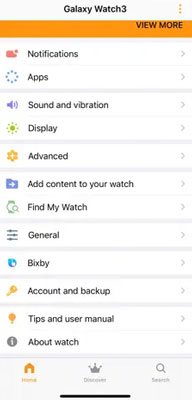
Step 5. Next, tap 'Add tracks'. The watch app will scan the music folders on your phone and show a list of MP3 files you transferred.
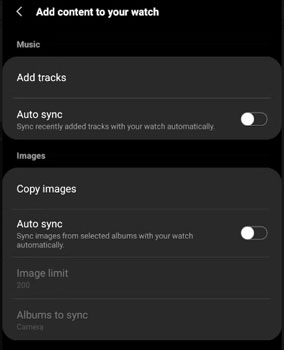
Step 6. Browse and choose favorite Spotify playlists to upload to Gear wearable device. Then please touch the 'Done' button to confirm to sync Spotify music to Samsung Gear watches.
Step 7. Once synced, press the home key on your watch to open the app list. Then find the built-in 'Music' app.
Step 8. Next, tap the small phone/watch icon and ensure the source is set to 'Watch'. In this case, the app will play files from its internal storage, not from your phone.
Step 9. At last, you can find and play Spotify music. Just connect your Bluetooth headphones to your watch to play Spotify songs on Samsung Gear watch offline.
During the music sync process, to speed up the transfer and prevent the watch battery from draining, it is recommended to connect your watch to WiFi and place it on its charger.
Part 4. Pros and Cons of This Method
Above is the recommended method for you to listen to Spotify music on Samsung Gear smartwatches. Here we will show you the strengths and weaknesses of using this method.
Pros:
1. Reliable and Full Offline Control: Once converted and synced Spotify music files to your watch, they are local files that can be played offline anywhere and anytime without using the Spotify app.
2.
Good Battery Life: It consumes less battery by playing local MP3 files than streaming music from an app via internet connection.
Cons:
1. Time-consuming: It needs to install a third-party app, convert and transfer Spotify music to your watch.
2.
No Dynamic Updates: The transferred Spotify playlists on your watch are static. If you want to add new tracks, you must repeat the conversion and sync process.
3.
No Music Discovery: You can't discover new Spotify music from artists by this method.
Part 5. FAQs about Spotify on Samsung Gear Watch
What Is the Difference between Spotify on Samsung Gear and Samsung Galaxy Watch?
The main difference is the operating system. The Samsung Gear watches run on Tizen OS, which doesn't support Spotify app anymore. The Samsung Galaxy watches like Galaxy Watch 4/5/6 run on Wear OS. They support to download the official Spotify app from the Google Play Store, allowing you to stream and download music from Spotify.
View also: How to Play Spotify on Samsung Galaxy Watch
How Much Spotify Music Can I Save on My Samsung Gear for Offline Listening?
Most Samsung Gear models include 4GB of internal storage. Besides the operating system and preinstalled apps, you'll have about 2GB to 2.5GB of usable space, enough to hold several hundred songs, perfect for workouts and everyday listening.
Why Is My Samsung Gear Not Syncing My Spotify Playlists?
First, you need to check if your watch has enough free space. Also, restart both your phone and your watch. Besides, if you have a large files for transferring, please make sure your watch is connected to a WiFi network and placed it on its charger. This will ensure a stable and faster transfer.
Part 6. The Verdict
Although there is no official Spotify app for the Samsung Gear series, you can still play Spotify music on your watch without using the app. By using a Spotify music converter from AudFree Software, you can enjoy your favorite Spotify songs on the Gear S3, S2, Fit 2, or Sport watch anytime. This method gives you full control over your Spotify music library and a smooth, dependable offline music experience on Samsung Gear smartwatches.

Chief Editor


