


In 2026, streaming music on smart TVs has become an essential part of home entertainment. Samsung Smart TVs, known for their sharp displays and robust app ecosystem, offer a wide range of streaming options. But YouTube Music users often wonder how to get the most out of their subscriptions on such TV devices.
Whether you want to enjoy your favorite playlists, explore new releases, or stream music while relaxing at home, this guide provides a step-by-step explanation of how to use YouTube Music on Samsung TVs, both online and offline. We'll also answer common questions about background playback, audio quality, and troubleshooting, so you can fully integrate YouTube Music into your home entertainment setup.
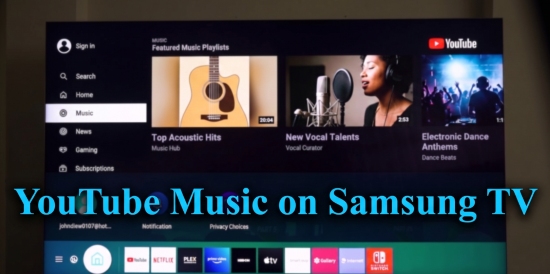

Part 1. Is YouTube Music Available on Samsung TV?
One of the first questions users ask is whether YouTube Music has an official app for Samsung TVs. As of 2026, Samsung's Tizen OS supports a wide range of media apps, including YouTube. However, YouTube Music does not have a native app pre-installed on Samsung TVs in the same way Spotify or Netflix does.
See also: How to Connect Spotify to Samsung TV
Instead, Samsung TV users rely on the main YouTube app to access music content. This means you can stream official tracks, albums, and playlists, but some features like offline downloads, background listening, and certain premium-only enhancements may be limited when compared to using YouTube Music on a phone or tablet.
In short, while YouTube Music is accessible on Samsung TVs, it often requires a workaround for the full premium experience, which we'll cover in the following sections.
Part 2. How to Play YouTube Music on Samsung TV Officially
As mentioned earlier, Samsung TVs don't offer a dedicated YouTube Music app in most regions. However, you can still access your YouTube Music library directly through the YouTube app on your Samsung Smart TV. By navigating to the integrated "Music" section, you can stream albums, playlists, and mixes online. With a YouTube Premium subscription, audio can stream at up to 256 kbps AAC quality.
Here's how to use YouTube Music on Samsung TV officially.
Step 1. Press the 'Home' button on your remote and select the YouTube app. If the app isn't already on your TV, navigate to the 'APPS' section (Samsung's app store) to download and install it. Once open, sign in with your Google account to sync your YouTube Music library.

Step 2. After signing in, move to the left-side navigation menu and select the 'Music' icon. You can now browse your YouTube Music content, including playlists, liked songs, albums, artists, and personalized mixes.
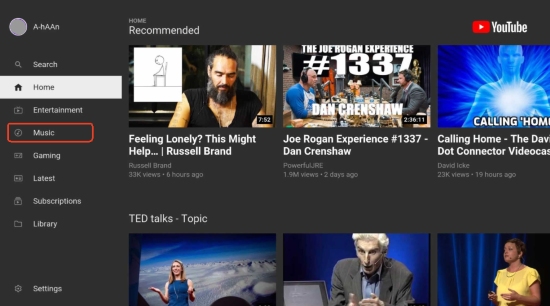
You can also use the search feature to find specific songs, playlists, genres, or official artist uploads. Searching the exact name of a playlist created in YouTube Music usually works best.
Step 3. Choose any YouTube track, album, or playlist to begin playback on your Samsung TV. During playback, you can use your TV remote to pause, skip tracks, adjust the volume, or return to the browsing interface. Any songs or mixes you "Like" on the TV will automatically appear in your history across all your devices.
Step 4. To ensure the best sound quality, go to Settings > Sound > Expert Settings on your Samsung TV. If you are using an external soundbar or receiver, set the Digital Output Audio Format to 'Pass-Through' to allow your audio gear to handle the processing.

For higher streaming quality, open the YouTube Music app on your phone and go to 'Settings > Data Saving > Audio Quality', then select "Always High". While Samsung TVs don't always display this option directly, the playback quality often follows your account preferences.
Pros and Cons of Accessing YouTube Music via YouTube App on Samsung TV
Official and secure playback method;
No additional apps or devices required;
Easy access to playlists, recommendations, and music videos;
Syncs with your Google account and YouTube Music history;
Removes all advertisements from music playback if you have a subscription;
Displays high-definition music videos or album art on the big screen
No standalone YouTube Music app on many Samsung TVs;
Requires a stable internet connection;
Offline downloads are not supported on TV;
Audio quality settings are somewhat limited on TV devices;
Music stops immediately if you exit the app to use another TV app;
Responsiveness can be slower than using a phone
This method is the simplest way to officially play YouTube Music content on your Samsung TV, though advanced features like offline downloads or Dolby Atmos playback are not fully supported.
There is another official way to access YouTube Music on a Samsung TV: using the YouTube Music web player in the built-in TV browser. However, this method is generally not recommended as the primary option because the experience is often less smooth and responsive than using the YouTube app directly.
Many users may encounter slow navigation, laggy controls, unstable playback, inconsistent audio quality, or scaling issues on the TV browser interface.
If you still want to try this method, open the 'Web Browser app' on your Samsung TV (usually available in 'Smart Hub'), then enter music.youtube.com in the address bar. After signing in with your Google account, you can browse and play your YouTube Music library directly from the browser.
Part 3. How to Stream YouTube Music to Samsung TV via Chromecast & AirPlay
For users seeking a more integrated experience, casting YouTube Music from a smartphone, tablet, or computer to Samsung TV is a highly effective method. Both Chromecast and AirPlay support this functionality. Below are the detailed steps for each method.
Method 1. Cast YouTube Muisc to Samsung TV via Chromecast
For Android phones, tablets, Chromebooks, or Windows devices, Chromecast offers a convenient wireless way to stream YouTube Music directly to your Samsung TV.
Step 1. Make sure your Samsung TV supports Chromecast or has a Chromecast device connected.
Step 2. Connect your phone, tablet, and computer to the same Wi-Fi network as your Samsung TV.

Step 3. Launch the YouTube Music app on your Android or compatible device and sign in to your account.
Step 4. Tap the 'Cast' icon in the app and select your Samsung TV from the list of available devices.
Step 5. Play music as usual. Your TV will display the album art and play the audio through its speakers or any connected sound system.
Method 2. Stream YouTube Music to Samsung TV via AirPlay
For iPhone, iPad, or Mac users, AirPlay 2 provides an easy way to stream YouTube Music wirelessly to Samsung TV.
AirPlay 2 is supported on most Samsung Smart TVs released from 2018 or later, including many Crystal UHD, QLED, Neo QLED, and The Frame models. Older Samsung TVs and non-smart TVs may not support AirPlay.

Step 1. Connect your iPhone, iPad, or Mac and Samsung TV to the same Wi-Fi network.
Step 2. Open YouTube Music on your device and select the music you want to play.
Step 3. Tap the 'AirPlay' icon and choose your Samsung TV from the device list. The music will begin streaming directly to your TV.
You can also play YouTube Music on any Samsung TV using a Bluetooth connection. Simply enable Bluetooth on both your mobile device and TV, pair the devices, and start streaming music wirelessly.
Pros and Cons of Streaming YouTube Music to Samsung TV
Easy wireless playback without needing extra cables or adapters;
Supports high-quality audio streaming via Chromecast (up to 16-bit/48kHz) and AirPlay (up to 16-bit/44.1kHz);
Lets you fully control playlists, volume, and playback from your phone or computer;
Better browsing experience compared to the TV interface;
Works with multiple devices, including Android, iPhone, iPad, Mac, and Windows PCs
Requires a stable Wi-Fi or Bluetooth connection for smooth playback;
Playback may occasionally lag, buffer, or disconnect;
Battery consumption on the casting device can increase;
Certain features, such as ad-free listening and background playback, may require YouTube Premium
This casting method allows you to enjoy a better interface, full playlist control, and in some cases, background playback on your device while music continues on the TV.
Part 4. How to Listen to YouTube Music on Samsung TV Offline
Offline playback on Samsung TVs can be a bit challenging. Unlike smartphones or tablets, Samsung TVs do not support downloading and storing YouTube Music content locally, even with a YouTube Music Premium subscription.
If you want smoother and more stable playback without buffering or network interruptions, a practical solution is to save YouTube Music tracks as local audio files and play them from a USB drive on your Samsung TV. However, because YouTube Music songs are protected by DRM, downloaded content from the official app cannot normally be transferred or played outside the YouTube Music environment.
To solve this limitation, you can use AudFree YouTube Music Converter. This tool helps download and convert YouTube Music tracks into common audio formats supported by Samsung TVs, such as MP3, FLAC, WAV, and more. It also supports batch downloading playlists and albums at up to 30× faster speed while preserving original audio quality and ID3 tags.
Besides YouTube Music, AudFree also supports downloading audio from Spotify, Apple Music, Tidal, Qobuz, Amazon Music, Deezer, and other streaming platforms.
AudFree YouTube Music Converter

- Convert YouTube Music to MP3, FLAC, and more formats
- Batch downloadplaylists and albums at up to 30× speed
- Ad-free playback experience after conversion
- More stable and efficient than online download tools
- Preserve original audio quality and ID3 tags
- Fully compatible with Windows & Mac
- Step 1. Set Output Format of YouTube Music

- Launch AudFree YouTube Music Converter on your computer. Click the Menu icon in the top-right corner and go to 'Preferences > Conversion'. Choose an output format such MP3 for maximum Samsung TV compatibility. You can also customize the bitrate, sample rate, and audio channel settings based on your preferences.
- Under the 'Output' section, select the folder where converted files will be saved and enable the option to keep ID3 tags if needed.
- Step 2. Add YouTube Music Songs or Playlists
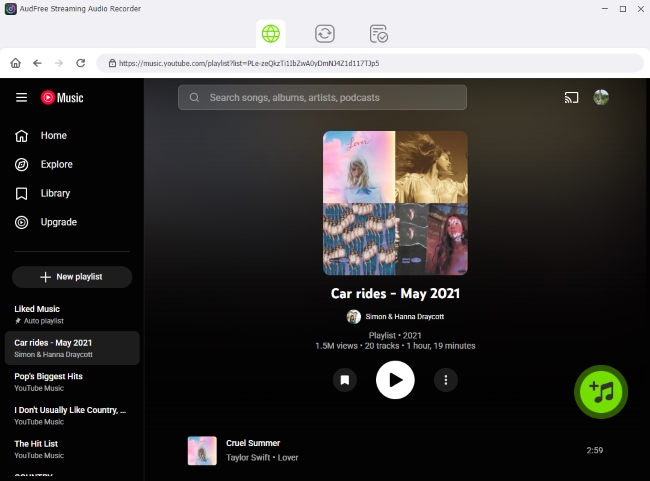
- Return to the main interface and open the built-in YouTube Music web player. Sign in to your YouTube Music account and browse the songs, albums, or playlists you want to download.
- Click the green '+' button to load tracks into the conversion list. You can add multiple playlists or albums at once for batch conversion.
- Step 3. Start YouTube Music Conversion to Local Files

- Open the Converting section and click the 'Convert' button. AudFree YouTube Music Converter will begin downloading and converting YouTube Music tracks in bulk. After the process finishes, the converted songs will appear in the selected output folder and inside the Converted history section.
- Step 4. Play YouTube Music on Samsung TV Offline

- 1. Insert a USB drive into your computer and format it as FAT32 or exFAT if necessary. Then copy the converted YouTube Music files to the USB drive.
- 2. Plug the USB drive into your Samsung TV and open 'Media > USB Device'. Locate the music folder and start playing your downloaded YouTube Music tracks offline.
Now you can enjoy YouTube Music on Samsung TV without buffering, ads, or internet restrictions, even while using other apps or gaming on the TV.
Pros and Cons of Playing YouTube Music on Samsung TV Offline via USB Drive
Works completely offline without buffering issues;
Delivers stable playback with high audio quality;
No ads, network interruptions, or streaming limitations;
Allows background music playback while gaming or multitasking;
Compatible with almost all Samsung TV models via USB;
Gives more flexible control over your local music library
Downloaded files need local storage space;
Requires extra conversion tool;
Converted music will not sync automatically with your YouTube Music library
Part 5. FAQs About YouTube Music on Samsung TV
Does YouTube Music Premium work well on Samsung TV?
Yes, while a standalone YouTube Music app for Samsung TVs still hasn't been released in 2026, YouTube Music Premium remains fully functional within the primary YouTube app. Features like ad-free playback, background listening, and offline downloads work well when using casting methods. However, some Premium features, like offline storage directly on the TV, are not supported.
Can I listen to YouTube Music in the background while using other TV apps?
Background playback on Samsung TV is limited. You can achieve background playback by casting from a mobile device or using a USB drive (converted YouTube Music via AudFree YouTube Music Converter). The music continues while you navigate other apps on the TV. Native background playback on the TV itself is currently restricted.
Why is YouTube Music not working on my Samsung TV?
If YouTube Music is not working properly on your Samsung TV, several common issues could be causing the problem, like freezing, crashing, or failing to load. Try these troubleshooting steps below:
• Hold the Power button on your Samsung remote for about 5 seconds until the TV turns off and back on again. This clears the system cache.
• Go to the APPS section on your Smart Hub, find YouTube, and check for available updates.
• If multiple apps are failing, navigate to 'Settings > Support > Device Care > Self Diagnosis > Reset Smart Hub'. (Note: This will sign you out of all your apps).
• Incorrect TV time settings can cause security certificate errors, preventing the YouTube servers from connecting. Ensure your time is set to "Auto".
Can I use an Equalizer for YouTube Music on my Samsung TV?
Samsung TVs do not provide a built-in equalizer for YouTube Music playback. To adjust audio settings, you can use the TV's sound modes or external sound systems like a soundbar. When casting, some devices allow equalizer adjustments on the source device.
Conclusion
Using YouTube Music on Samsung TV in 2026 is a flexible but slightly nuanced process. While the service does not have a dedicated native app, there are multiple ways to enjoy your favorite tracks, including the main YouTube app, casting via Chromecast or AirPlay, and offline playback through a USB drive.
By understanding the available options and workarounds in this guide, you can turn your Samsung TV into a full-fledged music player for YouTube Music. Whether you're hosting a party, relaxing after work, or exploring new music, Samsung TV and YouTube Music together provide an immersive, high-quality experience for any music lover.

Staff Editor


