


Android Auto has transformed the way people listen to music while driving. Instead of fumbling with your phone, you can safely access navigation, calls, messages, and entertainment directly from your car's dashboard. Among the many music streaming services available, YouTube Music has become one of the most popular choices thanks to its massive music catalog, personalized recommendations, official tracks, remixes, live performances, and music videos.
If you're already subscribed to YouTube Music or considering switching from Spotify, you may be wondering whether YouTube Music works with Android Auto, how to set it up, and what limitations you should be aware of before relying on it during daily commutes or long road trips.
In this complete guide, we'll explain everything you need to know about using YouTube Music on Android Auto in 2026, including setup instructions, common issues, limitations, and the best way to keep your favorite songs permanently available for offline playback.
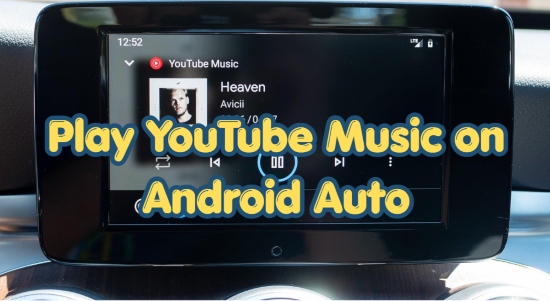

Part 1. Does YouTube Music Work with Android Auto?
Yes, YouTube Music fully supports Android Auto. Google has deeply integrated YouTube Music into the Android Auto ecosystem, making it one of the most seamless music streaming services for Android users. Once connected, you can browse playlists, albums, artists, podcasts, and recommendations directly from your vehicle's infotainment display.
YouTube Music Android Auto Integration: Key Features
YouTube Music doesn't just play audio; it syncs deeply with your car's hardware and software to support:
- Dual Connectivity: Works flawlessly via both wired (USB) and wireless Android Auto setups.
- Hardware Controls: Fully compatible with your vehicle's steering wheel media buttons and tactile center-console knobs.
- Smart Touch Interface: Features a driver-friendly, oversized touchscreen UI designed to minimize distractions.
- Hands-Free Voice Control: Full integration with Google Assistant for true eyes-on-the-road driving.
This hands-free functionality makes YouTube Music particularly useful for drivers who want safer access to their music without touching their phones.
To avoid saying "on YouTube Music" every time, change your default player on your phone before driving. Open 'Google Home > Settings > Music', and select YouTube Music. Once synced, a simple "Hey Google, play some music" or "Hey Google, resume my playlist" will automatically launch YouTube Music on your dashboard.
Requirements for Using YouTube Music on Android Auto
Before hitting the road with music, ensure your car meets these baseline specifications:
| Requirement | Specification |
|---|---|
| Smartphone OS | Android 10 or later (Android 11+ recommended for wireless connection) |
| Android Auto App | Pre-installed (or updated to the latest version via Google Play) |
| Vehicle Hardware | Android Auto-compatible factory head unit or aftermarket receiver |
| Music App | Latest version of the YouTube Music app |
| Data/Subscription | Active cellular data plan & YouTube Music Premium (highly recommended for offline playback) |
Once these requirements are met, you're ready to connect YouTube Music to Android Auto. In the next section, we'll dive into a detailed, step-by-step guide on how to navigate and control YouTube Music from your car's dashboard.
Part 2. How to Set Up and Use YouTube Music on Android Auto
Setting up YouTube Music on Android Auto is fairly simple. However, if you want smooth playback, reliable connectivity, and easy access to your music while driving, there are a few important settings worth checking first.
Below, we'll walk you through the complete setup process and share several practical tips to help you get the best experience on Android Auto.
Before even stepping into your vehicle, you need to ensure your software ecosystem is synchronized. Outdated background apps are the leading cause behind random app crashes and frozen dashboard interfaces.
Steps to Use YouTube Music on Android Auto
Step 1. Audit and Update All Related Apps
Grab your smartphone, open the Google Play Store app, and go to your 'Profile' icon > 'Manage apps & device'. From there, verify that YouTube Music, Android Auto, and the core Google App (which powers Assistant) are all updated to their latest iterations.
Don't just rely on auto-updates over cellular data. Manually trigger these updates while on a stable Wi-Fi network to prevent corrupt installation packages that cause intermittent connection drops.
Step 2. Establish the Phone-to-Vehicle Tether
Depending on your vehicle's manufacturing year and infotainment system, you will connect using one of two methods.
Method A. The Wired Connection (Maximum Audio Stability)
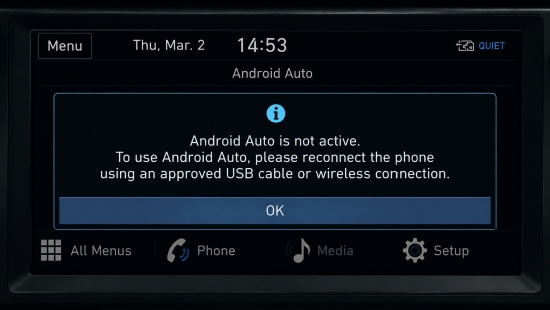
1. Select the Right Cable: Do not use cheap, third-party charging cables. Our testing shows that Android Auto data streams require high-quality, data-certified USB-C cables (preferably USB 3.1 or higher). Poor cables will cause YouTube Music to abruptly disconnect whenever you hit a bump in the road.
2. Plug and Launch: Connect your smartphone to the vehicle's designated data-linked USB port (usually marked with a phone or smartphone integration icon).
3. Authorize: Follow the initial one-time security prompts on your phone screen to grant Android Auto access to your device.
Method B. The Wireless Connection (Ultimate Convenience)

1. Ensure both Bluetooth and 5GHz Wi-Fi are enabled on your smartphone.
2. Navigate to your car's Bluetooth settings and pair your phone.
3. Once paired via Bluetooth, compatible head units will automatically trigger a Wi-Fi direct connection to stream the heavy UI data. Accept the "Use Android Auto" prompt on your dashboard.
Wireless Android Auto acts as a heavy battery drain and can cause your phone to heat up significantly, which occasionally leads to thermal throttling and audio stuttering. For commutes longer than 45 minutes, we highly recommend keeping your phone on a wired fast charger or a cooling wireless charging pad.
Step 3. Launch Android Auto and Navigate the Dashboard Interface
Once the Android Auto home screen populates your dashboard display:
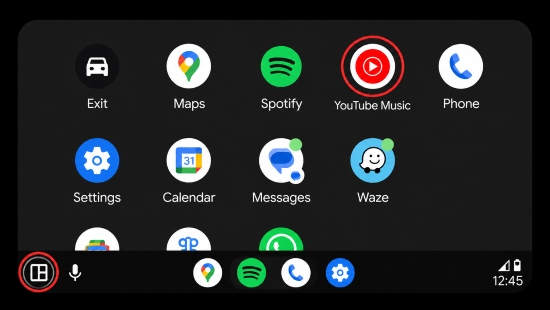
1. Tap the 'App Launcher' button (the grid icon usually located in the bottom corner).
2. Select the YouTube Music icon. (If you don't see it, go to your phone's Android Auto settings, open Customize Launcher, and verify the app is checked).
3. If prompted, verify that you are signed into the correct Google profile associated with your streaming library.
Inside the interface, you aren't forced to scroll through endless text lists while driving. The UI is clean, responsive, and categorized into four high-priority tabs at the top of your screen:
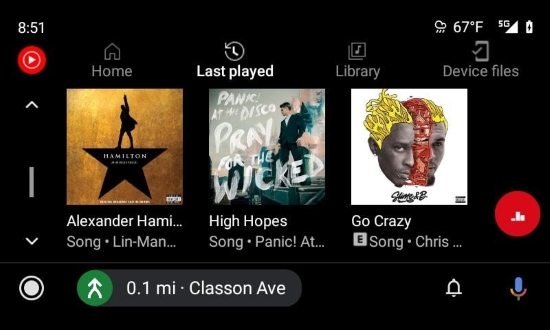
- Home: Displays your algorithmic recommendations, your personal "Supermix", and dynamic context stations tailored to your driving mood.
- Last played: Gives you instant access to your most recently streamed music, displaying them as large, easily tappable album art cards so you can resume your session with a single tap.
- Library: Your curated hub for accessing saved playlists, subscribed artists, and favorite albums.
- Device files: A dedicated, standalone tab that lets you directly browse and play local audio files stored on your phone's physical storage.
Driving Offline: How to Access and Download YouTube Music for the Road
To avoid buffering mid-drive or exhausting your mobile data plan, playing music offline is highly recommended. YouTube Music handles offline playback in two ways:
- Official In-App Downloads (Premium Only): If you have a Premium subscription, any playlist, album, or song you download via the YouTube Music app on your phone will automatically sync to your car's dashboard. You can find them neatly organized under the Library tab when offline.
- Smart Downloads: When enabled on your mobile device, the app automatically caches up to 500 of your favorite songs overnight over Wi-Fi, ensuring you always have a fresh driving mix ready.
While the official download feature works well, it comes with strict limitations: your downloaded tracks are merely encrypted temporary cache files. They require an active, paid Premium subscription to remain unlocked, and they will completely disappear if your phone doesn't connect to the internet at least once every 30 days.
For audiophiles who prefer true ownership - such as keeping permanent, unencrypted MP3s on a USB flash drive or accessing pristine, local FLAC files directly via the Device files tab without paying for a monthly subscription - relying solely on the official app can be incredibly restrictive. We will explore how to easily bypass these storage limitations later (Part 4) in this guide.
Master Safe In-Car Playback & Media Controls
The YouTube Music car interface utilizes an intentionally simplified, oversized control design to comply with strict driving safety standards. This minimized layout prevents visual distraction while putting your music within arm's reach.
- Touchscreen: Large target buttons for Play/Pause, Track Skip, and Thumbs Up/Down.
- Steering Wheel Integration: Skip tracks and modulate volume safely using your vehicle's physical steering wheel switches.
- Center Console Knobs: On vehicles like Mazda or BMW, the rotary dial can be used to cycle through tracks and playlist menus seamlessly without taking your eyes off the horizon.
Beyond manual navigation, utilizing hands-free voice commands is the safest way to control your queue while keeping your eyes on the road. Once you've completed the setup mentioned in Part 1, you can drop the clunky app names and simply use advanced voice strings like, "Hey Google, shuffle my 'Road Trip 2026' playlist". Deploying these precise prompts ensures your focus remains entirely on driving, while Google Assistant handles the heavy lifting in the background.
Part 3. What Are the Limitations of Using YouTube Music on Android Auto?
While the integration between YouTube Music and Android Auto offers undeniable convenience, the system is far from flawless. Several native constraints, platform rules, and hardware dependencies can significantly disrupt your driving audio experience.
Understanding these limitations beforehand is essential for any driver looking to build a truly reliable, interruption-free in-car setup.
Limitation 1. Official Offline Downloads Require Premium (The Cost Barrier)
Free YouTube Music users can stream music through Android Auto, but offline downloads are not included. This means your listening experience depends entirely on a stable internet connection. If you're driving through rural areas, remote highways, tunnels, underground parking garages, or other locations with weak cellular coverage, playback may buffer, skip, or stop unexpectedly.
YouTube Music Free vs Premium on Android Auto
| Feature | Free Tier | Premium Tier |
|---|---|---|
| Official Offline Downloads | ❌ (Streaming requires constant cellular data) | ✅ (Listen anywhere without data usage) |
| Playback Control | Shuffle-Only (On most custom/mix stations) | On-Demand (Select any song, album, or playlist instantly) |
| Commercial Interruptions | Ad-Supported (Audio/visual ads disrupt your drive) | 100% Ad-Free (Uninterrupted music flow) |
| Signal-Loss Resilience | Poor (Audio cuts out in tunnels, remote highways, or garages) | Perfect (Seamless playback from local phone cache) |
| Google Assistant Integration | ⚠️ Limited (Voice commands often fail to play specific tracks) | Full (Flawless hands-free control for any song or playlist) |
To download songs for offline listening and avoid excessive mobile data usage, you'll need a YouTube Music Premium subscription. However, those downloads remain tied to your account and subscription status. If your Premium membership expires or is canceled, access to your downloaded content will also be removed.
Limitation 2. Downloaded Songs Are Not Real Audio Files (The DRM Trap)
Even with a Premium subscription, songs downloaded inside the mobile app do not belong to you. Instead of standard audio files, they are stored as encrypted, DRM-protected cache blocks locked deep within the application's root folder.
- What You Cannot Do: You cannot copy these songs to a physical USB flash drive to plug into your car's dashboard, move them to an SD card to save phone storage, or play them through high-fidelity local media players like foobar2000.
- Account Locking: Your downloaded content remains strictly tied to an active Google account and your specific smartphone, preventing true local media ownership.
Limitation 3. Offline Downloads Expire Disappointingly Fast
Many drivers are surprised to learn that official offline playlists are not permanent. Because of strict licensing agreements, YouTube Music enforces automated "check-ins" to verify your subscription status.
- The 30-Day Expiry: If your smartphone does not connect to the internet at least once every 30 days, your entire downloaded car library will automatically lock up and become unplayable.
- Sudden Disappearances: If a record label alters its distribution agreement with Google, tracks or entire albums can vanish from your offline dashboard cache overnight without warning.
Limitation 4. Android Auto High Reliance on Phone Hardware & Battery
Unlike independent standalone car infotainment systems, Android Auto does not execute apps natively on your vehicle's dashboard. Your car screen is merely an external monitor; your smartphone is doing 100% of the heavy computational lifting.
- The Chain Reaction: If your phone experiences an unexpected background app crash, a system-level bug, or storage limitations, your car's music feed will immediately freeze.
- The Wireless Overhead: Running wireless Android Auto while simultaneously streaming heavy audio data taxes your phone's processor. During long road trips, this causes rapid battery drain and severe phone overheating, which directly triggers audio stuttering and sudden disconnections.
The Audiophile's Alternative: True Local Ownership
If these subscription fees, DRM lock-ins, and data dependencies feel overly restrictive, you aren't alone. Many power users choose to completely bypass these platform limitations by converting their favorite music into permanent, unencrypted MP3 or FLAC files.
By housing actual audio files on your phone's physical storage, you can access them seamlessly via the standalone 'Device files' tab we explored in Step 3 Part 2 - or simply play them straight from a compact USB drive in your center console. This ensures perfect, native playback that never expires, consumes zero mobile data, and requires absolutely no monthly subscription fees.
Ready to take full control of your soundtrack? Read on to discover the easiest way to bypass YouTube Music official download restrictions. We'll show you exactly how to export your YouTube Music library into universal, high-quality audio files that you can play flawlessly via your dashboard's USB drive, an SD card, or any offline device.
Part 4. Best Way to Keep YouTube Music for Android Auto Permanently
If you want permanent, restriction-free access to your favorite soundtracks behind the wheel, the best approach is to convert YouTube Music tracks into permanent local audio files using a dedicated tool like AudFree YouTube Music Converter.
By bypassing the official app's encrypted caching system, a professional desktop converter gives you true ownership of your media library. Before we dive into the step-by-step conversion process, let's look at how the official Premium experience stacks up against the freedom of utilizing AudFree.
Head-to-Head: Official Premium vs AudFree Local Files
| Feature | YouTube Music Premium | AudFree Converted Local Files |
|---|---|---|
| Monthly Subscription Cost | Required indefinitely ($11.99+/mo) | Zero monthly fees after conversion |
| File Permanence | Temporary (Expires if offline for 30 days) | Permanent (Stored on your hardware forever) |
| Digital Rights Management | Encrypted DRM (Locked inside the official app) | 100% DRM-Free (Universal MP3, FLAC, etc.) |
| Car Storage Flexibility | ❌ App cache only (Sits heavily on phone storage) | USB Drives, SD Cards, or Car Hard Drives |
| Playback Ecosystem | ❌ Restricted to the official YouTube Music app | Any media player (foobar2000, VLC, Roon, etc.) |
How to Converting YouTube Music for Android Auto (3-Step Guide)
- Step 1. Set Output Format of YouTube Music

- Launch AudFree YouTube Music Converter on your Windows or Mac computer. Click the 'Menu' icon in the top-right corner and select 'Preferences > Conversion'. Here, customize your profile settings:
- For Audiophiles (Lossless Quality): Select FLAC or WAV to preserve maximum source data without further compression degradation. This is ideal for vehicles equipped with premium factory sound systems.
- For Maximum Compatibility: Choose MP3 (at 320kbps/44.1kHz) or M4A to save storage space and ensure absolute universal compatibility with legacy car infotainment systems.
- Fine-Tuning: Customize your sample rate and bitrate settings, ensure the destination folder is configured to save metadata, and toggle the lyrics option. Under the 'Output' section, select your preferred save directory and enable the option to preserve vital ID3 tags.
- Step 2. Import Your Driving Playlists to AudFree
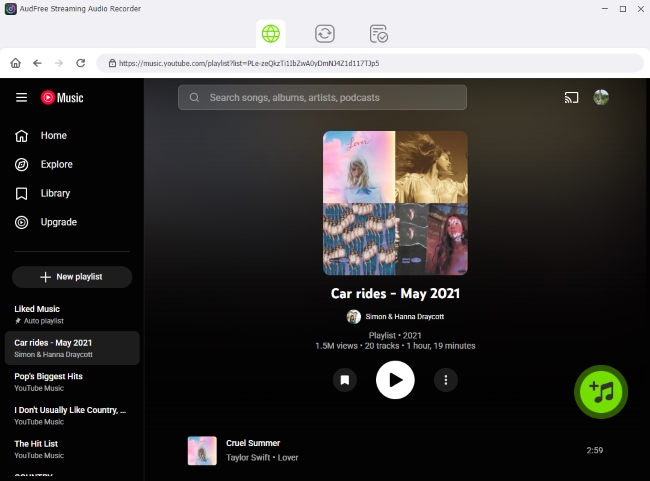
- Use the built-in YouTube Music web player interface within AudFree to sign in to your account. Browse your personal library, custom road-trip albums, or curated public mixes. Once you find a playlist you want to bring into your car, click the green '+' button on the side to automatically load the tracks into the active conversion queue. You can stack multiple albums at once for efficient batch processing.
- Step 3. Convert YouTube Music Playlists into Permanent Local Files

- Open the conversion list panel and click the 'Convert' button. AudFree's high-speed engine will download and safely store the tracks directly onto your computer's hard drive. Once the progress bar fills up, verify your folder structure to ensure your audio files and synced lyric files (.lrc) are perfectly organized and ready for transport.
How to Play Your Converted Local Files on Android Auto
Once your files are safely extracted by AudFree, getting them to play flawlessly on your car dashboard takes less than two minutes:
1. Transfer the Media: Connect your Android smartphone to your computer via USB and copy the converted music folder onto your phone's internal storage (or onto a micro-SD card). Alternatively, you can just plug a USB drive with the files directly into your car's media port if your car supports direct USB reading.
2. Enable Local Browsing: If you are keeping the files on your phone, open the YouTube Music app, tap your profile picture, head to Settings, and toggle on 'Show device files'.
3. Connect and Play: Connect your phone to Android Auto via your USB cable or wireless link. Open YouTube Music on your dashboard screen, tap the dedicated Device files tab at the top of the menu, and enjoy buttery-smooth, unbuffered playback that never drops out, never asks for subscription verification, and never costs you a cent in data fees.
View also: How to Download YouTube Music to USB Drive
The Major Benefits of Storing Your Music as Local Files for Android Auto
Overall, compared to the native streaming experience, running true local audio files inside your vehicle offers massive operational advantages.
✅ Keep Your Music Forever: Your songs remain fully accessible even if you cancel your Premium subscription, your membership expires, or a specific album is suddenly scrubbed from the YouTube Music library due to changing licensing laws.
✅ 100% Cellular-Free Listening: No mobile data connection is required. This offers a flawless fail-safe for long-distance road trips, mountain passes, deep tunnels, or international border crossings where roaming fees apply.
✅ Total Device Portability: Converted files can be seamlessly copied over to a low-profile USB flash drive, an external SD card, or directly onto your smartphone's root directory, freeing up massive blocks of phone storage.
✅ Preserved Audio Integrity: By exporting to pure FLAC, WAV, or high-bitrate MP3, you bypass the streaming app's real-time compression algorithms, delivering punchier bass, cleaner vocals, and wider dynamics directly through your vehicle's speakers.
Part 5. How to Fix YouTube Music Android Auto Not Working
Even with a perfect setup, you may occasionally run into frustrating technical glitches on the road. Whether your dashboard is throwing a "YouTube Music not showing up on Android Auto" error, or you are dealing with a sudden case of "Android Auto YouTube Music no sound", we have you covered.
Below are the most effective, field-tested troubleshooting steps to resolve the most common YouTube Music not working on Android Auto problems.
Issue 1: YouTube Music Not Showing in Android Auto App Launcher
Potential Cause: The app has been disabled/hidden within the Android Auto subsystem, or your local profile has failed to sync with your car's head unit.
Solution 1. Check App Visibility (Most Common Fix)
1. Disconnect your phone from the car's USB or wireless system.
2. On your phone, navigate to 'Settings > Connected devices > Android Auto'.
3. Scroll down and tap Customize launcher.
4. Look through the list and ensure YouTube Music is actively checked. (If it was unchecked, it will never appear on your dashboard).
Pro Tip: Drag YouTube Music to the very top of this list so it appears on your car's first home screen.
Solution 2. Force a Profile Sync (If Playlists Are Blank)
If the YouTube Music icon appears on your car screen but your playlists are missing or blank, force a library refresh:
1. Open the YouTube Music app on your phone.
2. Tap your profile icon, log out of your Google Account entirely, and then log back in.
3. Reconnect to Android Auto - this forces a fresh server handshake that pushes your saved playlists back to your vehicle dashboard.
Issue 2: Android Auto YouTube Music No Sound (Tracks Silently Playing)
Potential Cause: The visual stream is working fine, but the audio data pipeline is either corrupted by residual cache or conflicted by split Bluetooth/Wi-Fi channels.
Solution 1. Flush the Audio Cache (Primary Fix)
Temporary, corrupted data in the background can break the audio pipeline. You need to clear out the app's memory:
1. On your smartphone, go to 'Settings > Apps > YouTube Music'.
2. Tap 'Storage & cache', then select 'Clear Cache' (Do not click clear data, or you will delete your offline songs).
3. Repeat this exact process for the Android Auto app as well.
4. Reconnect the phone to your car to establish a clean audio stream.
Solution 2. Reset the Bluetooth Media Toggle (For Wireless Setups)
Wireless Android Auto uses a complex dual-connection (Wi-Fi for UI data, Bluetooth for initial audio routing). If they conflict, you'll also get a moving screen with no sound:
1. On your phone, go to 'Settings > Bluetooth' and select your car's paired network.
2. Turn off the 'Media Audio' toggle switch, wait 5 seconds, and turn it back on. This forces a hard reset on the vehicle's speaker routing system.
Issue 3: YouTube Music Crashing Android Auto or Freezing Mid-Drive
Potential Cause: Your phone's battery saver features are aggressively killing the music app in the background, or outdated software code is causing severe system crashes.
Solution 1. Remove App Battery Restrictions (Primary Fix)
Android operating systems are notorious for closing media apps mid-drive to save battery. You must give YouTube Music unlimited background access:
1. On your phone, navigate to 'Settings > Apps > YouTube Music'.
2. Tap 'Battery' (or 'App battery usage').
3. Change the setting from Optimized or Restricted to Unrestricted.
4. Perform the exact same change for the Android Auto app.
Solution 2. Check Core App System Updates & Permissions
If the crashing persists, the software versions are likely out of alignment:
1. Open the 'Google Play Store' on your phone and ensure YouTube Music, Android Auto, and Google Play Services are fully updated.
2. Go to 'Settings > Apps > YouTube Music > Permissions' and ensure 'Storage', Microphone (for voice commands), and Nearby Devices are all set to 'Allow'.
Issue 4: Total Connection Failure or Endless Buffering Wheel
Potential Cause: Your cellular network is being throttled by data-saving modes, or the Bluetooth/wired linkage has suffered a fatal connection bug.
Solution 1. Disable Data Saving Restrictions
If your phone is actively trying to conserve cellular data, it will block smooth dashboard streaming:
1. Go to your phone's 'Settings > Network & internet > Data Saver' and turn it off.
2. Alternatively, go to 'Apps > YouTube Music > Mobile data & Wi-Fi' and toggle on 'Unrestricted' data usage.
Solution 2. Perform a Nuclear Re-Pairing (The Ultimate Reset)
If no other solution works, you must wipe the slate clean and remove corrupted digital fingerprints:
1. In your car's infotainment screen settings, delete/forget your smartphone profile.
2. On your smartphone, go to 'Settings > Android Auto > Previously connected cars' and click 'Forget' this car.
3. Restart both your phone and your vehicle's engine, then connect them via a certified USB cable to build a flawless connection from scratch.
The Bulletproof Fail-Safe
If you find yourself constantly dealing with YouTube Music crashing Android Auto or buffering due to poor cellular signals, the ultimate workaround is avoiding the streaming pipeline entirely.
By using AudFree YouTube Music Converter to extract your music as local, unencrypted FLAC or MP3 files, you remove cellular network drops, app crashes, and licensing handshake loops from the equation entirely. Playing true local media via the 'Device files' tab guarantees your car audio will work flawlessly 100% of the time, no matter how glitchy the streaming app decides to be.
Part 6. FAQs About YouTube Music Android Auto
Can I Use YouTube Music on Android Auto Without a Premium Subscription?
Yes. You can stream music through Android Auto with a free YouTube Music account, but the experience is more limited. Free users may encounter ads and cannot officially download songs for offline listening. If you frequently drive through areas with poor network coverage, upgrading to YouTube Music Premium or using locally stored audio files can provide a more reliable listening experience.
Which is better for Android Auto: Spotify or YouTube Music?
Both Spotify and YouTube Music work well with Android Auto, but the better choice depends on your listening habits. Spotify offers excellent playlist discovery, broader podcast integration, and a highly polished in-car experience. YouTube Music, on the other hand, stands out for its vast music catalog, including live performances, remixes, covers, and rare tracks that may not be available on other streaming services.
If you already use Google's ecosystem and want access to YouTube's extensive music library, YouTube Music is often the better option. However, if personalized playlists and podcast support are your top priorities, Spotify may be the stronger choice.
Conclusion
YouTube Music and Android Auto make an excellent combination for drivers who want convenient access to music, podcasts, playlists, and personalized recommendations while staying focused on the road.
If you want complete control over your music collection and permanent offline access, converting YouTube Music tracks into local audio files remains the most flexible solution. By storing music as standard MP3, FLAC, or WAV files, you can enjoy uninterrupted playback on Android Auto regardless of subscriptions, internet availability, or licensing changes.
Whether you're commuting daily, taking cross-country road trips, or simply looking for a more reliable in-car music experience, understanding these options will help you get the most out of YouTube Music on Android Auto in 2026.

Staff Editor


