


Apple TV is one of the most popular streaming devices for home entertainment, but many YouTube Music subscribers quickly discover an unexpected limitation: there is no dedicated YouTube Music app for tvOS.
This often leads to questions such as: Can you get YouTube Music on Apple TV? How do you play YouTube Music on a TV screen? Does YouTube Music support offline playback on Apple TV? Which method offers the best audio quality?
To answer these questions, we tested YouTube Music on an Apple TV 4K using several playback methods, including the YouTube app, AirPlay 2, and locally stored music files. In this guide, we'll walk through the available options, compare their strengths and weaknesses, and show you how to achieve the best listening experience on Apple TV.

Part 1. Can You Get YouTube Music on Apple TV?
The short answer is yes, but it doesn't work quite the way most users expect.
Unlike Spotify or Apple Music, Google does not offer a standalone YouTube Music app for Apple's tvOS. Instead, the YouTube Music experience is integrated directly into the interface of the main YouTube TV app.
Because of this limitation, Apple TV users generally rely on three workarounds to stream their favorite tracks:
- The Native YouTube TV App: Accessing the dedicated "Music" tab within the official tvOS YouTube app.
- AirPlay 2 (or HomePod Handoff): Streaming audio wirelessly from an iPhone, iPad, or Mac.
- Local High-Quality Audio Playback: Downloading tracks locally via a third-party tool and managing them through home server ecosystem apps.
While the first two are official methods, they come with significant compromises in audio fidelity and background playback. The third-party approach, which we will break down in Part 4, is the only way to achieve true offline, source-quality playback.
Here is a quick feature comparison to help you choose the best route:
| Feature | Apple TV YouTube App | AirPlay 2/Handoff | Local True Downloads |
|---|---|---|---|
| Browse YT Music Library | ✅ | ✅ | ❌ |
| Play Personal Playlists | ✅ | ✅ | ✅ |
| Search Tracks | ✅ | ✅ | ❌ |
| Offline Playback | ❌ | ❌ | ✅ |
| Background Listening | ❌ | ✅ | ✅ |
| Voice Control via Siri | ✅ | ✅ | ❌ (Limited) |
| 256kbps AAC | ✅ | ❌ | ✅ |
| Permanent Song Ownership | ❌ | ❌ | ✅ |
| Premium Subscription Required | ✅ | ✅ | ❌ |
Background listening via the native TV app is notoriously restricted; if you switch to the Apple TV home screen or exit the app, the music cuts off immediately unless you opt for local file integration.
Which Method Is Right for You?
| If You Want To... | Best Method |
|---|---|
| Start listening immediately | YouTube App |
| Control playback from iPhone | AirPlay 2 |
| Multitasking | AirPlay 2 / Local files playback |
| Fast browsing with a touch screen | AirPlay 2 |
| Listen without internet | Local files download via AudFree |
| Build a permanent music library | Backup music library via AudFree |
| Get the simplest setup | YouTube App |
In the following sections, we will walk you through these three methods step-by-step, analyzing their exact setups, ideal use cases, and pros and cons.
Part 2. How to Play YouTube Music on Apple TV Online (Official Ways)
If you want to stream YouTube Music on Apple TV without downloading files or using third-party software, there are several official methods available. Each approach offers a slightly different experience depending on how you prefer to browse, control, and listen to your music.
Method 1. Use the Native Apple TV YouTube App
The easiest way to access YouTube Music on Apple TV is through the official YouTube app for tvOS. Once signed in with your Google account, you can access your playlists, liked songs, recommendations, and music videos directly from your TV.
Steps to Play YouTube Music via the YouTube App
Step 1. Turn on your Apple TV and launch the official YouTube app from your home screen.
Step 2. Navigate to the left sidebar menu and scroll down to the 'Music' tab (indicated by a musical note icon).
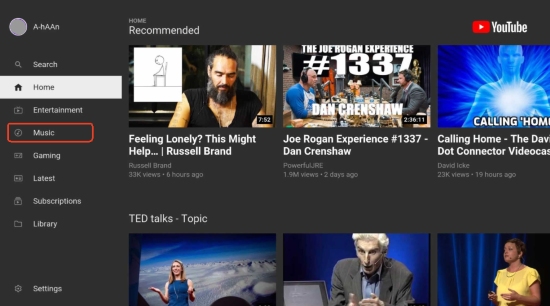
Step 3. Select 'Sign In' if you haven't already, and link your Google Account using the on-screen prompt or by visiting youtube.com/activate on your phone.
Step 4. Once logged in, your personal YouTube Music playlists, liked songs, and recommendations will sync automatically. Select a track to start playback.
Our Experience
The native YouTube app provided the most stable playback during testing. However, navigating large playlists with the Siri Remote can feel less convenient than browsing on a smartphone or tablet.
While a few third-party Apple TV browsers can technically open the YouTube Music web player, the experience is significantly less responsive than using the official YouTube app. Furthermore, the web interface is notoriously user-unfriendly on a television screen, and playback is frequently plagued by severe stuttering, input lag, and audio latency.
Method 2. Stream YouTube Music via AirPlay 2
If you prefer browsing music on your mobile device, AirPlay 2 allows you to cast audio wirelessly from your iOS or macOS device straight to the Apple TV.
Steps to AirPlay YouTube Music
Step 1. Ensure your iPhone, iPad, or Mac is connected to the exact same Wi-Fi network as your Apple TV.
Step 2. Open the YouTube Music app on your mobile device and play any song or playlist.
Step 3. Swipe down from the top-right corner of your iPhone screen to open the 'Control Center'.
Step 4. Tap the 'AirPlay' icon (the audio waves and triangle symbol) in the media playback widget, then select your Apple TV from the device list.

Our Experience
AirPlay 2 offered the most convenient browsing experience because playlist management, search, and queue controls remained on the mobile device. During testing, playback was generally smooth, although occasional delays occurred when switching tracks or reconnecting after network interruptions.
While Bluetooth is available as an alternative to stream audio to Apple TV, it relies on lossy SBC or AAC compression and is prone to local interference. AirPlay 2leverages higher-bandwidth Wi-Fi connections, offering significantly greater stability and effectively minimizing audio loss.
Method 3. Play YouTube Music via HomePod Handoff (Audio Only)
If your Apple TV is paired with a HomePod or HomePod mini as its default home theater speaker, you can use Apple's proximity Handoff feature to route your music instantly.

Steps to Use HomePod Handoff
Step 1. Open the YouTube Music app on your iPhone and start playing a track.
Step 2. Bring your iPhone close (within a few inches) to the top of your HomePod.
Step 3. Your iPhone will vibrate slightly, and the audio will seamlessly transfer ("handoff") to the HomePod.
Step 4. Because the HomePod is mapped as the Apple TV's audio output, the sound will fill your room via the home theater setup.
Our Experience
Handoff works well for casual listening and requires almost no setup. However, because playback is transferred to the HomePod rather than the Apple TV interface itself, track information, lyrics, and playback controls are not displayed on the TV screen.
Pros and Cons of Official Streaming Methods
No additional software required;
Instant access to your YouTube Music library and playlists;
Works with existing YouTube Music subscriptions;
Supports Apple ecosystem features such as AirPlay and HomePod integration
Requires an active internet connection;
No native offline playback support on Apple TV;
This process may result in a loss of audio quality;
Playback may stop if network conditions become unstable;
Managing large playlists is often easier on mobile devices than with the Apple TV remote
Real-World Playback Test of YouTube Music Stream
To evaluate these methods in everyday use, we tested each setup over three days using the same network and audio equipment.
Test Environment
- Hardware: Apple TV 4K (3rd Gen, Ethernet connected), iPhone 15 Pro
- Audio Output: Paired HomePod Stereo Pair / JBL Flip 6 speaker
- Network: 500 Mbps Wi-Fi 6 connection (Router located in the same room)
- Testing Period: 3 consecutive days
Benchmark Results
| Test Item | Native YouTube TV | AirPlay 2 Wireless Casting | HomePod Handoff |
|---|---|---|---|
| Initial Connection Time | ~2.0 seconds | ~3.0 seconds | ~3.5 seconds |
| Playlist Loading Speed | Instant | Fast | Moderate |
| Playback Stability | Excellent (0 drops) | Very Good (Minor lag) | Good (Occasional sync reset) |
| Remote Control Convenience | Medium (Siri remote only) | Excellent (Native iOS UI) | Excellent (Phone/Voice) |
| On-Screen Metadata | ✅ Full UI & Art | ✅ Basic Media Widget | ❌ None (Black Screen) |
The native YouTube app delivered the most consistent playback and the richest on-screen experience. AirPlay 2 offered the most convenient music management thanks to the mobile interface, making it ideal for users who frequently search for songs or switch playlists. HomePod Handoff was the quickest method for casual listening but provided the least visual feedback on the TV itself.
Part 3. YouTube Music Audio Quality on Apple TV Tested
Audio quality is the defining factor of any living room media setup, yet it is frequently bottlenecked by software limitations. To evaluate how Google's audio ecosystem performs on Apple hardware, we conducted real-world listening tests across three distinct playback scenarios: the native YouTube app, AirPlay 2 wireless casting, and local files processed via the AudFree tool.
Our Test Environment
- Source Hardware: Apple TV 4K (3rd Gen, connected via HDMI eARC) / iPhone 15 Pro
- Audio Output: Premium Home Theater Receiver & Surround System (for critical listening) / JBL Flip 6 (for casual mobile testing)
- Network Environment: Stable 500 Mbps Wi-Fi 6 Network
To maintain testing consistency, we evaluated all three methods using a diverse test track selection covering:
- Acoustic vocal recordings (to test mid-range clarity and vocal presence)
- Classical piano performances (to judge dynamic range and stereo imaging)
- Electronic dance music (to analyze low-end bass extension and transient punch)
- Standard speech podcasts (to evaluate dialogue crispness)
Performance & Convenience Comparison
| Playback Method | Audio Quality Profile | Convenience & UX | Overall Score |
|---|---|---|---|
| Native YouTube App | ~256kbps (Premium) / ~128kbps AAC/OPUS (free) | Excellent (Native remote control) | 8.0/10 |
| AirPlay 2 | ~200kbps AAC (Subject to system resampling) | Very Good (Fast mobile queuing) | 7.8/10 |
| Local Audio Files (via AudFree) | ~256kbps AAC/FLAC (Bit-perfect offline container) | Moderate (Requires initial file setup) | 8.7/10 |
The Verdict on YouTube Music Streaming on Apple TV
In real-world listening tests, the native tvOS YouTube app and AirPlay 2 delivered nearly identical acoustic performance. For compressed pop tracks and speech-heavy podcasts, the differences were virtually imperceptible to the casual ear.
It's important to understand that YouTube Music streams at a maximum quality of 256kbps AAC. As a result, locally saved YouTube Music files are ultimately limited by the same source quality, even when exported to formats such as FLAC or WAV.
Why Local Archiving Still Matters
Unlike live streaming apps, which dynamically throttle your bitrate down to 140kbps or lower when your home network fluctuates, locally stored files deliver a locked, uncompressed 256kbps stream. This eliminates buffering artifacts, protects the original stereo imaging, and provides a slightly wider, more natural dynamic range through a dedicated audio system.
Observed Pros & Cons in Real-World Streaming
1. Native YouTube App (Music Tab)
- Strengths: Seamless tvOS integration, fluid playback stability, and zero battery drain on your mobile devices.
- Weaknesses: Audio output is strictly chained to live YouTube Music server encoding; navigation requires heavy remote clicking.
2. AirPlay 2 (From iPhone/iPad)
- Strengths: Incredibly convenient UI control via touch screen; rapid speaker-switching across multiple rooms.
- Weaknesses: Introduces slight latency during manual track changes; audio stream will fail if the phone goes out of Wi-Fi range or powers down.
3. Local Playback (The AudFree Tool)
- Strengths: Preserves 100% of the maximum source quality without further compression degradation; zero network dependencies or buffering drops; unlocks true background playback on tvOS via Plex or Home Sharing.
- Weaknesses: Requires a one-time desktop preparation step to download and transfer files.
Current Platform Limitations
At the time of testing, the YouTube Music catalog on Apple TV suffers from the following constraints:
- No Dolby Atmos Music or spatial audio support
- No immersive or multichannel audio mixes
- No high-resolution or true lossless streaming tiers
Expert Verdict
For most users, the audio quality difference between the YouTube app, AirPlay 2, and locally stored YouTube Music files will be minimal. Since all three methods ultimately rely on the same source audio, none of them can deliver true lossless quality beyond YouTube Music's original stream.
The primary advantage of local playback is reliability and playback control rather than higher acoustic fidelity. If you want uninterrupted listening, guaranteed offline access, and the ability to stream in the background on your TV, local files remain the most practical option. However, users seeking genuine, master-quality lossless audio should look to music services that offer native lossless streaming (like Apple Music or Tidal) rather than expecting high-resolution miracles from YouTube Music downloads.
Part 4. How to Play YouTube Music Offline on Apple TV (Best Workaround)
While local files cannot exceed YouTube Music's original streaming quality (up to 256kbps AAC), they offer several practical advantages. By saving tracks locally, you can eliminate buffering, preserve playlists, avoid subscription-related playback restrictions, and enjoy a more reliable listening experience on Apple TV.
For this purpose, AudFree YouTube Music Converter provides a straightforward solution. It allows you to download and convert YouTube Music songs, albums, and playlists into widely supported formats such as MP3, FLAC, WAV, and M4A while preserving ID3 tags, album artwork, and lyrics. The software also supports batch conversion at up to 30× speed, making it easy to build a permanent offline music library.
In addition to YouTube Music, AudFree supports Spotify, Apple Music, Amazon Music, Tidal, Deezer, Qobuz, SoundCloud, and other major streaming services.
AudFree YouTube Music Converter

- Download entire YouTube Music playlists and albums in batches
- Convert YouTube Music to MP3, FLAC, and more formats
- Preserve song titles, artists, album artwork, lyrics, and ID3 tags
- Build a permanent offline library independent of YouTube Music subscriptions
- Organize music for Apple Music, Infuse, VLC, Plex, NAS servers, and other media systems
- Enjoy ad-free playback without relying on YouTube Music servers
- Step 1. Set Output Format of YouTube Music

- Launch AudFree YouTube Music Converter on your Windows or Mac computer. Click the 'Menu' icon in the top-right corner and select 'Preferences > Conversion'. Here, choose your preferred output format. Select FLAC or WAV to preserve maximum source data without further compression degradation, or MP3 for absolute universal compatibility.
- Customize your sample rate and bitrate settings, ensure the destination folder is configured to save metadata, and toggle the lyrics option. Under the 'Output' section, select your preferred save directory and enable the option to preserve ID3 tags.
- Step 2. Import YouTube Music Songs or Playlists
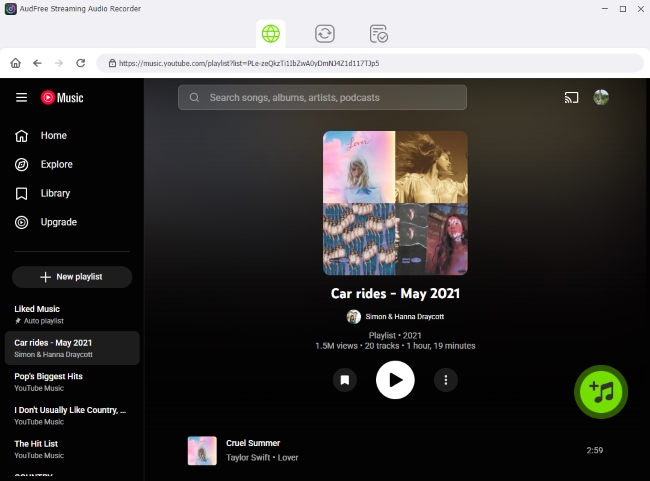
- Use the built-in YouTube Music web player interface to sign in to your account. Browse your personal library, albums, or curated playlists. Click the green '+' button on the side to load your selected tracks into the active conversion queue. You can stack multiple albums at once for batch processing.
- Step 3. Convert YouTube Music into Local Files

- Open the conversion list panel and click the 'Convert' button. AudFree will download and store the tracks on your computer's hard drive. Once completed, verify your folder structure to ensure your audio files and synced lyric files (.lrc) are perfectly organized.
- Step 4. Stream Converted YouTube Music Offline on Apple TV
- Since the Apple TV does not feature a USB port for flash drives, use one of the two methods below to bridge your computer's local library to your TV without using external internet bandwidth.
- Enable Local Sharing (SMB): Right-click your music folder on your PC/Mac, head to its properties/sharing settings, and enable 'File Sharing via SMB' as a "Read-Only" directory for your local network. Note down your computer's local IPv4 address (e.g., '192.xxx.1.15').
- Link to Apple TV: Download Infuse or VLC from the tvOS App Store. Go to 'Settings > Add Share', select your computer from the local network scan, and input your local computer username and password.
- Play Natively: Navigate your folders directly on the TV. The media player will read your high-fidelity files and dynamically render your local '.lrc' lyric files completely offline.
- Open the VLC app on your Apple TV and navigate to the 'Remote Playback' tab on the left sidebar to enable it.
- The app will display a local web address (e.g., http://192.xxx.1.50). Type this address into your computer's web browser.
- Drag and drop your downloaded audio tracks and matching '.lrc' files directly into the browser window. This uploads the files directly into your Apple TV's internal flash storage.
- You can now completely unplug your home router and your YouTube Music tracks will play straight from the Apple TV's memory.
Option A: The LAN Network Share (Via Infuse or VLC App)
Option B: Direct TV Storage Upload (100% Router-Independent)
Pros and Cons of Local tvOS Playback
Functions completely offline with zero internet bandwidth or buffering issues;
Locks in consistent, stable audio bitrates without dynamic network downgrades;
Completely removes video ads, layout adjustments, and screen-saver interruptions;
Allows true background music playback while running other tvOS applications or games;
Safeguards premium displays by allowing native Apple screensavers to trigger over the music
Consumes local storage space on your computer or Apple TV internal memory;
Requires a brief, one-time file configuration step on your desktop;
Newly added YouTube Music tracks will not automatically sync unless downloaded again via AudFree
Expert Verdict
If you only listen occasionally, the official YouTube Music streaming methods are usually sufficient. However, for users who rely on Apple TV as a dedicated music hub, an offline library offers a significantly more reliable experience.
While converted files cannot surpass YouTube Music's source quality, they provide greater flexibility, permanent ownership-like access, and complete freedom from buffering, subscription restrictions, and internet connectivity issues.
Part 5. Troubleshooting: Fix Apple TV YouTube Music Not Working
If you are experiencing playback crashes, audio stutters, or account errors while streaming YouTube Music on Apple tvOS, use these verified, step-by-step fixes.
Issue 1: Black Screen When Switching Between Music Videos and Audio
A known bug in the tvOS YouTube wrapper causes a temporary black screen or infinite loading spinner when transitioning from a music video back to an audio-only track.
How to Fix:
- Fix 1. Refresh Your Account Sync: Open the YouTube app, sign out of your account, restart your Apple TV via the settings menu, and sign back in. This forces a clean handshake with Google's servers.
- Fix 2. Force a tvOS Firmware Update: Outdated system software can trigger media decoder errors. Navigate to 'Settings > System > Software Updates' and install the latest tvOS version.
- Fix 3. Purge Corrupted Cache (Reinstall App): Delete the YouTube app from your Apple TV, restart the device, then reinstall it from the App Store to clear buggy temporary files.
Issue 2: AirPlay Audio Lagging, Stuttering, or Dropping Out on tvOS 19/20
If you choose to stream YouTube Music from your iPhone via AirPlay 2, you may experience audio dropouts, desynced lyrics, or sudden disconnections.
How to Fix:
- Fix 1. Prioritize Wired Connections: Connect your Apple TV via Ethernet rather than Wi-Fi.
- Fix 2. Switch to 5 GHz Wi-Fi: Ensure your iPhone is connected to a high-speed 5 GHz Wi-Fi band, not the slower 2.4 GHz band.
- Fix 3. Turn Off VPNs: Temporarily disable active VPNs on your phone, bypass HDMI-CEC settings in your TV menu, or test a different high-speed HDMI cable.
- Advanced Fix (Router Multicast Optimization): AirPlay 2 requires constant local network handshakes. If your audio continues to stutter, log into your router's admin panel, search for advanced LAN/Wireless settings, and turn on IGMP Snooping and Bonjour Forwarding. This stops your router from mistakenly blocking or dropping local AirPlay audio packets.
Issue 3: Premium Subscription Active on Phone but Showing Ads on Apple TV
This frustrating glitch is almost always caused by Google's confusing data architecture rather than a billing error.
A single Google login can contain both a standard Personal Profile and a Brand Account (often automatically created via old YouTube channels). If your Premium subscription is tied to your Brand Account, but your Apple TV defaults to your Personal Profile, ads will still play.
How to Fix:
- Fix: Open the YouTube Music app on your phone or desktop and tap your profile picture. Note the exact name and avatar of the profile marked "Premium". Open the YouTube app on your Apple TV, navigate to the top-left menu, and select Switch Account. Explicitly choose the profile that matches your Premium-enabled account.
Issue 4: Constant Buffering and Playback Freezes
If music videos constantly pause to buffer, the app is struggling to maintain the required bandwidth for high-quality playback.
How to Fix:
- Fix 1. Flush the Network: Power-cycle your modem and router, then perform a network speed test directly on your Apple TV to ensure you have a stable ≥ 25 Mbps connection for video streams.
- Fix 2. Switch to a Custom DNS: If Google's assets are loading slowly, go to your Apple TV Network Settings and change the DNS from "Automatic" to a reliable public server like Cloudflare (1.1.1.1) or Google (8.8.8.8).
Our Testing Takeaway
Most playback issues were resolved through account reauthentication, app reinstallation, or network optimization. The native YouTube app proved surprisingly stable during extended listening sessions, while AirPlay-related problems were more likely to occur on congested wireless networks.
Pro-Tip: The Ultimate Workaround for Persistent App Failures
If tvOS bugs or network restrictions continue to interrupt your listening experience, the most bulletproof solution is to bypass the official streaming app entirely.
By using a specialized tool like AudFree YouTube Music Converter, you can extract your favorite playlists directly into offline formats (such as lossy AAC or 16-bit FLAC). From there, you can host them on a local Plex server or stream them natively through Infuse on your Apple TV - completely bypassing streaming bugs, network buffering, and Google account profile errors.
Part 6. FAQs About YouTube Music on Apple TV
Can YouTube Music Play in the Background on Apple TV?
Background playback on Apple TV depends on how you access YouTube Music. If you're listening through the YouTube app, playback may stop when you leave the app or switch to certain tvOS functions. By contrast, AirPlay sessions typically continue playing as long as the source device remains connected and active.
If you use locally stored music files, such as tracks added to Apple Music or played through apps like Infuse or VLC, background playback is generally more flexible and is not tied to YouTube Music's app behavior or streaming requirements.
Does AirPlay Affect YouTube Music Audio Quality on Apple TV?
For most users, AirPlay delivers excellent audio quality and any differences are unlikely to be noticeable during everyday listening. Since YouTube Music itself streams at a compressed format (256kbps AAC), the listening experience is usually determined more by the source quality, speakers, and network stability than by AirPlay itself.
In practice, a strong and stable Wi-Fi connection typically provides smooth playback, while network congestion or weak signal strength may occasionally result in interruptions, delays, or temporary quality fluctuations.
Does YouTube Music on Apple TV Support Gapless Playback?
Gapless playback support can vary depending on the playback method and the content being played. Some albums and playlists transition smoothly between tracks, while others may experience brief pauses.
Compared with dedicated music platforms that offer native gapless playback across all devices, the experience on Apple TV can be less consistent. Users who frequently listen to live albums, DJ mixes, classical recordings, or concept albums may occasionally notice small gaps between songs.
Conclusion
Overall, YouTube Music works well on Apple TV for both casual music listening and video-based content, offering multiple playback options through the YouTube app, AirPlay, and third-party solutions. While streaming provides the most convenient experience, factors such as internet dependency, limited background playback behavior, and the lack of native offline support may affect some users.
For those who prioritize uninterrupted listening, local library management, or long-term offline access, integrating locally stored music files into the Apple TV ecosystem can provide greater flexibility and reliability. Ultimately, the best playback method depends on whether you value convenience, portability, audio management, or offline accessibility most.

Staff Editor


