


Internet radio offers endless variety, from live music broadcasts and talk shows to international news feeds. However, live radio streams require an active internet connection, meaning you miss out when offline or traveling. Saving your favorite radio broadcasts as permanent audio files is the best way to enjoy seamless offline listening on any device.
Finding a reliable internet radio recorder can be challenging - some tools suffer from poor sound quality, while others require complex audio routing setups. To simplify your choice, this guide offers 2 best recorders to record internet radio on Windows, Mac, and Linux, covering both an easy-to-use all-in-one player-recorder and a free open-source recording and editing utility.


Part 1. How to Record Internet Radio on Windows/Mac for Free via AudFree
If you want a seamless experience without switching between browsers and audio capture apps, AudFree Streaming Audio Recorder is an exceptional choice. It serves as a complete media hub - combining multi-platform music streaming, live internet radio with automatic recording, and a dedicated podcast player. You can access and save your favorite audio seamlessly across integrated sections for offline listening anytime.
Unlike its streaming music service modules, which require a paid license, the internet radio downloading section is completely free to use. You don't need to log in to a streaming account to access this feature, making it a convenient option for listeners who mainly want to save internet radio or podcasts.
Key Features of AudFree Streaming Audio Recorder

- Stream and record internet radio stations directly inside the application
- Download live radio streams to MP3, WAV, FLAC, M4A, and more without quality loss
- Use the radio and podcast section without signing in or a paid license
- Automatically identify and fill in track information, including song title, artist, album, and artwork
- The Podcasts & Radio feature is independent of the program's paid streaming music sections
- Work with top 10 music services like Spotify, Apple Music, Tidal, and YouTube Music
How to Record Internet Radio with AudFree Streaming Audio Recorder
The best internet radio recorder is compatible with Windows 10 and 11 on PCs, as well as macOS 11 Big Sur, 12 Monterey, 13 Ventura, 14 Sonoma, 15 Sequoia, and 26 Tahoe on Macs.
Step 1. Download the software from the official AudFree website and install it on your PC or Mac. Open the program and locate its dedicated radio section.
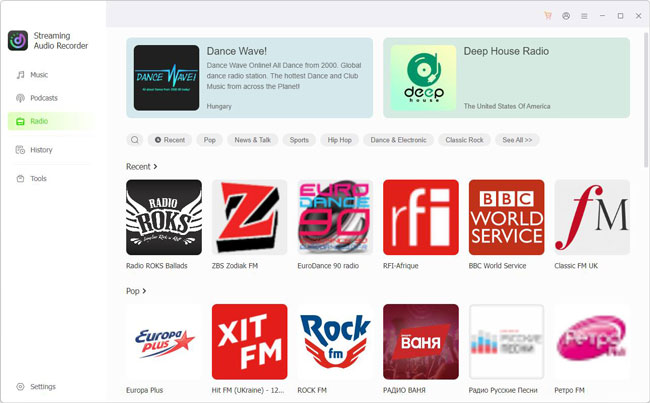
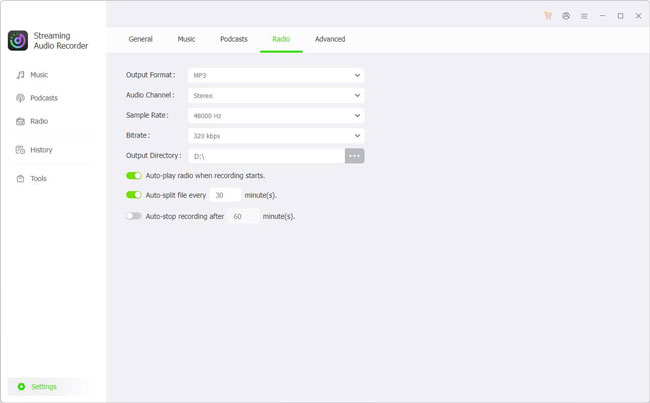
Step 2. Go to 'Settings > Radio' and customize the available output options, including output format, bitrate, and sample rate as needed.
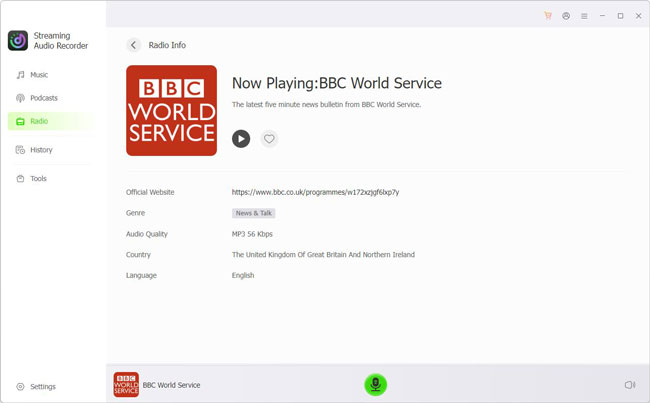
Step 3. Back to 'Radio tab, and browse the available content or search for your preferred radio program or station on the internet within the integrated section. Select the radio content you want to download from the search results.
Step 4. Click 'Record' to start capturing the live internet radio in real time. When you're finished, click 'Stop'. To review, rename, or export your saved MP3 files from internet radio streams, go to 'History > Radio Filter'.
Pros and Cons of AudFree Streaming Audio Recorder
The dedicated radio and podcast section is free to use;
No separate streaming account is required for this feature;
Convenient for saving supported online radio and podcast content;
Offers additional music-related features in separate modules
Available content may not include every exclusive podcast or radio program;
It is designed primarily for saving available content rather than providing a full audio editing workspace
If you need more advanced editing and trimming features for internet radio recordings, or want to capture other audio playing on your computer, AudFree Audio Capture is worth considering. It offers a more versatile recording workflow for capturing different types of computer audio, along with support for over 20 output formats to suit various needs.
Part 2. How to Record Radio from Internet on Windows/Mac/Linux with Audacity
If you prefer a free, open-source solution that gives you more control over radio audio recording and editing, Audacity is another good option. It runs on Windows, macOS, and Linux and can record audio from supported input sources.
Unlike AudFree Streaming Audio Recorder, Audacity doesn't provide a built-in catalog of internet radio stations. Instead, you generally need to open the radio stream in a browser or another compatible player and configure Audacity to capture the audio playing on your computer.

✅ Download and use Audacity without paying for a recording license.
✅ An free internet radio recorder available for Windows, macOS, and Linux.
✅ Can capture computer playback when the appropriate recording source or audio-routing setup is available.
✅ Trim recordings, remove unwanted sections, adjust levels, and apply audio effects.
How to Download and Record Radio from Internet with Audacity
Compared with Audacity, AudFree Audio Capture requires less setup before recording internet radio. If you're new to audio recording and prefer a simpler workflow, AudFree internet radio recorder software may be the better choice.
Step 1. Download Audacity from its official website and install it on your computer. Next, open your preferred internet radio station in a web browser or compatible media player. Start playing the broadcast and confirm that the audio is working.
Step 2. Open Audacity and locate the audio host, recording device, and channel settings.

- On Windows: Select a supported loopback recording device or Windows WASAPI as the audio host and choose the appropriate loopback input for your playback device, if available.
- On macOS: Select an available system-audio loopback source. Depending on your macOS version and setup, you may need a compatible virtual audio device or another audio-routing solution.
- On Linux: Choose an appropriate system playback capture source, such as a monitor source provided by PulseAudio or PipeWire, depending on your audio configuration.
Step 3. Return to Audacity and click the 'Record' button. The audio waveform should appear as the radio plays. Let the broadcast run for as long as you need. If you only want a specific song, interview, or section of a program, you can stop recording when that segment finishes.
Step 4. Click 'Stop' when you're done. Listen to the recording to check its sound quality and make sure the desired content has been captured. You can then trim the beginning and ending, remove unwanted sections, adjust the volume, or apply other available editing tools.
Step 5. Go to the 'File' menu > 'Export Audio...' to choose the appropriate export option. Select a supported format, such as WAV or MP3, configure the available settings, and save the file to your preferred folder. Your recorded internet radio audio is now ready for offline playback.

View also: How to Record from Spotify with Audacity
Completely free and open source;
Provides extensive audio editing and processing tools;
Supports exporting recordings in multiple audio formats
Doesn't include a built-in internet radio station directory or downloader;
Requires manual audio source configuration, especially on macOS and Linux;
You may need additional audio-routing software, depending on your system;
It has a steep learning curve for new users
Part 3. FAQs About Free Internet Radio Recorders
Can I Record Internet Radio on Android?
Yes. Android users can record internet radio using dedicated mobile radio apps with built-in recording features (such as VRadio or Audials Play) or by utilizing the device's native system audio recorder while streaming in the background.
How to Record Internet Radio to MP3 for Free?
You can set MP3 as the default output format in AudFree Streaming Audio Recorder before playing a stream (MP3 is selected by default, but it's good to double-check). Alternatively, you can record the radio station using Audacity and export the final track as an MP3 file using its built-in encoder.
Is It Legal to Record Internet Radio Streams?
Recording internet radio broadcasts for personal, offline playback is generally considered fair use in most jurisdictions, provided the recordings are not redistributed, uploaded, or sold for commercial profit.
Can I Record Radio from Internet Without a Microphone?
Yes. You can record computer playback directly instead of using a microphone. In Audacity, select a suitable system-audio loopback or monitor input. AudFree Streaming Audio Recorder's dedicated radio and podcast feature provides another option for saving supported online content without capturing sound through a microphone.
Which Audio Format Should I Use for Recorded Internet Radio?
MP3 is a practical choice if you want smaller files that work with most devices and media players. WAV is useful if you plan to edit the audio further or prefer an uncompressed recording, although its files are much larger. Your final quality also depends on the source audio and recording settings.
Part 4. Conclusion
Both AudFree Streaming Audio Recorder and Audacity can help you save internet radio for offline listening, but they suit different workflows. AudFree Streaming Audio Recorder is a convenient option for discovering and downloading available radio through its dedicated free section. Audacity is a better fit if you want to record live broadcasts manually, adjust recording settings, and edit the resulting audio.
Choose AudFree if convenience and direct access to available content are your priorities. Choose Audacity if you prefer a flexible, free recording and editing tool that works across Windows, Mac, and Linux.

Staff Editor


