


There is nothing quite like a great soundtrack to accompany a long road trip or a stressful daily commute. For audiophiles and casual listeners alike, Deezer remains one of the premier music streaming services on the market. It boasts a massive library of over 90 million tracks, high-fidelity (HiFi) audio, and personalized Flow playlists. But how do you safely and seamlessly bring that incredible listening experience into your vehicle? The answer is Android Auto.
Android Auto is designed to minimize distractions by projecting your favorite smartphone apps directly onto your car's infotainment display. If you are wondering how to integrate your Deezer library with your vehicle's dashboard, you are in the right place.
Whether you are a new user trying to figure out the initial setup, or a veteran experiencing sudden connectivity hiccups, this comprehensive 2026 guide will walk you through everything you need to know about playing Deezer on Android Auto.
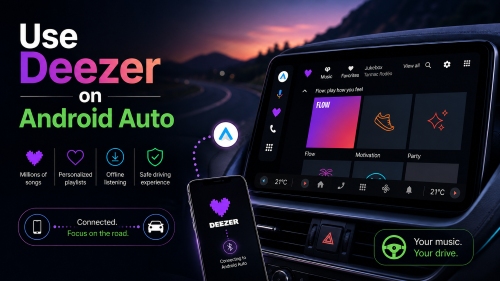

Part 1. Does Deezer Work with Android Auto?
The short answer is yes, absolutely. Deezer has been an official partner with Android Auto for years, and their integration has only become more refined and stable in 2026.
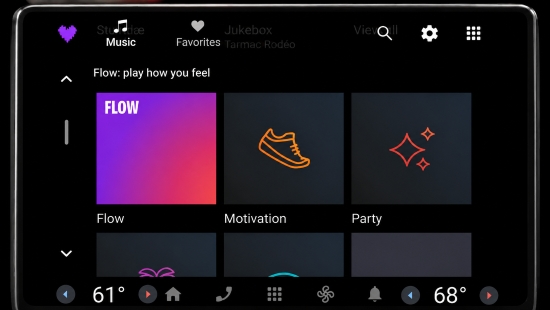
By connecting your Android smartphone to an Android Auto-compatible vehicle, a specialized, driver-friendly version of the Deezer app will appear on your car's screen. This interface features enlarged playback controls, simplified menus, and easy access to your Flow, favorites, and recently played tracks, ensuring you can navigate your music without taking your eyes off the road.
Important Note on Deezer Account Tiers:
While Deezer does work with Android Auto, the experience varies significantly depending on your subscription plan:
- Deezer Premium / DUO / Family Users: You get the ultimate, unrestricted experience. You can select specific tracks, skip unlimited songs, access your customized Flow, and utilize high-quality audio streaming. You can also play downloaded tracks offline to save on mobile data.
- Deezer Free Users: While you can still access the app via Android Auto, your experience will be heavily restricted. You will be limited to shuffle play, experience forced advertisements between tracks, and have a capped number of track skips per hour. Furthermore, offline listening is not available for free accounts.
For unlimited offline playback on any Deezer account, skip to Part 4. There, you will find a free, universal method for Android Auto that doesn't require a premium subscription.
Part 2. How to Connect Deezer to Android Auto
Connecting Deezer to Android Auto is a simple process as long as your smartphone, vehicle, and apps meet the necessary requirements. Once connected, you can access your Deezer playlists, Flow recommendations, albums, and favorite tracks directly from your car's display.
What You Need Before Getting Deezer on Android Auto Started
Before setting up Deezer with Android Auto, make sure you have the following:
- An Android smartphone running Android 8.0 (Oreo) or later.
- The latest version of the Deezer app installed on your phone.
- The latest version of the Android Auto app (if your phone does not have it built-in natively).
- A vehicle or aftermarket head unit that supports Android Auto.
- A Deezer Premium plan if you want offline listening or ad-free playback.
To use wireless Android Auto with Deezer, your smartphone must run Android 11.0 or later and have an active mobile data connection. In addition, both your phone and your car's infotainment system must support 5 GHz Wi-Fi connectivity.
Method 1. Use a Wired Connection to Stream Deezer on Android Auto (Most Stable)
For most vehicles, a wired connection remains the easiest and most reliable way to use Deezer with Android Auto. It provides a more stable connection and reduces potential issues caused by wireless interference.
Step 1. Launch the Deezer app on your smartphone and sign in to your account. Make sure your playlists or downloaded content are available before connecting to your car.
Step 2. Use a high-quality, data-transfer-capable USB-C cable to connect your smartphone to the designated Android Auto USB port in your vehicle.
A damaged or charge-only USB cable may prevent Android Auto from launching properly.
Step 3. If this is your first time connecting, your phone and your car's display will prompt you to grant various permissions. Follow the on-screen prompts to allow Android Auto to access your device.
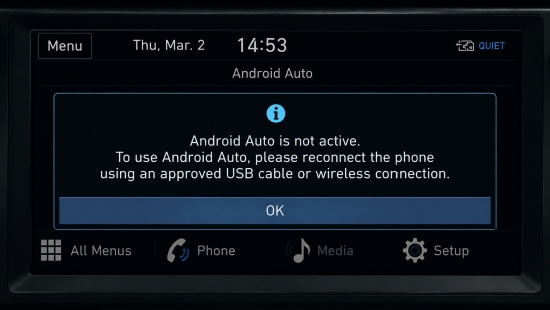
Step 4. Once Android Auto boots up on your car's screen, tap the App Launcher (the icon with multiple dots). Scroll through the list and select the Deezer icon.
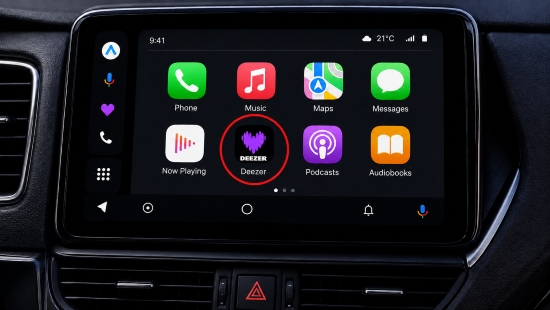
Step 5. You can now browse your Flow, favorites, and playlists directly from the dashboard!
Method 2. Use a Wireless Connection to Play Deezer on Android Auto (For Newer Cars)
If your car or aftermarket stereo supports Wireless Android Auto, you can connect Deezer without plugging in a USB cable. This option allows your phone to stay in your pocket while Android Auto streams music through your car's infotainment system.
Step 1. On your Android phone, turn on Bluetooth, Wi-Fi, and Location services (if required by your device). Wireless Android Auto uses Bluetooth for the initial pairing process and Wi-Fi for transferring data between your phone and vehicle.

Step 2. Open your vehicle's Bluetooth settings and search for your smartphone. Select your device, complete the pairing process, and wait for your vehicle to establish the connection.
Step 3. After pairing, your phone should display a prompt asking whether you want to use Android Auto wirelessly. Tap Accept or Allow, then follow the instructions to grant the required permissions.
Step 4. Then Android Auto will automatically project onto the display screen over the Wi-Fi connection. Navigate to the App Launcher and select Deezer to begin playback, just like the wired method above.
Part 3. Troubleshooting: Deezer Not Working on Android Auto
If Deezer doesn't appear in Android Auto or music won't play correctly, don't worry. In most cases, the problem can be fixed within a few minutes. You can follow this step-by-step troubleshooting guide if you run into issues below.
Fix 1. Check Your USB Cable
Reason: This is the number one culprit for Android Auto failures. Not all USB cables are created equal. Many cheap, gas-station cables are designated for "Charging Only" and lack the internal wiring for high-speed data transfer.
Solution: Swap your current cable for a high-quality cable from a reputable brand, or preferably, the original cable that came in the box with your smartphone. Keep the cable length under 3 feet (1 meter) to prevent data degradation.
Fix 2. Clear App Cache and Data
Reason: Over time, temporary files can become corrupted, leading to app crashes and infinite loading screens.
Solutions: On your phone, navigate to 'Settings > Apps > Deezer'. Tap on Storage, then select Clear Cache. Do the same for the Android Auto app. If the problem persists, you can try Clear Data, but note that this will require you to log back into Deezer and re-download any offline tracks.
Fix 3. Adjust Deezer's Permissions and Battery Settings
Reason: Android's aggressive battery management is notorious for killing background apps to save power. If Deezer stops playing shortly after your phone screen turns off, this is likely the main reason. Additionally, Deezer needs specific permissions to communicate smoothly with Android Auto.
Solutions:
1. Disable Battery Optimization: Go to 'Settings > Apps > Deezer > Battery' and change the setting from 'Optimized' to 'Unrestricted'.
2. Grant Permissions: Go to 'Settings > Apps > Deezer > Permissions' and ensure Deezer has access to your storage, notifications, and any other requested system features.
Fix 4. Update Deezer and Android Auto
Reason: Outdated software often suffers from compatibility bugs.
Solution: Open the Google Play Store and ensure both Deezer and Android Auto are updated to their latest 2026 versions. Additionally, check your phone's settings for any pending Android OS system updates.
Fix 5. Reinstall Deezer
If none of the above solutions work, uninstall Deezer completely, restart your phone, then reinstall the latest version. Then reconnect Android Auto and sign back into your account. This often resolves persistent issues caused by corrupted app data or incomplete updates.
Part 4. Best Way to Listen to Deezer on Android Auto (Any Car)
Although Deezer works well with Android Auto, the experience still depends on several factors, including your phone connection, internet availability, subscription status, and vehicle compatibility.
What if your car is older and doesn't support Android Auto? What if you are driving through a dead zone with zero mobile reception, or simply want to avoid the software glitches associated with casting apps?
In these situations, having your Deezer music available as local audio files can provide a more flexible listening experience.
Listen to Deezer Music Offline with AudFree Streaming Audio Recorder
For users who want to enjoy Deezer music beyond Android Auto limitations, AudFree Streaming Audio Recorder provides another way to prepare Deezer tracks for offline playback.
Instead of relying on the Deezer app or an internet connection, it allows you to save your favorite Deezer songs, playlists, and albums as common audio formats, including MP3, FLAC, WAV, AIFF, and more. And it will retain the full ID3 tags and the original sound quality of Deezer songs.
AudFree Streaming Audio Recorder for Deezer

- Losslessly download Deezer to MP3, FLAC, WAV, and more
- Keep your Deezer music available even when Android Auto is unavailable
- Automatically recognize and retain ID3 tags and support batch processing
- Enjoy higher compatibility with different devices and media players
- Listen without mobile data consumption
How to Use Deezer Music with Any Car Stereo
- Step 1. Set Output Format of Deezer for Android Auto
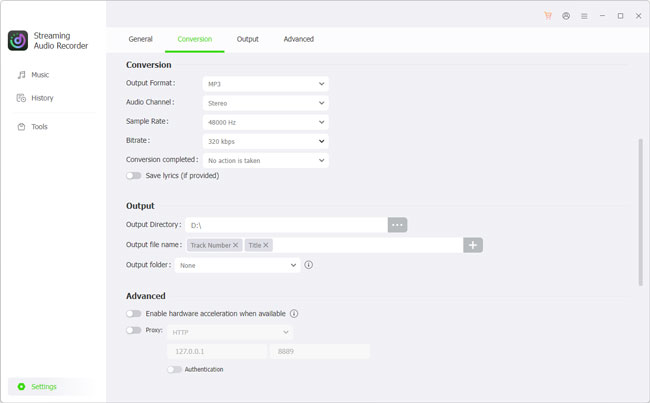
- Launch the AudFree Streaming Music Converter for Deezer on your computer. Click the 'Settings > Conversion', then choose MP3 as the output format. You can also customize bitrate, sample rate, and audio channels. Under the' Output' tab, select your preferred storage location and enable ID3 tag retention.
- Step 2. Add Deezer Music to the Conversion List
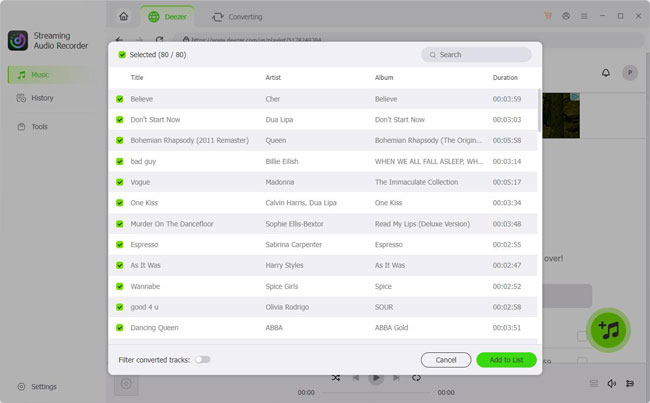
- Click the Deezer icon on the main interface, sign in to your account, and browse for songs, playlists, or albums. Click the '+' button to add them to the conversion list.
- Step 3. Start Processing Deezer Music
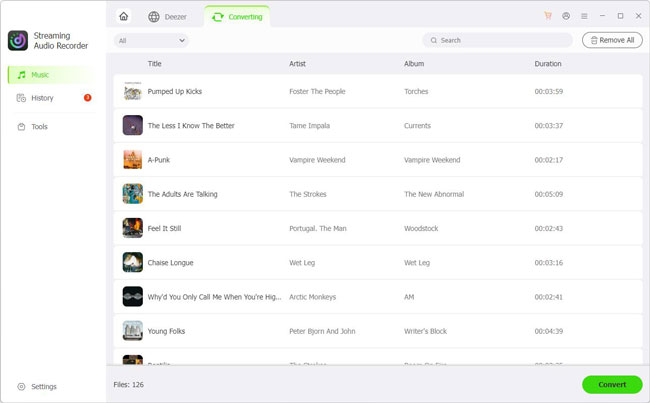
- Go to the 'Converting' tab and click 'Convert' button to launch the conversion process. Once completed, all your Deezer local files will be available in the 'History' section or the output folder you selected.
- Step 4. Transfer Deezer to USB & Play in Car
- Once the download is complete, insert a USB flash drive into your computer and drag-and-drop the converted music files onto the drive. Then take the USB drive to your car and plug it into the vehicle's standard USB media port. Now you can enjoy your Deezer collection offline in your car without Android Auto support.
See also: How to Download Deezer to USB
Unlike the all-in-one AudFree Streaming Audio Recorder, AudFree Deezer Music Converter is a dedicated tool designed specifically for Deezer. It delivers lossless-quality downloads for Android Auto at an affordable price and works seamlessly with both free and premium accounts.
Android Auto Streaming vs Offline Deezer Music
| Feature | Deezer with Android Auto | Offline Deezer Music |
|---|---|---|
| Internet Connection Required | ✅ | ❌ |
| Works with Older Cars | Limited | ✅ |
| Requires Deezer App | ✅ | ❌ |
| Uses Mobile Data | ✅ | ❌ |
| USB Playback | ❌ | ✅ |
| Works with More Devices | ❌ | ✅ |
| Audio Quality | Lossy (Bluetooth compression) | Lossless (True HiFi) |
| Best for | Daily connected driving | Flexible offline listening |
For drivers who mainly use modern vehicles with stable internet access, Android Auto remains a convenient choice. However, offline music provides more freedom when compatibility, connectivity, or data usage becomes a concern.
Part 5. FAQs About Deezer Android Auto
Can I use voice commands to control Deezer on Android Auto?
Yes. Android Auto supports voice control for compatible music apps, including Deezer. You can press the voice command button on your steering wheel or say 'Hey Google', followed by a command. For example: 'Hey Google, play my Flow on Deezer', or 'Hey Google, play the newest album by The Weeknd on Deezer'. However, voice command availability may vary depending on your Android version, Google Assistant or Gemini settings, and regional availability.
Why does Deezer keep buffering or pausing while I am driving?
Buffering is almost always related to your cellular network connection. If you are driving through rural areas or tunnels, your mobile data will drop, causing the music to pause. To fix this, connect your phone to Wi-Fi before you leave and download your favorite playlists for offline listening.
Can I create or organize new Deezer playlists on the car screen?
No. For safety reasons, Android Auto severely limits complex interactions. You cannot create new playlists, type in detailed search queries, or reorganize your library from the dashboard display. You must do your library management on your phone before you start driving.
To build or rearrange your playlists, you must use the Deezer mobile app on your phone or the Deezer desktop/web player. Any changes, edits, or new playlists created on your phone will automatically sync to your car screen the next time you launch Android Auto.
Is Deezer HiFi supported on Android Auto?
Yes, if you have a Premium subscription, you can stream FLAC-quality audio. However, keep in mind that if you are using Wireless Android Auto, the audio might be slightly compressed over the wireless connection. For true, uncompressed HiFi audio, a wired USB connection (or the USB Flash Drive universal method mentioned in Part 4) is recommended.
Can I listen to Deezer offline through Android Auto?
Yes, but you need to download your Deezer music beforehand with a Deezer Premium account. Once songs are downloaded to your phone, Android Auto can access them through the Deezer app without requiring a continuous internet connection.
However, downloaded Deezer songs remain within the Deezer app. If you want to play them through other players, USB devices, or unsupported car systems, you need to save them as compatible local audio files via AudFree Streaming Audio Recorder for Deezer.
Conclusion
Listening to Deezer on Android Auto is the safest and most enjoyable way to manage your music on the road. By following the connection steps outlined above, ensuring your cables and software are up to par, and knowing how to troubleshoot common background battery issues, you can guarantee a smooth ride. And even if you face insurmountable software hurdles, downloading your Deezer tracks for local USB playback ensures your favorite artists are always riding alongside.
Safe travels and happy listening!

Staff Editor


