


Volumio is a popular open-source music player software that allows users to play high-quality music on various devices. Spotify, on the other hand, is one of the most popular music streaming services in the world.
If you are a Spotify user, you may be wondering whether Volumio supports Spotify. The answer is yes. In this article, we will explore how to connect Spotify to Volumio with or without Premium and enjoy your favorite tunes seamlessly. Also, you will learn how to fix Spotify Volumio not working issues. Let's get to the main text.


Part 1. What Is Volumio and Does Volumio Work with Spotify?
What Is Volumio?
Volumio is a Linux-based audio playback platform designed to deliver a high-quality music streaming experience. It supports a wide range of hardware, including Raspberry Pi, x86-based computers, and dedicated audio streamers.
Unlike traditional media players, Volumio offers a convenient web-based interface that allows users to manage their music via computers, smartphones, or tablets. It supports access to local storage, NAS servers, internet radio, podcasts, USB drives, and various streaming services.
Thanks to its flexibility and extensive audio customization options, the platform is particularly popular among audiophiles and DIY music enthusiasts building custom home audio systems.
Does Volumio Work with Spotify?
Yes, Volumio works with Spotify through Spotify Connect integration. After enabling Spotify Connect, you can connect Spotify to Volumio to play music from your phone, tablet or computer.
Does Volumio Require Spotify Premium?
To use Spotify on Volumio officially, you need to have a Spotify Premium account. If not, you can navigate to Part 3 directly to get Volumio Spotify connect for free with AudFree Spotify Music Converter.
Part 2. How to Connect Volumio with Spotify via Spotify Connect (Premium Users)
The direct way to listen to Spotify on Volumio is to install the Spotify plugin for Volumio. The Volumio Spotify plugin is a tool designed by NanoSound and Volumio. With it, you can control the web interface or Spotify application and enjoy Spotify on Volumio.
This method is only available for Spotify premium users.
Method 1. How to Install Spotify Plugin on Volumio Directly
Step 1. Open the Volumio web interface and go to the "Plugins" section.

Step 2. Search for "Spotify Connect" plugin and click on the "Install" button next to the Spotify plugin.
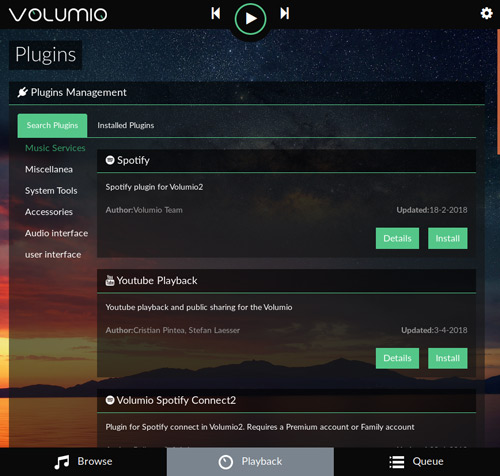
Step 3. Once the plugin is installed, enable it and restart Volumio if required.
Step 4. Open Spotify on your mobile phone, tablet, or computer and play any track.
Step 5. Tap the 'Devices Available' icon in the Now Playing page and choose your Volumio device.
Step 6. At last, Spotify music will stream through Volumio.
Method 2. How to Install Volumio Spotify Plugin via SSH (For Advanced Users)
If the Spotify Connect plugin is unavailable or installation fails, you can choose to configure Spotify Connect via SSH access. SSH installation steps may vary across different Volumio versions; you should verify the latest commands and package requirements applicable to your specific version before making system-level changes.
Step 1. Open Volumio web interface, go to http://volumio.local/dev or use your device's specific IP address (e.g. http://192.168.1), locate the SSH section, and click 'Enable' to enable SSH on Volumio.
Step 2. Access the Spotify plugin Volumio by typing in the following commands:
Wget https://github.com/balbuze/volumio-plugins/raw/master/plugins/music_service/volspotconnect2/volspotconnect2.zip
mkdir ./volspotconnect2
miniunzip volspotconnect2.zip -d ./volspotconnect2
cd ./volspotconnect2
volumio plugin install
cd ..
rm -Rf volspotconnect*
Step 3. On the Volumio WebUI page, please go to the "Plugins" section and install it.
Step 4. Then you will see volspotconnect2. Please enable it.
Step 5. You can go to the plugin "Settings" page to modify some parameters.
Step 6. Enter your Spotify credentials and click on the "Save" button to enjoy your favorite tracks from Spotify on Volumio.
The Volumio Spotify plugin allows you to control Spotify playback through the Volumio interface, while Spotify Connect allows you to control playback through the official Spotify app.
Part 3. How to Use Spotify on Volumio without Premium (All Users)
If you are using a poor internet connection, or you want to play Spotify music that has been removed from the platform, you can use a converter to build a local NAS library. So, we will show you a better way to use Volumio with Spotify without any problems. That is, you can use AudFree Spotify Music Converter to convert Spotify music to audio files supported by Volumio. But it is noted that you will lose access to algorithmic recommendations and the ability to seamlessly switch tracks via the Spotify mobile app; all track-switching operations must be performed within the Volumio WebUI.
This process does not require a Spotify Premium account. And AudFree Spotify Music Converter is much easier to use than a plugin. You can use it to get Spotify offline songs in MP3, FLAC, AIFF, WAV, and other formats. The conversion speed is up to 13 times faster with no quality loss or metadata loss. With this powerful tool, you can use Volumio 4/Volumio 3 Spotify with free account.
AudFree Spotify Music Converter for Volumio

- Download Spotify music without Premium for Volumio
- Convert Spotify music to Volumio-supported files
- Support multiple audio formats like M4A, AIFF, MP3, FLAC, etc.
- Keep 100% raw ID3 tags and 100% original metadata
- Work at 13X speed, customize output settings
How to Play Spotify on Volumio without Premium
Now let's check the details of how to get Volumio Spotify free, without Premium.
- Step 1. Import songs from Spotify to AudFree

- Open AudFree Spotify Music Converter and sign in with your Spotify account within the built-in Spotify web player. Just find and open the track, playlist or album, hit the '+' icon and tap 'Add to list'. Wait until it is added to AudFree.
- Step 2. Edit the output settings for Volumio

- On the Windows device, please check the 'Menu' icon from the top title bars of AudFree. Then choose 'Preferences' > 'Conversion'. To get Volumio free Spotify, you can choose MP3, or FLAC as output format. You can also tweak the output parameters such as format, bit rate, sample rate, channel, etc.
- Step 3. Download Spotify songs for Volumio

- Hit the 'Convert' button to begin the converting process. After the conversion is finished, please follow the on-screen prompts to access the local folder where store the downloaded local Spotify tracks.
- Step 4. Move downloaded Spotify music to Volumio
- Now you can listen to Spotify music on the computer via a Volumio music player for PC. Or you can transfer Spotify music to USB sticks or move Spotify music to SD card for playback on Volumio music player for Raspberry Pi or others.
Besides Spotify, you can use AudFree Streaming Audio Recorder to download music from YouTube Music, Amazon Music, Tidal, Apple Music, Qobuz, Pandora, SoundCloud and so on for use on Volumio.
Part 4. Compare Ways to Use Spotify with Volumio
Here you can check out the differences between these two methods to play Spotify on Volumio and choose the one that depends on your needs.
| Feature | Via AudFree Spotify Music Converter | Via Spotify Connect |
|---|---|---|
| Offline Playback | ✅ | ❌ |
| USB Drive Playback | ✅ | ❌ |
| SD Card Playback | ✅ | ❌ |
| Spotify App Required | ❌ | ✅ |
| Spotify Premium Required | ❌ | ✅ |
| Library Integration | Limited | Full |
| Ease of Setup | Moderate | Easy |
| Playback Flexibility | Moderate | Excellent |
Part 5. How to Fix Volumio Spotify Not Working
If you have met some trouble like "Volumio Spotify login failed", "Volumio Spotify plugin not working", etc., you can try these troubleshooting tips.
Issue 1: Spotify Can't Detect Volumio Device
First, ensure your control device is connected to the same home network as the Volumio device. Then access your router's administration interface and ensure that settings such as "Guest Network Isolation" or "AP Isolation" are completely disabled. At last, restart both the router and the Volumio device to refresh the network handshake connection.
Issue 2: Volumio Spotify Plugin Not Working
The Volumio Spotify plugin may occasionally experience data corruption or synchronization issues due to changes in the Spotify backend API. Refreshing the plugin environment is the most reliable way to resolve such software-level glitches. Keeping the core Volumio system up to date is just as important as updating the plugin itself, so please make sure to check for system updates first.
First, navigate to the "Plugins" menu in the Volumio interface, disable the Spotify plugin, and then re-enable it. If the above steps do not work, completely uninstall the plugin, restart the Volumio system, and then install the latest version directly from the plugin store.
Issue 3: Volumio Spotify Authentication Failed
Authentication tokens can expire or become invalid over time, particularly if you have recently changed your Spotify password or modified your account tier. This prevents the Volumio plugin from securely connecting to Spotify servers to access your music. If you originally signed in using a third-party method like Facebook or Apple, you may need to generate a dedicated device password on your Spotify account page.
Just open the Spotify plugin settings in the Volumio dashboard and explicitly log out of your account. Next, manually re-enter your login credentials and ensure your Spotify Premium subscription is active.
Issue 4: Spotify Connect Keeps Disconnecting from Volumio
Force-close the Spotify app on your mobile device and install any pending updates from the app store. Then restart your Volumio hardware and relaunch the mobile app to establish a fresh Connect session.
Issue 5: Volumio Spotify Not Playing/Buffers
Connect your Volumio device directly to the router using a standard Ethernet cable to ensure a solid, reliable connection. If you must use WiFi, switch the device to the 5GHz frequency band to minimize signal interference.
Part 6. How to Improve Spotify Audio Quality on Volumio
With the launch of Spotify's lossless streaming service, you can finally enjoy CD-quality audio. However, to fully leverage this advantage on a Volumio system, you need to optimize both software settings and the physical hardware signal chain. Here is how to significantly enhance your Spotify listening experience on Volumio.
1. Maximize Spotify Quality Settings
Step 1. Go to Spotify app's Settings on your mobile or desktop device. Then head to the Quality section.
Step 2. Change the streaming quality from 'Automatic' to 'Lossless' or 'Very High'.

Step 3. Make sure the 'Data Saver' and 'Volume Normalization' are both disabled, as they will compress the dynamic range of your music.
2. Use Ethernet Instead of WiFi
Step 1. Use a standard Ethernet cable to connect your main network router directly to the Ethernet port of the Volumio device.
Step 2. Log in to the Volumio web interface, navigate to the network settings, and completely disable WiFi functionality to prevent the system from performing background network scans.
3. Use an External DAC
The built-in headphone jacks on computers or bare-board Raspberry Pis are notorious for high noise floors and poor electromagnetic interference shielding. Using a dedicated Digital-to-Analog Converter (DAC) allows you to completely bypass these inexpensive internal components. A high-quality DAC receives a pristine digital audio stream from Volumio and converts it into an analog signal externally, significantly enhancing sound clarity, low-frequency impact, and overall soundstage performance.
Common DAC solutions for Volumio systems include: Custom DAC expansion boards (HATs) that mount directly onto the Raspberry Pi's GPIO pins. External, standalone USB DACs connected directly to the Volumio host.
Here we will show you how to use NanoSound DAC to enhance audio quality.
NanoSound DAC is a Raspberry Pi Add-on Board, which has HIFI DAC, LDO Voltage Regulator, OLED Display, Power Switch, and i2S audio interface.
If you want to see the artist and album displayed on Volumio's web interface, you can refer to the instruction below. Also, this method is only used by Spotify Premium account.
Step 1. Search and install the "Volumio Spotify Connect2" plugin.
Step 2. Enable the "Volumio Spotify Connect2" plugin. It is also supported to change the output settings.
Step 3. Launch the Spotify app and you will see "Volumio" under devices.
Step 4. Upgrade your NanoSound DAC to 1.4.2 or above. Now, you can see artist and album names on NanoSound when connecting to Spotify.
Part 7. In Conclusion
Connecting Volumio with Spotify is an excellent way to enjoy high-quality music on various devices. Whether you are a premium or free user of Spotify, there are different methods to connect it with Volumio.
If you have a Spotify Premium account, you can use the Volumio Spotify plugin to stream music directly to your Volumio device via Spotify Connect.
If you want offline playback, greater flexibility, or a solution that works without Premium, you can use AudFree Spotify Music Converter to download Spotify music for playing on Volumio.

Chief Editor


