


Qobuz is known for its high-resolution music streaming and downloads, offering CD-quality and Hi-Res audio for listeners who value sound quality. However, FLAC and other lossless formats aren't always convenient when you want to play music on an MP3 player, car stereo, or device with limited format support. That's why you may want to convert Qobuz music to MP3.
Fortunately, there are several ways to do this. You can download purchased music from the Qobuz Store and convert it with a free online tool, use a desktop program for batch conversion, or try an online audio converter without installing software. Each method has different advantages in terms of your needs. Below, we'll show you in detail.

Part 1. How to Download Qobuz Store Purchases and Convert Them to MP3
If you've purchased music from the Qobuz Store, you can download the original files to your computer and convert them to MP3 using a free online audio converter like FreeConvert. This method is suitable for users who already own Qobuz music and only need a more widely compatible format.
How to Get Qobuz Purchased MP3 Downloads Officially
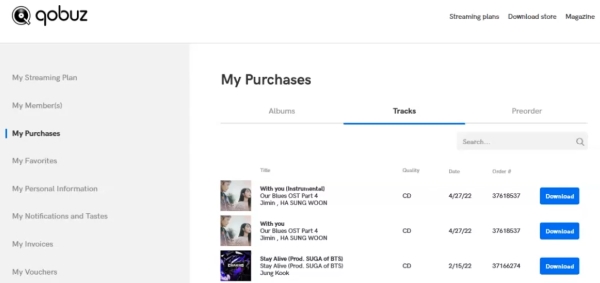
Step 1. Sign in to Qobuz and open your purchase history (My Purchases). Find the album or tracks you want to convert, click the Download option, and save the available audio files, usually FLAC or WAV, to your computer.
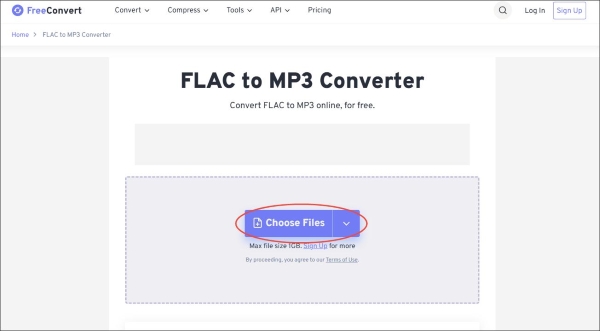
Step 2. Visit FreeConvert FLAC to MP3 Converter. Click Choose Files to upload your downloaded Qobuz FLAC or other supported audio files. You can also drag and drop files into the upload area.
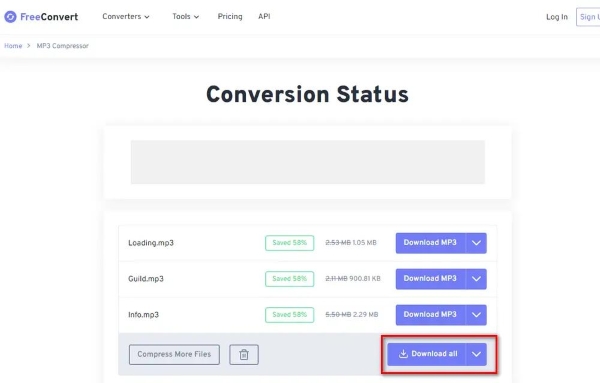
Step 3. Click the Convert button and wait for the process to finish. Once conversion is complete, click Download to get the Qobuz MP3 files to your computer.
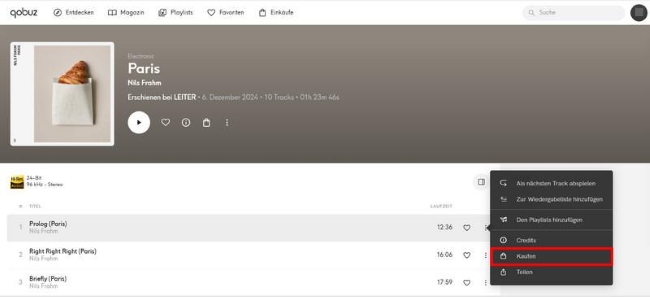
With the latest update, Qobuz now offers direct MP3 purchases for select tracks and albums. However, since this isn't available for all titles, we won't cover it in detail here. Always check the available formats before buying - if MP3 isn't listed, you can simply download the lossless version (FLAC/WAV) and convert it yourself.
Free and easy to use for occasional conversions;
No desktop software installation required;
Re-download anytime;
Converts your Qobuz purchases to MP3 at no extra cost
Requires downloading Qobuz purchases before MP3 conversion;
Not suitable for directly converting Qobuz streaming tracks;
Needs a third-party online audio converter;
Uploading large Hi-Res files may take time
Part 2. How to Batch Convert Qobuz Music to MP3 with a Desktop Tool
If you have a large Qobuz playlist or want to convert multiple tracks in one go, an online converter may not be the most convenient choice. Uploading files individually can take time, especially when dealing with large FLAC or Hi-Res audio files.
In this case, AudFree Streaming Audio Recorder provides a desktop-based alternative. It can get audio from over ten streaming music services, including Qobuz, Spotify, YouTube Music, etc., and save the recordings as common audio files such as MP3, FLAC, WAV, and AIFF. You can also process multiple tracks in batches and customize the output settings.
This method differs from the last one - it works across the entire Qobuz streaming library as long as you have an active Studio or Sublime subscription. By removing DRM restrictions, you can save Qobuz tracks as local files and enjoy offline listening anywhere.
AudFree Streaming Audio Recorder for Qobuz

- Download Qobuz to FLAC, WAV, and more without quality loss
- Batch process entire Qobuz albums or playlists at up to 10x speed
- Keep the original quality, full ID3 tags and metadata for easy organization
- Fully work with both Windows & Mac operating systems
How to Convert Qobuz Music to MP3 with AudFree
- Step 1. Install and Launch AudFree Streaming Audio Recorder
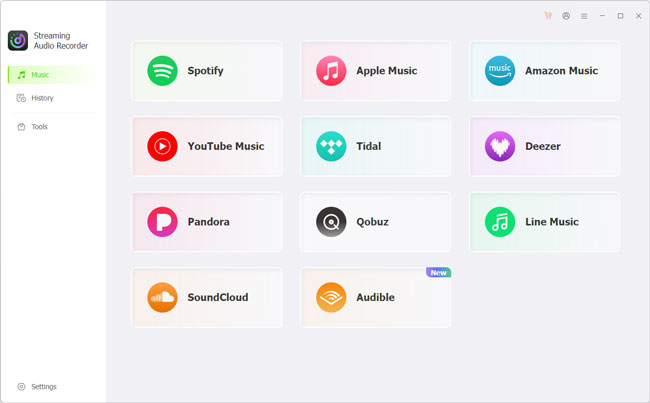
- Download and install AudFree Streaming Audio Recorder on your Windows or Mac computer. Open the program and find the Qobuz module among the available music services.
- Step 2. Access Qobuz and Add Music to Conversion List
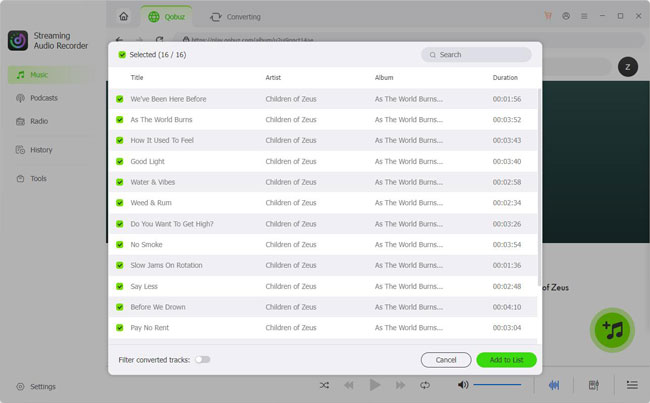
- Click the Qobuz icon to access its built-in Qobuz web player. Sign in to your active Qobuz account, then browse the catalog to find the tracks, albums, or playlists you want to download.
- Step 3. Select MP3 Output Format and Configure Output Settings
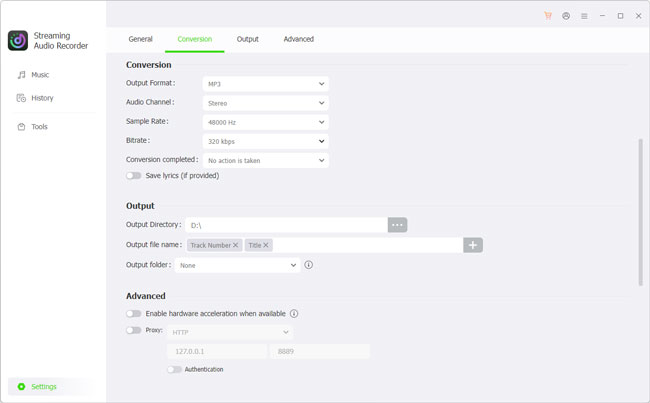
- Open the output settings and select MP3. Depending on your needs, adjust the available audio quality, bitrate, and other output parameters. You can also configure the destination folder and organize the output files using available naming options.
- Step 4. Start Downloadig Qobuz Music to MP3
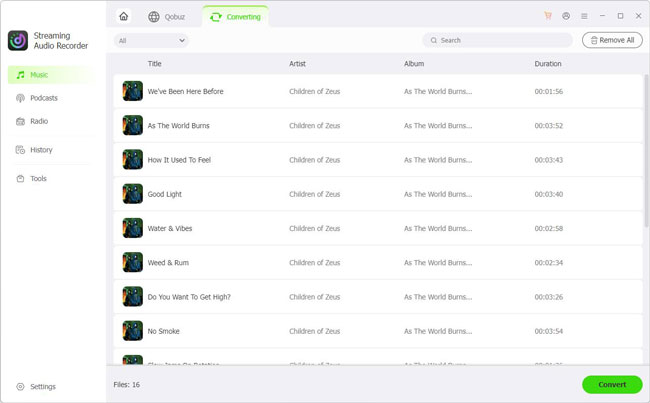
- Confirm your settings and start the process. Once completed, navigate to History tab and open the output folder to find your processed Qobuz MP3 files. You can then transfer them to an MP3 player, USB drive, smartphone, or other compatible devices.
Supports batch processing of multiple Qobuz tracks;
Lets you customize output audio settings;
Supports music organization through ID3 tags and metadata;
Supports multiple audio formats and quality settings, including Hi-Res FLAC 24-bit 192kHz
Back up your large music library affordably and efficiently
Get songs from multiple music streaming services
Requires desktop software installation;
Requires a paid license to unlock full Qobuz downloads
Part 3. How to Get Qobuz MP3 Downloads Online for Free
Don't want to install desktop software? You can also try an online Qobuz to MP3 downloader such as Jumo-DL. It is designed to extract audio from Qobuz track links and provide downloads in MP3 or FLAC format. This can be a convenient alternative if you only need a few tracks.
Site: https://jumo-dl.pages.dev/
Compared with FreeConvert, which requires you to upload an existing audio file that you've purchased or downloaded, Jumo-DL is designed to work directly with Qobuz music links. This can simplify the process, since you don't need to prepare a separate audio file first. It can also allow you to access supported tracks for free without purchasing them individually or logging in to a Qobuz account.
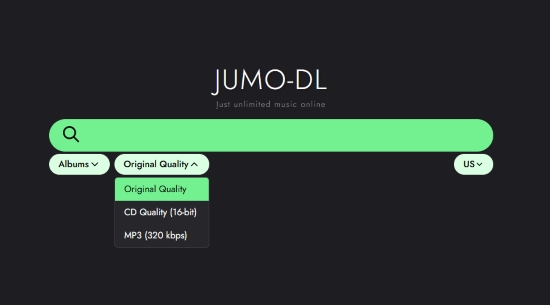
However, online Qobuz downloaders like Jumo-DL come with some uncertainties. Due to copyright-related issues and other restrictions, the service was unavailable for an extended period before recently becoming accessible again. Its availability may change without notice, and there's no guarantee how long it will remain operational. Access and functionality may also vary depending on your region.
Keep these limitations in mind before relying on it, and make sure your use complies with applicable copyright laws and service terms.
Step 1. Open Qobuz in your browser or desktop app. Find the song or album you want to convert, click the Share option, and copy its URL.
Step 2. Open the Jumo-DL website in your browser. Navigate to its music download or URL input field.
Step 3. Paste the copied Qobuz link into the input box and submit it. Jumo-DL will attempt to recognize the link and retrieve the available tracks. Wait for the search results to appear. Alternatively, you can search for a track directly by entering its title.
Step 4. Find the track you want in the results, click Download, and wait for the download to finish.

Browser-based, so no desktop installation is needed;
Convenient for occasional single-track downloads;
Supports lossless audio and 320 kbps MP3 downloads;
No account registration or login required
Not guaranteed to work with every Qobuz track or album;
Downloads may become slower or experience buffering during peak usage periods;
Offers few options for adjusting audio quality;
The website may become temporarily unavailable or change its features without prior notice
Part 4. FAQs About Qobuz to MP3 Conversion
Does Converting Qobuz High-Resolution FLAC to MP3 Lower the Sound Quality?
Yes. Converting a Hi-Res Qobuz FLAC file to MP3 involves lossy compression, which permanently removes some audio information. Therefore, the resulting MP3 cannot retain all the detail of the original Hi-Res recording. However, the audible difference depends on the MP3 bitrate, source recording, playback equipment, and listening environment. If you want smaller files with reasonable sound quality, 320 kbps MP3 is still a good option.
Why Convert Qobuz Hi-Res Tracks to MP3?
Qobuz is a go-to place for audiophiles because it offers lossless CD-quality and Hi-Res audio. However, FLAC and other high-resolution formats aren't always the most practical choices for everyday listening. Converting Qobuz music to MP3 can save storage space, improve compatibility with older devices, and make it easier to transfer and manage your music. MP3 files can also be played offline using regular music players without relying on the Qobuz app.
Can I Convert Qobuz Offline Downloads into MP3?
Not directly. Music imported for offline listening through the Qobuz streaming app is stored for playback within the app rather than as ordinary MP3 files that you can freely access and convert. This is different from purchased downloads, which are permanent audio files that you can save and manage locally. If you want MP3 files, consider purchasing music through the Qobuz Store and converting it. Or you can convert your Qobuz online streaming library to MP3 via tools like AudFree.
Conclusion
Getting Qobuz music as MP3 files doesn't have to be complicated. If you've purchased music from the Qobuz Store, you can download the available audio files and convert them using FreeConvert. For larger music collections and more frequent processing, a desktop tool such as AudFree offers a more convenient batch workflow. For occasional Qobuz MP3 downloads, Jumo-DL is another option you can try.

Staff Editor


