


YouTube Music has become one of the most widely used music streaming platforms worldwide, offering official tracks, albums, remixes, and rare live versions that are often unavailable on other services. However, like most streaming platforms, YouTube Music restricts offline listening to its own app and uses encryption to prevent direct access to audio files.
For users who need studio-grade audio, lossless editing, or offline playback on professional devices, converting YouTube Music to WAV has become a common demand. WAV is an uncompressed audio format widely used in music production, DJ software, video editing, broadcasting, and archiving. Unlike MP3 or AAC, WAV preserves the original waveform without quality loss during decoding.
In this guide, we will explain five proven ways to download or convert YouTube Music to WAV in 2026, covering professional desktop software, free recording tools, online websites, and a detailed comparison of the best converters available for PC and Mac. We will also answer common legal, quality, and mobile-related questions to help you make an informed decision.

Part 1. How to Download YouTube Music to WAV via Professional Desktop App
For users who prioritize conversion speed, output stability, full metadata retention, and batch processing, professional desktop applications remain the most efficient and reliable way to convert YouTube Music to WAV. Compared with online tools or manual recording methods, desktop software offers higher accuracy, better audio consistency and quality, and a much smoother workflow, especially when dealing with large playlists or entire music libraries.
Among various solutions available in 2026, AudFree Streaming Audio Recorder stands out as a practical and dependable YouTube Music to WAV downloader. It is designed to handle encrypted streaming audio efficiently while maintaining lossless sound quality and complete ID3 metadata.
AudFree Streaming Audio Recorder

- Convert YouTube Music to MP3, WAV, AIFF, and FLAC with ease
- Batch downloading large YouTube Music playlists and albums to WAV at up to 30X faster speed
- Keep original ID3 tags and full metadata for YouTube Music tracks
- Losslessly download YouTube Music to your computer
- Compatible with over 9 major streaming platforms for offline listening
- Compatible with both Windows and macOS
Thanks to these features, AudFree tool is particularly suitable for DJs, audio editors, and users who need high-quality WAV files for long-term offline use.
How to Download Music from YouTube to WAV Using AudFree Streaming Audio Recorder
Below is a step-by-step guide on how to convert YouTube Music to WAV using AudFree Streaming Audio Recorder. You can download the tool by clicking the 'Download' button above. The process is straightforward and does not require any additional plug-ins.
- Step 1. Launch AudFree Streaming Audio Recorder

- After downloading and installing AudFree Streaming Audio Recorder on your Windows or Mac computer, double-click the program icon to launch it. On the main interface, you will see icons for multiple supported streaming platforms. Click the profile icon in the upper corner to activate the software using your AudFree license. Once activated, the full conversion features will be unlocked.
- Step 2. Set Output Format of YouTube Music As WAV

- Go to 'Menu' > 'Preferences' > 'Conversion' to configure the output settings. You can select WAV as the output format for YouTube Music. Also here you can adjust advanced audio parameters such as sample rate, bitrate, and audio channels if needed.
- Under the Output tab, choose a destination folder for saving converted files and enable the option to preserve ID3 tags, ensuring your music library stays well organized.
See also: How to Convert YouTube Music to FLAC
- Step 3. Add YouTube Tracks to the Conversion List
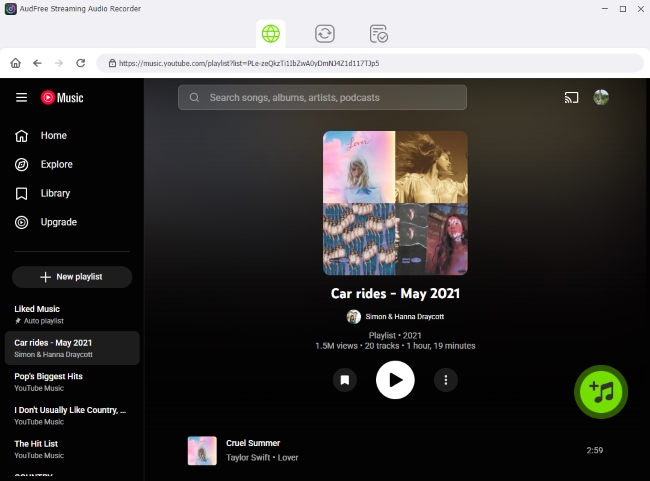
- After saving the settings, click the YouTube Music icon on the main screen. A built-in YouTube Music web player will open within the program. Sign in to your YouTube Music account and browse for the tracks, albums, or playlists you want to download. When you find the desired content, click the green '+' button to add it to the conversion list.
- Note: AudFree Streaming Audio Recorder supports adding multiple tracks and entire playlists at once, making batch conversion extremely efficient.
- Step 4. Start Downloading YouTube Songs

- Once all tracks are added, click the Convert button to start the downloading and conversion process. AudFree will automatically process the selected YouTube Music content and save it as DRM-free WAV files on your computer.
- After the conversion is complete, go to the Converted section to access your offline YouTube Music WAV files. These files can now be played, edited, or transferred freely without any platform restrictions.
Pros and Cons of AudFree Streaming Audio Recorder
✅ Pros
- Fast conversion speed (often up to 30×)
- Stable output without ads or pop-ups
- No audio quality degradation
- Offline WAV files playable on any device
- Preserve original ID3 tags and full metadata
- Ideal for DJs, editors, and archivists
❌ Cons
- Requires third-party tool installation
- Need a paid license, though trial versions are usually available for life time
For those keep asking 'What is the best YouTube Music to WAV converter for PC and Mac?', desktop software like AudFree Streaming Audio Recorder is almost always the top recommendation.
Part 2. How to Convert YouTube Music to WAV Files via Audacity
If you're looking for a 100% free way to convert YouTube Music to WAV, Audacity is one of the most commonly used options. It is a well-known open-source audio editor that allows you to capture system sound and export it as uncompressed WAV files.
It's important to note that Audacity does not directly download YouTube Music tracks. Instead, it records the audio output while music is playing in your browser or the YouTube Music web player. Once the recording is complete, the captured YouTube Music audio can be saved locally in WAV format.
How to Record YouTube Music to WAV with Audacity
Follow the steps below to convert YouTube Music to WAV using Audacity:
Step 1. Visit Audacity's official website, download the latest version, and install it on your Windows or macOS computer.
Step 2. Launch Audacity and go toEdit > Preferences > Audio Settings.
• On Windows, select WASAPI as the audio host and set the recording device to system sound (e.g., 'Speakers' or 'Loopback').
• On macOS, additional audio routing tools may be required to capture system audio.
This step ensures that Audacity records the sound played by YouTube Music instead of your microphone.

Step 3. Open YouTube Music in your web browser and sign in to your account. Before playing the track, make sure the streaming quality is set to the highest available option to achieve the best possible recording quality.
Step 4. Click the Record button in Audacity and immediately start playing the YouTube Music track. When the song finishes, click Stop to end the recording.
Since this method works in real time, the recording duration will always match the length of the track.
Step 5. Go to File > Export Audio, choose WAV as the output format, and adjust the sample rate or bit depth if needed. Select a destination folder and export the file to save your YouTube Music track as a WAV audio file.

Pros and Cons of Audacity
✅ Pros
- Completely free and open-source
- WAV export supported natively
- No subscription or account required
- Offers advanced editing and waveform control
❌ Cons
- Real-time recording only (1 song = 1 song length)
- No batch download or playlist support
- No automatic metadata
- Audio quality depends on playback settings
- Higher learning curve for beginners, not user-friendly
- Risk of system sounds, notifications, or background noise during recording
Overall, Audacity is best suited for occasional conversions, short audio clips, or users who are already familiar with audio editing software and are comfortable with manual workflows. For large libraries or frequent conversions, dedicated YouTube Music to WAV converters (like AudFree Streaming Audio Recorder) offer a more efficient solution.
Part 3. How to Rip YouTube Music to WAV Files via Online Websites
Online YouTube Music to WAV converters are appealing to users who want quick, installation-free solutions. These web-based tools usually work by allowing users to paste a YouTube Music track or playlist URL into an online interface and then download the audio file in WAV format.
Compared with professional desktop software, online tools are more convenient and accessible, especially for one-time use. However, they also come with limitations in terms of audio quality, stability, and privacy, which we will discuss later in this section.
Popular Online Tools to Rip Music from YouTube to WAV in 2026
The following websites are commonly mentioned as online YouTube Music to WAV converters. They claim to extract audio directly from YouTube Music links and convert it to WAV files.
• QQDL
Disclaimer: Online YouTube Music to WAV converters are introduced here for informational purposes only. Due to limitations in audio quality, stability, and data security, these websites are not recommended for long-term use, large playlists, or users who require true lossless WAV files. Also, users should carefully evaluate potential quality loss, privacy risks, and local copyright regulations before using such services.
Below is a brief overview of how each tool works.
1. Loader.to
Loader.to is a well-known online media downloader that supports a wide range of formats, including WAV. By simply processing shared URLs, it allows users to rip audio from both YouTube and YouTube Music. Additionally, the tool features playlist support, making it easy to download multiple tracks at once.

Step 1. Open YouTube Music in your browser and copy the URL of the track or playlist you want to download.
Step 2. Go to the Loader.to website and paste the copied URL into the search box.
Step 3. Select WAV as the output format from the available options.

Step 4. Click the blue Download button and wait for the conversion to complete. Once finished, download the WAV file to your device.
Key Note:
• Playlist downloads may be limited or unstable
• Download speed depends heavily on server load
wav.ninja
wav.ninja focuses specifically on converting YouTube music to WAV or MP3 format. Its interface is relatively simple and clean, and designed for single-track conversions.
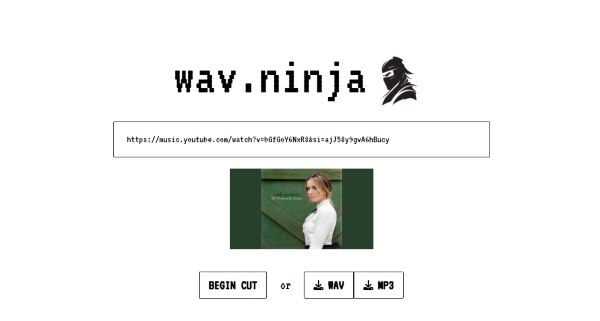
Step 1. Copy the YouTube Music song URL from your browser.
Step 2. Visit wav.ninja and paste the URL into the input field.
Step 3. Tap the WAV download icon to start the conversion and download the WAV file.
Key Note:
• Best suited for individual tracks
• Playlist support is usually unavailable
QQDL
QQDL is a multi-platform online downloader that supports audio extraction from various streaming sources, such as Tidal, Spotify, and YouTube Music. It is sometimes used as an online YouTube Music WAV downloader, depending on availability.
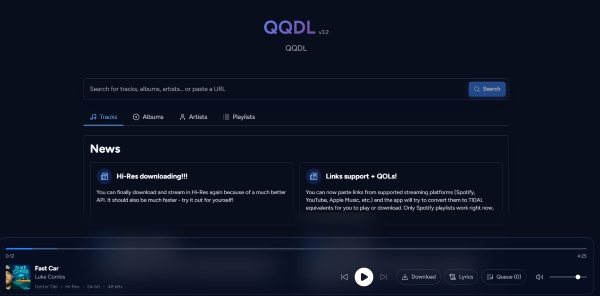
Step 1. Copy the YouTube Music track link you want to convert.
Step 2. Open the QQDL website and paste the URL into the input box.
Step 3. Click the Download button and save the WAV file once processing is complete.
Key Note:
• Provide real-time lyrics
• Website availability may vary by region
• Interface language and stability can change frequently
Pros and Cons of Audacity
✅ Pros
- No software installation required
- Works on Windows, macOS, and mobile browsers
- Simple operation for quick, single-track downloads
- Useful for temporary or emergency use
❌ Cons
- Audio quality is often re-encoded rather than truly lossless
- Lacks native batch downloading and reliable playlist support (While Loader.to offers these features, they are often unstable)
- No ID3 tag or metadata preservation
- File size and conversion limits may apply
- Frequent ads, pop-ups, or redirects
- Potential privacy and security risks
- Services may stop working without notice
Online tools are best suited for occasional, one-off conversions, such as downloading a single YouTube Music track quickly without installing any software. However, if you care about true WAV quality, metadata retention, or need to convert entire playlists efficiently, online YouTube Music to WAV converters are not the most reliable option.
For long-term use, professional desktop applications or dedicated tools offer far better stability, audio consistency, and overall user experience.
Part 4. Comparison Table of 5 Best YouTube Music to WAV Converters
To help you quickly evaluate which option best fits your needs, the table below compares the five most commonly used YouTube Music to WAV conversion methods in 2026, based on key factors such as download speed, audio quality, batch support, metadata retention, and overall stability.
| Method | Download Speed | Audio Quality | Free/Paid | Batch Support | ID3 Tags | Stability |
|---|---|---|---|---|---|---|
| AudFree Streaming Audio Recorder | Very Fast (up to 30×) | High (lossless WAV) | Paid (Free trial available) | Yes | Yes | Very High |
| Audacity | Slow (real-time recording) | Medium-High (rely on devices) | Free | No | No | Medium |
| Loader.to | Medium | Low-Medium | Free | Limited | No | Low |
| wav.ninja | Medium | Low-Medium | Free | No | No | Low |
| QQDL | Slow | Low-Medium | Free | No | No | Low |
If your goal is true WAV output suitable for editing, DJing, or archiving, professional desktop converters like AudFree Streaming Audio Recorder clearly outperform other solutions in speed, consistency, and usability.
Part 5. FAQs About Converting Music from YouTube to WAV
Is it legal to download YouTube Music as WAV files?
The legality of downloading YouTube Music as WAV files depends on your location and intended use. In general, streaming platforms do not permit downloading music outside their official apps. Personal format shifting or offline backups may be allowed in some regions, while redistribution, sharing, or commercial use is prohibited. Always check your local copyright laws and YouTube Music's Terms of Service.
Is YouTube Music high enough quality to justify a WAV conversion?
YouTube Music streams audio at up to 256 kbps AAC for Premium users, with lower quality available for free accounts. Converting to WAV does not increase the original sound quality, but it helps prevent further compression, ensures compatibility with professional audio software, and avoids quality loss during editing. WAV is most useful when you plan to edit, mix, or archive YouTube Music tracks.
How do I convert YouTube Music to WAV on a mobile device?
You can convert YouTube Music to WAV on a mobile device by using online converter websites through a mobile browser or by using third-party apps such as Metrolist, where supported. However, mobile methods often have limitations in quality and stability. For best results, converting on a desktop computer and then transferring the WAV files to your phone is recommended.
Conclusion
Downloading or converting YouTube Music to WAV in 2026 is entirely possible using a variety of methods, each suited to different needs.
Professional desktop apps are the fastest and most reliable option for high-quality WAV conversion. Free tools like Audacity are suitable for occasional use, while online YouTube Music to WAV converters may work for quick, single-track downloads but come with notable limitations in quality and reliability.
If you care about audio fidelity, workflow efficiency, and future-proof compatibility, choosing the right YouTube Music to WAV converter is essential. By understanding the strengths and limitations of each approach, you can select the method that best fits your listening, editing, or archiving goals.

Staff Editor


