


Smartwatches have evolved far beyond simple fitness tracking. Today, devices like the Samsung Galaxy Watch allow users to listen to music directly from their wrist, making workouts, commutes, and daily routines more convenient than ever. Among the most popular streaming platforms, YouTube Music stands out for its massive catalog and personalized recommendations.
However, many users quickly discover a limitation: while YouTube Music works on smartphones and tablets seamlessly, its smartwatch experience is more restricted. Depending on your region, watch model, and subscription status, the features available on the Galaxy Watch may vary significantly.
In this comprehensive guide, we will explore how to play YouTube Music on Galaxy Watch, both with and without your phone nearby. We will also compare official limitations with a more flexible offline solution that allows you to enjoy your music without interruptions.
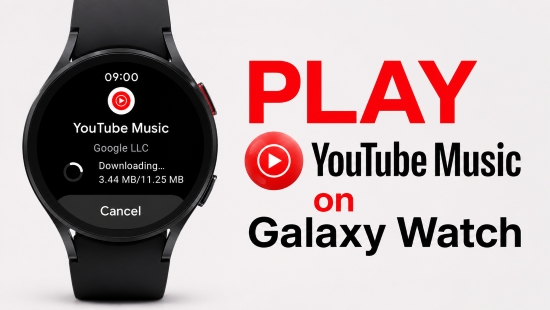

Part 1. Does Galaxy Watch Support YouTube Music Natively?
The short answer is yes, but only on Galaxy Watch 4, Watch 5, Watch 6, and newer models.
To understand how YouTube Music functions on a Samsung watch, we have to look at a major operating system shift that occurred a few years ago. Older Samsung wearables, including the Galaxy Watch Active 2 and Galaxy Watch 3, ran on Samsung's proprietary Tizen software. Google completely bypassed this ecosystem, meaning there was never an official YouTube Music application developed for Tizen.
Everything changed when Samsung partnered with Google to co-develop Wear OS. Starting with the Galaxy Watch 4, and continuing through the Galaxy Watch 5, 6, 7, 8, and the premium Galaxy Watch Ultra, these devices run on Google's unified wearable architecture. Because of this operating system alignment, modern Galaxy Watches fully support a native YouTube Music application downloadable directly from the on-watch Google Play Store.
However, even though the app runs natively on Wear OS, its feature set is heavily stripped down compared to the smartphone version, and your listening experience is tied strictly to your Premium tier. With a YouTube Music Premium account, you gain access to the following features on your Galaxy Watch:
- Standalone Streaming: Stream tracks over Wi-Fi or LTE without needing your phone nearby
- Independent Controls: Manage and control YouTube Music playback from Galaxy Watch directly
- Quick Access: Browse your recently played tracks, basic recommendations, and curated playlists
- Offline Listening: Download music straight to your Galaxy Watch storage for phone-free playback
If you are on the free tier, the YouTube Music Galaxy Watch app functions essentially as a basic remote control. To use it, you must keep your Android smartphone within Bluetooth range. Your phone does all the heavy lifting - streaming the data and processing the audio - while your watch merely acts as a wrist-based controller to skip tracks or pause playback.
Unlike playing local audio files directly on a Samsung Galaxy Watch or streaming music through Spotify, the official YouTube Music app for Wear OS does not support audio playback through the watch's built-in speaker. When you tap Play, the app will prompt you to connect Bluetooth headphones or earbuds before playback can begin.
Part 2. How to Set Up and Download YouTube Music on Galaxy Watch
If your device runs on Wear OS with a Premium subscription and you want to use the official platform configuration, setting things up on Galaxy Watch is a straightforward process. Follow these steps to set up and running:
Step 1. Download and Install the YouTube Music Application for Galaxy Watch

1. Wake up your Galaxy Watch and swipe up from the main clock screen to launch the app drawer.
2. Tap on the blue Google Play Store icon.
3. Tap the magnifying glass search icon at the top of the display interface.
4. Use the on-screen keyboard or voice dictation to search for YouTube Music.
5. Select the official application from the search results page and tap Install.
Step 2. Sign In to YouTube Music on Your Galaxy Watch
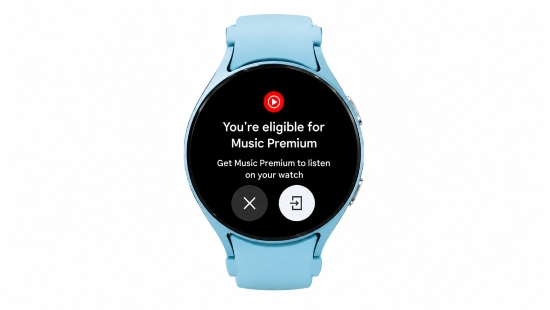
1. Once installation completes, open the YouTube Music app on your Galaxy Watch.
2. The app will automatically detect the primary Google Account linked to your paired Android smartphone.
3. Confirm the login credentials on your screen. Your watch library will automatically synchronize with your existing playlists, album saves, and customized preference algorithms.
Step 3. Download Playlists for Offline Playback
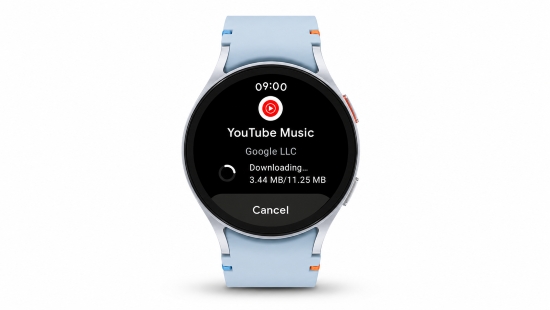
If your watch has enough available storage and you want to listen to YouTube Music deep in the woods or on a running track without your phone, a YouTube Music Premium subscription unlocks offline playback directly on your Samsung Galaxy Watch.
Most older Samsung smartwatches offer around 8GB of available user storage - excluding the massive 32GB capacity of the Galaxy Watch 7 and Ultra. This 8GB baseline gives you enough local storage to cache roughly 800 MP3 songs at 320kbps.
1. Scroll through the on-watch interface and locate a specific playlist or album you want to download.
2. Tap on the playlist name to open its sub-menu.
3. Tap the prominent downward-pointing Download arrow icon.
4. Keep the watch connected to Wi-Fi and close to its charger until the download progress ring fills completely.
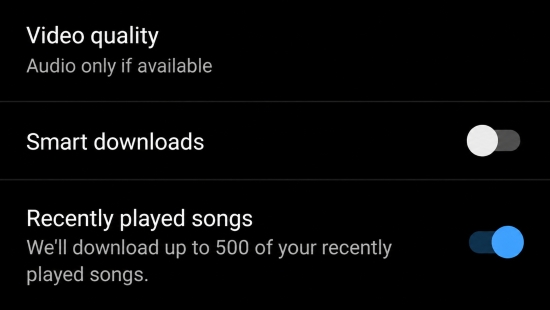
Alternatively, if you prefer to automate the process rather than managing downloads manually, you can use the Smart Downloads feature. Open the YouTube Music app on your Android or iPhone, tap your profile picture in the top-right corner, and navigate to Settings. Scroll down and toggle on "Smart Downloads". This allows the background engine to automatically cache up to 500 of your most frequently played songs whenever your watch is docked on its charger and connected to Wi-Fi.
Part 3. Disadvantages of Using the Official YouTube Music App on Samsung Galaxy Watch
Although the official YouTube Music app for Galaxy Watch offers a convenient way to listen on the watch itself, it also comes with several limitations that become more noticeable during everyday use. From battery life to playback restrictions, these compromises can affect the overall listening experience.
1. Faster Battery Drain During Playback
Galaxy Watch models are powered by relatively small batteries, typically between 300mAh and 600mAh. Playing music through the YouTube Music app requires the watch to decode audio continuously while maintaining a Bluetooth connection to your headphones or earbuds. If you're using an LTE model without your phone nearby, the watch must also keep its cellular radio active, which consumes even more power.
For workouts that also rely on GPS tracking, heart rate monitoring, and LTE connectivity, battery life can decrease significantly. Extended listening sessions may require more frequent charging, making the official app less practical for long runs, hikes, or all-day use.
2. Limited Audio Quality
To protect your watch's limited storage capacity and prevent the network modem from burning through battery life, Google enforces aggressive audio compression algorithms within its Wear OS application framework. Even if you are a Premium subscriber paying for high-quality audio, the native watch app forces a low-bitrate cap of 128kbps AAC.
If you're using premium Bluetooth headphones or earbuds, you may notice reduced detail, narrower dynamic range, and less overall clarity compared with playback from your phone or other dedicated music devices.
3. Offline Downloads Are Tied to Your Subscription
The songs you save for offline listening through the official YouTube Music app aren't permanent audio files. Instead, they're encrypted downloads that can only be accessed through the app with an active YouTube Music Premium subscription.
If your subscription expires, you cancel your membership, or your account loses access for any reason, your offline library becomes unavailable. This means you can't transfer those tracks to other devices or continue listening without renewing your subscription.
Part 4. How to Play YouTube Music on Galaxy Watch Offline Forever (No Premium & Phone Required)
If you want to break free from low-bitrate limits, protect your watch's battery life, and enjoy phone-free workouts without paying for a perpetual Premium subscription, you need a different strategy. The most elegant solution is to convert your cloud music into local, unencrypted audio assets that live permanently inside your watch.
By using a high-performance audio encoding platform such as AudFree YouTube Music Converter, you can bypass these restrictions entirely. AudFree allows both free and premium users to download entire albums, playlists, and single releases directly from the web interface and save them to highly compatible audio containers such as MP3, M4A, WAV, or FLAC.
Once you have downloaded your local audio files using AudFree, you have complete flexibility in how you listen. You can transfer the local YouTube Music files directly to your Galaxy Watch for offline storage, or you can upload them to your personal YouTube Music cloud locker. The cloud option unlocks permanent, subscription-free streaming without draining your watch's internal storage capacity - giving you the perfect setup tailored to your preferences.
AudFree YouTube Music Converter

- Losslessly Save YouTube Music songs, albums, playlists, and podcasts as local audio files
- Convert YouTube Music to FLAC, M4A, FLAC, and more popular formats
- Preserve original audio quality, ID3 tags, and album artwork
- Batch process multiple tracks at up to 30× faster speed
- Keep your music accessible even without an active YouTube Music Premium subscription
How to Download Music from YouTube Music for Galaxy Watch Offline Playback
- Step 1. Set Output Settings of YouTube Music for Galaxy Watch
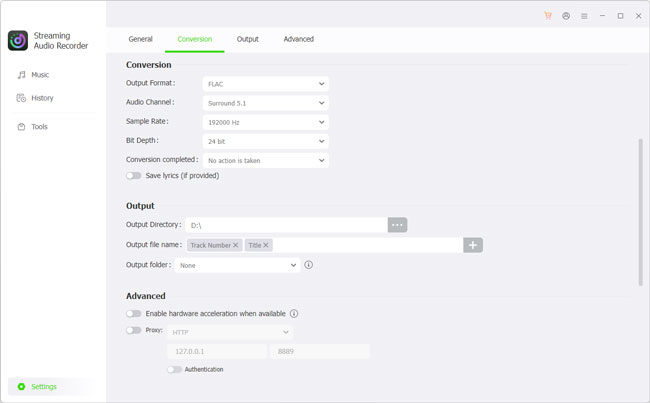
- Launch the AudFree YouTube Music Converter on the computer and click the 'Settings' at the bottom-left corner. From here, you can choose an output format supported by your Galaxy Watch, such as MP3. You can also adjust the bitrate, sample rate, and audio channels according to your preferences.
- Next, switch to the 'Output' tab to choose a destination folder for the exported music and enable ID3 tag preservation so that song titles, artists, albums, and cover artwork remain intact.
See also: How to Convert YouTube Music to MP3
- Step 2. Add YouTube Music to the Converting List
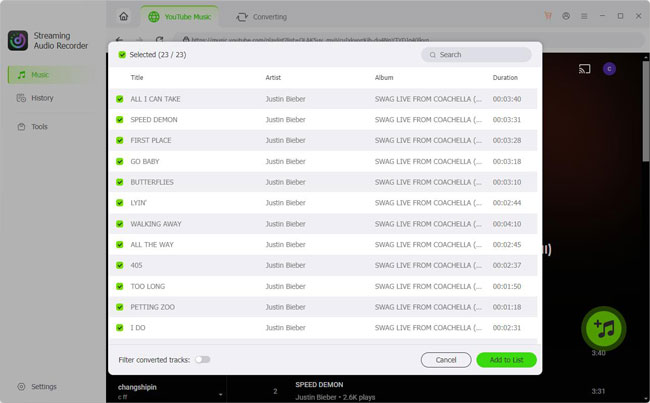
- Sign in to your YouTube Music account through the built-in web player. Browse to any playlist, album, podcast, or individual track you'd like to keep offline, then click the '+' button to import it into the conversion queue. You can add multiple items for batch processing.
- Step 3. Export YouTube Music as Local Files for Galaxy Watch
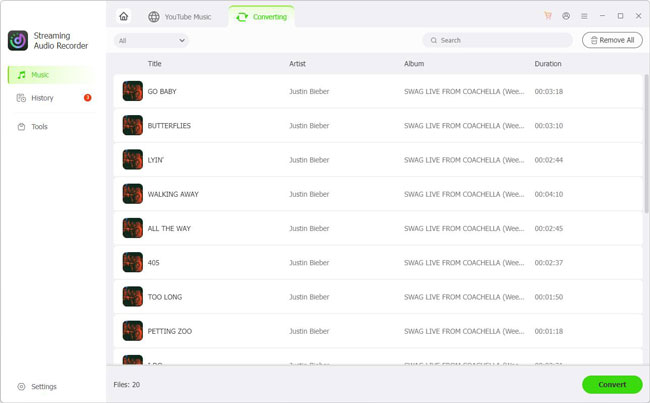
- Open the Converting tab and click the 'Convert' button. AudFree will process the selected tracks and save them to the output folder you specified. you will have pristine, DRM-free local audio files ready for your watch. From here, you have two flexible paths: you can transfer them directly to your Galaxy Watch storage, or you can upload them to your personal YouTube Music cloud locker for subscription-free streaming.
- Step 4. Upload Local Audio Files to Your YouTube Cloud Locker

- 1. Open a desktop web browser, navigate to music.youtube.com, and sign into the primary Google account linked to your Galaxy Watch.
2. Click on your 'Profile' Picture in the top-right corner and select 'Upload Music' from the dropdown menu. Alternatively, simply drag and drop your converted AudFree audio files anywhere onto the open browser window.
3. Once the upload finishes, go to 'Library > Songs' and switch to the 'Uploads' tab to view your files. Because the Wear OS app hides the raw 'Uploads' tab, select these songs, click the three dots, and add them to a new Custom Playlist (e.g., "Listen Offline").
4. Open the YouTube Music app on your Galaxy Watch. Navigate to 'Library > Playlists', select your newly created playlist, and tap the Download icon to cache the files directly to your watch's internal storage for phone-free listening.
Utilizing the cloud locker method is an excellent workaround for older Galaxy Watch models. It saves valuable internal storage space because you can choose to stream your personal high-quality library over Wi-Fi or LTE rather than downloading gigabytes of files directly to your Samsung Galaxy Watch.
Part 5. How to Transfer Converted Local YouTube Music to Galaxy Watch
Google historically allows users to stream or download their uploaded cloud locker files without a paywall. However, the background syncing and Wear OS playlist downloading engines can occasionally be glitchy on free accounts. Furthermore, streaming through the official YouTube Music Galaxy Watch app means you are still restricted to standard or low-bitrate audio. For an uncompromised experience, downloading your music locally and playing it via the native Samsung Music app or a third-party application like VLC is often a far superior option.
Step 1. Connect your Android smartphone to your computer using a USB cable (or use a wireless option like Quick Share) and copy your converted YouTube Music audio folder into your phone's internal storage directory.

Step 2. Open the official Galaxy Wearable app on your Android phone.
Step 3. Navigate into Watch settings and scroll down to select Manage content.

1. Tap on the Add tracks option under the music subcategory.
2. Browse through your local smartphone audio folders, check the boxes next to the converted YouTube Music tracks you want to load, and tap Done.
3. The application will wirelessly beam the raw audio assets directly into the storage partition of your Galaxy Watch over a direct Wi-Fi pairing connection.
4. On your Galaxy Watch, open the lightweight, native Samsung Music app. Navigate to the local tracks section, select your imported folder, pair your favorite Bluetooth headphones, and enjoy completely offline, independent audio playback with no subscription ties.
Modern Samsung smartwatches running Wear OS (Galaxy Watch 4 through Galaxy Watch 7/Ultra) are only compatible with Android smartphones. They do not support pairing or audio syncing via iPhone or iTunes.
Part 6. Comparison Table: Official YouTube Music App vs AudFree Local Playback
Both methods let you play YouTube Music on your Galaxy Watch, but they offer very different experiences. The official YouTube Music app is the most convenient option if you're already a Premium subscriber and primarily stream music online. However, if you prioritize offline reliability, longer battery life, and permanent access to your music, local playback provides greater flexibility.
The table below highlights the key differences to help you decide which solution best fits your listening habits.
| Feature | Official YouTube Music App | AudFree Local Files + Samsung Music |
|---|---|---|
| Subscription Requirement | ✅ | ❌ |
| Audio Quality | Capped at 128kbps AAC (Highly compressed) | High Quality (Up to native 256kbps or FLAC) |
| Battery Consumption | High drain (Constant network/cache processing) | Minimal drain (Lightweight native file decoding) |
| Network Dependence | Requires regular check-ins to verify security keys | 100% Offline; files never expire or lock up |
| Phone Independence | Restricted to paid subscribers | Available to all users, free or paid |
| Device Compatibility | Wear OS models only (Galaxy Watch 4 and newer) | Universal (Works on Tizen models like Watch 3 too) |
| Ownership of Music | Offline downloads are encrypted and accessible only through the YouTube Music app | Music is stored as standard local audio files that remain available on your devices |
| Playback Flexibility | Limited to the YouTube Music app | Play using Samsung Music or other compatible local music players (VLC) |
Which Method Should You Choose?
If you mainly stream music and already subscribe to YouTube Music Premium, the official app offers the quickest setup and seamless cloud synchronization.
However, if you want to keep your music permanently, enjoy high-quality songs, listen without worrying about subscription limits, transfer songs between devices, or maximize your Galaxy Watch's battery life during workouts, exporting your YouTube Music library as local files offers a more flexible long-term solution.
Part 7. FAQs About YouTube Music Galaxy Watch App
Can I listen to YouTube Music on Galaxy Watch offline for free?
Officially, no. Google completely locks the offline download feature behind its Premium paywall on the wearable application. However, you can bypass this limitation by using a desktop converter tool like AudFree YouTube Music Converter to save the songs locally as MP3s and uploading them to your watch via the Galaxy Wearable application or YouTube Music cloud locker.
Why is YouTube Music downloading so slowly on my Samsung Watch?
The Wi-Fi antennas embedded within smartwatches are engineered for power conservation rather than raw data throughput, causing them to choke on large multi-megabyte transfers. Downloading your music on a desktop computer using a dedicated conversion engine is significantly faster because it takes full advantage of your home router's maximum bandwidth.
Does the official YouTube Music app work on the Galaxy Watch 3 or Active 2?
No. These older smartwatches run on Samsung's legacy Tizen platform. Google does not host a compatible version of YouTube Music for Tizen. If you own one of these reliable older devices, your reliable method for listening to music independently is importing local, converted audio files using the file transfer process outlined in Part 4.
Conclusion
The evolution of the Samsung Galaxy Watch into a fully capable Wear OS device has made accessing YouTube Music on your wrist easier than ever. If you are already a dedicated YouTube Premium subscriber, don't mind a drop in audio clarity, and only go on short runs where battery life isn't a concern, the official application provides a simple, plug-and-play experience.
However, if you want to safeguard your smartwatch's battery life, demand high-fidelity sound, or refuse to pay a continuous monthly subscription fee just to listen to music you enjoy outdoors, downloading your library locally is a smart alternative. By deploying an offline converter tool like AudFree to transform your cloud streams into permanent local assets, you can leave your phone at home, avoid the subscription fees, and keep your music playing forever.

Staff Editor


