


As the PlayStation 5 continues to evolve into a powerful all-in-one entertainment hub, many users are no longer satisfied with gaming alone. Watching videos, streaming movies, and listening to music have become an essential part of the PS5 experience. Among all music platforms, YouTube Music stands out thanks to its massive catalog, official music videos, live performances, and personalized playlists.
However, a common question keeps coming up: Can you connect YouTube Music to PS5? Unlike Spotify, YouTube Music doesn't offer a dedicated PS5 app, which often leaves users confused about their options. The good news is that there are still several reliable ways to play YouTube Music on PS5 - both online and offline.
In this guide, you'll learn the best 3 ways to connect YouTube Music to PS5 in 2026, including using the YouTube app, the PS5 browser, and USB playback for offline listening. We'll also answer the most common questions about background playback, Bluetooth limitations, and audio quality.


Part 1. Is YouTube Music Available on PS5?
Short answer: No, there is no standalone YouTube Music app on PS5.
As of 2026, Sony has not released an official YouTube Music application for PlayStation consoles like Spotify or Apple Music. Instead, PS5 only supports the standard YouTube app, which combines videos, live streams, and music videos under one platform.
That means:
❌ No dedicated YouTube Music interface
❌ No background playback support like Spotify
❌ No offline listening within the console
The absence of a native YouTube Music app on PS5 forces users to rely on workarounds, such as using the standard YouTube app, the PS5's hidden browser, or by converting tracks to local files. These limitations are the main reason alternative playback methods have become so popular among the PlayStation community.
Part 2. How to Get YouTube Music on PS5 from YouTube App
Because YouTube Music is deeply integrated with the main YouTube platform, the primary YouTube app serves as the official gateway for accessing YouTube Music on PS5. You can access your playlists and liked songs through the dedicated "Music" section within the interface. Here's how to streaming your YouTube Music library on the PS5:
Step 1. From the PS5 Home Screen, navigate to the 'Media' tab at the top of the interface.

Step 2. Find the 'All Apps' part and choose 'YouTube'. Then, install the YouTube app by clicking 'Download'.

Step 3. Launch the app and sign in to your Google account to sync your playlists.
Step 4. Navigate to the menu on the left side of the screen and select the 'Music' icon. From here, you can browse your YouTube Music library and begin playback.

This is the simplest workaround for connecting YouTube Music to PS5. However, unlike Spotify, YouTube Music does not support background playback on the PlayStation console. Since Sony has not enabled native background support for YouTube, the music will stop and the YouTube app will close as soon as you launch a game.
Pros and Cons of Accessing YouTube Music on PlayStation 5 via YouTube App
Official integration and stable playback;
High ease of use;
Ideal for watching music videos or 4K concert performances;
Works on any PS5 without a computer
No background play;
Interruptions will occur unless you have a YouTube Premium subscription (Ads);
Must stay open on your screen, preventing multitasking;
Switching between songs requires exiting your game
Part 3. How to Play YouTube Music on PS5 via Browser
Another flexible option is using the PS5's built-in web browser. Ever since PS4, Sony removed direct access to the web browser on PS5 due to security concerns and low usage. Although PS5 does not offer a traditional browser app, a hidden internal browser can still be accessed through a simple workaround.
Step 1. Turn on your PS5 and press the PlayStation button on your controller.
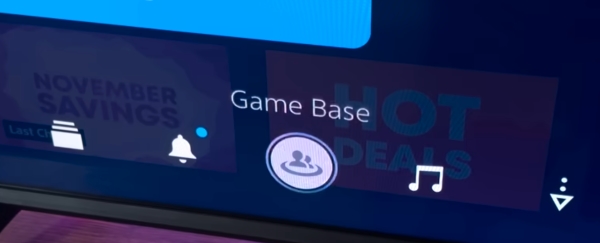
Step 2. Go to 'Messages', create a New Message, and add any two friends. After the group is created, you can rename it and remove the other participants if you want.
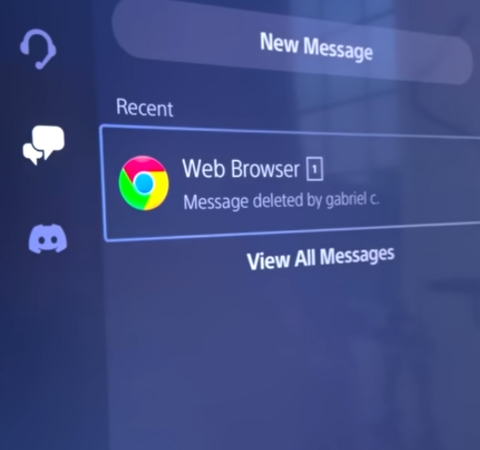
Step 3. Send a message containing a URL (for example, google.us) and select the link in the chat to open the hidden browser.
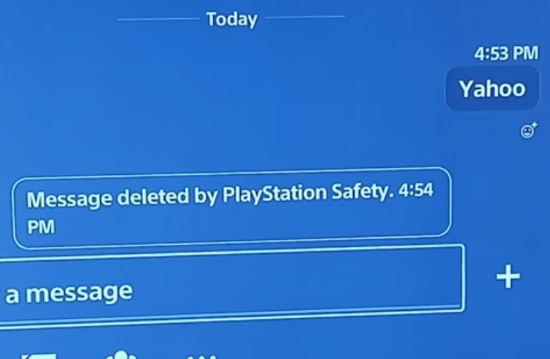
Avoid sending blocked URLs such as www.google.com. Alternative domains like google.us or google.ca usually work and allow you to navigate to music.youtube.com afterward.
Step 4. Once the browser opens, search for YouTube Music or directly enter music.youtube.com directly into the search bar.
Step 5. Sign in to your Google account and start streaming YouTube Music on your PS5 through the web player.
Like the YouTube app method, the browser method does not support background playback. When you exit the browser or launch a game, YouTube Music will stop immediately. Sony currently only allows background music for supported apps such as Spotify.
Pros and Cons of Playing YouTube Music via PS5 Built-in Browser
Access your personal playlists and library;
Control playback using the PS5 controller;
Stream the full YouTube Music library
Interface is not optimized for PS5;
Playback may pause when switching apps;
No background playback during games;
Streaming can be unstable at times;
No offline support
Part 4. How to Connect YouTube Music to PS5 via USB Drive
If you prefer offline playback, zero buffering, and maximum stability, or want to avoid ads and network issues, or simply need a way to play YouTube Music on PS5 while gaming, using a USB drive is the most reliable solution.
Since YouTube Music does not allow direct downloads as local files and all tracks are DRM-protected, you'll need a dedicated tool to convert YouTube Music into PS5-supported formats such as MP3.
That's where AudFree Streaming Audio Recorder comes in. It is designed to download and convert YouTube Music into standard audio formats supported by PlayStation 5, including MP3, FLAC, and M4A. You can batch-download playlists and albums at up to 30× speed, with stable performance and high audio quality. In addition to YouTube Music, it also supports Spotify, Tidal, Qobuz, Apple Music, and more.
AudFree Streaming Audio Recorder

- Convert YouTube Music to MP3, FLAC, and more formats
- Batch download YouTube playlists and albums up to 30X speed
- Ad-free output with lossless audio quality
- Faster and more stable than browser-based tools
- Preserve original audio quality and ID3 tags
- Fully compatible with Windows & Mac
- Step 1. Set Output Format of YouTube Music

- Launch the AudFree Streaming Audio Recorder for YouTube on your computer. Click the 'menu icon > Preferences > Conversion', then choose MP3 or FLAC as the output format. You can also adjust bitrate, sample rate, and audio channels. Under the 'Output' tab, select your destination folder and enable ID3 tag retention.
- Step 2. Add YouTube Music Tracks for Conversion
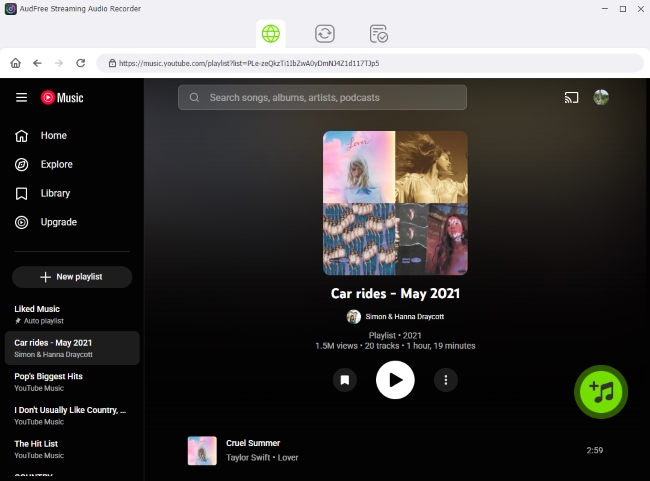
- Return to the main interface and click the YouTube Music icon to open the built-in web player. Sign in to your account, browse songs, playlists, or albums, and click the green '+' button to add them to the conversion list. There's no limit to how many tracks you can add.
- Step 3. Start YouTube Music Conversion to Local Files

- Go to the Converting tab and click 'Convert'. The tool will start converting your YouTube Music tracks for PS5 in bulk. Once finished, all audio files will appear in your selected output folder and under the Converted section.
- Step 4. Play YouTube Music Audio Files on PS5

- 1. Insert a USB drive into your computer and format it as FAT32 or exFAT if needed. Copy the converted YouTube Music files to the USB drive.
- 2. Plug the USB drive into your PlayStation 5 Console. Go to 'Game Library > Media Gallery > USB', open the music folder, and start playing. Now you can enjoy YouTube Music on PS5 offline, even while gaming.
If you also want to capture audio from YouTube or other streaming platforms in real time, AudFree Audio Capture is another solid option. It supports 16+ output formats, records audio losslessly, and preserves full ID3 tags - perfect for recording any sound played on your computer.
Pros and Cons of Playing YouTube Music on PS5 Offline via USB
Works offline with no buffering;
Allows background music while gaming;
No ads or network interruptions;
Stable playback with high audio quality
Requires a third-party conversion tool;
Initial setup takes some time
Part 5. Enhancing the Listening Experience for YouTube Music on PS5
Once YouTube Music is playing on your PS5, there are several ways to improve the overall listening experience when gaming:
✅ Choose High-quality Headphones or Speakers: Whether you're using a soundbar, headphones, or surround sound system, high-quality audio equipment can make a difference.
✅ Optimize Audio Settings on PS5: Go to 'Settings > Sound > Audio Output' and choose the best output for your device. If you have 3D audio headphones, enable 3D audio for an immersive experience.
✅ Balance Game and Music Volume: Some games allow you to adjust the in-game music volume separately. This function helps your YouTube Music stand out without overwhelming gameplay sounds.
✅ Use DualSense Headphone Jack: For easy access, you can plug headphones directly into the DualSense controller. This setup offers convenience and good sound quality.
Part 6. FAQs about YouTube Music on PS5
Why can't I play YouTube Music on PS5 via Bluetooth?
The PS5 does not support Bluetooth audio streaming for music apps. Bluetooth on the PS5 is limited to specific accessories, such as controllers and officially supported headsets. As a result, you can't stream audio directly from YouTube Music to the PS5 via a standard Bluetooth connection.
Can I use my phone as a remote for YouTube Music on PS5?
Yes. When using the YouTube app, you can use your smartphone as a remote by linking both devices to the same Google account. This allows you to control playback from your phone. However, unlike Spotify Connect, YouTube Music does not offer a seamless device-to-console connection, so the experience may feel less smooth and less responsive compared to Spotify's remote control feature.
Can you play YouTube Music in the background while gaming on PS5?
No. YouTube Music does not support background playback on PS5 like Spotify. Music will automatically stop when you launch a game or switch to another app. But if you transfer YouTube Music files to a USB drive and play them locally on your PS5, you can listen to music while gaming. This method is generally more stable and provides smoother playback.
Does PS5 3D Audio work with YouTube Music?
No. YouTube Music does not officially support PS5 3D Audio. However, some compatible headsets may still enhance sound quality through system-level audio processing, even though true 3D Audio effects are not available.
Conclusion
Although YouTube Music does not offer a dedicated PS5 app, there are still multiple effective ways to connect YouTube Music to PS5 in 2026. Whether you choose the YouTube app, the built-in browser, or offline playback via USB drive, each method has its own advantages.
For casual streaming, the YouTube app is the easiest choice. For full control and offline access, USB playback provides the most stable and flexible solution. By choosing the method that best fits your needs, you can turn your PS5 into a complete music and entertainment center.

Staff Editor


