


If you're an Xbox gamer who prefers YouTube Music over Spotify or Apple Music, you've probably searched for a way to enjoy your favorite playlists while gaming. Unfortunately, unlike Spotify, YouTube Music doesn't offer an official Xbox app, leaving many users wondering whether it's even possible to listen to YouTube Music on Xbox.
See also: How to Play Spotify Music on Xbox
The good news is that while there's no native app, there are still several practical ways to enjoy YouTube Music on Xbox Series X, Xbox Series S, and Xbox One. Some methods let you stream music from your phone while gaming, while others allow you to build an offline music library that doesn't rely on an internet connection.
In this guide, you'll learn whether YouTube Music is available on Xbox, what limitations exist, and the best methods to play YouTube Music while gaming in 2026.
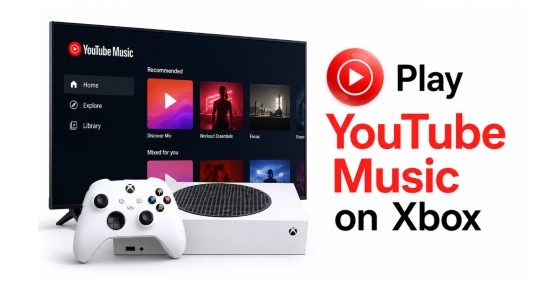

Part 1. Is YouTube Music Available on Xbox?
Short answer: No.
As of June 2026, Microsoft has not released an official YouTube Music app for Xbox One, Xbox Series X, or Xbox Series S. Unlike Spotify, which is fully integrated into the Xbox ecosystem and supports background playback during gameplay, YouTube Music currently has no native Xbox application.
That means you won't find YouTube Music by searching the Microsoft Store, and there isn't an official method to install it directly on your console.
Many users also search for questions on the Internet, like:
- Does Xbox have YouTube Music?
- Is there a YouTube Music app on Xbox?
- Can I install YouTube Music on Xbox Series X?
At the moment, the answer remains no.
| Music Service | Xbox Console Streaming App Availability |
|---|---|
| Spotify | ✅ |
| Apple Music | ✅ |
| Amazon Music | ✅ |
| YouTube Music | ❌ (Workarounds Only) |
However, that doesn't mean you're completely out of options. Several workarounds can help you enjoy your YouTube Music playlists while using your Xbox, depending on how you prefer to listen.
Part 2. How to Play YouTube Music Directly on Your Xbox Console
Although there's no dedicated Xbox YouTube Music app, you can still access the service through the official YouTube app or the built-in Microsoft Edge browser.
However, both methods come with an important limitation for gamers: they do not support reliable background playback while gaming. In other words, if your goal is to keep YouTube Music playing during active gameplay, these options are only partially suitable.
If uninterrupted background listening is your priority, you may want to skip ahead to Part 3 for more flexible workarounds. Otherwise, the two direct methods below are still useful for casual listening or browsing sessions.
Method 1. Use Xbox YouTube App
The simplest way to access your YouTube Music content is through the native YouTube app, which is officially available on Xbox consoles.
Step 1. Open the YouTube app from your Xbox home screen or download it from the Microsoft Store if it is not already installed.
Step 2. Sign in with the Google account linked to your YouTube Music subscription.
Step 3. Go and select the 'Music' on the left side. Here, you can access YouTube Music playlists, liked songs, or album and begin playback online.
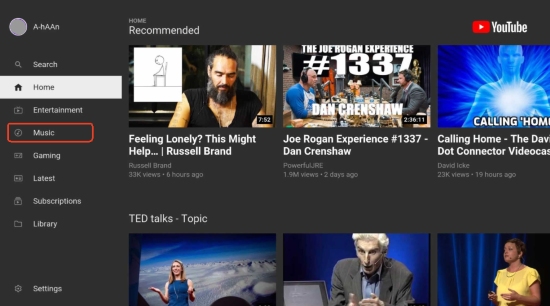
While this method allows easy access to your YouTube Music content, it is not designed for background audio during gameplay. So in a real scenario, it will typically pause or reduce functionality when you switch to a game.
Method 2. Use Xbox Microsoft Edge App
Another apparent, built-in method for accessing YouTube music on Xbox One or Series X/S is utilizing the pre-installed Microsoft Edge browser. Since Xbox consoles run a modified Windows environment, the Edge browser functions similarly to its desktop counterpart and can access web-based streaming players.
Step 1. Turn on your console and navigate to 'My Games & Apps > Apps', then launch Microsoft Edge.

Step 2. Navigate to https://music.youtube.com and sign in to your account.
Step 3. Select a playlist, album, or track and press play in the browser.
This method provides a more 'desktop-like' YouTube Music experience compared to the YouTube app. However, it still does not support true background playback once you switch into a game or another Xbox application.
Xbox operating systems operate on strict RAM and hardware prioritization resource allocation metrics. When you launch a graphically intensive, demanding title like Cyberpunk 2077 or Forza Horizon, the system redirects its operational memory away from background applications to maximize game performance.
As a result, the Edge browser tab will frequently freeze, crash, or stutter within seconds of minimizing it. Furthermore, because it isn't integrated into the system-level media guide, you cannot mix the game-to-music audio ratio on the fly. It is a functional option for sitting on your dashboard or browsing light apps, but a poor choice for intensive gaming sessions.
If your goal is simply listening to YouTube Music while browsing or using entertainment apps, they may be sufficient. But if you want continuous background music while gaming, you'll need a different solution.
Part 3. How to Play YouTube Music on Xbox While Gaming
If your primary goal is listening to YouTube Music on Xbox without interrupting gameplay, you don't actually need to fight with glitchy console browsers. Instead, the most reliable solutions involve bypassing the Xbox app store constraints entirely through clever hardware routing or local media playback.
Below are the two most practical approaches in 2026.
Method 1. Use a Dual-Connectivity Gaming Headset (Best Shortcut Solution)
The easiest and quickest way to play YouTube Music while gaming on Xbox is by using a dual-connectivity gaming headset. It doesn't rely on your Xbox console's software at all. Instead, it relies on modern gaming audio hardware via simultaneous dual-connectivity.
Many premium, modern gaming headsets feature split-stream internal audio chips. They connect to your Xbox console using the proprietary Xbox Wireless protocol (or a 2.4GHz wireless USB dongle) while simultaneously pairing with your smartphone or watch via Bluetooth.
- Xbox: Game audio via Xbox Wireless or 2.4GHz dongle
- Smartphone/Smart Watch: YouTube Music via Bluetooth
Recommended Headset Models:
- Official Xbox Wireless Headset
- SteelSeries Arctis Nova 7X
- Turtle Beach Stealth 700 Gen 2 MAX
How to Play YouTube Music on Xbox While Gaming via Dual-Connectivity Gaming Headset
Step 1. Turn on your headset and ensure it is synced wirelessly with your Xbox console for in-game sound effects and team chat.
Step 2. Hold down the pairing button to connect the headset to your iOS or Android smartphone via Bluetooth.
Step 3. Open the official YouTube Music app on your mobile device and press play on your gaming mix.
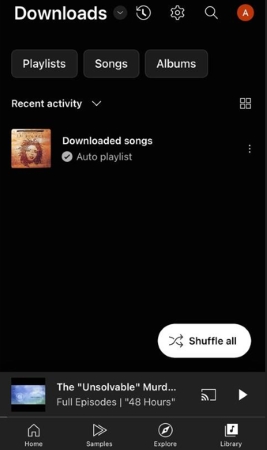
Why It Works Beautifully:
This hardware method bypasses console OS limitations entirely. Your headset takes the audio signal from your phone and perfectly superimposes it over the game audio coming from your console. You get 0% performance impact on your console, zero risks of app crashes, and you can change tracks or tweak playlists seamlessly right from your phone screen resting on your desk or lap.
The main drawback to this method is the hardware barrier to entry: you must own a headset that explicitly supports simultaneous dual-audio mixing. Additionally, streaming directly from your mobile device means you are still bound by YouTube Music's cloud limitations; a free-tier account will constantly interrupt your gameplay with disruptive ads and lower audio quality, while Premium downloads will completely expire the moment you let your subscription lapse.
If you love the idea of using your phone to control your soundtrack but don't want to drop cash on a new headset, you can achieve a similar effect using mobile casting or iPhone AirPlay. Simply download a third-party media receiver app (such as AirServer or AirReceiver) from the Xbox Store to transform your console into a wireless audio target. Once configured, open YouTube Music on your iOS or Android device, tap the Cast or AirPlay icon, select your Xbox, and enjoy wireless background audio while you game.
Method 2. Use Local Music Files on Xbox (Most Stable Offline Solution)
If you do not own a dual-connectivity headset and want a solution that completely skips ads, network bottlenecks, and subscription limits, the Local Music Library method is the absolute gold standard.
Xbox consoles fully support native background media playback from physical USB storage drives using a free system application called the Simple Background Music Player. The catch? YouTube Music tracks are locked inside a streaming ecosystem guarded by digital rights management (DRM) restrictions. You cannot simply drag online links or cached files onto a USB drive and expect an Xbox media player to read them.
To make this strategy work, you need a safe, robust desktop software helper capable of turning your cloud playlists into offline, universally readable console files. This is where AudFree Streaming Audio Recorder (also known as AudFree YouTube Music Converter) comes into play. Acting as a high-fidelity digital bridge, AudFree allows you to capture and convert your YouTube Music streams into unprotected, high-quality audio formats like MP3 or FLAC with zero quality loss, preserving all original metadata and ID3 tags.
It also supports batch processing for playlists and albums, making it easier to build a full offline music library.
Key Features of AudFree Streaming Audio Recorder

- Convert YouTube Music to MP3, FLAC, M4A, and more
- Pull entire YouTube playlists and albums at up to 30× speed
- Keep your music completely ad-free with original lossless audio fidelity
- Automatically preserves original ID3 tags (track names, artists, etc.)
- Supports multiple streaming platforms beyond YouTube Music
- Fully compatible with both Windows and macOS
- Step 1. Configure Your Audio Output Settings

- Install and launch AudFree Streaming Audio Recorder on your computer. Click the 'Menu icon > Preferences > Conversion', then select 'MP3 or FLAC' as your output format (both are fully recognized by Xbox consoles). Here, you can also adjust your preferred bitrate, sample rate, and audio channels. Under the 'Output' tab, set your destination folder and ensure ID3 tag retention is enabled.
See also: How to Convert YouTube to FLAC
- Step 2. Build Your Batch Conversion List from YouTube Music
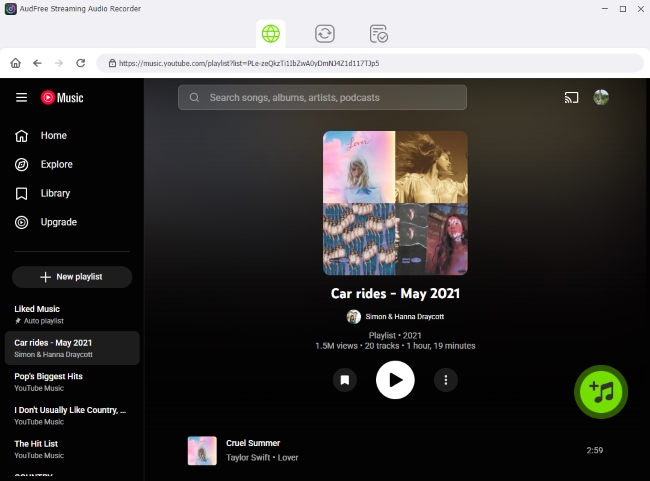
- Open the built-in YouTube Music web player inside the software and sign in to your account. Browse playlists, albums, or individual songs, then click the '+' button to add them to the conversion list. There is no limit to how many songs you can batch-convert at once.
- Step 3. Convert YouTube Music to Local Files

- Navigate to the Converting tab and click the 'Convert' button. The software will rapidly extract and download your selected YouTube Music tracks in bulk. Once the progress bar fills, your unencrypted YouTube Music audio files will be waiting for you in your local destination folder and under the Converted history panel.
- Step 4. Play Your Music Seamlessly on Xbox
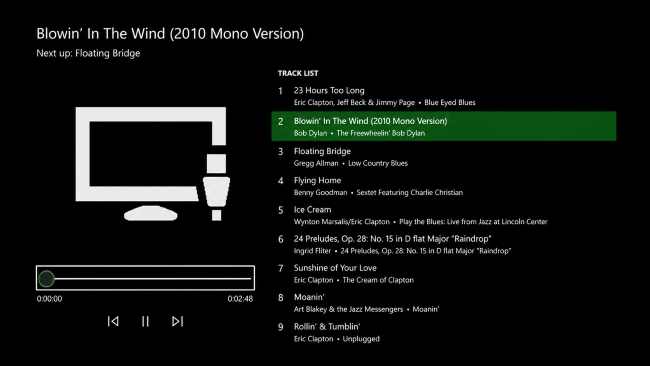
- 1. Prepare the USB Drive: Connect a flash drive to your PC or Mac. Ensure it is formatted to FAT32 or NTFS. Open the drive and create a folder named exactly Xbox Music Library (this precise name is mandatory for the console to read it). Copy your newly converted files into this folder.
- 2. Plug and Play on Xbox Console: Plug the USB drive into an open port on your Xbox Series X/S or Xbox One.
- 3. Launch the Player: Open the Microsoft Store on your console to download the free Simple Background Music Player app and launch it. The app will automatically scan and sync with your USB folder.
Now, you can jump straight into any game, pull up the Xbox Guide overlay, and control your offline YouTube Music tracks smoothly without ever dropping a frame.
Best for Users Who Want:
- Fully offline playback experience
- Maximum stability during gaming sessions
- No dependency on phone or internet connection
- A long-term personal music library
Part 4. FAQs About YouTube Music on Xbox
Will an official YouTube Music app ever come to Xbox?
It's certainly possible, but there has been no official confirmation. Until a native app launches, using the Microsoft Edge browser, utilizing a Bluetooth-enabled headset, or playing local files from a USB drive remain your most reliable workarounds.
Can I use the regular YouTube video app for background music on Xbox One?
Unfortunately, no. Whether Xbox One, Xbox Series X, or Xbox Series S, the standard YouTube video app for Xbox does not support background playback. The moment you minimize the app, return to the home dashboard, or launch a game, your video and audio will automatically pause.
Why can't my Xbox read my converted YouTube Music from a USB drive?
If your console isn't detecting your music, it is usually due to one of two common setup issues:
• Incorrect USB Format: The Xbox cannot read certain drive formats. Ensure your USB flash drive is formatted to FAT32 or exFAT using a PC or Mac before loading your music.
• Missing Media Player App: Your Xbox doesn't play audio files natively from the dashboard. You must download the free, official Xbox Media Player app from the Microsoft Store to browse and play files from your drive.
Does converting files with AudFree reduce the audio quality of my YouTube Music tracks?
No, it completely preserves it. AudFree software uses advanced recording and conversion technology to capture audio at a 1:1 ratio, fully retaining the original bit rate and frequency.
Keep in Mind: A conversion tool cannot upgrade audio quality past its original source level. Because YouTube Music streams max out at 256kbps AAC, AudFree will perfectly mirror that exact native fidelity without adding any extra compression or audio degradation.
Part 5. Which Method Is Best for Streaming YouTube Music on Xbox?
The best way to use YouTube Music on Xbox ultimately depends on how you plan to listen. Some users simply want quick access to playlists, while others prioritize uninterrupted background music during gaming sessions.
To help you decide, here's a side-by-side comparison of the four methods covered in this guide.
| Evaluation Metric | YouTube App | Edge Browser | Dual-Connectivity Headset | Local Music Library |
|---|---|---|---|---|
| Background Playback While Gaming | ❌ | ❌ | ✅ | ✅ |
| Listening Quality | Good | Good | Excellent | Excellent |
| Ease of Setup | Very Easy | Moderate | Easy | Moderate |
| Xbox Performance Impact | Low | Moderate | None | Almost none |
| Internet Required | ✅ | ✅ | ❌ (Premium users only) | ❌ |
| Offline Playback | ❌ | ❌ | ✅ (Premium users only) | ✅ |
| Additional Hardware Needed | None | None | Compatible Headset | USB Drive + AudFree software |
| Additional Cost | Free | Free | Requires specific headset ($100+) | Paid license ($69.95/year) |
| Ads and Streaming Interruptions | Possible | Possible | Possible | None |
| Best For | Casual listening and music videos | Full YouTube Music web access | Listening to YouTube Music while gaming | Long-term offline music library and stable gameplay |
This way, you can choose the method that best fits your gaming setup, listening habits, and preferred level of convenience.
Conclusion
While the lack of an official native client for YouTube Music on Xbox presents an initial roadblock, it is a barrier that is easily overcome. If you simply want to access YouTube Music occasionally on your Xbox, the YouTube app or Microsoft Edge browser will get the job done with minimal effort.
If you're specifically looking for a way to listen to YouTube Music while gaming, the dual-connectivity headset method is the most convenient solution. It requires no browser, no app switching, and no impact on Xbox performance and provides an incredibly smooth experience.
However, for users who prioritize offline playback, maximum stability, and a permanent music collection, building a local library and playing music from a USB drive remains the most versatile option. Once your files are stored locally, you can enjoy uninterrupted playback without depending on your internet connection, streaming services, or browser sessions.

Staff Editor


