


PlayStation consoles are no longer just gaming devices. For many users, the PS5 and PS4 also function as powerful home entertainment centers, capable of streaming movies, videos, and music through various apps. Meanwhile, Tidal is widely known for its high-fidelity sound quality, including lossless FLAC Hi-Res and Dolby Atmos, making it especially appealing to audiophiles.
However, despite Tidal's popularity and premium audio offerings, there is still no official Tidal app for PlayStation consoles. This limitation has caused confusion and frustration among users who want to enjoy high-quality music while gaming or relaxing on their PS5 or PS4.
The good news is that there are still several effective ways to stream or play Tidal music on PS5 or PS4, even without an official app. In this guide, we'll explain why Tidal isn't officially supported on PS5/PS4 yet, and walk you through all workable solutions. Let's dive in!


Part 1. Why Is There No Official Tidal App for PlayStation 5/4 Yet?
While Spotify and Apple Music have long been integrated into the PlayStation ecosystem, Tidal users are often left wondering: Can you play Tidal on the PS5 or PS4? Unfortunately, there is still no official, native Tidal app available for Sony's PlayStation consoles. To help you overcome this limitation, it is important to understand why Tidal remains officially unsupported on PlayStation and what alternatives are available to bridge the gap.
1. Limited App Development Priority
Compared to Spotify, Tidal has a smaller user base, and its core audience is more focused on mobile devices, smart TVs, and high-end audio systems. Developing and maintaining a native PlayStation app requires significant resources, and Sony's closed ecosystem further increases development complexity. As a result, Tidal has prioritized platforms like iOS, Android, smart TVs, car systems, and desktop apps instead.
2. Sony's Closed Ecosystem
PlayStation consoles operate within a highly controlled environment. Sony determines which apps are allowed on the PlayStation Store, and third-party developers must meet strict technical and licensing requirements. While Spotify has a long-standing partnership with Sony, Tidal does not currently have the same level of integration.
3. DRM and Streaming Restrictions
Tidal uses DRM (Digital Rights Management) to protect its streaming content. This DRM prevents users from freely transferring downloaded Tidal songs to unsupported devices or USB drive. Without official integration, Tidal cannot simply allow offline playback on PS5 or PS4.
Despite these challenges, PlayStation users are not completely locked out. With a little creativity, you can still enjoy Tidal music on your PS4 or PS5!
Part 2. How to Stream Tidal to PS5/PS4 via PS5/PS4 Web Browser
Although there is no official Tidal app available for PS5 or PS4, you can still stream Tidal music on your PlayStation console by using Tidal's official web player. This is the most direct and no-cost solution for accessing Tidal on PS5 or PS4, as it requires no third-party tools or additional devices.
• PS4: Includes a built-in web browser that can be accessed directly.
• PS5: Does not have a traditional browser app, but users can still open web pages through indirect methods, such as links in messages.
How to Stream Tidal on PS4 via PS4 Browser
With the PS4's built-in browser, you can log in to the Tidal Web Player and stream music directly on your console.
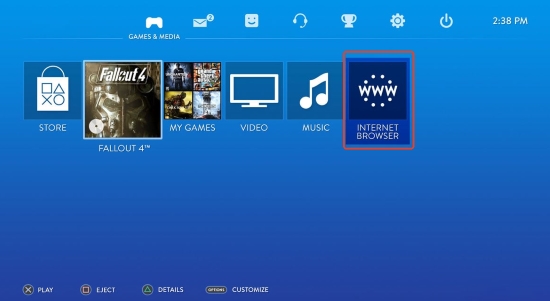
Step 1. Launch your PS4 and open the Internet Browser from the content area.
Step 2. In the address bar, navigate to the Tidal Web Player.
Step 3. Log in using your Tidal credentials.
Step 4. Select your preferred album, playlist, or track and start streaming.
FYI: Learn more about how to use the PS4 web browser at the official Playstation website.
How to Access Tidal Web Player and Play Tidal on PS5
Starting from the PS5 generation, Sony removed the publicly accessible web browser due to security concerns and limited consumer demand. That said, a hidden internal browser still exists and can be accessed through a simple workaround.
Step 1. Turn on your PS5 and press the PlayStation button on your controller.
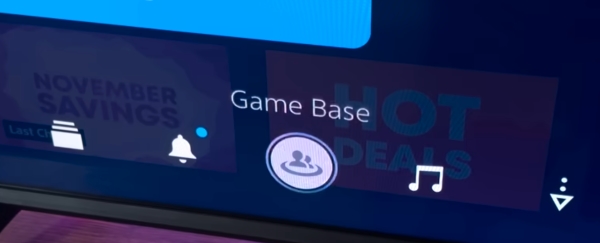
Step 2. Create a new group chat by selecting New Message and adding any two friends. After creating the group, you can rename it, customize the icon if desired, and then remove the other participants.
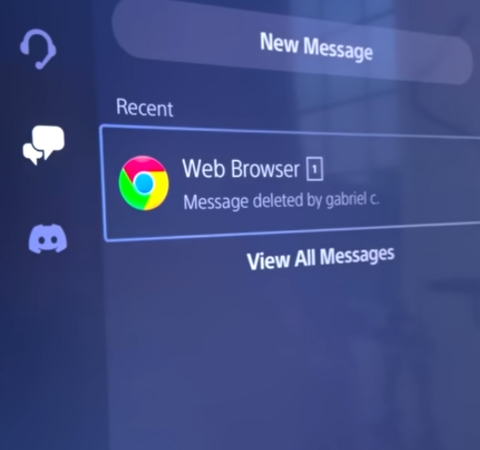
Step 3. Send yourself a message containing a URL (e.g., google.ca or google.us).
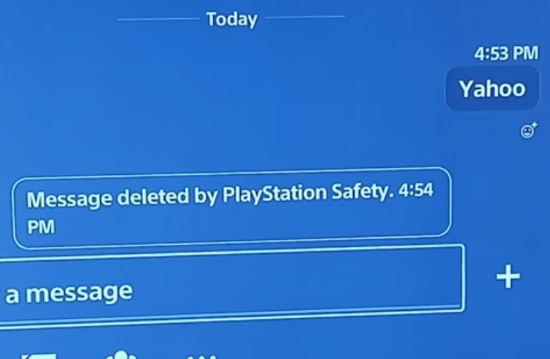
Be cautious with the URL you send. For security reasons, PlayStation may block or remove certain links (such as www.google.com). Alternative domains like www.google.us often work and allow you to navigate to tidal.com afterward.
Step 4. Click the link in the message thread to open the hidden browser window.
Step 5. Search for "Tidal Web Player" or type listen.tidal.com directly into the search bar.
Step 6. Sign in to your account, and now, you can successfully stream Tidal music on your PS5 through the web player.
Important Note: Unlike the official Spotify or Apple Music apps, the Tidal web browser cannot run in the background while you play games on your PS4 or PS5. If you exit the browser to launch a game, the music will stop immediately.
How to Use Web Player on PS5
Limitations of the Browser Method
Although browser streaming works, it comes with several clear drawbacks:
❌ Standard Quality Only: You cannot access Tidal Hi-Res or lossless FLAC playback; audio quality is limited to standard streaming levels.
❌ No Background Audio: You cannot listen to music while playing games.
❌ Interface Issues: The web interface is not optimized for a controller and may feel slow or unresponsive.
❌ Stability: Playback may be slow or unstable at times; long sessions may result in browser crashes or memory errors on the console.
As a result, this method is best suited for casual Tidal listening on PS4 or PS5, rather than for users who prioritize high-fidelity audio or uninterrupted background playback.
In the next section, we'll introduce a more stable and effective method for listening to Tidal while gaming on PS4 or PS5. This solution offers superior sound quality, supports offline playback, and provides a much smoother overall experience on both PS5 and PS4.
Part 3. How to Play Tidal on PS5/PS4 via USB Drive (Best Offline Solution)
If you want a stable, offline, and high-quality listening experience, playing Tidal music via a USB drive is the most reliable solution. PlayStation consoles support local music playback from USB storage devices, but they cannot recognize Tidal's encrypted downloads, which are protected by DRM.
To overcome this limitation, Tidal music must first be converted into PlayStation-supported audio formats. This is where AudFree Tidal Music Converter comes in. It is a powerful desktop tool that downloads and converts Tidal tracks into universal formats such as MP3, WAV, FLAC, and M4A, while preserving the original sound quality and metadata. Once converted, these files can be copied to a USB drive and played directly on PS5 or PS4 without an internet connection.
If your Tidal music files are in compatible formats like MP3, AAC, WAV, or FLAC, you can play them directly on PS5 or PS4 without an internet connection.
AudFree Tidal to PS4 Converter

- Download Tidal songs, albums, playlists, and podcasts up to 37x faster
- Convert Tidal Music to MP3, FLAC, WAV, and more
- Retain 100% original audio quality (24bit/192kHz) and full ID3 tags
- Play Tidal music offline on any device, including PS5, PS4, Xbox One, and more
How to Download Tidal Music for PS4/PS5 via AudFree Tidal Music Converter
Below is a step-by-step guide showing how to use AudFree Tidal Music Converter to download music from Tidal music to local files. After that, you'll be able to play Tidal music on PS5 or PS4 directly from a USB drive.
- Step 1. Add Tidal Music to AudFree Conversion List

- Download and install AudFree Tidal Music Converter on your Windows or Mac computer by clicking the Download button above. Launch the program and log in to your Tidal account through the built-in Tidal web player. Then, browse or search for the music you want, and click '+' to add these tracks, albums, or playlists to the conversion list.
- Step 2. Adjust Tidal Output Parameters for PS5/PS4

- Navigate to the top-right Menu icon, then select the "Preferences" > "Conversion" to open the audio settings window. Choose a PlayStation-compatible format such as MP3, FLAC, or WAV. You can also adjust bitrate, sample rate, and channel settings if needed.
See also: Top Tidal to FLAC Converters
- Step 3. Download Tidal Music for PS4/PS5 Tidal Playback

- Click on the "Convert" button on the converting page, and it will start the conversion process. Once completed, you can access these Tidal local files under the Converted section.
- Step 4. Transfer Downloaded Tidal Music to USB Drive
- Plug your USB drive (formatted as FAT32 or exFAT) into your computer and create a new folder named 'Music'. Open the local folder where your converted Tidal songs are stored on your computer, and copy the music files to 'Music' folder in the USB drive.
- Critical Note: PlayStation consoles will only detect music if it is placed in a folder named "Music" in the root directory of the drive. Also make sure the USB drive is formatted in FAT32 or exFAT, as these formats are supported by PlayStation consoles.
- Step 5. Play Tidal on PS5/PS4

- Connect the USB drive to the USB port on your PS5 or PS4, open "Media Player", and start enjoying Tidal music offline.
- • On PS4: Open the Media Player app from the content area.
• On PS5: Select Music in the Control Center (press the PS button) or open the Media Gallery.
Tip: You can select 'USB Media Player' from the Quick Menu to pause playback, adjust volume, or manage tracks while listening on PS5 or PS4.
Advantages of the USB Method
✅ Lossless High-Fidelity: Experience true Hi-Res audio that the web browser cannot provide.
✅ Background Play: Unlike the browser, USB music continues to play while you are inside a game.
✅ Zero Buffering: Since the files are local, you won't experience lag or connection drops.
✅ Permanent Access: Your downloaded songs are yours to keep, even if you cancel your Tidal subscription.
In short, this USB-based method is ideal for users who prioritize sound quality, playback stability, and long-term access to their Tidal music on PlayStation consoles.
Part 4. FAQs About Tidal Music on PS5/PS4
Can I Use Tidal Connect to Stream Music to My PS5?
No. Tidal Connect does not support PS5 or PS4. Tidal Connect only works with compatible smart speakers, TVs, and audio devices. PlayStation consoles are not recognized as Tidal Connect endpoints.
Can I Still Use Plex to Stream Tidal on My PlayStation?
Previously, Plex offered limited Tidal integration, but Tidal support has been removed from Plex since October 28, 2024. You can still use Plex to stream your locally downloaded Tidal music files (converted via AudFree Tidal Music Converter), but not directly from Tidal's servers.
Can I Use AirPlay or Chromecast to Stream Tidal to My PS4 or PS5?
No. PlayStation consoles do not support AirPlay or Chromecast natively. While you can only use these technologies to stream Tidal to a compatible TV, soundbar, or AV receiver, PS5 and PS4 themselves cannot receive AirPlay or Chromecast streams.
Can I Play Tidal Music on PS5 or PS4 by Transferring Downloaded Tidal Songs to Internal Storage?
No. PlayStation consoles do not allow users to import audio files into internal storage. Sony reserves this space exclusively for game data, system software, and captured media such as screenshots and video clips. As a result, the internal drive cannot be used as a personal music or movie library - local music playback is supported only via external USB storage devices.
How to Connect a Phone to PS4 or PS5 via Bluetooth to Play Tidal?
You cannot stream Bluetooth audio from a phone to PS4 or PS5. PlayStation consoles only support Bluetooth for controllers and select headsets, not for general audio streaming.
Is the audio quality of Tidal via USB better than Spotify on PS4/PS5?
Yes. When converted to lossless FLAC and played via USB drive, Tidal music offers higher audio quality than Spotify, which streams at a maximum of 320 kbps. USB playback preserves lossless audio without compression using AudFree Tidal Music Converter, making it the best option for audiophiles.
In Conclusion
While the lack of an official Tidal app on PS4 and PS5 is disappointing for audiophiles, it doesn't mean you're locked out of enjoying high-quality music on your PS5 or PS4. Depending on your needs, you can:
• Stream Tidal casually via the PlayStation web browser
• Enjoy stable, offline, and lossless playback via USB drive by using professional tools like AudFree Tidal Music Converter
If you're serious about sound quality and want a long-term solution, downloading Tidal music to USB is by far the best method. With the right setup, your PlayStation can become not just a gaming powerhouse, but also a premium music player for your home entertainment system.

Staff Editor


