


Yoto Player is designed as a screen-free audio player for kids, but what if the songs, stories, or other content you want to play are on YouTube or YouTube Music?
In 2026, there is still no native YouTube or YouTube Music app for Yoto Player. However, you can listen to YouTube or YouTube Music in two practical ways: stream the audio from a phone to Yoto Player over Bluetooth, or prepare compatible local audio files and add them to a Yoto Make Your Own (MYO) Card for a more kid-friendly offline experience.
In this guide, we'll cover both options and show you how to play YouTube Music songs on your Yoto Player.
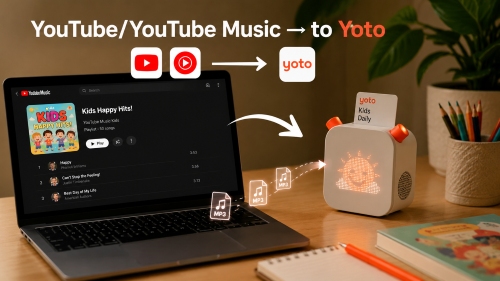

Part 1. Can You Play YouTube Music on Yoto Player Directly?
No. Yoto Player does not currently offer a native YouTube or YouTube Music app. Yoto is primarily built around physical Yoto Cards, MYO cards, and audio content available through the Yoto app and its own ecosystem. Yoto's official documentation also lists the YouTube Music app among services that are not directly integrated into the player.
This means you cannot simply insert a Yoto Card and search for a YouTube Music playlist, artist, or song from the player itself. Likewise, YouTube Music Premium's normal offline downloads are designed to remain available inside the YouTube Music app, rather than as ordinary MP3 files that you can upload to Yoto. Google states that Premium downloads are available for offline listening in the YouTube Music app and require periodic reconnection to the internet.
There are, however, two important workarounds:
| Method | Internet Needed | YouTube / YouTube Music | YouTube / YouTube Music Subscription Required | MYO Card | Best For |
|---|---|---|---|---|---|
| Bluetooth Streaming | ✅ (Depends on your subscription) | ✅ | ❌ | ❌ | Quick, occasional playback |
| Local Audio + MYO Card | ❌ (After content is stored on Yoto) | ✅ (With compatible audio files) | ❌ | ✅ | Kids' offline listening |
The Bluetooth method is the easiest because Yoto Player can function as a Bluetooth speaker. You simply play YouTube or YouTube Music on a phone and send its audio to Yoto.
The MYO Card method takes more preparation, but it is much better if you want a dedicated card that your child can insert and play without handling a phone. Yoto officially supports uploading your own MP3 collection to a playlist and linking that playlist to a MYO Card.
YouTube and YouTube Music downloads are not ordinary transferable audio files. YouTube says that its app does not provide a way to download audio, music, or MP3 files, while YouTube Music Premium downloads are intended for in-app offline playback.
For a MYO Card, use audio files that you own or have permission to use. We specifically recommend creating and sharing MYO cards only with audio you created or are authorized to use.
Part 2. How to Stream YouTube / YouTube Music to Yoto Player via Bluetooth (Online)
If you simply want to play YouTube or YouTube Music through the Yoto speaker, Bluetooth is the quickest option. Yoto Player and Yoto Mini can work as Bluetooth speakers, allowing audio from a paired phone to play through the Yoto speaker.
This method does not transfer or download the YouTube content to Yoto. Your phone remains the source of the audio, so an internet connection may be required when streaming YouTube or YouTube Music.
Downloads for offline listening require an active YouTube Premium or YouTube Music Premium subscription.
How to Play YouTube / YouTube Music on Yoto Player via Bluetooth
Step 1. Enable Bluetooth Speaker Mode on Yoto
First, open the Yoto app and go to your player's Settings. Find Bluetooth Pairing under the Advanced section and enable it. This setting unlocks Bluetooth mode, but it does not automatically start the connection. It simply allows the Yoto to enter Bluetooth mode.

Step 2. Put Yoto Player into Bluetooth Speaker Mode
Then, on your Yoto Player:
- Press and hold the left orange button for about three seconds.
- Wait for the Bluetooth icon to appear.
- On Yoto Player 3rd Generation or Yoto Mini, select the speaker icon rather than the headphone option.
- Confirm the selection with the right-hand button.
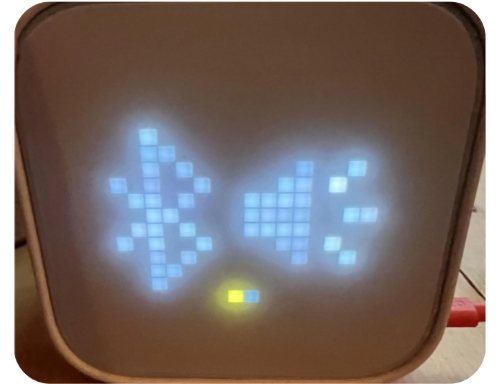
Yoto Player 3rd Generation and Yoto Mini support both Bluetooth headphones and Bluetooth-speaker functionality. Yoto Player 2nd Generation does not support Bluetooth headphones, but Yoto's current instructions distinguish Bluetooth speaker mode as a separate function.
Step 3. Pair Your Phone or Computer with Yoto
Now open Bluetooth settings on your phone and look for your Yoto Player. Tap the Yoto Player to establish the connection. Once paired, the Yoto can function like a regular Bluetooth speaker.
Step 4. Play YouTube or YouTube Music to Yoto Player from Your Mobile Device
Now open YouTube or YouTube Music on your connected device and start playing the content you want. The audio will be routed through your Yoto Player. With a paid YouTube subscription, you can download tracks to your device and stream them to your Yoto completely offline.
The playback and content navigation are controlled from your phone rather than from the Yoto's buttons while it is operating as a Bluetooth speaker.
Pros and Cons of Bluetooth Playback
No need to create a MYO Card;
Works with YouTube and YouTube Music;
Easy to set up;
No need to download, convert, or upload audio files;
Useful for occasional listening
Requires a phone or other Bluetooth source;
YouTube / YouTube Music playback is still controlled from the source device;
Online streaming generally requires internet access;
Free accounts include ads, limited track skips, and do not support background playback;
Not ideal if you want your child to use Yoto independently
For occasional listening, Bluetooth is probably the easiest solution. But if your goal is to create a dedicated Yoto card containing selected YouTube Music songs, the MYO approach below is more practical.
Part 3. How to Put YouTube Music on a Yoto MYO Card for Offline Listening
If you want your child to play audio independently, without ads or a phone nearby, creating a Make Your Own (MYO) card with YouTube audio is the best way to listen offline.
Instead of streaming directly from the YouTube Music app, you first need to prepare compatible local audio files that can be uploaded to Yoto. These files are independent of the YouTube Music app and can then be added to a Make Your Own playlist and linked to a physical Yoto MYO card.
Yoto currently supports MP3 and M4A (AAC) for uploading custom audio to Make Your Own cards. For the smoothest workflow, choose one of these supported formats when preparing your YouTube Music files.
The overall workflow is:
YouTube Music → Compatible MP3/M4A files → Yoto MYO playlist → MYO card → Offline playback on Yoto Player
How to Get YouTube Music Songs Ready for Yoto
Before creating your Yoto card, you need compatible local audio files. This is where AudFree YouTube Music Converter can help.
AudFree YouTube Music Converter is a desktop audio tool that can save YouTube Music content as common audio files, including MP3, M4A, FLAC, WAV, AIFF, and M4B. It can also retain music metadata such as titles, artists, albums, and artwork, making it easier to organize a larger collection before uploading it to Yoto.
AudFree YouTube Music Converter

- Save YouTube Music audio on Windows and Mac at up to 30× speed
- Batch process YouTube Music playlists and content from 10+ streaming services
- Convert YouTube Music to MP3, FLAC, WAV, AIFF, M4A, and M4B
- Retain music metadata and ID3 tags for easier file organization
- Customize bitrate, sample rate, audio channel, and other output parameters
- Support both Windows and Mac computers
Step 1. Install and Activate AudFree YouTube Music Converter
Download and install AudFree YouTube Music Converter on your Windows or Mac computer. Launch the program and activate it with your license key to access its full features.
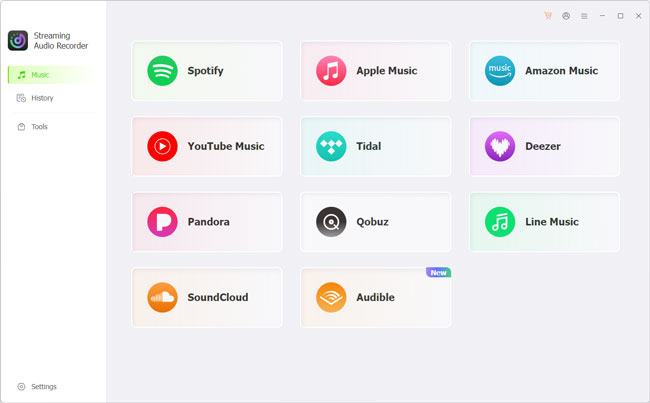
Step 2. Set YouTube Music Output Format
Click the menu icon in the top-right corner and select Preferences > Conversion. Here, you can set an output format, for example, convert YouTube to MP3 or M4A to fit Yoto. You can also customize bitrate, sample rate, and audio channels. Under the Output tab, choose your preferred destination folder and enable ID3 tag retention.
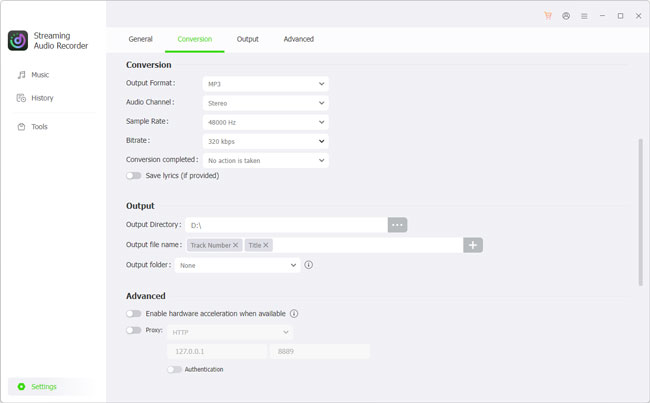
Step 3. Add YouTube Music Songs
Click the YouTube Music icon on the main interface and sign in to your account. Browse to the songs, albums, or playlists you want to prepare for your Yoto card, then click the green '+' button to add them to the conversion list.
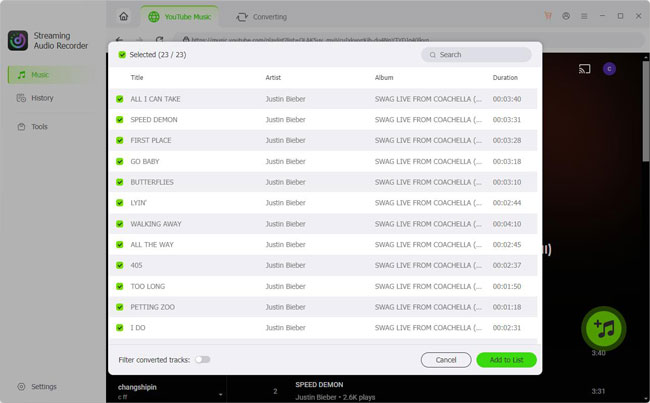
If you're creating a MYO card for a child, consider preparing a dedicated YouTube Music playlist first. This makes it easier to select appropriate tracks and keep the final Yoto card organized.
Step 4. Start the Conversion for YouTube Music on Yoto
Start the process and let AudFree prepare the selected tracks. Once finished, open the output folder and check that the audio files are available and correctly named. At this point, the YouTube Music portion of the process is complete. You now have local audio files that can be organized into a Yoto MYO playlist.
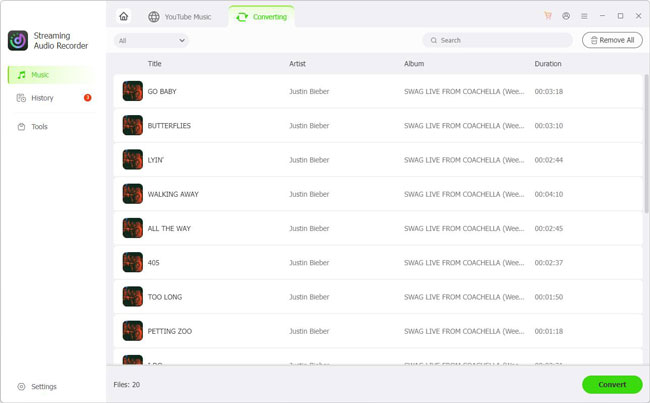
Only prepare and add audio that you created yourself or have the necessary rights or permission to use. YouTube and YouTube Music content may be protected by copyright and subject to their respective terms. Make sure your use of any audio complies with applicable laws and platform terms.
How to Link YouTube Music to Yoto MYO Card for Kids
Once your YouTube Music audio files are ready, you can upload them to Yoto and turn the playlist into a physical Make Your Own (MYO) card. Yoto allows you to create a custom playlist, add your own MP3 or M4A files, and then link that playlist to a MYO card through the Yoto app.
Step 1. Create a Make Your Own Playlist
First, open the Yoto app on your Android or iOS device and sign in to the Yoto account associated with your player. Go to 'Library' and find the 'Make Your Own' section, then choose the option to create a new playlist.
Give the playlist a name that makes it easy to identify. For example, if you're making a card for a child, you could name it "Bedtime Songs", "Road Trip Favorites", or "Kids' Music".

You can also create the playlist through Yoto's Make Your Own website on a Windows or Mac computer. This can be more convenient when you have a large collection of YouTube Music files stored on your computer.

Step 2. Add Your YouTube Music Audio Files
Open the newly created MYO playlist and choose the option to add audio files. Select the MP3 or M4A files you prepared in the previous step. If your YouTube Music collection contains multiple tracks, you can add them together and arrange them in the order you want them to play. This is especially useful for creating a dedicated card for a child's favorite songs or a specific activity.

Yoto's current MYO system supports up to 100 tracks per card, with a total limit of 500 MB or 5 hours of audio. Individual audio files are also limited to 100 MB or 60 minutes, so keep these limits in mind when preparing longer playlists.
Step 3. Customize and Save the Playlist
After uploading the audio, check the track names and order. You can customize the playlist and individual tracks where available, including adding artwork or choosing a suitable icon. Once everything looks correct, save or create the playlist. It will then become available in your Yoto library.

Step 4. Link the YouTube Music Playlist to a MYO Card
Now open the playlist you just created in the Yoto app. Tap the three-dot menu and select Link to a Card. Insert a blank Yoto Make Your Own card into the Yoto Player when prompted. The app will connect the selected playlist to the physical card. Wait until the linking process is complete and the player confirms the connection.

This step is important because the MYO card itself does not simply store the uploaded audio files like a conventional USB drive. Instead, the card is associated with the playlist in your Yoto account, while the Yoto Player handles the corresponding audio content.
Step 5. Play YouTube Music on Yoto Player Offline
Once the playlist has been successfully linked, remove the MYO card and insert it into the Yoto Player again. The player should recognize the card and begin playing the associated playlist.

For offline listening, allow the Yoto Player to download the card's content while it has an internet connection. After the content has been stored on the player, you can use the MYO card to access the audio without continuously streaming YouTube Music from your phone.
Step 6. Update the MYO Playlist When Needed
One useful feature of MYO cards is that you can update the associated playlist later without creating a completely new card. For example, you can add new songs, remove existing tracks, or change the playlist order from the Yoto app.
After making changes, keep the Yoto Player connected to Wi-Fi, charging, and idle so that it can receive the updated content. The physical card remains linked to the playlist, so you can continue using the same card for the updated collection.
If you're preparing several cards for different occasions, create a separate MYO playlist for each one. This makes it easier to manage children's music, bedtime audio, travel playlists, and other collections without mixing them together.
Bonus Tip: How to Add Stories and Other YouTube Audio to Yoto
YouTube Music isn't the only source of audio you may want to enjoy on Yoto. Many users may also have suitable content on standard YouTube, such as children's stories, music videos, podcasts, educational content, or live performances.
For this type of content, AudFree Audio Capture provides a convenient way to save audio from active sound sources on your computer as local audio files. It supports a wide range of audio formats and can preserve important metadata, making the resulting files easier to organize before adding them to a Yoto MYO playlist.
AudFree Audio Capture's YouTube Music features are now integrated into AudFree YouTube Music Converter. This means you can use one desktop application to prepare audio from both YouTube Music and standard YouTube for your Yoto MYO collection.
Pros and Cons of the MYO Playback Method
Enjoy 100% ad-free, distraction-free listening without relying on an active Wi-Fi connection or cellular data;
Kids gain complete tactile control over their music and audiobooks using physical cards, eliminating screen time entirely;
Save your converted YouTube audio and custom playlists permanently - no ongoing YouTube Premium subscription required;
AudFree retains full 320kbps audio fidelity and original sound parameters for crystal-clear output on the Yoto speaker;
Easily split long YouTube videos (e.g., 1-hour story compilations) into individual tracks and customize track icons in the Yoto app
Requires downloading the audio files on a computer and linking them via the Yoto web portal or mobile app before first use;
Each MYO card requires physical handling, though cards can be infinitely overwritten and updated whenever needed
Part 4. FAQs about YouTube and Yoto Player
How to split a long YouTube video into separate tracks on a Yoto card?
First save the relevant audio as a local file and use an audio editor (AudFree YouTube Music Converter or AudFree Audio Capture) to split the long recording into separate tracks. Save each segment as a supported format such as MP3 or M4A, then upload the individual files to your Yoto MYO playlist. Each file will appear as a separate track on the card. Keep Yoto's current limits in mind: up to 100 tracks per card, with a total of 500 MB or 5 hours of audio.
How to strip ads and intro commentary from YouTube audio for Yoto?
The recording and conversion process via AudFree Audio Capture natively bypasses online browser ads, capturing clean, lossless audio directly. For long recordings, you can also split the edited audio into multiple tracks for easier playback. Avoid removing or editing content in a way that violates copyright or the source platform's terms.
Do YouTube Music local audio files on a Yoto MYO card work offline in the car?
Yes, after the content has been synced to the Yoto Player. Once your compatible YouTube Music audio files are added to a MYO playlist, linked to a card, and downloaded to the player while connected to Wi-Fi, you can play them offline without continuously streaming from YouTube Music or keeping a phone connected. This makes MYO cards useful for car trips and other situations without reliable internet access.
Conclusion
While Yoto Player does not offer direct integration with YouTube or YouTube Music due to safety and screen-free design principles, parents do not have to feel limited. For quick listening sessions, Bluetooth mode provides an instant wireless connection. But for the ultimate, child-friendly experience, combining AudFree YouTube Music Converter with Yoto's Make Your Own (MYO) cards is the perfect solution.
By converting your child's favorite YouTube stories, educational videos, and YouTube Music songs into clean MP3s via AudFree, you can craft personalized physical cards that offer endless entertainment while keeping screen time strictly at zero.

Staff Editor


