


As digital DJing continues to evolve, more users are looking for ways to integrate their favorite streaming platforms into professional software like Serato DJ. Among these platforms, YouTube Music stands out for its vast catalog, personalized playlists, and discovery features. Naturally, many DJs wonder: Can you use YouTube Music in Serato DJ?
The short answer is no - there is no direct integration between YouTube Music and Serato DJ. Unlike platforms such as TIDAL or SoundCloud (which have official partnerships), YouTube Music tracks are protected and cannot be streamed directly into Serato.
However, that doesn't mean you're out of options.
In this guide, we'll explore the best workaround methods to use YouTube Music with Serato DJ in 2026, including a stable offline solution, step-by-step conversion instructions, and alternative methods (plus why they're not ideal). If you want to add your entire YouTube Music playlist to Serato DJ, start with Part 1 to get the right tool, then follow Part 2 for a streamlined, step-by-step workflow.
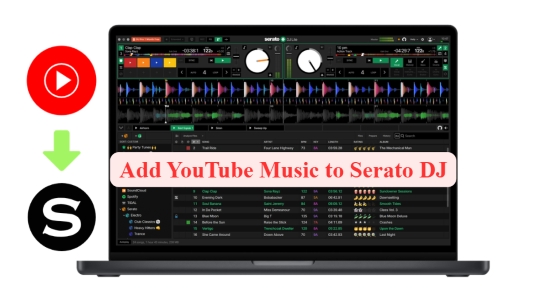

Part 1. Best Way to Use YouTube Music with Serato (Offline & Stable)
As we stated above, there is no official native integration between YouTube Music and Serato DJ (Pro or Lite). Furthermore, due to strict DRM (Digital Rights Management) protections, you cannot simply drag and drop YouTube Music tracks directly into the Serato app.
To make YouTube Music Serato DJ-compatible, the most effective method is to convert your library into DRM-free files, such as AIFF or WAV, that Serato supports. Once these high-quality local files are prepared, you can easily import them into your Serato DJ Pro or Lite library for a stable, offline performance.
The Reason Why Offline Conversion Is the Best Solution
Using converted local files offers several advantages:
✅ Full compatibility with Serato DJ
✅ No internet dependency during performance
✅ Stable playback with zero buffering
✅ Access to advanced features like cue points, loops, and Stems
✅ Higher audio quality options (up to lossless formats)
Streaming music directly (even if it were possible) introduces risks like lag, dropouts, or licensing restrictions, none of which are acceptable in a live DJ set.
So what's the most powerful tool that can help you the most? AudFree YouTube Music Converter performs perfectly in such a situation. If you want a reliable, lag-free, high-quality, and professional DJ experience on Serato with your YouTube Music, the tool won't let you down.
AudFree YouTube Music Converter

- Quickly save entire playlists as high-quality local files (up to 30x)
- Seamlessly Convert YouTube Music to MP3, WAV, or AIFF for use in Serato DJ, iTunes, or mobile devices
- Retain all ID3 tags and original high-fidelity sound
- Keep your music forever, even if you cancel your Premium plan
Below is a detailed comparison of the audio formats supported by both Serato DJ and AudFree YouTube Music Converter. Choosing the right format ensures your library is optimized for both stability and sound quality.
| Audio Formats | |
| Streaming YouTube Music | Protected AAC (256kbps) |
| Serato DJ Supported Formats | MP3, AIFF, WAV, FLAC, ALAC |
| AudFree Output Formats | MP3, AIFF, WAV, FLAC, M4A, M4B, and Lossless |
In short, converting YouTube Music to local files for Serato is not just a workaround. It's a universal and professional approach for DJs when dealing with unsupported platforms.
Part 2. How to Convert and Import YouTube Music to Serato
Now that you understand why conversion is necessary, let's walk through the exact steps to make YouTube Music tracks usable in Serato DJ.
Recommended Audio Settings of AudFree YouTube Music Converter for Serato
For the best performance and compatibility with Serato's Stems and BPM Analysis features, use these settings:
- Format: WAV or AIFF (Uncompressed / best quality) or MP3 (320kbps for storage efficiency)
- Bitrate: 16-bit / 24-bit
- Sample rate: 44.1 kHz or higher
Steps to Download Youtube Music for Serato DJ Pro/Lite via AudFree YouTube Music Downloader
- Step 1. Set Audio Output Settings for Serato

- Launch the AudFree Streaming Music Converter for YouTube on your computer. Navigate to the 'menu icon > Preferences > Conversion'. In this window, select your preferred output format. You can also customize the bitrate and sample rate here. Under the 'Output' tab, select a dedicated destination folder for your DJ library. Ensure that ID3 tag retention is enabled to keep your track metadata, such as artist names and album art, perfectly intact for Serato.
- Step 2. Add YouTube Music Tracks to the Conversion Queue
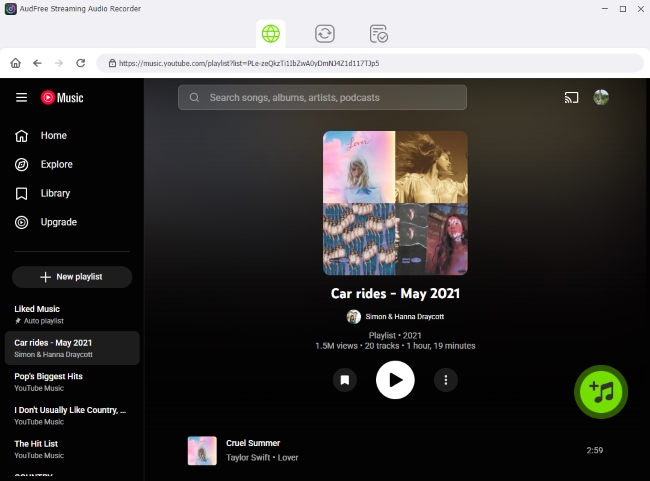
- Once your settings are finalized, use the built-in web player to sign in to your YouTube Music account. Browse your library for the songs, playlists, or albums you wish to use in your set. Click the green '+' button to load your selections into the conversion list. There is no limit to the number of tracks you can add for batch processing.
- Step 3. Convert YouTube Music to Serato-Compatible Formats

- Switch to the 'Converting' tab and click the 'Convert' button. AudFree will begin downloading and converting your YouTube Music tracks in bulk at up to 30X speed. Once the process is finished, your high-quality local files will be waiting in your designated output folder, ready for the booth.
- Step 4. Import YouTube Music Files to Serato DJ

- Open Serato DJ Pro or Lite and click the 'Files' button to open the file browser. Locate your AudFree output folder and simply drag and drop your converted tracks (or the entire folder) into the 'All...' library or a specific Crate.
- Step 5. Start Mxing Your YouTube Music Tracks

- Before you hit the decks, click the 'Analyze Files' button in Serato. This will calculate the BPM, Key, and Beatgrids for your new tracks. Once the analysis is complete, you are ready to perform with a stable, high-fidelity YouTube Music library.
✅ Benefits of Using AudFree YouTube Music Converter for Serato DJ
This workflow creates a seamless bridge between your YouTube Music library and Serato's professional environment. It is the ideal solution for DJs who demand the precision of Serato DJ Pro or Lite combined with the flexibility of a 100% offline library.
- Superior Fidelity: Support for high-bitrate and lossless formats (WAV/AIFF)
- Total Library Control: Full access to Serato's metadata, Crate organization, and BPM analysis
- Permanent Ownership: Your music remains accessible even without an active subscription
- True Offline Mixing: Perform anywhere without relying on Wi-Fi or mobile data
- Zero Interruptions: Eliminate buffering, lag, and notification pings during live sets
- Hardware Independence: Play your converted files on any DJ controller, including the Numark Party Mix Pro
Part 3. Alternative Way to Play YouTube Music with Serato DJ via Bluetooth/AUX (Not Recommended)
While there are analog workarounds to connect YouTube Music to your Serato DJ hardware, these methods are often cumbersome and professionally limiting. For example, some users attempt to bypass conversion by streaming YouTube Music from a phone into Serato via Bluetooth or AUX input (AUX-to-RCA cable).
While technically possible as an emergency backup, this method carries several critical drawbacks for live performances.
❌ Major Technical Drawbacks
- No Internal Track Control: Because the audio is external, you cannot use Serato to set Cue Points, triggers, or Loops
- Lack of Waveform & BPM Detection: Serato cannot analyze incoming analog audio in real-time, meaning you lose your visual beatgrids and automatic sync capabilities
- High Latency & Audio Lag: Bluetooth connections introduce significant delay, making it impossible to beatmatch or scratch accurately
- Degraded Audio Quality: Analog-to-digital conversion and signal compression often result in a "thin" sound that lacks the punch of a high-fidelity local file
- No Access to Serato Stems or FX: These advanced features require a track to be loaded onto a virtual deck; they cannot be applied to an external AUX signal
If you understand these limitations and still wish to proceed with an analog connection, follow these steps below.
How to Connect YouTube Music to Serato DJ via Bluetooth or AUX
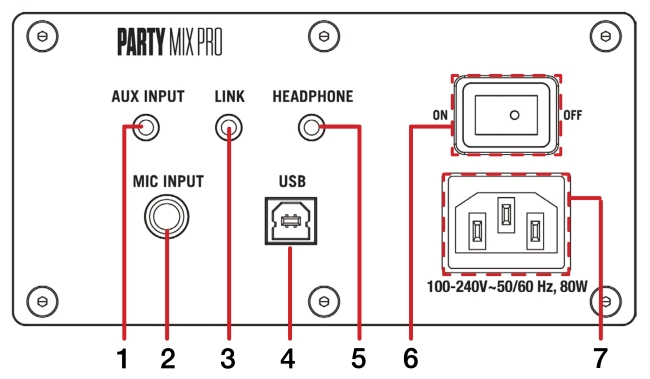
Step 1. Using a 3.5mm-to-RCA cable (AUX) or a professional Bluetooth receiver, connect your smartphone or tablet to an available Auxiliary or Line Input on your Serato-compatible mixer or controller.
Step 2. On your hardware, switch the input selector for that specific channel from "PC" or "USB" to "Line" or "Aux". This tells the mixer to listen to the external analog signal rather than the software deck.
Step 3. Set your mobile device to "Do Not Disturb" mode to prevent notification sounds or incoming calls from playing through the speakers. Ensure the volume on your device is set to approximately 80-90% to provide a clean signal without clipping the mixer's preamp.
Step 4. Open the YouTube Music app and begin playback. Use the Trim/Gain knob on your mixer to match the volume level of the external stream with the other tracks currently playing in Serato.
While the streaming method works for background music, it is not recommended for professional mixing. Since most Serato DJ users rely heavily on Stems, BPM Analysis, and Beatgrids, a local file is essential.
Using a tool like AudFree YouTube Music Converter to secure high-quality 320kbps MP3 or WAV files ensures that Serato's internal algorithms, especially Stem separation, function with far greater precision than they would with a low-bitrate analog stream. For a professional, lag-free performance, local high-fidelity files remain the industry standard.
Part 4. FAQs About How to Get YouTube Music on Serato
Can I use Serato Stems with tracks downloaded from YouTube Music?
Yes, but only if the tracks are properly converted and imported as local files. Besides, Serato Stems requires high-quality audio to separate vocals and instruments cleanly. Using a tool like AudFree YouTube Music Converter to download tracks at 320kbps MP3 or Lossless (WAV/FLAC) ensures the algorithm has enough data to work accurately. Low-quality files will result in digital artifacts and poor stem separation.
Can I use the Serato 'Files' panel to drag and drop YouTube Music tracks?
Yes, but only after conversion. You cannot drag tracks directly from the YouTube Music website or app. Once you have converted the music into a supported format (like MP3 or WAV) using AudFree, you can use the Files panel in Serato to navigate to your output folder and drag them into your library or Crates.
Why does Serato say 'File Not Found' for my converted YouTube tracks?
This usually happens because the file path has changed. If you move your converted files to a new folder, rename the folder, or disconnect the external drive where they are stored, Serato will lose the link. To fix this, click the Files tab in Serato and drag your new folder onto the 'Relocate Lost Files' button.
Why is my YouTube Music audio sounding 'thin' or distorted in Serato?
This is typically caused by low bitrate or poor gain staging. First, standard YouTube streams are often limited to around 128 kbps. When played on professional DJ equipment, this lower data rate can result in a loss of detail, especially in the high frequencies, making the sound appear thin or tinny. Second, distortion can occur if the audio is recorded or exported at excessively high levels. When the signal peaks too high, the waveform can clip or 'square off' leading to harsh, distorted sound.
To avoid these problems and maintain clean, full-bodied sound quality in your DJ sets:
• Convert your tracks at 320 kbps or higher (or use lossless formats like WAV or FLAC)
• Ensure proper gain staging during conversion
• void levels that peak into the red to prevent clipping
Conclusion
While YouTube Music cannot be directly integrated with Serato DJ, like Apple Music or SoundCloud, there are reliable workarounds that make it fully usable in a professional DJ workflow.
The most effective and recommended solution is to convert YouTube Music tracks into high-quality local files (via AudFree) and import them into Serato. This method ensures full compatibility, stable performance, and access to advanced features like BPM analysis, cue points, and Stems. In contrast, alternative methods such as Bluetooth or AUX streaming may work in limited scenarios but fall short in terms of control, audio quality, and reliability.
For the best results, always prioritize high-bitrate or lossless formats, maintain proper gain staging, and keep your music library well-organized. By doing so, you can seamlessly bridge the gap between YouTube Music and Serato DJ - unlocking a smooth, professional, and interruption-free mixing experience.

Staff Editor


