


Digital DJing has revolutionized the way music is mixed and played live, and with the continuous evolution of music streaming platforms, DJs have greater access to vast libraries of tracks. Among these platforms, YouTube Music has become a favorite due to its diverse catalog and ease of access. Rekordbox, on the other hand, remains one of the most popular DJ software options, especially for managing music libraries and performing live with Pioneer DJ gear.
However, many DJs wonder whether YouTube Music can be integrated smoothly into Rekordbox. While the integration isn't as direct as some other platforms, it's possible with a few additional steps. This guide will walk you through how to use YouTube Music with Rekordbox in 2026, covering everything from track conversion to managing audio settings and ensuring smooth performance.

Part 1. Can YouTube Music Work with Rekordbox?
Unfortunately, YouTube Music doesn't natively integrate with Rekordbox. Unlike services like Spotify or Apple Music, which can be used via plugins or built-in support, YouTube Music does not offer a direct way to sync or stream music into Rekordbox for live performance. However, there are still ways to use YouTube Music with Rekordbox by converting and importing tracks locally.
Why Doesn't YouTube Music Work Natively with Rekordbox?
As of 2026, there are four primary technical and legal reasons why this YouTube Music Rekordbox integration hasn't happened:
1. Licensing Restrictions
YouTube Music's current licensing agreements are strictly for personal, non-commercial use. Unlike services like SoundCloud DJ and Tidal, which offer specific "DJ Extension" plans that account for these legalities, Google has not yet created a similar licensing tier for YouTube Music.
2. Absence of a Public DJ API
For a streaming service to appear inside Rekordbox, the provider must offer an API (Application Programming Interface) that allows third-party software to browse, search, and load tracks.
Unlike Tidal or Beatport, Google has historically kept YouTube Music a "closed" ecosystem. Without an open API for DJ developers, AlphaTheta (Pioneer DJ) cannot build the bridge needed to bring the library into Rekordbox.
3. Audio Quality & Stability Standards
One key reason is user demand. Rekordbox is built for professional DJ environments where high-fidelity audio is essential. YouTube Music typically streams at 256 kbps AAC, which is sufficient for casual listening, but not ideal for club systems. DJ software prioritizes 320 kbps or lossless formats (e.g., FLAC) to ensure cleaner, more powerful sound on large-scale speakers.
4. YouTube Music DRM Protection
All YouTube Music tracks are wrapped in heavy Digital Rights Management (DRM), which prevents them from being analyzed for BPM, Key, and Beatgrids - the four most essential features for any Rekordbox user.
But does that mean you can't use YouTube Music with Rekordbox? Not exactly. There's a practical workaround. Since native integration is unavailable, the most effective approach is to convert streaming tracks into local files for use in your DJ sets. We'll walk you through the details in the next section.
Part 2. Best Way to Convert YouTube Music for Rekordbox
Due to DRM protection and the lack of native integration, you'll need a dedicated tool to convert YouTube Music streams into local files supported by Rekordbox.
Among the available options, AudFree YouTube Music Converter stands out for its reliability and performance. It lets you download original audio at up to 30× faster speed and convert tracks into formats like MP3, FLAC, WAV, and AIFF.
With this tool, you can build and keep your own YouTube Music playlists for Rekordbox - ready for mixing anytime, without limitations.
| AudFree YouTube Music Converter Output | Rekordbox Compatible Format |
|---|---|
| FLAC, AIFF, WAV, MP3, M4A, M4B, LOSSLESS | ALAC, FLAC, AIFF, WAV, MP3, AAC |
AudFree YouTube Music Converter

- Download YouTube Music to Computers in FLAC, WAV, MP3, and more
- Maintain original audio quality and metadata for Rekordbox
- Work with YouTube Music, Apple Music, and other 8 major streaming services
- Fully compatible with Windows & Mac
How to Download Youtube Music Playlist via AudFree Streaming Music Downloader
- Step 1. Set Output Format of YouTube Music

- Launch AudFree YouTube Music Converter on your computer and navigate to Menu > Preferences > Conversion. From here, you can fine-tune the bitrate, sample rate, and audio channels to suit your specific playback environment.
- Under the Format dropdown, select a universally compatible output format - such as MP3, FLAC, or WAV - based on your requirements for compression or fidelity. Finally, switch to the Output tab to designate your destination folder and ensure ID3 tag retention is enabled. This ensures all metadata and cover art are perfectly preserved for your local library.
Kindly note that YouTube Music streams at a maximum of 256kbps AAC. To preserve the original audio quality, ensure your download settings align with this bitrate. Choosing a higher bitrate will not improve the sound, as the source material is already compressed.
- Step 2. Add YouTube Music to Conversion List for Rekordbox
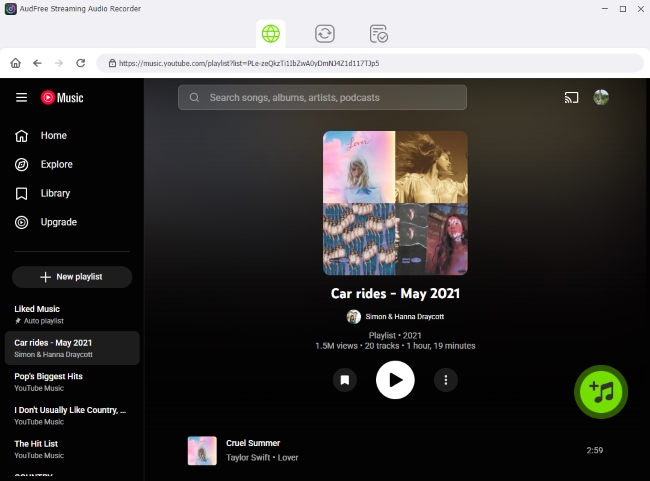
- Select the YouTube Music icon from the primary interface and sign in to your Google account via the secure, built-in web player. Once logged in, navigate to your desired tracks, albums, or playlists and click the green '+' icon to import them into the conversion list. There are no restrictions on the number of tracks you can add, allowing for the seamless processing of large-scale libraries in a single session.
- Step 3. Download and Convert YouTube Music for Rekordbox

- Navigate to the Converting tab, then click the Convert button to initiate batch processing of your YouTube Music library. The software will efficiently transcode your playlist while preserving all metadata. Once the process is complete, your DRM-free files will be accessible via the Converted history section or directly within your designated output folder. These high-fidelity files are now fully optimized and ready for immediate import into Rekordbox.
Part 3. How to Import Local YouTube Music to Rekordbox
Once you have utilized AudFree YouTube Music Converter to transform your YouTube Music tracks into high-fidelity, DRM-free files, the final step is integrating them into your professional performance environment on Rekordbox.
Step 1. Launch Rekordbox and ensure you are in Export Mode (or Performance Mode) and navigate to the Collection tab in the browser panel.

Step 2. Click on File in the top menu, then choose Import > Import Track (to add specific songs) or Import Folder (to add an entire playlist at once). Alternatively, you can simply drag and drop files or folders directly into Rekordbox.

Step 3. Browse to the destination folder you designated in Part 2 and select your converted MP3, FLAC, or WAV files. Click Open to begin the ingestion process.
Step 4. The tracks will appear in your Rekordbox library, where you can organize, tag, and prepare them for your next performance.
Rekordbox lets you create playlists, set cue points, and edit track metadata, making it easy to organize your YouTube Music tracks. Since AudFree embeds ID3 tags and artwork directly into each file, your library will display complete metadata right away, including high-resolution cover art.
Part 4. Best YouTube Music Audio Settings for DJs using Rekordbox
When using YouTube Music tracks in Rekordbox, you'll want to make sure the audio settings are optimized for DJ performance. The quality of your audio settings plays a major role in how well your tracks sound during live performances. Here's how to ensure your YouTube Music tracks are optimized for Rekordbox:
1. Sample Rate and Bit Depth
For the best audio quality, set the sample rate to 44.1 kHz or 48 kHz and the bit depth to 16-bit or 24-bit. These settings ensure compatibility with most DJ hardware and will preserve the integrity of your tracks.
2. Normalize Audio Volume
Use Rekordbox's Normalization Feature to adjust the volume levels of your tracks. This helps ensure that all your YouTube Music tracks play at consistent levels during your set.
3. EQ Settings
Customize EQ for individual tracks or create a universal EQ preset that works across all your tracks. This will allow you to maintain consistency in sound quality when transitioning between tracks.
4. File Formats
WAV or FLAC files offer the best audio quality, but they also take up more storage space. If storage space is limited, MP3 files at 320 kbps are a good compromise between file size and sound quality.
Part 5. FAQs About Using YouTube Music with Rekordbox
Can YouTube Music tracks be used on CDJs via Rekordbox?
For the direct connect, you cannot, since they have no native compatibility. If you've converted and imported the tracks into Rekordbox, you can export them to a USB drive and use them on CDJs just like any other track. Rekordbox supports USB export, so you can perform seamlessly at live gigs.
View also: How to Download YouTube Music to USB Drive
What DJ programs work with YouTube Music?
As of 2026, there is no professional DJ software that supports YouTube Music through an official, native integration. This is due to strict licensing agreements (personal use only) and the lack of a public API for DJ developers.To mix YouTube Music professionally on DJ software, you must first convert your library into local audio files.
Can I use YouTube Music with Rekordbox on iPhone or Android?
Currently, Rekordbox Mobile for iPhone and Android doesn't support streaming from YouTube Music directly. You'll still need to download and convert YouTube Music tracks before transferring them to your mobile device for use in Rekordbox.
Will Rekordbox keep my YouTube Music album artwork after import?
Yes, Rekordbox supports album artwork for all imported tracks. If you've downloaded the YouTube Music tracks with their album artwork intact, Rekordbox should automatically display the artwork alongside the track.
Can I record my DJ sets in Rekordbox using YouTube Music tracks?
Yes, Rekordbox has a built-in recording feature that allows you to capture your live DJ set. Once you've imported YouTube Music tracks, you can use them just like any other track in your set and record the entire performance.
Conclusion
While YouTube Music doesn't offer native integration with Rekordbox, there are effective ways to use its vast catalog in your DJ performances. By converting YouTube Music tracks into compatible formats like MP3 or WAV, you can import them into Rekordbox, organize them in your library, and start mixing on your DJ gear. Additionally, optimizing your audio settings and ensuring smooth imports will help you maintain high sound quality for your sets. With these steps, you can successfully incorporate YouTube Music into your Rekordbox workflow, whether you're using it for practice, recording sets, or live performances.

Staff Editor


