


The Apple Watch is no longer just a stylish accessory - it has evolved into a compact, powerful device capable of managing fitness, notifications, and even music playback. For many, Apple Music is the definitive streaming service for the Apple Watch, offering a listening experience that is as convenient as it is liberating.
Whether you want to stream music through your iPhone or enjoy offline tracks without your phone nearby, this guide walks you through everything you need to know about playing Apple Music on your Apple Watch. Let's dive in!


Part 1. Can You Listen to Apple Music on Apple Watch?
Yes, Apple Music is fully compatible with the Apple Watch, offering both streaming and offline playback. However, your experience depends on the model of your watch, your subscription plan, and whether you have your iPhone nearby.
Requirements for Apple Music on Apple Watch
- Apple Watch Series 3 or later (watchOS 4.1 or above for streaming).
- An active Apple Music subscription (individual, family, or student).
- iPhone with iOS 13 or above for initial setup and syncing.
- Wi-Fi or cellular connectivity if you want to stream directly without your phone.
With these requirements met, you can play, pause, skip, and control music directly from your watch. You can also create playlists, browse your library, or use Siri for hands-free playback.
If you don't meet all the requirements above - or if you want to bypass subscription and device restrictions - there is another way. Skip to Part 4 to discover a universal method for playing Apple Music on any Apple Watch without limitations.
Part 2. How to Use Apple Music on Apple Watch with iPhone
Pairing your Apple Watch with your iPhone unlocks two powerful ways to listen: Streaming your entire library while iPhone is nearby, or syncing specific tracks for offline use. This is the easiest method to enjoy your Apple Music library on Apple Watch with zero extra setup.
Method 1. Streaming Apple Music from iPhone to Watch (Storage Saving)
When your iPhone is within range, your Apple Watch acts as a smart controller and gateway to your entire Apple Music library, without using any storage on the watch itself.
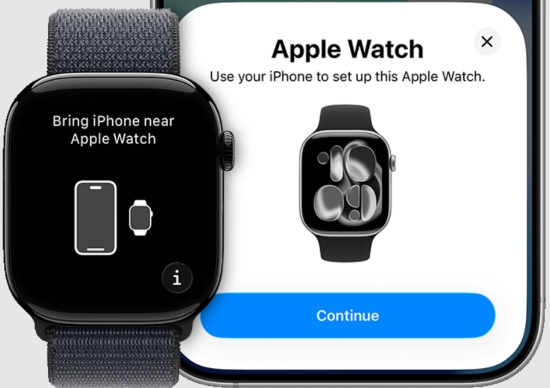
Step 1. Ensure your Apple Watch is paired and connected to your iPhone via Bluetooth. Also, make sure Wi-Fi is enable on both devices. You can confirm this by opening the Watch app on your iPhone - if you see your watch face settings, you're ready to go.
Initial pairing between an Apple Watch and iPhone requires Bluetooth. Once established, the Watch utilizes a 'hybrid' connection strategy: it stays linked via Bluetooth whenever your phone is within range (roughly 33 feet). If you move beyond that distance, the Watch automatically switches to Wi-Fi to maintain a seamless connection.
Step 2. Open the 'Music' app on your Watch.
Step 3. Select 'On iPhone' to browse and play any song from your library. This the audio will stream through your iPhone to your Watch, keeping watch storage free.
Music will play through your iPhone by default, but you can pair Bluetooth headphones directly with your watch for a wireless experience. And the Apple Watch also mirrors the music controls from your iPhone, ensuring a smooth user experience.
This setup is ideal when your iPhone is close by, as it streams directly from your library without taking up watch storage.
Method 2. Syncing Apple Music to Apple Watch via iPhone (Offline Listening)
If you plan to leave your iPhone behind, for example during a workout, you'll need to sync your Apple Music playlists to your Watch. This downloads the tracks directly onto your device for offline playback.
For the fastest and most reliable sync, ensure Bluetooth and Wi-Fi are turned on for both your iPhone and Apple Watch.
Step 1. On your iPhone, open the 'Music' app and create a dedicated playlist of the tracks you want on your wrist. This makes syncing much faster than selecting individual songs.
Step 2. Open the 'Watch' app on your iPhone, tap the 'My Watch' tab at the bottom, and select 'Music'.

Step 3. Tap 'Add Music...' and choose the playlists or albums you want to sync. You can also toggle on Recent Music (or "Heavy Rotation") to let Apple automatically sync the songs you've been listening to most.
Step 4. Keep your Watch on its charger and near your iPhone until the sync is complete.
If your Watch storage is nearing capacity or you simply want to refresh your rotation, you can easily remove tracks via the Watch app on your iPhone. Navigate to 'My Watch > Music > Edit', then tap the red minus (-) button next to any item you wish to delete.

Part 3. How to Listen to Apple Music on Apple Watch Without Phone
Don't want to carry your iPhone everywhere? The good news is that Apple Watch supports standalone Apple Music playback. Whether you're going for a run, heading to the gym, or traveling light, you can stream or download Apple Music directly on your Apple Watch without needing your phone nearby.
As long as your Apple Watch is connected to Wi-Fi or cellular and you have an active Apple Music subscription, you can access millions of songs right from your wrist.
Method 1. Streaming Directly (Wi-Fi or Cellular)
If your Apple Watch is connected to Wi-Fi or has a cellular data plan, you can stream songs, playlists, albums, and radio stations directly from Apple Music without syncing them beforehand.
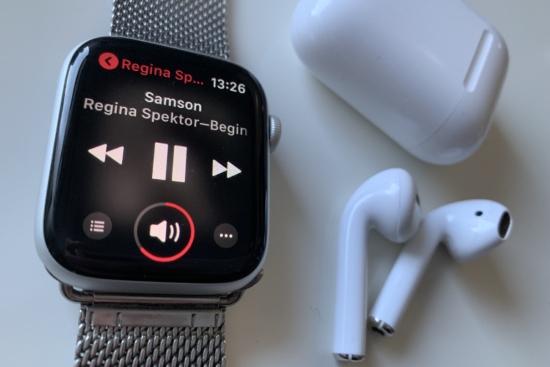
Step 1. Press the 'Digital Crown' and launch the 'Music' app on your Apple Watch.
Step 2. Tap the 'Search' icon or browse through 'Listen Now'.
You can skip the menus entirely by using voice commands. Simply say, "Siri, play my Chill Vibes playlist" or "Siri, play the latest album by [Artist Name]".
Step 3. Tap a song, album, or playlist to begin streaming instantly on your Apple Watch.
For the best listening experience, connect your watch to AirPods or Bluetooth headphones before playback.
Method 2. Downloading Apple Music Directly to the Apple Watch

To listen without any internet connection (Offline Mode), you can download music directly from the Watch's Music app.
Step 1. Launch the 'Music' app on your Apple Watch.
Step 2. Browse your library or search for the album or playlist you want to save offline.
Step 3. Tap the 'three-dot (...)' icon and choose Add to Library.
Step 4. Tap 'three dot (...)' again and select 'Download'. Your Apple Watch will begin downloading the selected music automatically.
Downloading music directly to the Watch uses more battery than syncing via iPhone. For large libraries, it is best to keep your Watch on its charger during the download process.
Part 4. How to Play Apple Music on Apple Watch Without Limits
While the official methods are convenient, they come with strings attached: you need an active subscription, a specific watchOS version, and you are often limited by the Watch's storage management. If you cancel your subscription, your downloaded tracks disappear.
To gain true "limitless" access, you can use a professional AudFree Apple Music Converter to convert tracks into universal formats like MP3 or FLAC. This allows you to keep your music forever and play it on your Apple Watch without an active subscription or the Apple Music app.
After converting Apple Music to common audio files, you can transfer them to any Apple and non-Apple devices, such as Apple Watch, Apple TV, Hisense TV, etc., for permanent offline playback without an Apple Music subscription.
Adopting high-end conversion technology, AudFree Apple Music Converter specializes in converting Apple Music locally in a variety of Apple Watch-compatible formats like MP3, AIFF, WAV, etc. at 17X quicker speed.
The Benefit of Using AudFree Apple Music Converter

- Play music on older Apple Watch models that don't support the latest Music app
- Support exporting lossless audio quality up to 24-bit/192kHz
- Keep all ID3 tags and metadata fully intact during the conversion process
- Personalize output parameters of Apple Music as needed
- Listen to your favorite tracks even after your Apple Music trial or plan ends
- Convert files to high-quality but compressed formats to fit more songs on your Watch
Click the green button above to install the AudFree Apple Music Converter on your Windows or Mac computer.
- Step 1. Add Apple Music to AudFree Apple Music Converter

- Launch the AudFree Apple Music Converter and log in to your account via the built-in Apple Music web player. Browse the catalog to find the songs, albums, or playlists you want to download for your Watch. Then click the '+' icon to import your selection into the conversion list.
- Step 2. Customize Apple Music Output Settings for Apple Watch

- Go to the 'Menu' icon to select 'Preferences > Conversion'. Here, you can choose MP3, AIFF, WAV, or others supported by Apple Watch. You can also define some advanced audio parameters like audio channel, bit rate, sample rate, and more. Once finished, click on 'OK' to save your preferences.
- Step 3. Download Apple Music to Apple Watch Losslessly

- Click the 'Convert' button on the Converted window. The software will begin downloading your tracks into an open audio format while preserving 100% of the original ID3 tags and metadata. Once the process is finished, your Apple Music high-quality files will be waiting in your local destination folder, ready for transfer to the Apple Watch.
See also: How to Download Apple Music Playlists
- Step 4. Sync Downloaded Apple Music from Computer to Apple Watch
- Now that your music is converted into local files, you can move them to your Watch without subscription limits:
- Import the converted files into your 'Music' app (Mac) or 'iTunes' (Windows).
- Ensure 'Sync Library' is enabled in your settings so the tracks appear on your iPhone. Alternatively, connect your iPhone to your computer via USB to transfer the files manually.
- Open the 'Watch' app on your iPhone, navigate to 'My Watch' > 'Music', and tap 'Add Music'. Select your new playlist and place your Watch on its charger until the sync is complete.
Because these are now your own personal files, they will never be "greyed out" or deleted by Apple. You can enjoy your music library completely offline, permanently, and with total control over your Watch's storage.
Official vs. Universal Method
| Features | Official Method (Part 2-3) | Universal Method (Part 4) |
|---|---|---|
| Needs Subscription | ✅ | ❌ (Only for initial conversion) |
| Offline Playback | ✅ | ✅ |
| Keep Music Forever | ❌ | ✅ |
| Device Compatibility | Series 3+ | All Apple Watch Models |
If you use a variety of streaming services beyond Apple Music, the AudFree Streaming Audio Recorder is an essential tool for your setup. This all-in-one downloader supports TIDAL, Qobuz, Spotify, SoundCloud, and more (10+), allowing you to save tracks locally for bit-perfect playback on your Apple Watch.
Part 5. How to Fix Apple Music Not Working to Apple Watch
Despite its seamless integration, Apple Music may sometimes fail to work properly on Apple Watch. To resolve this problem, please follow the solutions below:
1) Update WatchOS Version of Apple Watch: It is feasible to add Apple Music songs to your watch once your watch is closer to your phone with the WatchOS 9.1/9.2. However, with the earlier WatchOS versions, the Apple Watch should be charged to power while syncing music. Thus, you can choose to update the WatchOS version. Also, make sure you have the latest iOS version on your iPhone.
2) Check Apple Watch Storage Space: Please make sure your Apple Watch has enough storage space for downloading or syncing music to it. On your Apple Watch, go to Settings > General > Usage to see how much space is available. Delete old apps or music if needed.
3) Make Sure Enabled WiFi or Cellular: Check the WiFi or Cellular is enabled. A stable network connection is reuqired to download or add songs to Apple Watches.
4) Remove and Re-add Music on Apple Watch: There may be some bugs or glitches in your music library on the watch. Remove them from the Wear OS and add them back to it.
5) Reset Sync Data: In the Watch app, go to General > Reset > Reset Sync Data to force a fresh sync.
6) Contact Apple Support: Reach out for help from Apple Support directly. The staff can take a further look into the problem and give you more instructions.
Part 6. FAQs about Apple Music on Apple Watch
Are there storage limits for downloading songs from Apple Music to Apple Watch?
Yes, the Apple Watch typically caps the storage available for media (music and podcasts) at approximately 25% of its total capacity to ensure the device has enough room for system files and apps.
For instance, on an Apple Watch Series 3 with 8GB to 16GB of total storage, you are limited to roughly 2GB to 4GB for music, while 32GB models offer about 8GB for media. On newer 64GB models, such as the Series 9 or Ultra 2, this limit increases to 16GB, providing significantly more space for your offline library.
Why won't Apple Music sync to my Apple Watch?
Several factors can prevent syncing, including insufficient storage, outdated watchOS, or a weak Bluetooth connection. To fix this, try restarting both your iPhone and Apple Watch, ensure your playlists don't exceed storage limits, and check that both devices are updated to the latest software.
Does buying an Apple Watch come with a free trial of Apple Music?
Yes. Apple often provides a free trial of Apple Music with new Apple Watch purchases, but this typically applies only to new subscribers. Trial lengths vary, generally ranging from 1 to 3 months. Always check Apple's official promotions for the most current offers.
Can I use Spotify and Apple Music together on Apple Watch?
Absolutely. Both apps can coexist on your Apple Watch, but you can only control one playback at a time. You can switch between apps seamlessly on your Watch.
Conclusion
Apple Music on Apple Watch provides flexibility and convenience, whether you're exercising, commuting, or simply enjoying hands-free music playback.
With an iPhone nearby, streaming and syncing are seamless. Without a phone, modern Apple Watches with Wi-Fi or cellular enable offline listening, ensuring your favorite songs are always accessible.
For users who want to bypass all limits, third-party tools like AudFree Apple Music Converter offer permanent access and complete control over music playback.
Pick your favorite method and start streaming smoothly on your Apple Watch today!

Staff Editor


