


Apple Music gives subscribers access to more than 100 million songs, thousands of curated playlists, and a growing catalog of Lossless and Hi-Res Lossless audio. While streaming is convenient, many users prefer downloading music for offline listening, especially when traveling, commuting, or dealing with limited internet access.
However, downloading music from Apple Music isn't as straightforward as many people think. There is a major difference between downloading tracks for offline playback and actually owning local audio files that can be transferred, backed up, or played on any device.
In this guide, you'll learn how Apple Music downloads work, how to download songs officially on all major devices, how to save Apple Music as local audio files using free tools, and how to preserve Apple Music tracks in lossless quality for permanent offline access.

Part 1. Before You Download: How Apple Music Downloads Actually Work
Before downloading anything, it's crucial to understand what Apple Music downloads really are.
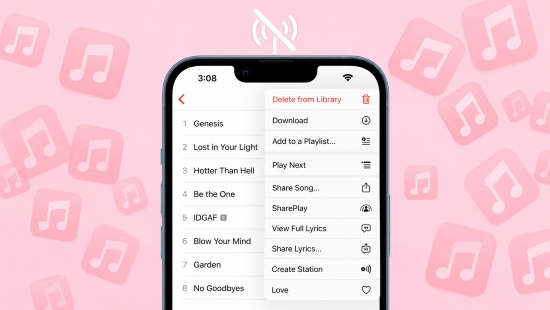
Apple Music downloads are not the same as regular audio files. Many users assume that tapping the Download button gives them a normal audio file (MP3 or FLAC file) stored on their device. In reality, Apple Music uses DRM (Digital Rights Management) protection for its streaming catalog.
When you download a song through the official Apple Music app:
- The File Is Encrypted: The file is saved locally in a protected .m4p format.
- The File invisible: You cannot locate the raw audio file in your system folders, copy it to a USB drive, or transfer it to an older MP3 player or DJ software.
- The Download is temporary: The downloaded files are tethered to your active Apple ID. The moment you cancel your Apple Music subscription, the DRM locks the files, and they are automatically wiped from your device. In other words, you're downloading access to the music, not permanent ownership of the files.
The Important Exception: Purchased iTunes Music
There is one major exception to these restrictions.
Songs purchased from the iTunes Store (now integrated into Apple's digital storefront) are not tied to an Apple Music subscription. Once purchased, they become your personal files and can be downloaded, backed up, transferred, and played without maintaining an active subscription.
This distinction is often overlooked, but it's critical when deciding which download method best fits your needs.
See also: Buy and Download Music from iTunes
Apple Music Download vs Purchased Music
| Feature | Apple Music Download | Purchased Music |
|---|---|---|
| Offline Playback | ✅ | ✅ |
| Subscription Required | ✅ | ❌ |
| DRM Protected | ✅ | ❌ |
| Keep Forever | ❌ | ✅ |
| Transfer to Other Devices | Limited (Supported Devices Only) | ✅ |
| Convert to MP3 Freely | ❌ | ✅ |
Understanding this difference will help you choose the right approach.
If you simply want to listen to Apple Music offline on your iPhone, Android phone, Mac, or Windows PC while your subscription is active, the official download feature covered in Part 2 is the easiest and most reliable option.
However, if you want actual audio files that can be permanently stored, transferred to unsupported devices, backed up, edited, or kept after your subscription ends, you'll need to explore alternative solutions such as the free and lossless methods introduced in Part 3 and Part 4.
Now that you understand how Apple Music downloads work, let's look at the official way to download Apple Music for offline listening across all supported devices.
Part 2. How to Download Apple Music for Offline Listening Officially
With an active Apple Music subscription, you can download tracks and music videos directly to any supported device, including Android, iOS, Windows, and Mac. This is the safest, most straightforward method for offline playback. Furthermore, thanks to iCloud Link/Sync, your entire music library remains seamlessly updated across all logged-in devices.
Below are the step-by-step instructions for downloading your favorite music across different platforms.
How to Download Apple Music on Android/iPhone
Since the general download workflows for Android and iOS are highly similar, we will combine them here as a single example. And because Apple disables Lossless downloads by default to save bandwidth and storage space, you must configure your audio quality settings first.
Step 1. To experience true studio-quality sound, you must switch your download format from compressed AAC to lossless ALAC files.
- For Android: Open the 'Apple Music app' > tap the 'three dots' (menu) in the top-right corner > select 'Settings'. Under the 'Audio' section, tap 'Audio Quality' and toggle 'Lossless Audio to On'. Set your preferred download quality to Lossless (24-bit/48 kHz) or Hi-Res Lossless (24-bit/192 kHz).
- For iPhone/iPad: Open your device's 'Settings' app, scroll down to 'Apps' > on 'Music'. Then Select 'Audio Quality' and toggle 'Lossless Audio to On'. Tap 'Downloads' and choose either Lossless (24-bit/48 kHz) or Hi-Res Lossless (24-bit/192 kHz).
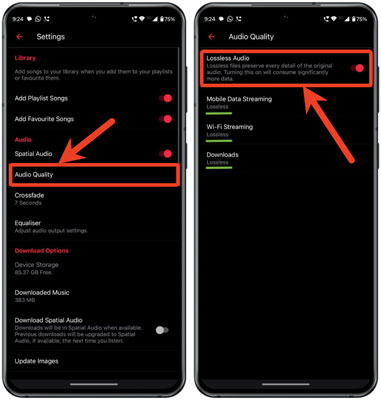

Hi-Res Lossless playback requires an external DAC (Digital-to-Analog Converter) connected to your wired headphones. Without compatible hardware, you'll still receive excellent quality, but you won't fully benefit from the highest-resolution audio files.
Step 2. Open the Apple Music app and search for the song, album, or playlist you want to download.
Step 3. Tap the 'Add to Library' button (the '+' icon). Apple Music requires tracks to be in your library before they can be saved offline.
Step 4. Once added, the icon will change to a downward-pointing arrow. Tap this 'Download' arrow to save the track locally to your device.

How to Download Music from Apple Music on Windows/Mac
Apple Music also supports offline downloads on desktop platforms, making it easy to build a synchronized music library across all your devices.
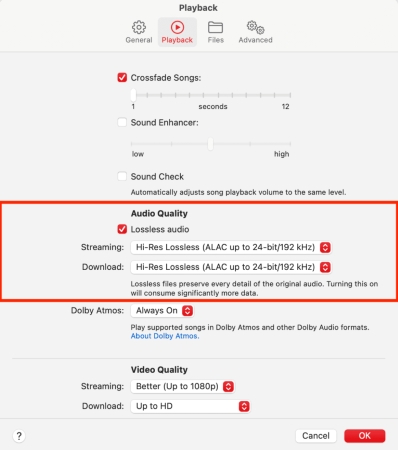
Step 1. To ensure the highest-quality downloads, configure your audio settings before saving any music.
- On Windows: Open the standalone 'Apple Music app' > click the 'Sidebar Actions' icon (three dots) at the top of the left sidebar. Then choose 'Settings' > select 'Playback'.
- On Mac: Open the 'Music app' > click 'Music' in the top menu bar. Then select 'Settings' and navigate to the 'Playback' tab.
- Under Audio Quality:
1. Check the box to 'Enable Lossless Audio'.
2. Click the drop-down menu next to Download and choose 'Hi-Res Lossless' (ALAC up to 24-bit/192 kHz). Click 'OK' to save changes.
Step 2. Launch the Apple Music application on your Mac or Windows PC and ensure you are signed in with your active subscription account.
Step 3. Locate your desired track or album. Click the '+' button to add it to your cloud library.

Step 4. Click the 'Download' icon to get your Apple Music songs. Or you can navigate to the 'Library' tab in the sidebar, find your newly added music, and click the Download (cloud with arrow) icon next to the song or album title.

Always use the modern standalone Apple Music app from the Microsoft Store for lossless audio. As of 2026, you can download music using either the standalone Apple Music app or iTunes, but the latter is limited to compressed AAC audio quality.
Pro Tip: How to Stop Automatic Downloads on Apple Music
Apple Music can automatically download every song you add to your library. While convenient, this feature can quickly consume storage space, especially if you regularly add large playlists or albums.
To stop auto download on Apple Music on Mobile or PC:
On Mobile: Go to 'Settings > Music', and scroll down to the 'Downloads' section and toggle Off 'Automatic Downloads'.
On Desktop: In your App Settings under the 'General' tab, uncheck the box for 'Automatic Downloads'.

From that point forward, songs will only be saved locally when you manually tap the Download button.
Pros and Cons of Official Apple Music Downloads
Officially supported by Apple with excellent stability and reliability;
Supports Lossless and Hi-Res Lossless audio quality;
Seamlessly syncs your library across iPhone, Android, Mac, Windows, and other Apple devices;
Downloads are fast and integrated directly into the Apple Music ecosystem;
No additional software is required
Downloaded files remain DRM-protected;
Music becomes inaccessible if your subscription expires or is canceled;
Files cannot be freely transferred to USB drives, MP3 players, DJ software, or unsupported devices;
Downloads can occupy significant storage space when Lossless Audio is enabled;
No permanent ownership of Apple Music catalog tracks
If you are looking for a permanent and reliable way to save lossless music from Apple Music without subscription restrictions, skip directly to Part 4 for our lossless batch download method.
Part 3. How to Get Apple Music Downloads as Local Audio Files for Free
If you seek a free method to get your Apple Music downloads as MP3s, and to transfer an Apple Music track to a USB drive, an older MP3 player, or use it in a video editing project, the official .m4p files won't work. To bypass this roadblock, you need to convert the files into a universally compatible format.
AAPLmusicDownloader is one of the most popular web-based workarounds available in 2026. It is a completely free, browser-based tool that extracts audio from Apple Music links and converts them into MP3 or standard M4A files without requiring software installation.
Why Use AAPLmusicDownloader?
For users who only need to save a few songs occasionally, it can be a quick and convenient solution.
✅ Completely free to use
✅ No software installation required
✅ Works directly in your web browser
✅ Supports MP3 and M4A downloads
✅ Compatible with Windows, Mac, Android, and iPhone
How to Use AAPLmusicDownloader:

Step 1. Open the Apple Music app or Web Player and find the track you want to save. Click the 'three-dot' menu next to the song, select 'Share', and click 'Copy Link'.
Step 2. Navigate to the official AAPLmusicDownloader website. Paste the copied URL into the central search bar and click 'Download'.
Step 3. Wait for the site to parse the link. Select your desired output quality (up to 320kbps MP3 or 256kbps M4A) and click 'Generate Download Link' to save the file locally.
The Reality Check on Free Web Tools
While AAPLmusicDownloader is incredibly convenient, it comes with strict limitations. Free tier users are generally capped at a few songs per day.
More importantly, you are not getting true Lossless audio. Web downloaders typically perform "lossy" conversions or scrape matched audio from YouTube servers rather than directly decrypting Apple's ALAC files. If you are an audiophile looking for bit-perfect preservation, you need a dedicated desktop application.
Part 4. How to Download Apple Music Losslessly and Keep It Forever
As explained earlier, official Apple Music downloads deliver pristine lossless audio but are tightly locked by DRM, restricting playback to authorized apps during an active subscription. Conversely, web tools like AAPLmusicDownloader offer DRM-free files but sacrifice audio quality.
What if you could have the best of both worlds?
If you want to preserve your Apple Music collection permanently, convert tracks into universal audio formats, and enjoy true lossless playback on any device, AudFree Apple Music Converter is one of the most comprehensive solutions available.
Why Choose AudFree Apple Music Converter
✅ Lossless Decryption: Strip format restrictions from Apple Music tracks, playlists, and full albums smoothly.
✅ Flexible Output Formats: Convert Apple Music to MP3, WAV, FLAC, AIFF, M4A, and more.
✅ Hi-Fi Quality Preservation: Keep 100% original audio quality, including sample rates and bitrates.
✅ Metadata Retention: Automatically preserve all ID3 tags, including title, artist, album art, year, and track number.
How to Get Apple Music Free Download Forever
Step 1. Download and launch AudFree Apple Music Converter on your computer. Sign in with your Apple Music account using the built-in web player. Locate the songs or playlists you wish to archive, and click the "+" button to load them into AudFree's conversion queue.

Step 2. Click the 'AudFree Apple Music Converter' icon on the top bar > select 'Preferences'. Here, you can customize your output profile. For bit-perfect archiving, FLAC or WAV is highly recommended. You can also manually adjust advanced parameters such as audio channels, sample rate, and bitrate. Under the 'Output' tab, you can enable ID3 tag organization and set your preferred destination folder.

Step 3. Once your settings are finalized, navigate to the converting interface and click the 'Convert' button in the lower-right corner. AudFree will process your queue at up to 17x speed. Within minutes, the DRM-free audio files will be saved into your local destination folder.

Once this process is complete, you fully own these files. You can safely back them up to a local NAS drive, load them onto a premium high-resolution Digital Audio Player (DAP) like a Sony Walkman or Fiio, and keep them forever - even if you cancel your Apple Music subscription tomorrow.
Beyond Apple Music, if you want to back up your personal libraries from other major streaming services, you can utilize the all-in-one AudFree Streaming Audio Recorder. This comprehensive tool supports removing playback limitations and extracting lossless audio across more than 10 major platforms - including Spotify, Tidal, YouTube Music, and SoundCloud - at lightning-fast speeds.
Part 5. Full Comparison of Apple Music Download Methods
To help you decide which route makes the most sense for your listening habits, here is a breakdown of the three primary methods:
| Feature | Official App Download | AAPLmusicDownloader (Free) | AudFree Apple Music Converter (Premium) |
|---|---|---|---|
| Audio Quality | Up to 24-bit/192kHz (ALAC) | Max 320kbps (MP3) / 256kbps (AAC) | Up to 24-bit/192kHz (FLAC/WAV/...) |
| DRM-Free? | No (Encrypted .m4p) | ✅ | ✅ |
| Keeps Forever? | No (Requires active sub) | ✅ | ✅ |
| Preserves ID3 Tags | ✅ | Partidal | ✅ (Full album art/lyrics) |
| Price | Included in subscription | Free (with daily limits) | Paid Software License |
| Batch Downloading | ✅ | No (One song at a time) | ✅ |
| Stability | High (Official download method) | Variable (Subject to web server downtime) | High (Stable local desktop environment) |
| Best For... | General offline listening | Quick, single-track MP3 rips | Audiophiles & permanent archiving |
Part 6. Troubleshooting: How to Fix Apple Music Download Not Working
Even when using the official method, Apple Music can occasionally stall out. If your songs are spinning indefinitely or refusing to download, check these three common culprits:
1. Your Device Storage is Full: Lossless audio files are massive. If your iPhone is out of space, the downloads will fail silently. Go to 'Settings > General > iPhone Storage' to ensure you have at least a few gigabytes free.
2. Sync Library is Disabled: Apple Music relies on iCloud to match your devices. If this gets toggled off, downloads will stop. Go to 'Settings > Music' and ensure Sync Library is turned 'ON'.
3. Cellular Data Restrictions: If you are not on Wi-Fi, Apple Music might be blocking the download to save your data plan. Go to 'Settings > Music > Cellular Data' and ensure 'Downloads' is toggled on (but beware of carrier data caps if downloading Lossless files).
Part 7. FAQs About Downloading from Apple Music
Can I keep Apple Music downloads after canceling my subscription?
Officially, no. Downloaded tracks are tied to your active Apple ID subscription via FairPlay DRM. The moment your billing cycle ends and the subscription lapses, the files become unplayable and are removed from your device. To keep the music permanently, you must use a third-party DRM removal tool like AudFree to convert them to local FLAC or MP3 files before your subscription ends.
Where are Apple Music downloaded files stored on my Mac or PC?
When you download tracks officially via the desktop app, they are hidden deep within your system folders. However, because these files are heavily encrypted, they remain completely unplayable outside of the official Apple Music environment.
• On a Mac: Macintosh HD/Users/[Your Username]/Music/Music/Media.localized/Apple Music
• On a Windows PC: C:\Users\[Your Username]\Music\iTunes\iTunes Media\Apple Music
See also: Where Are Apple Music Downloads Store on Android/iPhone/Mac
Is there a limit to how many songs I can download on Apple Music?
Yes, but the ceiling is incredibly high. Apple allows you to download up to 100,000 songs to your library. Furthermore, you can download these tracks across a maximum of 10 devices (no more than 5 computers) linked to the same Apple ID.
Can I burn downloaded Apple Music tracks to a CD?
Not officially. iTunes and the Apple Music app explicitly block the burning of DRM-protected .m4p files to physical media. If you want to create a custom CD for your car or home stereo, you must first convert the tracks into standard MP3 or WAV files using a premium audio converter like AudFree or free download like AAPLmusicDownloader, and then burn those converted files using standard CD authoring software.
How much storage space do Lossless Apple Music downloads take?
Lossless audio requires vastly more storage than standard streaming quality. As a general rule for a standard 3-minute song:
• High Quality (256kbps AAC): About 3-6 MB per song.
• Lossless (24-bit/48 kHz ALAC): About 20-40 MB per song.
• Hi-Res Lossless (24-bit/192 kHz ALAC): 100-200+ MB per song.
If you plan to download a massive Hi-Res library, investing in external storage or a high-capacity phone is mandatory.
Conclusion
Apple Music offers a convenient official download feature for offline listening across iPhone, Android, Windows, and Mac devices. Subscribers can even enjoy Lossless and Hi-Res Lossless audio by enabling the appropriate settings.
If you simply want to save your data plan on a flight, diving into your settings and pulling down the Official Lossless files is the most seamless experience available.
However, if you want to break free from the 'rental' model, you have options. Free web tools like AAPLmusicDownloader are fantastic in a pinch for grabbing a quick MP3 for a project. But for serious music collectors who want to preserve pristine, 24-bit/192kHz audio forever - without being tied to a monthly subscription - investing in a dedicated extractor like AudFree Apple Music Converter is the ultimate strategy to take true ownership of your digital audio.

Staff Editor


