


In the world of digital DJing, Rekordbox has become one of the most popular software solutions for DJs looking to organize and play their music. Rekordbox offers a plethora of features, from music management to performance tools, but one question that often comes up is: Can I use Apple Music with Rekordbox?
With the increasing popularity of streaming services like Apple Music, many DJs are turning to platforms like Rekordbox to mix their playlists and tracks directly from these services. Fortunately, these two platforms now offer native compatibility, allowing for a seamless integration of your streaming library into your DJ sets.
In this guide, we will show you how to connect Apple Music to Rekordbox both online and offline. We will go over the official method for streaming Apple Music in real-time within Rekordbox and how to prepare Apple Music tracks for offline use in Rekordbox for stable, professional mixing. If you're interested, read on to learn more.
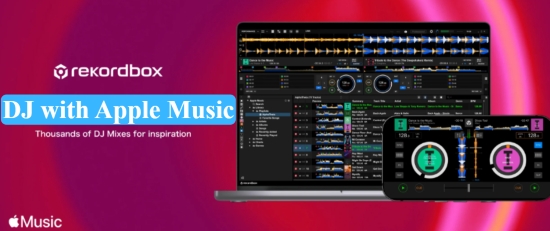

Part 1. Does Rekordbox Work with Apple Music?
Yes, as of March 25th, 2025, Apple Music is fully supported in Rekordbox, allowing users to stream their Apple Music library directly through the software. This integration eliminates the need for workarounds or third-party converters, making it easier for DJs to access their Apple Music tracks in a way that's fully compatible with Rekordbox's performance features.
With this native Rekordbox Apple Music integration, you can browse and search your Apple Music library, load tracks directly into your decks, and use Rekordbox's full set of performance tools (like cue points, loops, and effects) without leaving the platform.

Part 2. How to Connect Apple Music to Rekordbox Online (Official Way)
As mentioned earlier, you can now use Apple Music directly within Rekordbox thanks to its official integration. This feature works similarly to how Rekordbox supports other streaming platforms like TIDAL and SoundCloud, allowing you to access and mix tracks without downloading them locally.
Prerequisites:
- A valid Apple Music account
- Ensure Rekordbox is updated to the latest version (v7.0+ is required for native streaming)
- A stable connection is required to log in and analyze tracks
Steps to Connect Apple Music on Rekordbox Online
Step 1. Open Rekordbox and log in to your account. Ensure that your Rekordbox software is up-to-date to support Apple Music integration.
Step 2. In the Tree View (the navigation panel on the left), look for the Streaming section.
Step 3. Find the 'Apple Music' option. Sign in with your Apple ID to link your Apple Music account to Rekordbox.
If you don't see the Apple Music icon here, please go to Preferences > View > Layout and ensure "Apple Music" is checked in the layout options.
Step 4. After linking your account, you'll be able to browse your Apple Music library directly in Rekordbox, just like any other music source.
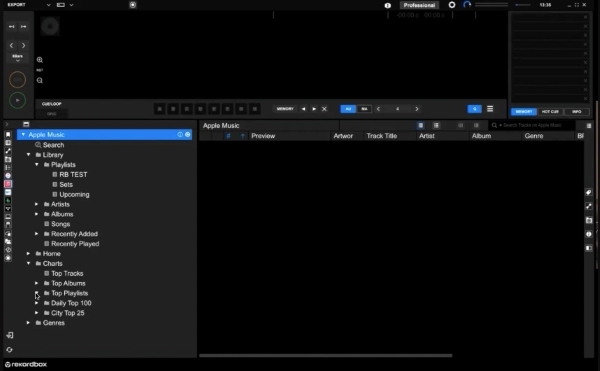
Step 5. Simply drag and drop any track from your Apple Music library into Rekordbox's decks to start playing. You can use Rekordbox's full suite of tools like cue points, loops, and effects while mixing your Apple Music tracks.
Stream millions of tracks without having to store them locally;
Native integration eliminates the need for complex third-party workarounds;
Apple Music provides high-quality streams that hold up well in a professional mixing environment
Vulnerable to lag or buffering if the venue's Wi-Fi is unstable;
Requires a recurring monthly payment to maintain access to your tracks;
Licensing restrictions prevent you from recording your sets when using streaming tracks;
Streaming tracks cannot be exported to a USB drive for use on CDJs or standalone hardware
Part 3. How to Use Apple Music with Rekordbox Offline for Stable Mixing
While online streaming is convenient, offline use ensures stable performance without relying on an internet connection during your sets. This is especially important for DJs performing in environments where Wi-Fi or cellular connectivity might not be reliable.
Moreover, offline use gives you the flexibility to record and preserve your DJ sets, instead of relying solely on streaming. Additionally, once you have converted Apple Music tracks for offline use, you no longer need to maintain a monthly subscription, offering a more flexible and cost-effective solution.
So, how can you download high-quality music from Apple Music? The answer lies in a tool called AudFree Apple Music Converter.
AudFree Apple Music Converter is specifically designed to convert Apple Music content into multiple formats that are compatible with Rekordbox. It supports common formats like MP3, WAV, AIFF, FLAC, and more. With its powerful technology, AudFree ensures that the original audio quality and full ID3 tags (such as title, artist, album, and more) are preserved after conversion. This makes it easier to manage your Apple Music library in Rekordbox without losing any details.
AudFree Apple Music Converter

- Download Apple Music songs, playlists, albums, artists, podcasts, etc. locally
- Download Apple Music to MP3, AIFF, FLAC, WAV, and more formats for Rekordbox
- Allow to play Apple Music on Rekordbox, DJUCED, and other DJ apps
- Work at up to 17X faster speed, keeping complete ID3 tags and lossless audio quality
How to Convert Apple Music Losslessly for Rekordbox
Ready to get Apple Music on Rekordbox for offline mixing? Tap the green button above to install the program and follow the user guide below to convert Apple Music tracks.
- Step 1. Add Apple Music to AudFree Apple Music Converter

- After installing the program, launch it and log in to the built-in Apple Music web player. Browse the mix playlist or tracks you want to use in Rekordbox, and click the '+' to add them to AudFree Apple Music Converter.
- Step 2. Select Apple Music Output Format for Rekordbox

- Hit the menu icon at the top-right of the main interface and choose Preferences. Later, click Conversion on the pop-up window. Here, you can adjust the output formats to convert Apple Music M4P to FLAC, MP3, AIFF, etc., for compatibility with Rekordbox. In addition, if you want to keep the best music quality of Apple Music tracks. via changing bitrate, sample rate, and the like. Then click 'OK' to finish the settings.
| Rekordbox Supported Formats | MP3, WAV, AAC, FLAC, ALAC, AIFF |
| Apple Music Audio Format | M4P (Protected AAC) |
| Purchased Apple Music Format | M4A (Unprotected AAC) |
- Step 3. Download and Convert Apple Music Tracks for Rekordbox
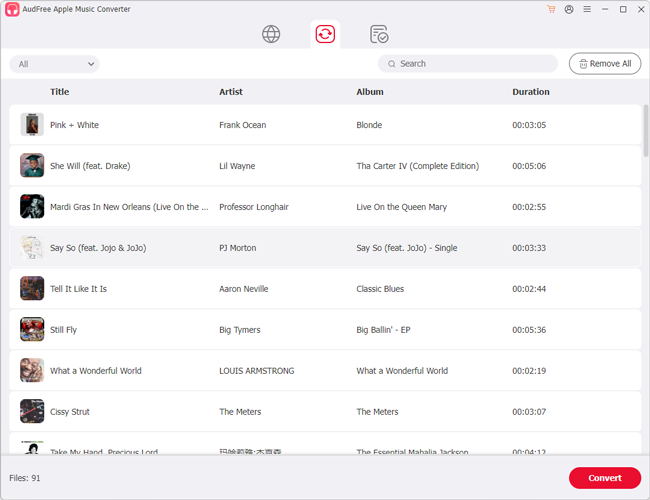
- Now, click on the 'Convert' button from the Converting section in the top menu bar to start the process. Once done, a red spot with numbers will be shown on the 'Converted' icon. Under this tab, you can get these converted files and locate the target folder where all converted Apple Music files are saved.
How to Import Apple Music to Rekordbox
Since all the Apple Music has been converted and saved on your computer, you can now transfer and add Apple Music to Rekordbox with ease. Please follow the tutorial to DJ Apple Music with Rekordbox.
Import Apple Music Conversions to Rekordbox on PC/Mac
a. Drag and Drop
Step 1. Open Rekordbox software on your computer.
Step 2. Click the 'Collection' tab from the left sidebar of Rekordbox.
Step 3. Local the converted Apple Music files or folders. Then drag and drop those files or the folder to the track window at the bottom of the Rekordbox screen.
Step 4. Once you import the files to Rekordbox successfully, it will analyze the files and add the best grid, bpm, key, and other information to each file automatically.
Step 5. Now you can mix Apple Music with Rekordbox and then you could export them to a USB for playback on other devices.

b. Through 'File' Option
Step 1. On the top toolbar of Rekordbox, tap on the 'File' option and choose 'Import' from the pull-down menu.
Step 2. You can select 'Import Track', 'Import Folder', or 'Import Playlists'.
Step 3. Then search and locate your Apple Music conversions from the pop-up window. Tan on 'Open'. Then those files will be added to Rekordbox DJ.

Import Apple Music Songs to Rekordbox on iPhone/Android
Step 1. Move the converted Apple Music audio files from your computer to the mobile device via a USB cable first.
Step 2. Tap on the Down Arrow icon from the top-left corner on Rekordbox.
Step 3. Hit the 'Import songs' button from the new page and click on 'All songs'.
Step 4. Find your converted Apple Music songs and confirm to import them to the DJ software.

Additionally, you can import DRM-free Apple Music tracks purchased from the iTunes Store. Simply follow the steps outlined above to mix them in Rekordbox across all your devices.
No risk of buffering or silence if the internet fails;
Perfect for situations where a reliable internet connection is unavailable;
Keep your music forever, even if you cancel Apple Music;
Full freedom to record and share your DJ mixes;
Allows you to export tracks to a USB for use on CDJs and hardware
You must manually update your library when you find new music;
High-quality audio files (WAV/FLAC) require significant hard drive space;
Initial conversion and importing takes a few minutes of setup
For professional DJs who need more than just Apple Music, AudFree Streaming Audio Recorder offers a comprehensive solution for offline mixing. It provides high-fidelity downloads from over 10 major streaming services, ensuring your library remains flexible and compatible across Rekordbox and other leading DJ applications.
Part 4. FAQs about Apple Music Rekordbox Integration
Is Rekordbox free for everyone?
Rekordbox offers a tiered model where the Free plan covers essential library management and mixing with 'Hardware Unlock' devices (like the DDJ-FLX4). While anyone can download and use the software for basic preparation, advanced features such as Cloud Library Sync, specific performance effects, and automated video mixing are locked behind paid Core, Creative, or Professional subscriptions.
How do I refresh my Apple Music library within Rekordbox after adding new songs?
To sync your latest tracks, go to the Apple Music tab in the Rekordbox Tree View and click the circular refresh icon. If your new music still doesn't appear, ensure that 'Sync Library' is enabled in your macOS or Windows Music app, as Rekordbox relies on your cloud library being fully updated on your computer first.
Does Rekordbox support Lossless or Hi-Res audio streaming from Apple Music?
While Apple Music provides ALAC (Lossless) and Hi-Res formats on its own platforms, streaming via Rekordbox is currently optimized for stability and usually streams in high-quality AAC 256kbps.
For professional sets requiring true Hi-Res audio, it is best to use local, DRM-free AIFF or FLAC files via AudFree Apple Music Converter, as streaming quality is often capped by the software's integration to ensure low-latency performance. Or you can turn to other services like TIDAL or Amazon Music HD, which are also integrated into Rekordbox with higher quality.
See also: How to Add Amazon Music to Rekordbox
Why is the 'Record' button disabled when I play Apple Music tracks?
The recording feature is disabled due to Digital Rights Management (DRM) and licensing agreements. Streaming services do not grant users the right to record or redistribute their content. So, Rekordbox must block the recording function to comply with copyright laws. To record your mix, you must use local Apple Music audio files that you have purchased or own.
Why can't I see the waveform on Rekordbox for some Apple Music tracks?
Waveforms only appear after Rekordbox has analyzed the track's audio data. Because Apple Music tracks are streamed, the software must download a temporary version of the file into its cache before it can generate the visual waveform. If your internet connection is slow or the file is still buffering, the waveform may appear blank or take a few moments to load.
Can I use Apple Music with Rekordbox in 'Export Mode' for USB sticks?
No. Streaming tracks from Apple Music (or any streaming service) cannot be exported to a USB drive for use on standalone hardware like CDJs. These tracks are strictly licensed for use within the Rekordbox Performance Mode on your computer. If you need to play on CDJs without a laptop, you must use purchased tracks or converted local files that are not protected by DRM.
Conclusion
With Apple Music now natively supported in Rekordbox, DJs can seamlessly integrate their favorite tracks into their performances - whether they're streaming online or using the tracks offline. By linking your Apple Music account directly to Rekordbox, you can access your full music library, browse playlists, and mix your tracks with Rekordbox's powerful features. For offline use, simply convert Apple Music tracks to Rekordbox-compatible formats, and you're ready for stable, high-quality mixing.
Whether you're performing live or preparing tracks for a set, Rekordbox's native Apple Music integration provides a professional, streamlined experience for DJs who want to tap into the vast library that Apple Music offers.

Staff Editor


