


While Last.fm seamlessly connects to Spotify in a single click, Apple Music subscribers face a frustrating hurdle: Apple's closed ecosystem lacks a universal "connect" button for tracking your playback data. Instead, achieving a flawless scrobble depends entirely on your setup.
This comprehensive guide breaks down exactly how to scrobble Apple Music across iOS, Android, Mac, Windows, and the Web. Plus, for true audiophiles looking to bypass streaming restrictions entirely, we will reveal the ultimate method for scrobbling flawlessly using high-end Digital Audio Players (DAPs) and advanced local music management.
See also: How to Get Apple Music Free Forever


Part 1. Can You Scrobble Apple Music to Last.fm?
If you're an Apple Music subscriber who enjoys tracking your listening habits, discovering new artists through personalized recommendations, or keeping a complete music history, you may wonder whether Apple Music works with Last.fm.
The short answer is yes. You can scrobble Apple Music tracks to Last.fm, but there isn't a built-in connection between the two services. Unlike Spotify, which offers direct Last.fm integration, Apple Music doesn't automatically submit your listening history. Instead, you'll need a compatible scrobbling application that detects your playback and sends the track information to your Last.fm account.
See also: How to Scrobble Spotify via Last.fm
The setup process depends on the device you're using. On macOS, the Last.fm Desktop Scrobbler can detect playback from the native Apple Music app. On iPhone and Android, you can use the Last.fm mobile app or other compatible scrobbling tools to track your listening activity. However, on Windows, the official Last.fm desktop tool primarily supports legacy iTunes rather than the newer Apple Music app, so additional preparation may be required.
To help you quickly find the right solution, here's an overview of the available methods.
| Platform | Can You Scrobble? | Recommended Method | Difficulty |
|---|---|---|---|
| macOS | ✅ | Last.fm Desktop Scrobbler | Easy |
| Windows | ✅ | Last.fm Desktop Scrobbler + AudFree | Medium |
| iPhone | ✅ | Last.fm App | Easy |
| Android | ✅ | Last.fm App or compatible scrobbling apps | Easy |
Windows users may encounter different results depending on whether they use the new Apple Music app or the older iTunes application. The official Last.fm Scrobbler works with local music playback in iTunes, but streaming tracks from Apple Music require an additional workaround. Since Apple Music songs are protected by FairPlay DRM, some preparation is needed before they can be recognized and scrobbled on Windows. For the Windows method, skip ahead to Part 6.
Now that you know Apple Music can be scrobbled across major platforms, let's take a closer look at how Apple Music scrobbling actually works.
Part 2. How Apple Music Scrobbling Works
Many users assume that Apple Music and Last.fm communicate directly with each other. In reality, they are two separate services. Apple Music handles music playback, while Last.fm simply records and organizes your listening history. The tool that connects them is called a scrobbler.
A scrobbling app does not upload your music files or access the audio itself. Instead, it monitors playback details such as the track title, artist name, album information, and listening duration. When a song meets Last.fm's requirements for a valid scrobble, this information is automatically submitted to your Last.fm profile.
Because only metadata is transferred, Apple Music scrobbling does not change your music library, reduce audio quality, or interfere with playback. It simply creates a detailed record of what you've listened to, allowing you to review your history, discover listening trends, and receive better recommendations.
Understanding this process also makes troubleshooting easier. If Last.fm fails to detect your Apple Music playback, the issue is usually related to the scrobbling app, device settings, or playback detection method rather than Last.fm itself.
In the following sections, we'll walk you through how to set up Apple Music scrobbling on each platform step by step.
Part 3. How to Scrobble Apple Music on macOS & Web
For Mac users, scrobbling Apple Music to Last.fm is relatively simple because the native Apple Music app works directly with the official Last.fm Desktop Scrobbler. Once configured, the app can automatically detect your playback and submit your listening history to your Last.fm account.
Method 1. Use Last.fm Desktop Scrobbler for Apple Music App on Mac
Step 1. Visit the official Last.fm website and install the latest version of the Desktop Scrobbler for macOS. And launch the application and sign in with your Last.fm account.
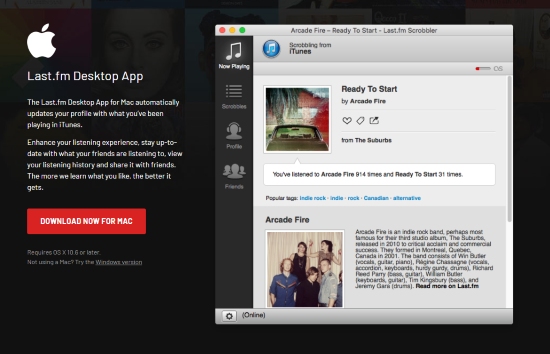
Step 2. Click the gear icon in the bottom-left corner to open the settings menu. Navigate to the Scrobbling section, where you can customize your preferences, including options such as:
- Enable scrobbling
- Scrobble podcasts
- Submit now playing information
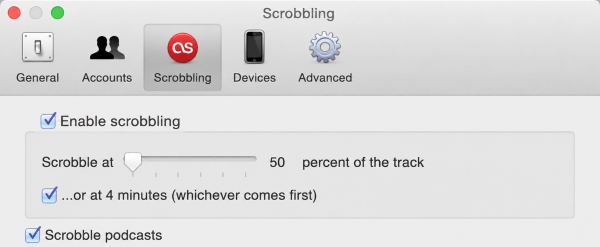
Make sure scrobbling is enabled before continuing.
Step 3. Open the built-in Apple Music app on your Mac and start playing a song. Last.fm Desktop Scrobbler should automatically detect the currently playing track. You can confirm that everything is working by checking the Now Playing section on your Last.fm profile or viewing the activity status inside the Scrobbler app.

Once a song has played long enough to meet Last.fm's scrobbling requirements, it will automatically appear in your listening history.
Unlike many desktop applications, Last.fm Desktop Scrobbler does not always display a traditional application window after launching. Instead, it usually runs quietly in the macOS menu bar or in the background while monitoring your playback. As long as you are signed in and the app is running, you do not need to keep the main window open.
Bonus Tip: Scrobble Apple Music Web Player with Web Scrobbler
If you prefer listening through the Apple Music Web Player at music.apple.com instead of installing desktop software, Last.fm Desktop Scrobbler will not detect browser playback.
In this case, you can use the Web Scrobbler browser extension, a free tool that supports popular browsers including Chrome, Microsoft Edge, Opera, and Firefox.

After installing the extension:
Step 1. Open the Web Scrobbler extension in your browser, and connect it to your Last.fm account.
Step 2. Start playing music through the Apple Music Web Player.
Step 3. Web Scrobbler will automatically detect the track information and submit your scrobbles.
Part 4. How to Scrobble Apple Music on iPhone & iPad (iOS)
Scrobbling Apple Music on iPhone and iPad is more complicated than on desktop platforms. Due to iOS's strict app sandboxing system, third-party apps cannot freely monitor playback from the official Apple Music app in real time.
The official Last.fm iOS app provides a basic solution, but it has limitations. Instead of continuously monitoring Apple Music playback, it mainly relies on scanning your Apple Music library and matching tracks that have already been added to your device. As a result, songs played from recommendations, radio stations, or playlists that are not saved to your library may not always be captured.
For users who want a more complete Apple Music scrobbling experience, third-party apps can provide additional functionality.
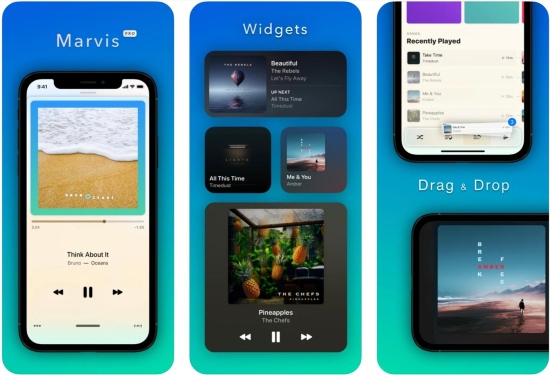
Option 1. Marvis Pro (Recommended for Advanced Users)
Marvis Pro is a powerful third-party Apple Music player designed for users who want more control over their music library. Besides offering extensive interface customization, it includes Last.fm integration for improved scrobbling support.
How to Set it Up:
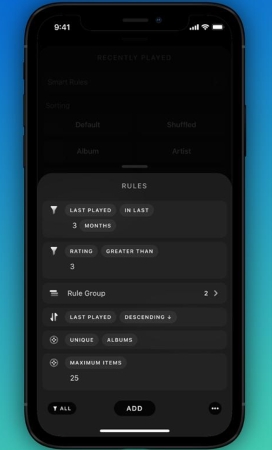
Step 1. Download Marvis Pro from the App Store.
Step 2. Connect it with your Apple Music account.
Step 3. Open Settings > Last.fm.
Step 4. Sign in to your Last.fm account and enable scrobbling options.
Marvis Pro can provide a smoother scrobbling workflow compared with relying only on the official Last.fm app.
Option 2. QuietScrob
QuietScrob is another dedicated scrobbling tool for iPhone and iPad users. It focuses on automatically detecting listening activity and syncing it with Last.fm.
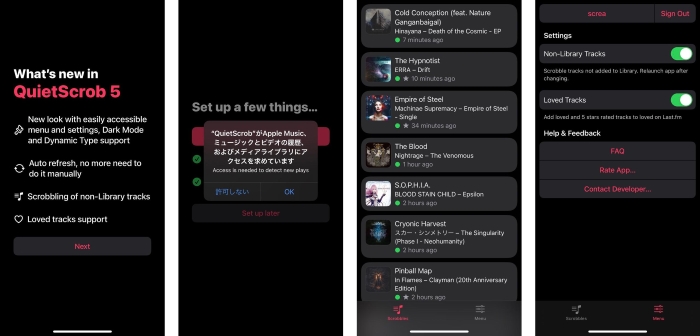
While iOS restrictions still limit what third-party apps can access, QuietScrob can be a useful alternative for users who want more automation than the official Last.fm app provides.
Part 5. How to Connect Apple Music to Last.fm on Android
Android users generally have a smoother experience when scrobbling Apple Music because the operating system provides more flexibility for third-party apps.
Unlike iOS, Android allows authorized applications to access media notifications, which contain information about the currently playing track. A scrobbling app can use this data to detect songs in real time and send the track details to Last.fm.
Recommended Tool: Pano Scrobbler
While the official Last.fm Android app works for basic scrobbling, many Last.fm users prefer Pano Scrobbler because it provides more customization options.
✅ Real-time playback detection: Automatically captures Apple Music tracks through Android media notifications.
✅ Metadata editing: Fix incorrect artist names, album titles, or track information before submitting scrobbles.
✅ Filtering rules: Ignore specific tracks, artists, or short audio clips to keep your Last.fm statistics cleaner.
✅ Customization options: Adjust how and when tracks are submitted.
How to Set Up Apple Music Scrobbling with Pano Scrobbler
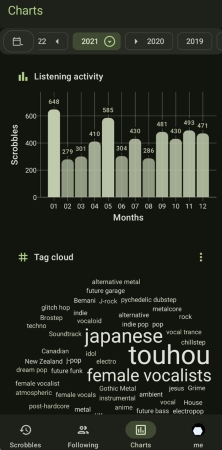
Step 1. Download Pano Scrobbler from the Google Play Store.
Step 2. Open the app and sign in with your Last.fm account.
Step 3. Grant Notification Access permission when prompted.
Step 4. Enable Pano Scrobbler's access to media playback notifications.
Step 5. Open the Apple Music app and start playing a song.
Once configured, Pano Scrobbler will detect the currently playing track and automatically submit it to your Last.fm profile.
You can verify that it is working by opening your Last.fm profile and checking your recent scrobbles.
Part 6. How to Scrobble Apple Music to Last.fm on Windows (Tool Required)
Compared with macOS, scrobbling Apple Music on Windows is much more complicated. While Last.fm works well with many traditional media players, it does not offer seamless support for the modern Apple Music app on Windows. As a result, many users encounter problems such as missing scrobbles, playback detection failures, or inconsistent listening history when switching between different devices.
If you want a more reliable way to track your Apple Music listening on Windows, one practical solution is to convert your Apple Music tracks into local audio files and then play them through a Last.fm-compatible media player.
By creating a local music library, you can enjoy more flexibility: transfer songs to a high-resolution digital audio player (DAP), add them to local music apps, organize your collection across devices, or play them through supported desktop players that work with Last.fm.
To do this, you need a dedicated Apple Music conversion tool such as AudFree Apple Music Converter. It can convert Apple Music tracks into common audio formats, including MP3, FLAC, WAV, and M4A, while preserving important song information such as titles, artists, albums, and cover artwork.
For Last.fm users, keeping accurate metadata is especially important because scrobbling relies on track information being correctly recognized by the playback software. With properly tagged local files, your songs can be detected more consistently across different devices and media players.
AudFree Apple Music Converter

- Losslessly download Apple music to MP3, M4A, FLAC, AIFF, etc.
- Create DRM-free local music files for flexible playback and scrobbling
- Preserve ID3 tags, including artist, album, title, and artwork
- Batch convert entire playlists and albums
- Support up to 17X faster conversion speed
How to Get Apple Music Downloads for Scrobbling
- Step 1. Load Tracks from Apple Music to AudFree Apple Music Converter

- Install and open AudFree Apple Music Converter on a Mac or PC. Next, sign in to your Apple Music account through the built-in Apple Music web player. Then find amd tap Apple Music songs you want. Next, browse for the songs, albums, or playlists you want to convert. Click the + ♫ button and choose Add to List to import your selected tracks into the converter.
- Step 2. Modify the Output Parameters for Apple Music Scrobbling

- On the Windows device, please go to the menu option in the top-right corner of AudFree. Then choose Preferences > Conversion. On the Mac device, please click on AudFree Apple Music Converter at the top menu bar and choose Preferences > Conversion.
- After that, you can customize the output parameters like format, bit rate, sample rate, channel, etc. For the best compatibility with Last.fm-supported players, MP3 is usually the safest choice. However, you can also select lossless formats such as FLAC or WAV if you prefer higher-quality local playback.
- Step 3. Convert Apple Music Songs into Local Files for Scrobbling

- Once the settings are set up, don't forget to click OK. Then tap on Convert from the lower-right corner in the Converting window. This Apple Music downloader will download and convert tracks at 17X faster speed. When the conversion is complete, click the Converted tab to open the destination folder and access your downloaded Apple Music files.
If you want to consolidate your listening habits across multiple platforms, consider the AudFree Streaming Audio Recorder . It supports over 10 major streaming services, allowing you to capture local audio files with perfectly preserved metadata. This ensures flawless Last.fm scrobbling across all your favorite platforms - even without an active premium subscription.
- Step 4. Scrobble Converted Apple Music Tracks with Last.fm
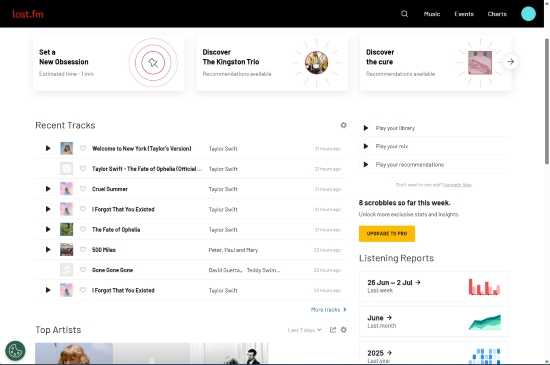
- Now that your Apple Music tracks are saved locally, you can play them through a compatible Windows media player and let Last.fm Desktop Scrobbler detect the playback.
1. Add your converted Apple Music files to a supported music player such as iTunes (legacy version) or another compatible player.
2. Launch Last.fm Desktop Scrobbler on your Windows PC.
3. Start playing your local Apple Music tracks.
4. Check the Now Playing section to confirm that Last.fm recognizes the song.
Once the track meets Last.fm's scrobbling requirements, it will be added to your listening history.
If Last.fm Desktop Scrobbler displays a message like "The Desktop Scrobbler is already running", this usually means the application is already active in the Windows system tray. You do not need to launch another copy.
If Last.fm still cannot detect your playback, try the alternative Spotify-based method below.
Alternative Method: Scrobble Apple Music Through Spotify
Another workaround is to use Spotify as the bridge between Apple Music files and Last.fm. Since Spotify offers built-in Last.fm scrobbling support, you can add your converted Apple Music tracks as local files in Spotify and let Spotify handle the scrobbling process.
Phase 1. Sync Apple Music Local Files to Spotify
Step 1. Launch the Spotify desktop app, and go to the 'Settings' section.
Step 2. Scroll down to the 'Local Files' section and choose 'Add a source' to locate downloaded Apple Music and add local files to Spotify.

Phase 2. Scrobble Apple Music Tracks from Spotify
Step 1. Go to the website of last.fm on any of your devices, including Android phones.
Step 2. Tap on your Last FM profile to draw down a list. Then click Settings > Applications and the Connect button next to Spotify Scrobbling to authorize Spotify access.

Step 3. Now open Spotify and play your added Apple Music local files. Because Spotify is connected to Last.fm, your playback information will automatically be submitted to your Last.fm profile.
This method works across multiple devices where Spotify local playback is available, making it a convenient option if you want a more consistent Apple Music scrobbling workflow.
If your Apple Music tracks still do not appear in your Last.fm history, continue to the troubleshooting section below, where we will cover the most common detection and syncing issues.
Part 7. Troubleshooting: Apple Music Not Scrobbling to Last.fm
If Last.fm is not recording your Apple Music listening history, the problem is usually not related to the music itself. In most cases, missing scrobbles are caused by player compatibility issues, incorrect settings, permission restrictions, network problems, or the scrobbling app failing to detect playback properly.
Here is how to fix the eight most common issues when tracking Apple Music.
Fix 1. Check Your Internet Connection
Last.fm requires an active internet connection to submit your listening data. If your network is unstable, scrobbles may fail to upload or appear with a delay.
Make sure your device is connected to a reliable network, then restart Apple Music and the Last.fm scrobbler to try again.
Fix 2. Make Sure Scrobbling Is Enabled
Sometimes scrobbling may be disabled accidentally after an app update, account change, or settings reset.
To check your settings:
1. Open the Last.fm Desktop Scrobbler.
2. Go to Settings.
3. Find the Scrobbling option.
4. Make sure Scrobble to Last.fm or similar options are enabled.
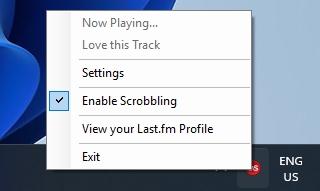
If scrobbling is already enabled but Apple Music is still not being tracked, try turning the feature off and on again, then sign back into your Last.fm account.
Fix 3. "The Desktop Scrobbler Is Already Running"
Many Windows users encounter the following message when launching Last.fm Desktop Scrobbler:
"The Desktop Scrobbler is already running."
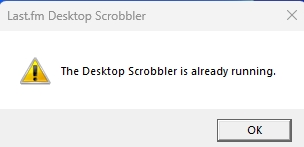
This is usually not an error.
Unlike traditional desktop applications, Last.fm Desktop Scrobbler continues running in the background after startup. Instead of opening a full program window, it normally stays in the Windows system tray or macOS menu bar.
Simply locate the Last.fm icon, confirm that you are signed in, and make sure the application is active. It will continue monitoring supported music players in the background.
Fix 4. Apple Music Playback Is Not Being Detected
If you are playing Apple Music but nothing appears in the Now Playing section, check the following:
- Make sure you are using a supported playback method, such as the Apple Music app, compatible iTunes versions, or a supported third-party player.
- Confirm that you are signed in to the correct Last.fm account.
- Restart both Apple Music and the Last.fm scrobbler.
- Update Last.fm Desktop Scrobbler or your mobile scrobbling app to the latest version.
Windows users should pay special attention to the difference between the newer Apple Music app for Windows and the older iTunes desktop application, as playback detection support may vary.
Fix 5. Wait for Scrobbles to Appear
Last.fm does not submit a scrobble immediately when a song starts playing. A track usually needs to play for a certain amount of time before it is counted as a valid scrobble. Depending on the song length and connection speed, it may take a few minutes before the track appears in your Last.fm history.
If your songs still do not appear after playing several tracks, try:
- Refreshing your Last.fm profile.
- Restarting the scrobbling application.
- Signing out and signing back into Last.fm.
- Checking whether your account is connected correctly.
Fix 6. Avoid Duplicate Scrobbles
If the same song appears multiple times in your Last.fm history, you may have more than one scrobbling service running at the same time.
For example, the Last.fm Desktop Scrobbler and a third-party app such as a mobile scrobbler may both detect the same playback session.
To prevent duplicate submissions:
- Use only one scrobbling app on each device.
- Disable unnecessary integrations or background scrobblers.
Fix 7. Check Song Metadata and Artwork
Sometimes Apple Music tracks are successfully scrobbled, but the displayed information is incomplete or incorrect, such as missing album artwork, wrong artist names, or duplicate releases.
This usually happens because Last.fm relies on the metadata provided by the music player and its own music database.
To improve metadata accuracy:
- Make sure your music files contain correct tags.
- Update your local music library information.
- Allow Last.fm some time to match the correct album or release information.
For Windows users, creating properly tagged local Apple Music files can significantly improve scrobbling accuracy. A tool like AudFree Apple Music Converter can help convert Apple Music tracks into common formats while preserving important metadata such as artist, title, album, and artwork.
Fix 8. Try a Third-Party Apple Music Scrobbler
If the official Last.fm app cannot properly detect Apple Music playback, especially on mobile devices, consider using a third-party scrobbling tool.
Depending on your platform, alternatives such as Marvis Pro on iOS or Pano Scrobbler on Android can provide better playback detection and additional customization options.
If the above troubleshooting methods do not resolve the issue, using a local music workflow (via AudFree) can provide a more stable long-term solution for tracking your Apple Music listening history across devices.
Part 8. FAQs About Scrobbling Apple Music
Can Apple Music connect directly to Last.fm?
No. Apple Music doesn't provide a native Last.fm integration. You'll need a compatible scrobbling application, such as the Last.fm Desktop Scrobbler or the Last.fm mobile app, to submit your listening history.
Can I scrobble Apple Music without an active subscription?
You need access to playable music within Apple Music. If your subscription has expired and you can no longer play Apple Music catalog tracks, there won't be any playback activity for Last.fm to scrobble. Alternatively, you can cancel your subscription after downloading your Apple Music playlists locally (through AudFree). This allows you to continue scrobbling your favorite tracks without paying a monthly fee.
See also: How to Cancel Apple Music Subscription
In Conclusion
Getting Apple Music to communicate smoothly with Last.fm requires a bit of initial setup, but the resulting data is well worth the effort. Whether you utilize Marvis Pro on iOS, Pano Scrobbler on Android, or the Web Scrobbler extension on your browser, you can finally start building accurate charts of your listening habits.
For those who want to take full control over their audio experience, moving away from closed streaming ecosystems is the ultimate solution. By using AudFree Apple Music Converter to build a DRM-free local library, you can enjoy high-fidelity music on any device, manage it with professional software like MusicBee, and guarantee that every single play is scrobbled flawlessly.

Staff Editor


