


Audible and Spotify are two of the most popular audio platforms in the world, but they serve very different purposes. Audible is a dedicated audiobook ecosystem owned by Amazon, while Spotify is a music-streaming platform that has also expanded into the audiobook world with its own subscription model. Because these services operate in separate ecosystems and with each encrypted protection, many users find it difficult to keep all their listening content in one place.
With the massive audiobook catalog and exclusive content, Audible still leads the trend among most listeners. So if you've ever wondered how to listen to Audible books on Spotify, you're not alone. Perhaps you prefer Spotify's interface, playlists, or offline listening features. Or maybe you simply don't want to switch between apps every time you change from music to audiobooks.
This guide will provide a breakdown of the method to import Audible books into Spotify on Windows, Mac, iPhone, and Android, and listen to them on your Spotify offline freely. You will also find answers to the most frequently asked questions about connecting Audible to Spotify. Let's dive in.


Part 1. Can You Listen to Audible Books on Spotify Directly?
The short answer is no - you cannot directly play Audible books on Spotify.
This limitation exists for several reasons:
1. Audible Uses Protected File Formats
Audible audiobooks come in AAX or AA formats, both of which contain Amazon's DRM (Digital Rights Management). These files can only be played in authorized Audible apps or devices. Spotify does not support these formats, and it does not allow third-party DRM-protected audio files to be imported.
2. Spotify Supports Only Open Audio Formats
Spotify Local Files (a feature that allows users to add audio files from their computer) only accepts:
• MP3
• M4A (non-protected)
• WAV
• FLAC
Obviously, Audible's AAX/AA formats will not play unless they are converted into compatible formats.
3. No Official Partnership Between Audible and Spotify
Audible is a subsidiary of Amazon, and its exclusive titles constitute a major selling point and competitive advantage. Spotify, conversely, operates as an independent entity, which also offers its own competing audiobook catalog. Given that Amazon already has its own streaming service, Amazon Music, providing official compatibility between Audible and Spotify is not part of either company's strategic roadmap. Both companies focus on maintaining their distinct audiobook libraries and independent subscription models.
So, to listen to Audible on Spotify, you must first convert Audible books into DRM-free MP3/M4A and then import them into Spotify using the Local Files feature. The next section shows exactly how this works.
See also: Audible vs Spotify: Which is Better?
Part 2. How to Convert Audible Books for Spotify (Preparation)
As mentioned above, before you can import Audible books into Spotify, you must convert Audible books from AAX/AA to MP3, M4A, WAV, or FLAC, which is Spotify-compatible. This section will show you the detailed steps and provide you with two effective tools - one free and one professional.
Way 1. Use Libation to Download Audible MP3 Files for Spotify [Free]
If you prefer a free, open-source solution, Libation is one of the most popular tools available. It helps users download and manage Audible books from their personal library.
How Libation Works
Step 1. Authorize Audible Library on Libation
Install Libation on your computer (support Windows/Mac/Linux), and enter your Audible account credentials to log in. The tool will get all your titles in your Audible library.

Or if you want to switch you Audible account, go to Settings > Account....
Step 2. Customize Your Output Folder
Click Settings on the top navigation bar, and Settings... on the drop-down list. Then choose the output folder under the Books location of Important settings.

Step 3. Adjust Audible Output Parameters for Spotify
Next the Important setting, click Audio Files Options to set your Audible audiobooks' format. You can choose MP3 or M4B, plus some detailed parameters. Please choose MP3 for Spotify playback.

If you don't set the parameters or formats, then the conversion format is M4B by default.
Step 4. Start the Conversion to MP3
After clicking Save to keep all your settings, you'll back to the homepage with all your Audible library titles. Simply click the traffic light under the Liberate column, the conversion will be initiated. After it finishing, the traffic light will turn to green from red, and the MP3 or M4B files will be stored in the folder you preset.

Pros and Cons of Using Libation
| Pros |
✅ 100% free and open-source ✅ Maintain audiobook metadata and chapters ✅ Works on Windows, Mac, and Linux |
| Cons |
❌ Installation and first operation can be confusing for beginners ❌ Only support one Spotify-compatible format ❌ Interface is not beginner-friendly ❌ Occasional bugs with long books ❌ Slower conversion speed and less stable for large libraries than professional tools |
Best For: Occasional listeners who own a modest Audible library and prefer a free, open-source way to convert AAX files to MP3 from Audible for Spotify.
Way 2. Use AudFree Audible Converter to Download Audible Books for Spotify [Advanced]
For users who want faster conversion, better audio quality, stable performance, and multiple output formats, AudFree Audible Converter is the more advanced option.
AudFree Audiobooks Converter

- Convert Audible to MP3, FLAC, WAV, M4A, M4B, and more
- Work at 100X faster speed to download Audible books losslessly
- Split Audible audiobooks by chapters with ID3 tags preserved for Spotify
- Offer customizable bitrate, sample rate, and output folder for Spotify
How to Download Audible Audiobooks Using AudFree Audible Converter for Spotify
Step 1. Customize Output Parameters
After logging in, on the top right navigation bar of the homepage, hit menu > Preferences. And on the pop-up window, you can decide the output format and some other parameters, such as bitrate, audio channel, sample rate, etc. Next, under the Output section, you can select the output folder and enable the ID3 tags if needed. Once done, don't forget to click OK to save all settings.
See also: How to Convert Audible AAX to M4B

Step 2. Add Audible Audiobooks to AudFree Conversion List
Then you can add all the books in your Audible library, or browse in the built-in Audible cloud player to navigate the audiobooks you wish to convert, and click + button to add these books to AudFree Conversion List.

Step 3. Start Audible Conversion for Spotify
Click Convert to start the conversion process, and you can split your books by clicking Split icon here. Once completed, you'll get all the converted Audible DRM-free audio files on your output folder.

For some large audiobooks, we highly recommend using the 'Split by chapters' feature. Since Spotify can't detect and display the chapter info, it will be user-unfriendly. After using the 'Split by chapters' feature, e.g., split your 10-hour book into 20-30 smaller MP3 files for each chapter, this makes it much easier to find your place in Spotify, and more convenient.
Pros and Cons of Using AudFree Audible Converter
| Pros |
✅ With user-friendly interface ✅ Extremely fast and stable (up to 100x faster speed) ✅ Maintain all audiobook metadata and chapters ✅ With 100% original audio quality (High quality) |
| Cons | ❌ Requires a paid license for full functionality |
Best For: For heavy listeners and audiobook collectors who are seeking a smooth experience and consistent output quality, particularly when managing lengthy or multi-chapter files.
Part 3. How to Add Audible Books to Spotify (Windows/Mac/iPhone/Android)
Once your Audible books are converted into MP3 or another supported format, you can easily import them into Spotify.
On Windows/Mac
Step 1. Open Spotify app on your computer, click the profile icon on the top, and go to Settings.
Step 2. On the next page, scroll to Local Files, toggle it on, and the the switch labeled 'Show Local Files'.

Step 3. Click Add a source, and select the folder containing your converted Audible MP3 files on your computer. Spotify will now scan that folder and import all compatible audio files.

Step 4. Now you can go to Your Library and locate your Local Files. The converted Audible books now appear here. You can play them just like any other audio track.

On iPhone/Android
Spotify does not allow direct uploading of audio files on mobile, but you can sync them from your computer.
Only Premium Users:
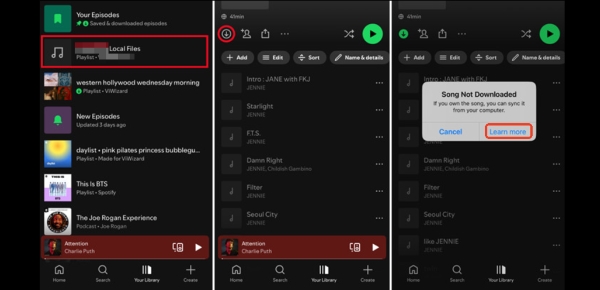
Step 1. Open Spotify app on your computer, create a playlist named Audible Books. And follow the steps above to import Audible books to Spotify. After importing, add all the imported Audible MP3 files into this playlist.
Step 2. Make Sure PC and Phone Are on the Same Wi-Fi.
Step 3. Open Spotify app on your phone, and go to the Audible Books playlist. You will see the local files listed in grey.
Step 4. Tap Download to sync all files for offline listening. Once downloaded, the Audible MP3 files will play on your phone through Spotify just like any local audio file. And now you can listen to Audible on Spotify offline.
Both Free and Premium Users:
Step 1. First manually transfer the converted MP3 files from your computer to your phone using a USB cable.
Step 2. On your phone, open the Spotify app and go to Profile > Settings > App and devices > Local audio files, and turn on the switch button.

Step 3. Go to Your Library and tap on the Local Files folder. Your manually added audiobooks should appear here.
Part 4. FAQs about Connecting Audible to Spotify
Here are the most common questions users ask when trying to combine Audible with Spotify.
Is it legal to convert Audible books to listen on Spotify?
Yes, as long as it is for personal use only. Converting Audible files to MP3 is generally considered acceptable under personal fair-use rules. However:
• You must not share the converted files
• You must not upload Audible content to public Spotify playlists
• You must not distribute or resell converted audiobooks
Stick to personal listening only, and you will remain within legal boundaries.
Do I need Spotify Premium to play Audible local files on my phone?
It depends on how you listen to Audible books on Spotify. If you choose to sync your converted Audible playlist from your computer or other devices to Spotify, offline playback requires a Premium subscription. If you transfer local Audible MP3s to your phone, it is free to play Audible on Spotify.
Can I share my converted Audible audiobooks on Spotify playlists? Is this allowed?
No. Spotify does not allow sharing of local files in public playlists. Even if it did, sharing converted audiobooks would violate Audible's copyright terms. The converted MP3 files are for your own personal use only.
Will Audible chapters remain after converting to Spotify?
No, though AudFree Audible Converter and Libation can preserve chapters in some formats, but Spotify itself does not display chapters natively. So chapters may remain in the file, but Spotify won't show chapter markers visually.
Final Verdict
While you cannot directly listen to Audible books on Spotify due to DRM restrictions and incompatible file formats, the process becomes simple once you convert your audiobooks into Spotify-friendly formats like MP3 or M4A. After reading this guide, you'll play Audible on Spotify easier than ever. Hope you enjoy your Audible books journey on Spotify!

Staff Editor


