


Quick Answer: "Can you use Spotify with Streamlabs OBS?" Yes. You can use Streamlabs OBS Windows Capture, Application Audio Capture or Media Source with local audio files to play Spotify on Streamlabs OBS during a livestream.
At present, live streaming has taken the world by storm. More and more people want to become streamers and build their channels. For beginners, Streamlabs OBS would be a great choice when it comes to broadcast software selection. It is widely used by Twitch, YouTube Live, and Facebook Live streamers, as well as Kick and Discord users.
Meanwhile, playing music on streaming services can effectively add entertainment for you and your viewers. Spotify is a popular choice for users to listen to high-quality music. So, it will be a novelty to play Spotify music while streaming live video games or other content. However, there is no Spotify Streamlabs OBS integration. So today, we will show you how to add Spotify to Streamlabs OBS in three advanced ways. Just check them out. Also, you will learn how to fix common issues of Streamlabs OBS Spotify.
View also: How to Play Spotify on Twitch


Part 1. How to Add Spotify to Streamlabs OBS Officially
Streamlabs OBS (SLOBS) is a free and open-source live streaming software built on the foundation of OBS (Open Broadcaster Software). Think of it this way, Streamlabs OBS is a newer, easier-to-use version of OBS, now more commonly known as Streamlabs. This simple and feature-rich streaming app is designed for streamers and is widely popular with gamers and live streamers.
The most impressive features include 3D masks, window capture and game capture, which is probably why gaming celebrities utilize it to enhance the viewing experience. Besides, you can use Streamlabs on almost all popular streaming platforms, such as Twitch, YouTube and Facebook, which creates new ways to interact with your audience.
Before you connect Spotify to Streamlabs OBS, you need to set up the Streamlabs app in advance. Then you can enable Streamlabs Spotify widget smoothly and play Spotify on Streamlabs OBS via its Windows Capture feature. Here are the steps for you to make it.
Before using Spotify music in a live stream, please note that Spotify subscriptions are intended solely for personal listening. Depending on the specific platform and the policies of content owners, using copyrighted music may lead to consequences such as having your video-on-demand (VOD) content muted, receiving copyright claims or DMCA (Digital Millennium Copyright Act) notices, and facing monetization restrictions.
If you need background music for a public live stream, it is recommended to use music for which you hold legal rights or to choose services that provide licenses suitable for live streaming.
Section 1. How to Set Up Streamlabs OBS App
Streamlabs OBS is currently available for Windows and Mac computers. Now, follow the steps below to achieve a simple setup process.
Step 1. First, download and install Streamlabs application on your computer from its official website. Then start it and log in by selecting Twitch, YouTube, Facebook, or other platforms supported by Streamlabs.

Step 2. Then select the main microphone and webcam to start the setup process directly.

Step 3. Now, choose any theme you like and it will be applied to your stream so that viewers can watch it in real time. Note: There are more than 250 free coverage topics for you to choose from in Streamlabs.

Streamlabs newcomers can easily set up the tool using the above steps. Besides, you can configure other settings, such as resolution, bit rate, rate control, frame rate, etc., on Streamlabs OBS.
Section 2. How to Show Spotify Song on Streamlabs OBS
As mentioned above, to show and play Spotify on Streamlabs, you need to make sure that they are royalty-free. As for some copyright-free and royalty-free music from Spotify, you can search for some completely free music in 'StreamBeats'. After that, you can start to add Spotify widget to Streamlabs OBS for music playback.
Step 1. Launch the Spotify app, go to Streamlabs OBS and tap the '+' button to add a new source to your scene.

Step 2. In the newly opened window, select Window Capture under the Standard section, and name the source.

Step 3. Under Window, scroll down to select [Spotify.exe]: Spotify Free or Premium and hit Done.

Step 4. Hold the Spotify window capture and right-click to select Transform and Stretch to Screen.

Step 5. Unclick everything, hold Alt on your keyboard, and click on the window to adjust the scale and size of the Spotify app. You can now put Streamlabs Spotify overlay anywhere you want to display when streaming.

Step 6. After OBS Spotify plugin is set up, you can get Spotify on Streamlabs for playback. The music will show up under the Desktop Audio section.
If you want to show what you are playing on Spotify on Streamlabs, you can add a 'Now Playing' widget. A Spotify Now Playing overlay will display song title, artist name, album artwork and playback information. You can get this widget in the Streamlabs App Store or third-party platforms like Snip.
⚠️ Warning: Please check the website link or music licensing terms in the Spotify playlist description. Streamlabs does not allow streaming of copyrighted Spotify music unless permission has been granted. Otherwise, your channel may receive a warning and be banned for a while.
Part 2. How to Stream Spotify on Streamlabs OBS via Application Audio Capture
If you want your audience to hear music playing from Spotify without displaying the Spotify application window, "Application Audio Capture" is a better choice than "Window Capture". Unlike "Desktop Audio", which captures all computer sound, "Application Audio Capture" allows you to select Spotify as a dedicated audio source and route Spotify audio into Streamlabs. This means you can adjust Spotify's volume independently without affecting the volume of your microphone, game audio, Discord calls, browser audio, or other applications.
Step 1. Open the Spotify desktop app and start playing any music you want to use during your livestream. You must keep Spotify running in the background.
Step 2. Start the Streamlabs OBS program, go to the scene where you want to add Spotify, then tap + Add Source. Next, choose 'Application Audio Capture' > 'Add Source'.
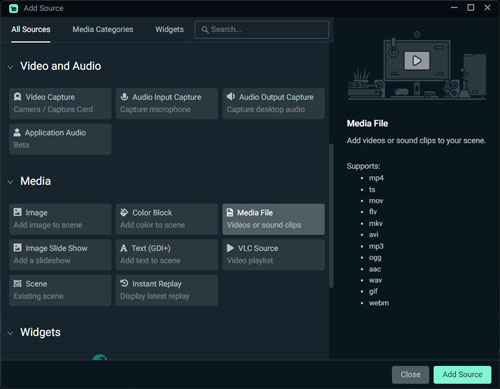
Step 3. Later, proceed to add Spotify, give a name to the source and confirm the source. Then you can adjust Spotify volume in audio mixer. You can lower background music volume, mute Spotify temporarily, monitor Spotify audio levels, etc.
Part 3. How to Play Spotify on Streamlabs OBS Offline via Media Source
For creators who frequently livestream, using Spotify directly via "Window Capture" or "Application Audio Capture" is not necessarily the most flexible solution. Both methods require keeping Spotify running, rely on an internet connection, and offer limited control over music management. Besides, since only a few songs on Spotify are copyright-free, this limits the diversity of songs when you set up Spotify on Streamlabs through the official method. So, we have a better alternative. That is to use Media Source in Streamlabs OBS with local audio files. This requires to convert protected Spotify songs to be compatible with Streamlabs. In turn, it couldn't be simpler to put Spotify on Streamlabs OBS.
To achieve Spotify format conversion, you need a professional tool called AudFree Spotify Music Converter. It can download all Spotify content to your computer locally with original quality preserved. What's more, it converts Spotify music to MP3 and other audio formats supported by Streamlabs. Thus, you can add Spotify to Streamlabs OBS as a media source, and all ID3 tag information will be displayed when streaming.
Converting Spotify songs into local MP3 files using AudFree or other third-party tools does not grant you the right to play them publicly. Automated content recognition systems on platforms like Twitch, YouTube, and Facebook can still detect copyrighted audio in real-time, potentially leading to muted VODs, copyright strikes, or channel bans. To ensure your streams remain safe, it is recommended to use royalty-free music libraries such as StreamBeats or Epidemic Sound.
AudFree Spotify Music Converter

- Losslessly remove limitations from Spotify track/album/playlist, etc.
- Download and convert Spotify music to MP3, AIFF, FLAC, etc.
- Work at 13X speed and available to define output music parameters
- Play Spotify on Streamlabs OBS or other streaming software offline
How to Download and Convert Spotify for Streamlabs OBS
To begin, please download and install AudFree Spotify Music Converter on Windows or Mac desktop. Then refer to the steps below to use it.
- Step 1. Add Spotify Music to AudFree Spotify Music Converter

- When you open the AudFree Spotify Music Converter, the built-in Spotify web player will load itself. So, you can directly drag and drop music from Spotify web player to AudFree Spotify Music Converter's '+ ♫' section. Or, you can open the Spotify music, and tap the '+ ♫' icon on AudFree Spotify Music Converter. Then hit the 'Add to list' button to load music.
- Step 2. Customize Output Settings for Spotify Streamlabs OBS

- Now, please go to Menu > Preferences from the upper-right corner to open the settings window. Click Conversion and here you can set Spotify music output format, or customize the bite rate, sample rate, etc. according to your needs. For Streamlabs OBS, MP3 is usually the most compatible choice. If you want higher-quality audio, FLAC or WAV can be set also.
- Step 3. Download Spotify Music for Offline Playback on Streamlabs OBS

- When all settings are saved, please click the Convert tab at the bottom-right corner of the Converting window. Then all added Spotify music will be downloaded and converted at a fast speed. Once finished, you can check the downloaded Spotify music in the converted history list.
To convert Spotify music for Streamlabs OBS, you can also use AudFree Streaming Audio Recorder. This program can help download music from Spotify as local audio files for use offline. In addition, it can download music from Apple Music, YouTube Music, Amazon Music, Tidal, SoundCloud, Qobuz, Pandora and so on.
How to Connect Spotify to OBS Streamlabs for Offline Playback
Now, you've successfully downloaded unprotected Spotify songs, it's time to add and get Spotify on Streamlabs OBS for offline playback.
Step 1. Open the Streamlabs OBS app and click the "+" button under "Sources".
Step 2. Touch the Media Sources tab.

Step 3. Click 'Browse' and select the downloaded Spotify music file from your local files to connect Spotify to Streamlabs and apply the desired changes. You can enable Loop if you want continuous playback and hit Done.

Step 4. Now, you can enjoy Spotify music streaming on your channel with your listeners without limits.
You should prepare and test music before going live, and avoid changing playlists during your livestream. Also, test microphone volume, check music levels, record a short preview and adjust the balance.
Part 4. Compare Ways to Connect Spotify to Streamlabs OBS
To help you quickly choose the suitable method to add Spotify to Streamlabs OBS, here we compare them in a comparison table.
| Feature | Via Windows Capture | Via Application Audio Capture | Via Media Source |
|---|---|---|---|
| Best For | Showing Spotify interface | Capturing Spotify audio separately | Playing local Spotify music files |
| Difficulty | Easy | Medium | Medium |
| Requires Spotify App Open | ✅ | ✅ | ❌ |
| Requires Internet Connection | ✅ | ✅ | ❌ |
| Shows Spotify Window | ✅ | ❌ | ❌ |
| Separate Spotify Volume Control | Limited | ✅ | ✅ |
| Offline Playback | ❌ | ❌ | ✅ |
| Add Songs to Streamlabs Scenes | ❌ | Limited | ✅ |
| Create Custom Playlists | ❌ | ❌ | ✅ |
| Avoid Desktop Notifications | ❌ | ✅ | ✅ |
| Professional Streaming Workflow | Moderate | Good | Excellent |
If you want the simplest way and want viewers to see the Spotify app during streams, use Windows Capture.
If you want better audio control and don't want to show the Spotify window, use Application Audio Capture. This is also ideal for streamers who play background music while gaming or chatting.
If you want the most flexible solution and without Spotify app running during your stream, use Media Source. This method is useful for full-time streamers, VTubers, gaming channels, music-focused broadcasts, and long livestream sessions.
Part 5. How to Fix Spotify Streamlabs OBS Common Issues
While adding Spotify to Streamlabs OBS is usually straightforward, some users may encounter issues during the setup process. Common problems include the inability to capture Spotify audio, the Spotify window appearing black, music not showing up in the mixer, or viewers being unable to hear the background music. Below are some common solutions to these problems. Please check them and solve the issues you encountered.
Issue 1: Spotify Audio Is Not Showing in Streamlabs OBS
Fix: 1. Check Streamlabs audio mixer: Open Streamlabs desktop tool, play a Spotify song, check the Audio Mixer and confirm that the Spotify or Desktop Audio meter is moving. If not, Streamlabs is not receiving Spotify audio.
2. Confirm Spotify output device: Ensure Spotify is playing through the same device that Streamlabs is capturing. If Spotify plays through your headphones, but Streamlabs capture your speakers, the audio may not appear in your stream.
3. Restart Spotify and Streamlabs app: Close Spotify and Streamlabs desktop app completely, then open them again and add the audio source once more.
Issue 2: Spotify Black Screen in Windows Capture
Fix: Choose the Spotify capture source and remove it. Later, tap the Add Source option, create a new Window Capture source, and choose Spotify again. Also, keep the Spotify window open while testing your capture. Besides, try updating Streamlabs app to the latest version to overcome compatibility issues.
Issue 3: Spotify Keeps Disconnecting During Stream
Fix: You need to ensure that you are connecting to a strong and reliable internet connection. Also, check your computer's power settings and prevent it from entering sleep mode or suspending background tasks. Also, close any heavy background apps that might be eating up your network bandwidth or system RAM. Besides, using Media Source with local music files can provice more reliable playback as they don't depend on Spotify's online connection.
Issue 4: Spotify Stops Playing After Switching Scenes
Fix: Just copy the Spotify audio source from the scene where it is currently working correctly. Then paste it as a "Reference" source into all other scenes where you want the music to play continuously without interruption. Alternatively, you can configure "Application Audio Capture" as a global audio device in the main Streamlabs settings; this ensures it keeps running across your entire layout without being interrupted by scene switches.
Issue 5: Viewers Can't Hear Spotify Music
Fix: Check the Streamlabs audio mixer to confirm that the Spotify audio source is unmuted and the audio level meter is moving. Open the Advanced Audio Properties and ensure that Spotify is selected as the audio source for the stream. Perform a quick test recording to verify that the audio is actually being captured in the final output.
View also: How to Solve Spotify Not Playing Songs
Issue 6: Spotify Music Appears in Twitch VODs
Fix: Go to Streamlabs Settings > Output, and change from Simple to Advanced in the Output Mode section. Later, check Enable Twitch VOD Track, set Audio Track to 1, and Twitch VOD Track to 2. Next, click the gear icon in the top-right corner of the 'Audio Mixer' to open 'Advanced Audio Settings'. Then uncheck Spotify Audio in Twitch VOD Replay.
Part 6. FAQs about Spotify on Streamlabs OBS
How to Make Spotify Louder on Streamlabs OBS?
You can increase the volume on your device or go to Streamlabs advanced audio settings to adjust the output volume. Then you will listen to Spotify music on Streamlabs loudly.
View also: How to Make Spotify Louder
How to Separate Spotify Audio on Streamlabs OBS?
You can easily isolate Spotify audio without third-party virtual audio cables by using Streamlabs' built-in 'Application Audio Capture' feature. Simply add a new 'Application Audio Capture' source and select 'Spotify.exe', then uncheck the Spotify option for Track 2 in the 'Advanced Audio Settings' to prevent it from being included in your Twitch VODs.
View also: How to Cut Spotify Music
Part 7. In Conclusion
You can use the official method to capture and play copyright-free Spotify music in Streamlabs OBS. Also, you can make use of AudFree Spotify Music Converter to download and convert songs from Spotify for Streamlabs OBS. Then you have the freedom to add all Spotify music to Streamlabs OBS to enrich your content without hassle. Start a colorful streaming media experience and have fun in Streamlabs OBS.

Chief Editor


