


Many users try to stream Tidal music to VLC Media Player via the "Open Network Stream" feature directly. But they only encounter playback errors or silence. This happens because Tidal tracks are protected by DRM encryption, which VLC's open-source software cannot decode natively.
However, you can still enjoy Tidal music on VLC Media Player. In this guide, we will show you exactly how to convert Tidal tracks to VLC-supported formats (like MP3 or FLAC) using AudFree Tidal Music Converter. In this case, you can get permanent offline listening without the Tidal app.


Part 1. How to Download Tidal Music for VLC Media Player
As we had mentioned above, the Tidal audio files are encrypted so that you can use them on other devices. As a result, the first and important thing is to remove the restriction from Tidal music. So, to make it, you need to find a third-party tool to help you convert Tidal music to local files.
There are many tools for your choice in the market. But among those programs, AudFree Tidal Music Converter is the best one for you. It is a powerful and professional tool, which is able to convert Tidal to MP3, WAV, FLAC, and other audio formats that VLC supports. With it, you can get the original audio quality of Tidal tracks so that you can enjoy a better listening experience.
Moreover, it can keep ID3 tags of Tidal audios, including genre, artist, title, album cover, etc. after the conversion. Also, you can edit the ID3 tags and the output settings according to your needs. Finally, you can get the converted Tidal music files on your computer and stream Tidal to VLC for playing.
AudFree Tidal Music Converter

- Convert Tidal audio files for VLC media player
- Download Tidal to MP3, M4A, M4B, FLAC, etc.
- Preserve ID3 tags and original audio quality
- Work at 37X faster speed, edit output format
Now, let's see how to use AudFree Tidal Music Converter to convert music from Tidal to common formats. Before that, please download and install AudFree program on your computer first. After that, please follow the guidance we show you below. After converting, you can listen to Tidal music on VLC with ease.
- Step 1. Load Tidal music to AudFree

- Please open AudFree Tidal Music Converter on your computer, and you will see the built-in Tidal web player. Now, log in to your Tidal account and choose the tracks you need to convert for VLC. Then click on the '+' > 'Add to list' button and AudFree program will load the Tidal audio files to you.
- Step 2. Customize Tidal output format for VLC

- In order to set the Tidal output audio format for VLC, please find the AudFree Tidal Music Converter on your Mac's menu. Then choose 'Preferences' > 'Conversion' option. Then you could select the audio format, such as MP3, FLAC, etc. for VLC. In addition, you are able to personalize the bit rate, sample rate, and channel to enhance the Tidal audio quality. Moreover, if you want to reset the output folder, you could touch the "Output Directory" section to modify it.
- Step 3. Convert Tidal music for VLC

- After the settings, now you could hit the 'Convert' button to begin the conversion of Tidal music. When the conversion completes, the converted Tidal audio files will be saved onto your computer. Then you could click on the 'Converted' section to locate and check them.
Part 2. How to Add Tidal Music to VLC Media Player
At last, after using the AudFree Tidal Music Converter, you had got the Tidal music as common files on your computer. Thus, now it's time to stream Tidal to VLC and play Tidal through VLC.
On Windows/Mac Computer:
Step 1. Launch VLC media player on your computer, then you will see the main interface of it.

Step 2. Touch the top menu 'Media' > 'Open File' or 'Open Folder' to browse the converted Tidal files on your computer. Then choose the Tidal music tracks that you like to use to VLC. Also, you can tap the View > Playlist option at the top menu bar. Then open the converted Tidal music files on your computer. Next, drag and drop it to the VLC playlist window.
On iOS (iPhone/iPad):
Step 1. Connect your iOS device and your computer to the same WiFi network.
Step 2. Open the VLC app on your iOS device and tap 'Network'.
Step 3. Enable 'Sharing via Wi-Fi' and you will see an IP address.
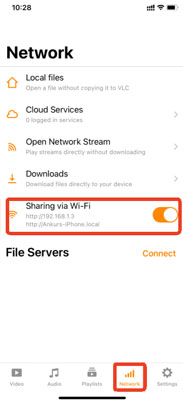
Step 4. Type the IP address into your computer's web browser.
Step 5. Now, locate the converted Tidal tracks on your computer. Then drag and drop it into the browser window. They will instantly upload to your iPhone or iPad.
On Android:
Step 1. Connect your Android phone to your computer via USB cable.
Step 2. Once connected, set the USB mode to 'File Transfer' (MTP) on your phone's screen.
Step 3. Go to your computer's File Explorer and open your phone's internal storage.
Step 4. Copy the converted Tidal music folder into the 'Music' folder on your phone.
Step 5. Now, open VLC for Android and it will automatically scan the added music files. Then you can find them under the 'Audio' section.
After that, you can listen to Tidal music on VLC without any restriction.
Part 3. Best VLC Audio Settings for Tidal Music
To stream Tidal music on VLC media player with high quality, you can follow the steps below.

1. Enable the Compressor
Step 1. Start VLC media player on your computer, go to Tools > Effects and Filters.
Step 2. Then tap Audio Effects > Compressor in the new window.
Step 3. Click the checkbox near the Enable option to enable it.
2. Adjust the Equalizer
Step 1. Go to the Equalizer option in the Effects and Filters window.
Step 2. Check 'Enable' on the screen.
Step 3. Choose Preset as 'Rock', 'Dance', etc. to enhance the Tidal sound quality.
View also: Best Tidal Equalizer

Staff Editor


