


For many drivers, having seamless control over music while navigating is essential - especially if you love listening to high-fidelity tracks on Tidal. This is why "Tidal Waze" used to be a popular search term: for a period of time, Waze supported an in-app audio player that let users control third-party music platforms directly from the navigation interface. However, as the apps evolved, many users noticed that the once-convenient option to manage Tidal playback inside Waze had suddenly become unavailable.
In this latest complete guide, we clarify whether Tidal still works inside Waze as it used to, what methods you can use to play Tidal music while navigating with Waze, and how to enjoy Tidal offline when driving in low-signal areas with Waze. Everything here applies to Android Auto, Apple CarPlay, and regular smartphones, ensuring that no matter what device or car system you use, you can always get both apps running smoothly together. Let's dive in!


Part 1. Does Tidal Still Work Inside Waze Like Before?
The short answer: No. Tidal no longer has built-in integration within Waze. But both apps can still work side by side through modern in-car systems or manually on your phone.
Why Tidal Integration Was Removed from Waze
Waze previously offered a feature called the Waze Audio Player, which integrated several music apps - including Spotify, YouTube Music, Deezer, Amazon Music, Audible, and Tidal. Users could open Waze, tap the music icon, and access playback controls without switching apps. This was extremely convenient, especially for those who were concerned about keeping their eyes on the road.
However, as the mobile ecosystem evolved, Waze gradually discontinued support for many third-party integrations. Tidal was among the first to be removed. Although neither company provided a detailed public explanation, the changes are generally understood to stem from shifts in API access, privacy restrictions, new streaming architecture, and a strategic move by Waze to simplify its app and to rely more on existing systems like Android Auto and Apple CarPlay.
Today, Waze no longer supports direct Tidal controls within the app.
Can You Still Control Tidal from Waze?
No, you cannot control Tidal directly from Waze anymore. There is no built-in music widget, no quick-access player, and no button to skip tracks while navigating.
However, this doesn’t prevent you from using both Waze Tidal apps together. You can still:
• run Waze for navigation
• play Tidal in the background
• switch between apps when needed
• use Bluetooth or car audio controls
• enjoy CD-quality or Hi-Res FLAC audio (when online)
That said, you can still use Tidal and Waze at the same time - you just need to switch apps rather than accessing Tidal within Waze.
Is it Safe to Switch Between Tidal and Waze While Driving?
Switching apps manually while driving is never recommended. It distracts your attention and can delay reaction time, even for a moment. That's why both Android and iOS strongly encourage the use of hands-free systems. Instead of manually tapping between Tidal and Waze, the safer alternatives are:
• Android Auto: control Tidal using your car's on-screen interface or voice commands, like 'Hey Google, next song on Tidal'
• Apple CarPlay: control Tidal using steering-wheel buttons or Siri, like 'Hey Siri, play my Tidal playlist'
• Download Tidal tracks on your car system offline and run Waze for navigation for no playback issues
• Bluetooth steering controls if your car offers them
These allow you to keep your hands on the wheel and eyes firmly on the road. Or if you must use your phone directly, pull over before interacting with the apps.
Can You Use Tidal and Waze Without Mobile Data?
Yes, but only if your Tidal tracks are downloaded offline first. And the Waze map can downloaded, but the navigation itself still needs real-time data for:
• traffic
• hazards
• police reports
• rerouting
However, you can use Waze in low-data mode or offline mode for preloaded routes. Combined with offline Tidal playback, this is ideal for areas with poor signal - mountain roads, highways, and rural locations.
We explain the best offline methods in Part 3.
Part 2. How to Use Tidal While Navigating with Waze
Even though you can't access Tidal inside the Waze app, you can still enjoy your favorite playlists, albums, and mixes in the car while using Waze for navigation. Here are the most effective methods across Android Auto, Apple CarPlay, and a regular smartphone.
Method 1. Use Tidal with Waze on Android Auto
Android Auto provides the simplest and safest way to use Tidal while navigating with Waze. Both apps are fully supported as standalone applications within the Android Auto interface.
How It Works
Android Auto allows two apps to run simultaneously on your vehicle's display:
• Waze controls your navigation
• Tidal controls your music playback
You don't need app-switching; Android Auto's media bar displays the currently active audio app.
Steps to Connect Tidal to Waze on Android Auto
Step 1. Download Android Auto app on your phone.
Step 2. Connect your phone to your car via USB or wireless Android Auto.
Step 3. Launch Waze on the head unit for navigation on your Android Auto.
Step 4. Swipe or tap the media bar at the bottom/right of the screen.
Step 5. Select Tidal from the list of music apps.
Step 6. Start playing Tidal playlists, albums, mixes, downloads when using Waze on Android Auto.
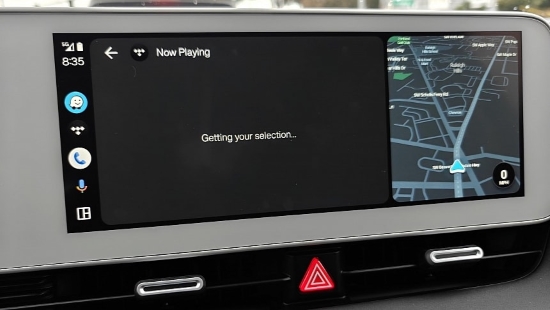
You'd better use Google Assistant voice commands for a hand-free playback, like 'Hey Google, play Tidal My Mix 1'. To enble that, you need to go to Settings > Ok Google > toggle the Access with voice match option on the Android Auto app of your phone.
See also: How to Get Tidal on Android Auto

✅ Pros
- Safe, hands-free control
- Does not require switching apps on your phone
- Works with both streaming and downloaded tracks
❌ Cons
- Your car must support Android Auto
- Mobile data may still be required (unless using offline mode)
Method 2. Connect Tidal to Waze on Apple CarPlay
If you're an iPhone user, Apple CarPlay offers a similar experience. Tidal is fully compatible with CarPlay, and Waze runs perfectly side by side.
Steps to Use Tidal with Waze on CarPlay
Step 1. Connect your iPhone to your car via CarPlay (USB cable or wireless).
Once insert the USB cable to the USB port of your car, go to the Settings app on your iPhone. Then tap on General > CarPlay > Available Cars. On the drop-down list, select your car.

Step 2. Open Waze on the car's display.
Step 3. Tap the Now Playing box or access audio apps from the CarPlay dashboard.
Step 4. Select Tidal and choose your music and start playback. You can also use Siri for hands-free control, 'Hey Siri, play my Tidal driving playlist'.
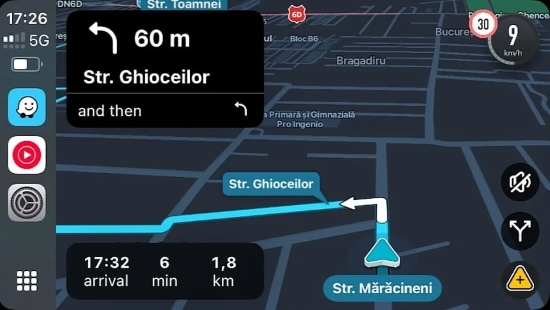
See also: How to Get Tidal on Apple CarPlay
✅ Pros
- Clean, easy-to-use interface
- Full Siri voice support
- Works even in low-signal areas with offline downloads
❌ Cons
- No direct Waze integration
- Requires a CarPlay-compatible car
Method 3. Use Tidal in the Background While Navigating with Waze on Your Phone
If you don't have CarPlay or Android Auto, this method works on any phone.
Step 1. Open Tidal and start playing your desired playlist or album.
Step 2. Press the Home button or swipe up to minimize Tidal.
Step 3. Open Waze and start navigating.
Step 4. Tidal continues playing in the background automatically.
Step 5. Use your notification bar, lock screen controls, or Bluetooth steering controls to manage playback.
Tip: If you're using Android phones, you can enable these functions below to have a better Waze Tidal playback performance.
Disable Battery Optimization for Tidal: Settings > Apps > Tidal > Battery > Allow background activity
Allow Waze to coexist with background apps: Settings > Apps > Waze > Background > Allow
Using your device this way is safe only when you do not interact with the phone while driving. Keep your hands free and use Bluetooth controls or pull over if you need to change songs.
✅ Pros
- Works on any car, any phone
- No special equipment needed
❌ Cons
- Requires manual switching when changing playlists or albums
- Slightly higher distraction risk
Part 3. How to Use Tidal Offline While Using Waze [Best Way]
As we mentioned, using Tidal offline while navigating with Waze is extremely useful in situations where:
- cellular data is limited
- you're driving through rural or low-signal areas
- you want to reduce buffering
- you want to save battery
- you're in a location with expensive roaming fees
In such situations, you can download Tidal tracks on your Tidal Music app or using some professional Tidal downloader to make it.
Below are the best methods.
Option 1. Download Tidal Music for Offline Playback (Official Method)
It's perfect for those Tidal subscribers who don't plan to cancel it. If you're a Tidal subscriber, you can follow these steps belows to make a better Tidal Waze integration.
Steps:
Step 1. Open the Tidal app on your phone.
Step 2. Navigate to an album, playlist, or track you want to download, and tap the Download icon (a downward arrow).
Step 3. Wait for the music to be saved to your device. You can turn on Offline Mode in Tidal settings if needed.
Once downloaded, Tidal no longer needs mobile data to play. Meanwhile, you can also download Waze offline maps (limited by region), or rely on cached routes if you start navigation while connected.
✅ Pros
- Official and safe
- Highest audio quality preserved
- No data usage during driving
❌ Cons
- Files remain encrypted - cannot be transferred
- Only playable inside the Tidal app
- Offline downloads expire if your subscription lapses
- Car systems cannot access the encrypted files directly
Because of these restrictions, many users look for more flexible offline methods.
Option 2. Export Tidal Music to MP3/FLAC for Offline Car Playback (Best Long-Term Method)
If you want to play Tidal offline through any car system - USB, SD card, Bluetooth, or AUX - you can use a professional tool that converts Tidal streaming audio into standard formats such as FLAC, WAV, AIFF, or MP3. Once converted, the music is no longer bound to the Tidal app, meaning:
• no buffering
• no data usage
• compatible with every car audio system
• ideal for road trips and long-distance driving
Among all excellent Tidal tools, one popular solution is AudFree Tidal Music Converter. It can download and convert Tidal tracks, albums, and playlists with fast speed and no audio quality loss.
AudFree Tidal Music Converter

- Batch downloading Tidal songs as local files, such as FLAC, WAV, etc.
- Transfer Tidal music to USB drives, SD cards, or in-car systems freely
- Help connect Tidal to Waze for a smooth offline playback
- Preserve CD-quality or Hi-Res FLAC quality and original ID3 tags (lossless)
- Download at 37X faster speed, and customize audio output parameters
To connect Tidal to Waze, please follow the 3 simple steps below to start to use Tidal offline while using Waze.
- Step 1. Import Tidal music to AudFree Tidal converter

- Install AudFree Tidal Music Converter on your computer, and launch it. After logging in your Tidal account, please navigate your favorite Tidal songs within the built-in Tidal web player. Then click the '+' button to add them to the conversion list.
- Step 2. Define Tidal output format

- To adjust the output format of Tidal music, you could hit on the 'AudFree Tidal Music Converter' from the menu bar on your Mac computer and choose the Preferences. Or click the 'menu' icon of AudFree main screen on Windows to choose 'Preferences' > 'Conversion' option. Here, you could customize the Tidal output format, such as FLAC or WAV, and personalize Tidal audio parameters, like the audio channel, bit rate, sample rate, etc. Don't forget to save your settings.
- Step 3. Download and transfer Tidal music for smooth Waze integation

- On the converting page, you can click the 'Convert' button at the bottom right to start the conversion process. Once completed, you could hit on the 'Converted' button to locate the converted Tidal music tracks on your computer. Finally, simply transfer these DRM-free Tidal tracks to your phone or USB stick, play them using any offline player (Poweramp, VLC, Neutron Player), and run Waze at the same time with zero interruptions.
Conclusion
Although Tidal no longer integrates directly inside Waze like it once did, you still have multiple reliable ways to enjoy your high-quality music while navigating. Whether you're using Android Auto, Apple CarPlay, or simply running Tidal in the background, you can seamlessly pair the two apps for a smooth driving experience.
For users who frequently travel through areas with weak mobile signals, Tidal's offline mode - or exporting Tidal songs through a converter for car USB playback - offers the best long-term solution.
Ultimately, while Waze's native Tidal audio player may be gone, combining the strengths of both apps still gives you a safe, flexible, and enjoyable way to listen to Tidal while on the road.

Staff Editor


