


With millions of songs, playlists, live performances, and remixes available, YouTube Music has become one of the most popular streaming platforms for Android users. Whether you enjoy official releases, rare tracks, or fan-made content, YouTube Music offers a vast library that can satisfy almost every music taste.
However, one limitation many users encounter is offline playback. While the platform allows streaming anytime with an internet connection, downloading songs for offline listening is restricted unless you subscribe to the premium service.
In this guide, you will learn three practical ways to download music from YouTube on Android phones or tablets. Let's explore each method step by step!

Part 1. How to Download YouTube Music on Android Devices via Premium Plan
For users, the most straightforward and easy way to download music from YouTube on Android is by subscribing to YouTube Music Premium.
With a Premium subscription, you can download songs, albums, and playlists directly inside the YouTube Music Android app and play them without an internet connection.
Steps to Download YouTube Music on Android
Step 1. Download and install the YouTube Music app from the Google Play Store on your Android phone or tablet.
Step 2. Open the app and sign in with your Google account. And also, please upgrade to YouTube Music Premium if you haven't already.
Step 3. Browse or search for the song, album, or playlist you want to download.
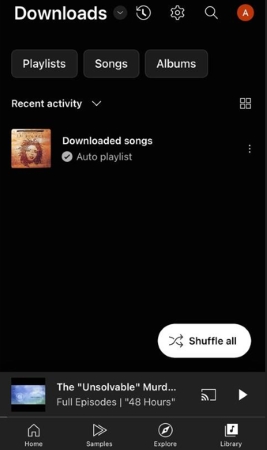
Step 4. Tap the Download icon (the downward-pointing arrow) next to the desired track or playlist. Once the download is complete, your music will be available for offline listening. You can access all saved content by navigating to Library > Downloads.
Pros and Cons of Using YouTube Music Premium
Official and legal downloading method;
High audio quality playback;
Seamless integration within the YouTube Music Android app;
Supports offline listening
Downloads expire if your subscription ends;
Files are encrypted and cannot be transferred;
Music can only be played within the YouTube Music app
For users who want to keep songs permanently or transfer them to other devices, a third-party solution may be more suitable. In the next part, you'll learn the way to get permanent local high-quality audio files from YouTube.
Part 2. How to Download YouTube Music on Android Phone/Tablet via Professional Program
If you want to download YouTube music without restrictions and save it in high quality permanently, a professional downloader like AudFree YouTube Music Converter (also called AudFree Streaming Audio Recorder) can be a powerful solution.
This tool allows users to download and convert streaming music into common audio formats such as MP3, FLAC, WAV, and M4A. Once converted, the music can be transferred freely to Android phones or tablets.
Unlike the official download feature, this method lets you keep your music files locally and play them with any music player.
AudFree YouTube Music Converter

- Convert YouTube music to MP3, WAV, FLAC, and more
- Up to 30x faster batch conversion
- Preserve 100% original audio quality
- Automatically recognize and retain ID3 tags
- Compatible with Windows and macOS
Steps to Download Music from YouTube to Android via AudFree YouTube Music Converter
Step 1. Download and install AudFree Streaming Audio Recorder on your computer. Launch and activate it using your license to unlock all features.

Step 2. Go to 'Menu' > 'Preferences' > 'Conversion' to select your desired output format. Here, you can also customize your preferences by setting bitrate, sample rate, and audio channels as needed. Besides, you can choose a destination folder and enable ID3 tag retention under 'Output' tab.

YouTube Music allows you to upload and stream your personal audio collection in FLAC, M4A, MP3, M4A, OGG, and WMA formats. You can store up to 100,000 songs in your private library and access them seamlessly across the web and all your Android devices.
Step 3. Click the YouTube Music icon and sign in to your YouTube Music account in the built-in browser. Here, you need to browse for songs, playlists, or albums to choose these songs you want to download. Click the green '+' button to add them to the conversion list. There is no limit for batch processing, so you can add as many tracks as you like.
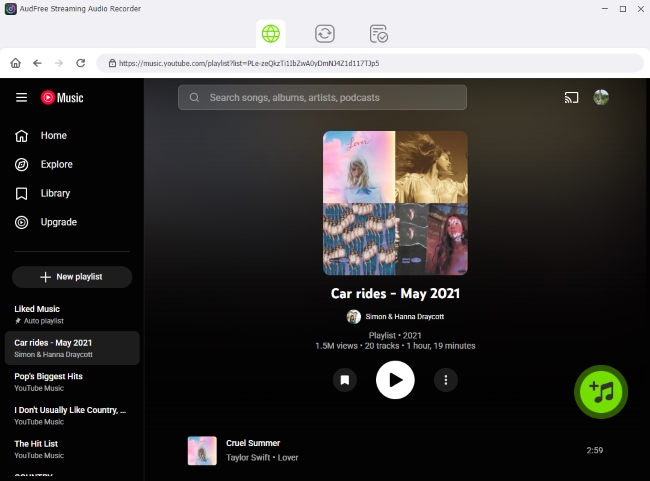
Step 4. Click the Convert button. The program will begin downloading and converting the tracks to your selected audio format. Once completed, the files will be saved locally on your computer.
Step 5. Now, you need to transfer these YouTube Music tracks to your Android phone or tablet. First, you should connect your Android phone or tablet to your computer using a USB cable. Then simply copy and paste the downloaded music files into your device's Music folder. After transferring, you can play the songs using any Android music player.
In addition to YouTube Music, this versatile tool supports high-fidelity downloads from over 10 major platforms, including Spotify, Tidal, and Apple Music. It ensures every track is saved with its original lossless audio quality and complete ID3 metadata.
Pros and Cons of Using AudFree Streaming Audio Recorder
Supports True 320 kbps MP3 and lossless FLAC output;
Provides multiple output formats such as MP3, WAV, FLAC, and M4A;
Enables batch downloading with accelerated conversion speeds of up to 30×;
Downloaded files can be transferred to other devices or imported into different apps;
Automatically preserves ID3 tags, including artist, album, title, and cover artwork;
Ideal for downloading large playlists, albums, or extended listening sessions;
Works seamlessly with YouTube Music, Spotify, Tidal, and other major streaming platforms
A paid license is required to unlock full-length conversions;
No dedicated Android app; YouTube Music files must be transferred from PC/Mac to Android devices
Part 3. How to Convert YouTube Music to Android Phone/Tablet via Online Converters
Another alternative is to use online YouTube audio converters. These tools allow you to paste a YouTube Music link and convert it into an audio file - usually MP3 - that can be downloaded directly to your Android device.
Unlike desktop software, online converters work entirely within a web browser, meaning you don't need to install any additional programs. Most of them support free conversions and can quickly extract audio from a YouTube video or music link.
Below are two commonly used tools you can try.
While online converters are accessible, they often suffer from server instability, intrusive ads, and restricted format options. Furthermore, they frequently fail as YouTube updates its platform structure. For users requiring consistent performance, batch processing, and customizable high-fidelity audio settings, the professional solution detailed in Part 2 is generally a better choice.
Method 1. Convert YouTube Music on Android with CNVMP3
Link: https://cnvmp3.com/v53
CNVMP3 is a popular web-based YouTube downloader that allows users to convert YouTube videos or music links into downloadable media files. It supports both MP3 (audio) and MP4 (video) formats and does not require software installation.
Its main advantage is simplicity - users only need to paste a link, and the server handles the entire conversion process.
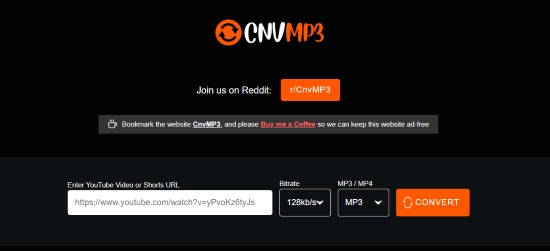
Step 1. Open the YouTube or YouTube Music app and copy the link of the video containing the music or song's URL you want.
Step 2. Navigate to the CNVMP3 website using your mobile browser. Select your preferred audio format and bitrate from the settings menu, then paste the URL into the input field and tap Convert.
Step 3. The tool will extract the audio stream and convert it into your chosen format (such as MP3). Once the process is complete, the file will be saved directly to your Android device at the specified bitrate.
Ensure you are using the official website cnvmp3.com. Avoid similar domains such as cnvmp3.org or other cloned sites, which may contain misleading ads or potential security risks.
Method 2. Convert YouTube Music on Android with Ezconv
Link: https://ezconv.cc/
Ezconv, used to be called EzMP3, is another browser-based YouTube converter that enables quick audio download from YouTube. Similar to CNVMP3, it focuses on simple link-based conversion and usually outputs music files in MP3 format.
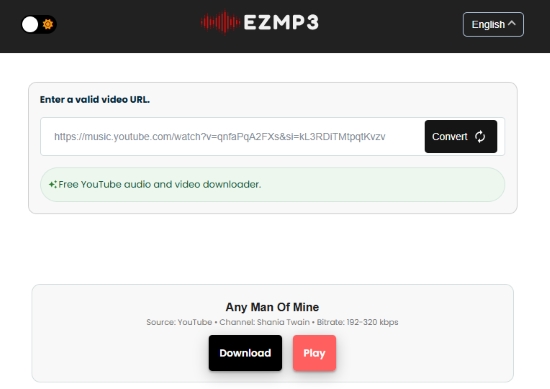
Step 1. Open the YouTube Music app or website and locate the track you wish to save. Tap the Share button and select Copy Link to grab the URL.
Step 2. Open the Ezconv converter page in your mobile browser. Then Paste the copied URL into the conversion box and start the conversion process. You can also customize the bitrate from 64k to 320k.
Step 3. Once the conversion is completed, tap the Download button to save the audio file directly to your Android phone or tablet.
Pros and Cons of Using Online YouTube Music Converters
No software installation required;
Works directly on Android browsers;
Usually free to use and easy to download songs
Limited audio quality and format options;
Ads or pop-ups on some websites;
Slower conversion for long playlists (most tools do not support playlist downloads);
Usually only supports single track downloads;
Performance may become unstable when YouTube updates its platform structure
Part 4. FAQs about YouTube Music on Android Phone/Tablet
How to play YouTube Music in the background on Android devices?
To stream YouTube Music on Android Devices in the background or while your screen is off, a YouTube Music Premium subscription is required. If you are a subscriber, ensure that 'Background Play' is enabled in the app's 'Playback & Restrictions' settings.
If you prefer not to rely on the official app or want to avoid the subscription requirement, another option is to use a professional tool like AudFree Streaming Audio Converter. This tool allows you to save YouTube Music tracks as high-quality FLAC or MP3 files that can be played on Android devices using any music player. Once stored locally, your music can play in the background, with the screen off, or even without an internet connection.
See also: How to Play YouTube Music in the Background Mobile/Desktop
How do I upload and play my local MP3/FLAC files within the YouTube Music Android app?
YouTube Music allows you to play locally stored files by navigating to Library > Songs and selecting the 'Device Files' tab. This section displays all locally stored audio files in formats compatible with YouTube Music. Alternatively, you can upload your local music library to the YouTube Music cloud using the desktop website. Simply click your profile icon and select Upload Music. Once uploaded, your tracks will be synced to your account and accessible across all your Android devices.
What is the difference between 'Low', 'Normal', and 'Always High' bitrates in the YouTube Music Android app?
These settings determine the audio quality and data consumption of your stream. 'Low' (48kbps HE-AAC) is ideal for saving data; 'Normal' (128kbps AAC) is the standard balance; and 'Always High' (256kbps AAC) delivers the maximum audio fidelity available on the platform, providing a richer listening experience for high-quality headphones or speakers.
If you prioritize sound quality and have a stable internet connection, choosing 'Always High' is recommended.
In Conclusion
Downloading music from YouTube Music on Android phones or tablets can be done in several different ways depending on your needs.
The YouTube Music Premium plan is the simplest method, allowing users to download songs directly within the app for offline listening. However, those downloads are restricted to the platform and cannot be transferred.
If you want greater flexibility and permanent access to your music files, tools like AudFree Streaming Audio Recorder can be a practical alternative. Local files (MP3 or FLAC) allow you to listen without platform restrictions, making it easier to play music in the background, keep tracks permanently, and use them across different Android apps and devices.
Meanwhile, online converters like CNVMP3 and Ezconv (EzMP3) provide a quick and simple way to download individual tracks directly from a browser.
Ultimately, whether you prefer the official streaming experience or a more flexible local library, Android offers multiple ways to enjoy your favorite YouTube Music tracks anytime and anywhere.

Staff Editor


