


YouTube has become one of the largest music platforms in the world. Millions of users rely on it daily to listen to songs, discover new artists, and enjoy playlists that span every genre imaginable. However, one common question iPhone users often ask is: How can I download music from YouTube to iPhone for offline listening?
Fortunately, there are several effective ways to download YouTube Music to iPhone depending on your needs. Whether you prefer the official offline download feature, want permanent MP3 files, or are looking for a free solution, this guide covers the most reliable methods available in 2026.

Part 1. How to Download Music from YouTube in iPhone (Official Method)
Obviously, the most simple way to download music from YouTube to an iPhone is through the YouTube Music Premium subscription. This official method allows users to save songs, albums, and playlists for offline listening directly within the YouTube Music app.
However, it's important to understand that these downloads remain restricted to the app itself and cannot be transferred to other apps or used as local audio files. Once your subscription expires, you will lose access to all the songs you've downloaded for offline listening.
If you want to save your YouTube Music playlists as permanent local files for offline playback on iPhone - without the restrictions of the official app - the best solution is to download DRM-free audio. We will detail how to use the best YouTube audio downloader for this process in Part 2.
Steps to Download Music from YouTube Music on iPhone
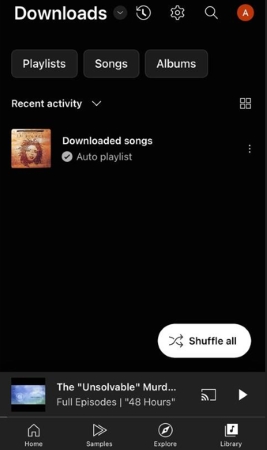
Step 1. Download the YouTube Music app from the App Store in your iPhone and sign in with your Google account.
Step 2. Search for the music you want to download within the YouTube Music library. Please note that offline downloads are only available to premium subscribers.
Step 3. Tap the Download icon to save the song or playlist for offline playback.
Once downloaded, the YouTube music will be accessible in the Downloads section of the app.
❌ Limitations of the Official Method in iPhone
While convenient, the official method has several limitations:
- Requires a monthly subscription
- Downloads are DRM-protected (locked in the YouTube Music app)
- Songs cannot be transferred to other device
- Files disappear if the subscription ends
Part 2. How to Download Music from YouTube to iPhone (Permanent Files)
If you want full control over your YouTube Music library, the best solution is to download YouTube songs as permanent files that can be played on any device, including your iPhone. This allows you to listen offline without restrictions and use the files however you want.
One of the most reliable tools for this purpose is AudFree Streaming Audio Recorder.
Unlike basic online converters or some free tools, this professional software can capture and convert streaming audio from multiple platforms, including YouTube Music, Spotify, and more. It saves songs as local audio files such as MP3, WAV, or FLAC while preserving the original sound quality.
AudFree Streaming Music Converter

- Download YouTube music to MP3, WAV, FLAC, and more formats
- Convert music at up to 30X faster speed
- Batch download albums and playlists from YouTube
- Maintain original audio quality and full ID3 tags
- Compatible with Windows and Mac
- Provide consistent performance and 24/7 support
Once downloaded, these YouTube Music files can be transferred directly to your iPhone for permanent offline playback.
How to Download YouTube Music for iPhone with AudFree
Step 1. Click the button above to download and install AudFree Streaming Audio Recorder on your Windows or Mac computer. You need a paid license to activate the program for full music conversion.

Step 2. Go to 'Menu' > 'Preferences' > 'Conversion' to select your desired output format. You can also adjust audio settings to maintain the best audio quality, such as bitrate, sample rate, and audio channels as needed. Don't forget to choose a destination folder and enable ID3 tag retention to keep your YouTube music library organized.

Step 3. After saving your preferences, click the YouTube Music icon on the main interface to open the built-in YouTube Music web player and sign in to your account. Browse for songs, playlists, or albums you want to download. Click the green '+' button to add selected tracks to the conversion list. The software supports batch downloading, allowing you to add entire playlists at once.
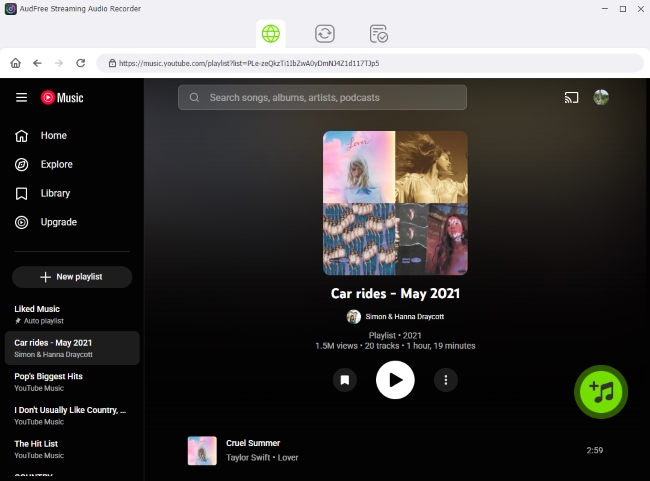
Step 4. Go to the 'Converting' section and click the 'Convert' button to begin downloading the selected tracks. AudFree program will automatically convert and save the songs to your computer as local files. Once the process finishes, you can find the songs in the 'Converted' section or in your output folder.

Step 5. After downloading, you can transfer these local songs to your iPhone using iTunes/Finder, AirDrop, or Apple Cloud storage. Once transferred, you can play the YouTube Music songs offline on your iPhone anytime without needing the YouTube Music app.

❌Limitations of AudFree Streaming Audio Recorder
While AudFree is a powerful and efficient tool, there are a few considerations to keep in mind:
- A paid license is required to unlock unlimited song downloads
- Only runs on Windows and Mac, so an extra step is required to sync converted files to your iPhone or Android device
Part 3. How to Download Music from YouTube to iPhone Free
If you prefer a free solution, there are still some ways to download YouTube music on iPhone. However, these methods usually have limitations such as slower speeds, advertisements, or lower reliability.
But if you don't mind that, you can have a try. Here are two commonly used options - online website CNVMP3 or iOS Shortcuts.
Method 1. Free Online Converter (CNVMP3)
If you're looking for a free way to download music from YouTube on your iPhone, online converters like CNVMP3 are incredibly convenient. Unlike other tools that require software installation, CNVMP3 works directly in your Safari browser to save videos as high-quality MP3s. It's a fast, simple, and ad-free method to get the tracks you want for offline playback.
How to Download YouTube Music to iPhone for Free via CNVMP3
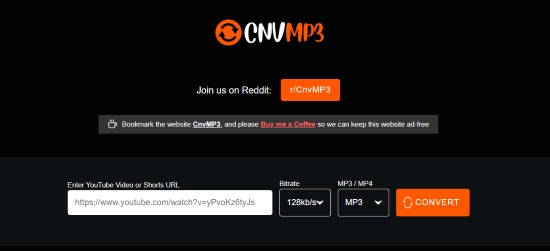
Step 1. Open the YouTube Music app or YouTube website and copy the link.
Step 2. Visit the CNVMP3 website in Safari or other browser on your iPhone.
Step 3. Paste the URL into the converter box of CNVMP3.
Step 4. Here, you can also select your preferred format and bitrate. To ensure your YouTube music sounds better on your iPhone, choose 320kbps MP3 as the output quality. If you are downloading a music video, you can also select the 1080p MP4 option for high-definition playback.
Step 5. Tap Convert, then download the file. Once downloaded, you can save the YouTube audio file to your iPhone using the Files app.
See also: CNVMP3 Review and Its Better Alternative
❌ Limitations of Online Website
Aside from tools like CNVMP3, most online YouTube converters come with several common drawbacks:
- Frequent pop-up ads and unwanted redirects that interrupt the download process
- No support for playlist downloads
- Limited or no audio customization options, often resulting in lower audio quality
- Occasional download failures or unstable performance
- Some websites may shut down or become unavailable without notice
Because of these limitations, online tools are usually suitable only for quick, occasional downloads rather than long-term music management or high-quality audio needs.
For a safer, higher-quality experience, more and more users in 2026 are shifting toward dedicated desktop programs, like AudFree in Part 2.
Method 2. iOS Shortcuts
Another free method to download Music from YouTube involves using iOS automation shortcuts to extract audio from YouTube videos.
These shortcuts automate the process of converting a YouTube video into an audio file directly on your iPhone.
How to Download YouTube Music to iPhone Free via iOS Shortcuts
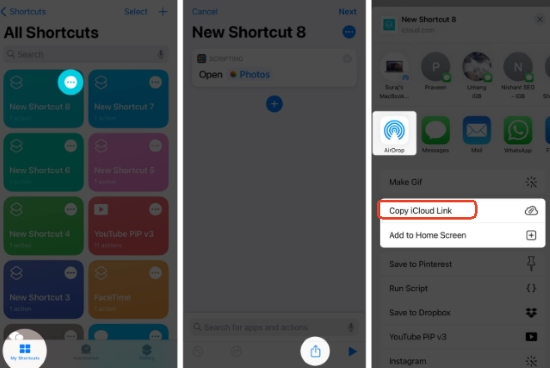
Step 1. Because the official Apple Shortcuts Gallery does not include YouTube downloaders due to copyright policies, you'll need to install a community-created shortcut instead. In 2026, tools like 'SW-DLT' and 'R·Download' are commonly used options that can be added to the Shortcuts app via shared iCloud links.
You may need to install the free a-Shell mini app from the App Store to provide the backend commands for these scripts.
Step 2. Open the YouTube app, navigate to your desired song or music video, and tap 'Share > Copy Link'.
Step 3. Open the Shortcuts app and tap your downloader. Alternatively, you can run it directly from the YouTube Share sheet by tapping More and selecting the shortcut from the list.
Step 4. When prompted, choose 'Audio Only' and select 'M4A' or 'MP3' as your format. Once the conversion bar reaches 100%, select 'Save to Files' to store the track in your 'On My iPhone' folder in Files App.
❌Limitations of the iOS Shortcuts
Although iOS Shortcuts offer a convenient way to download music from YouTube in iPhone, they can sometimes stop working when YouTube updates its platform or changes its API. In addition, there are several other limitations to consider:
- Unstable performance, as shortcuts may break after system or app updates
- Manual setup required, which can be confusing for beginners
- Limited support for batch or playlist downloads
- Occasional errors during the download process
For these reasons, iOS Shortcuts are generally better suited for occasional downloads rather than large-scale or long-term music collection management.
Part 4. FAQs About Downloading Music from YouTube to iPhone
How to Fix YouTube Music Crashing on iPhone?
Most YouTube Music crashes are caused by outdated app versions, temporary system glitches, or corrupted app data. If the YouTube Music app keeps crashing on your iPhone, try the following solutions:
1. Update the YouTube Music app to the latest version from the App Store.
2. Restart your iPhone to clear temporary system errors.
3. Clear the app cache by offloading the app in Settings > General > iPhone Storage.
4. Reinstall the application to refresh all app data and settings.
These simple steps usually resolve most playback or startup crashes on iOS devices.
Is It Possible to Download an Entire YouTube Playlist to iPhone in One Click?
Yes, but it depends on the method you use. With YouTube Music Premium, you can download entire playlists directly inside the app for offline listening. However, these downloads are DRM-protected and can only be played within the YouTube Music app.
If you want permanent audio files that can be stored or transferred freely, tools like AudFree Streaming Audio Recorder allow you to batch download entire playlists and convert them into common formats such as MP3 or WAV for long-term use.
How Can I Set a Downloaded YouTube Song as an iPhone Alarm or Ringtone?
If you want to use a downloaded YouTube song as an iPhone ringtone or alarm sound, follow these steps:
Step 1. Open GarageBand on your iPhone and import the downloaded YouTube audio file.
Step 2. Edit and trim the song to the desired section (usually under 30 seconds for ringtones).
Step 3. Tap Share > Ringtone and export the file and choose the exported track.
Step 4. Go to Settings > Sounds & Haptics > Ringtone.
Step 5. Open the Clock app, create or edit an alarm, and select the custom ringtone as your alarm sound.
This way, you can personalize your iPhone notifications or alarms with your favorite YouTube music tracks.
Conclusion
Downloading music from YouTube to an iPhone is easier than ever in 2026, thanks to a variety of tools and methods.
If you prefer the simplest approach, YouTube Music Premium allows you to download songs directly within the app. However, these downloads are limited and tied to your subscription.
For users who want more flexibility, AudFree Streaming Audio Recorder offers the best solution. It allows you to download YouTube songs to FLAC or MP3 as permanent local files, giving you full control over your music library.
Free methods like online converters and iOS shortcuts are also available, but they may not always be as reliable or stable.
Ultimately, the best option depends on whether you prioritize convenience, permanence, or cost. With the methods outlined above, you can easily build your own offline YouTube music collection and enjoy your favorite YouTube songs on your iPhone anytime, anywhere.

Staff Editor


