


Chromebooks are known for their speed, simplicity, and cloud-based functionality. They offer great value for users who need a lightweight, portable laptop. One of the top activities Chromebook users engage in is music streaming, with YouTube Music among the most popular platforms.
With over 125 million users, YouTube Music offers a range of features, from music discovery to personalized playlists. As a YouTube Music subscriber, you may wonder whether you can download YouTube Music to Chromebook directly. The short answer is yes. You can get the YouTube Music app (or web app) for Chromebook and listen to or download YouTube Music easily (detailed in Part 1). But what about getting YouTube Music for permanent offline access on a Chromebook?
Don't worry. This article covers everything you need to know about using YouTube Music on your Chromebook, from official methods to downloading and saving music locally. After reading this article, you'll get everything out.
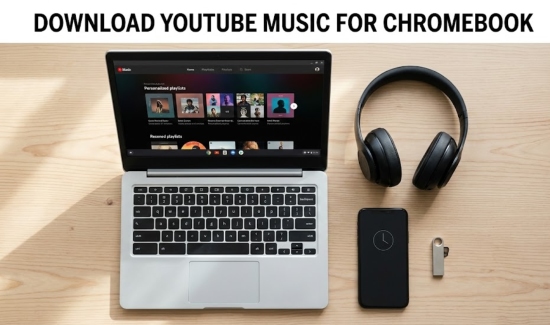

Part 1. How to Download YouTube Music for Chromebook Officially
Now you know that you can easily get the YouTube Music app on your Chromebook. So, how to download YouTube music for your Chromebook officially?
YouTube Music offers both online and offline streaming capabilities, though its offline functionality may depend on your subscription type. Only YouTube Music Premium users can download songs and listen offline.
1. How to Download YouTube Music on Chromebook via YouTube Music App
For users who prefer the Android version of YouTube Music, Chromebooks support the Google Play Store, which means you can install and run Android apps directly on your Chromebook.
Here's how to install the YouTube Music app from the Play Store:

Step 1. Launch the Play Store from your Chromebook's app drawer.
Step 2. Use the search bar to find 'YouTube Music' and select the app.
Step 3. Click 'Install' to download the app to your Chromebook.
Step 4. Once installed, open the app and sign in with your Google account.
With the YouTube Music app for Chromebook, your entire music library and personal playlists are always at your fingertips. YouTube Music Premium users can enjoy seamless streaming, create custom mixes, and download their favorite tracks directly to their Chromebook. This offline access not only saves data but also ensures an uninterrupted listening experience, even when you're away from Wi-Fi.
2. How to Download YouTube Music on Chromebook via Web App
Beyond the YouTube Music Chromebook app, you can also listen to YouTube Music via the web player, and get it as a PWA YouTube Music player. If you prefer such methods, go and check the steps below:
Step 1. Go to the official YouTube Music website on your Chrome or other browser.
Step 2. Click the three dots in the top right (next to the profile) and click Cast, save, and share > Install YouTube Music. Or you can click the 'Install' directly on the top search bar.
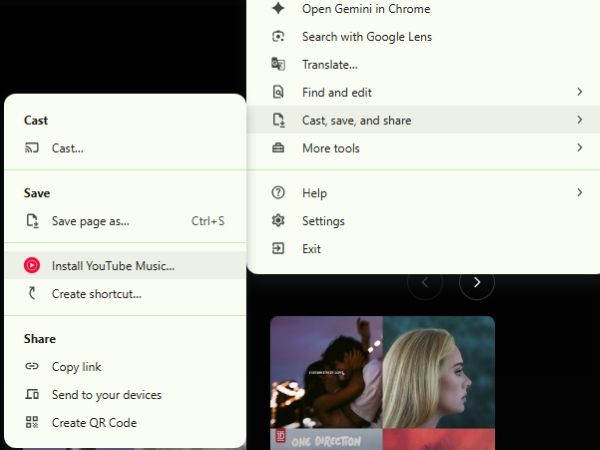
Step 3. Log in with your Google account to access your personalized music library and playlists. On any song, album, or playlist, you'll see a download button (downward arrow). Click it to download the content to your Chromebook.
Now, it's time for you to enjoy your YouTube Music library on your Chromebook.
The web version offers the same features as the YouTube Music Chromebook app, with the added benefit of offline playback if you have a YouTube Music Premium subscription.
Part 2. How to Download YouTube Music on Chromebook [Local Files]
While the YouTube Music web and Android apps offer great streaming capabilities, you may want to download music to your Chromebook for offline listening, especially when you're unable to access Wi-Fi.
Alternatively, if you don't want to subscribe to YouTube Music Premium but still want to download music for offline use, a downloader tool is necessary.
AudFree Streaming Audio Recorder is a popular option for downloading YouTube Music tracks and saving them as local files on your Chromebook. It supports batch downloading of YouTube Music with the original audio quality, including full metadata.
More importantly, it can download YouTube Music for Chromebook in MP3, FLAC, WAV, and more, all without DRM protection. This means you truly own your YouTube Music library forever!
As a professional, all-in-one streaming music downloader, AudFree Streaming Audio Recorder also supports other major platforms like Spotify, Tidal, Amazon Music, and more (over 10+ services).
AudFree Streaming Audio Recorder

- Download YouTube Music to MP3, WAV, FLAC, and more for Chromebook
- Preserve original audio quality and full ID3 tags
- Batch convert albums and playlists at up to 30X speed
- Remove YouTube Music DRM-protection easily
- Fully compatible with Windows & Mac
Phrase 1. How to Download YouTube Music for Chromebook via AudFree Streaming Audio Recorder
Since AudFree Streaming Audio Recorder is only available for Windows or Mac, it's recommended that you download YouTube Music on another computer and transfer the local files to your Chromebook.
- Step 1. Set Output Format of YouTube Music

- Download and launch the best YouTube Music downloader on Chromebook. Click the menu icon > Preferences, and click Conversion on the pop-up window. Here, choose one of formats you prefer as the output format, MP3 for example. You can also customize bitrate, sample rate, and audio channels if needed. Under the Output tab, you can select your preferred destination folder and enable ID3 tag retention if needed. Don't forget to click 'OK' to save settings.
- Step 2. Add YouTube Music Tracks for Conversion
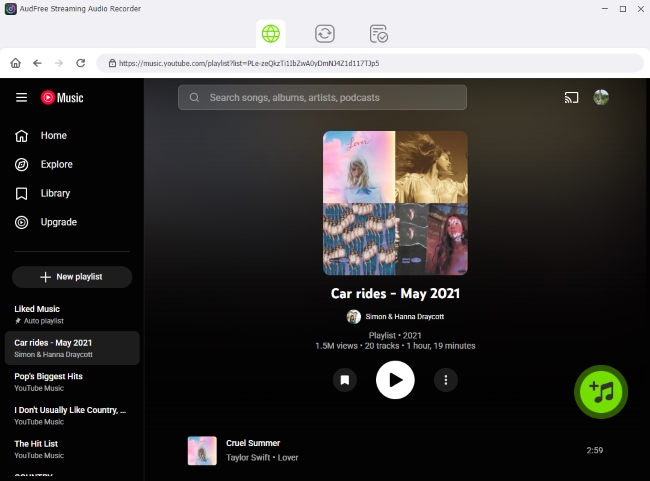
- Now, back to the main interface and log in. Browse songs, playlists, or albums you want to download via the built-in YouTube Music web player. Click the green '+' button to add selected tracks to the conversion list. There is no limit on how many songs you can add at once, so you can get your whole YouTube Music playlists or albums easily.
- Step 3. Download YouTube Music on Chromebook as Local Files

- Go to the Converting tab and click Convert button to process the conversion and save these songs as local files. Once completed, you can find your downloaded songs in the Converted section or in the output folder on your computer. Now, you can transfer the files to your Chromebook via USB or YouTube cloud storage.
Phrase 2. How to Transfer YouTube Music to Chromebook
Via USB Drive
Step 1. Plug your USB drive into your computer where the converted YouTube Music files are saved, and open the folder containing the downloaded YouTube Music files.

Step 2. Open the Files app on your Chromebook. Drag and drop the converted YouTube Music files from your USB drive into the desired folder on your Chromebook.
Step 3. Now, you can enjoy your YouTube Music offline directly on your Chromebook.
See also: How to Transfer YouTube Music to USB
Via YouTube Cloud Storage
Step 1. Navigate to you local YouTube Music files on your computer.
Step 2. Visit to the YouTube Music official website, log in, click Profile icon, and click Upload music.

Step 3. Select your local YouTube Music files to upload. Once finished, you'll see the local files on your YouTube Music Chrome app.
Part 3. FAQs About YouTube Music for Chromebook
On a Chromebook, which has better sound quality: the YouTube Music Web App or the Android App?
Theoretically, both the YouTube Music web app and the Android app offer the same maximum sound quality on a Chromebook. However, the experience differs in how that quality is delivered: the Android app allows for high-quality (256kbps AAC) offline downloads if you have a Premium subscription, whereas the web app relies entirely on your internet connection to maintain that bitrate.
Can I upload my own local MP3 files to YouTube Music from my Chromebook?
Yes, YouTube Music allows you to upload your own MP3 files to your account, no matter what computer you use. Simply visit the YouTube Music website on your Chromebook, click on your profile, and select 'Upload Music' from the dropdown menu. You can upload up to 100,000 tracks to your library, making it easy to mix your local collection with streaming content.
Does YouTube Music support background play on Chromebooks without a Premium subscription?
It depends on which YouTube Music version you use. If you use the YouTube Music Android app, background play is restricted to Premium subscribers, and the music will stop if you minimize the app. However, if you use the YouTube Music Web App (PWA), you can listen in the Chromebook background or switch tabs for free, just like you would on a traditional laptop.
How do I save Chromebook storage space if I use the best YouTube Music downloader?
If you are downloading YouTube Music on your Chromebook using a third-party downloader, such as AudFree, you can save storage space by choosing lower bitrates (e.g., 128kbps or 192kbps) and limiting the number of songs downloaded. Also, consider saving the files on cloud storage or an external USB drive instead of your Chromebook's internal storage.
Can you get YouTube Music on a blocked School Chromebook?
If your school has blocked the YouTube Music app or website, you may not be able to stream or download directly. In these cases, the best solution is to use tools like AudFree to save YouTube Music tracks, transfer them to your phone or USB drive, and insert them into the School Chromebook for offline listening.
Why is my YouTube Music app flickering or running slowly on the Chromebook?
Several factors could be causing performance issues with the YouTube Music app on your Chromebook:
Outdated app version: Make sure you're using the latest version of the app.
Excessive cache: Clear the app's cache to free up space.
Too many open tabs: Close unnecessary tabs or apps to free up system resources.
Chromebook hardware limitations: Ensure your Chromebook meets the system requirements for running YouTube Music Chromebook apps smoothly.
How to clear YouTube Music cache on Chromebook?
If you're facing performance issues with YouTube Music on Chromebook, clearing the cache can help. Depending on whether you use the YouTube Music Web App or the Play Store App, follow the instructions below:
For the Web App (PWA): To clear the cache for the YouTube Music web version, open Chrome and navigate to music.youtube.com. Click the lock icon on the left side of the address bar, select Cookies and site data, and then click Manage on-device site data. From there, you can click the trash icon or select Remove to delete the site's cached data and refresh the page to resolve any glitches.
For the YouTube Music Chromebook App (Play Store): If you are using the Android app, go to your Chromebook Settings, click on Apps, and select Manage your apps. Locate YouTube Music, click on More settings and permissions, and then navigate to Storage & cache. Finally, click Clear cache to refresh the app's performance without deleting your downloaded offline music.
Conclusion
Getting YouTube Music on your Chromebook is easy and convenient, whether you're using the web app, the Android app, or a third-party downloader.
For offline listening, YouTube Music Premium provides the best experience, allowing you to download songs, albums, and playlists directly to your device. However, if you don't have Premium, using tools like AudFree YouTube Music Converter allows you to download and save music locally in MP3 or other formats. It's a quick and easy way to stream music online or you prefer downloading your favorite tracks for offline use.

Staff Editor


