


Have you ever wanted to listen to a YouTube Music song at 1.5x speed to save time, slow down a track to learn the melody, or adjust the tempo for music practice? While YouTube provides a built-in playback speed option for videos, YouTube Music works differently.
For regular songs, YouTube Music does not offer a native playback speed control feature in its app or web player. This means you cannot simply open a song and choose 0.75x, 1.5x, or 2x speed like you can with YouTube videos.
However, there are still ways to change YouTube Music playback speed depending on your device. In this guide, we will explain why YouTube Music does not have a built-in speed control option and show you practical methods to speed up or slow down songs on both computers and phones.

Part 1. Can You Change Playback Speed on YouTube Music?
Yes, but not directly within the official YouTube Music app for regular songs. Unlike YouTube videos, YouTube Music does not offer a built-in playback speed control for standard music tracks. To adjust the speed of YouTube Music songs, you'll need to use alternative methods or third-party tools.
Does YouTube Music Have a Playback Speed Option?
The short answer is no, not for regular music tracks.
Unlike the main YouTube platform, YouTube Music does not include a playback speed button for standard tracks. Whether you are using the YouTube Music mobile app or web player, you cannot directly change song speed from 0.5x to 2x for official songs, albums, playlists, or music videos played through the YouTube Music interface.
For example, when playing an official track in YouTube Music, the playback menu does not include the familiar Speed option available on YouTube videos.
However, there are a few exceptions. Playback speed controls may still appear for certain types of content, including:
- Podcasts available on YouTube Music
- Video content that opens through the standard YouTube player interface
These speed controls come from YouTube's general playback system rather than being a dedicated YouTube Music feature.
| Feature | YouTube | YouTube Music |
|---|---|---|
| Change video playback speed | ✅ | ✅ (Only for supported video content) |
| Adjust podcast speed | ✅ | ✅ (Available for supported podcasts) |
| Change speed of regular songs | ✅ (Available when played as videos) | ❌ |
| Apply speed changes to music playlists | ❌ | ❌ |
Why Doesn't YouTube Music Have a Speed Control Button for Songs?
Google has not provided an official explanation for why YouTube Music does not include a speed control option for standard songs.
One possible reason is that YouTube Music is designed primarily as a music streaming platform, where listeners typically expect songs to play at their original tempo and pitch. Unlike podcasts or educational videos, music playback is usually focused on preserving the artist's intended listening experience.
Another reason may be that YouTube Music has historically separated music playback from YouTube's more flexible video playback features. While YouTube users often adjust playback speed for tutorials, lectures, and other spoken content, most music streaming services keep playback controls focused on features like playlists, recommendations, and audio quality.
Regardless of the reason, the limitation remains the same: if you want to speed up or slow down YouTube Music songs, you need to use an alternative workaround, such as a playback speed controller or audio conversion tool.
Part 2. How to Change Playback Speed on YouTube Music Web Player (Extension Method)
If you mainly listen to YouTube Music on a computer, the easiest workaround is using a browser extension that adds playback speed controls to the YouTube Music web player.
Extensions such as Video Speed Controller, Global Speed, and similar playback tools can modify the playback speed of supported HTML5 audio and video content directly from your browser.

This method does not change the YouTube Music website itself or add a native speed control feature. Instead, the extension creates an additional playback control layer that works while you stream music through your browser.
Several browser extensions can help adjust YouTube Music playback speed, including Global Speed, Play Rate Controller, and Video Speed Controller. In this guide, we'll use Video Speed Controller as an example.
Steps to Change YouTube Music Speed with Video Speed Controller
Step 1. Install the Video Speed Controller extension on your preferred browser, such as Chrome, Edge, or Firefox.
Step 2. Open the YouTube Music web player and start playing your favorite song, album, or playlist.
Step 3. Once the extension detects the playback, a small speed indicator will appear on the screen (usually near the top-left corner of the album artwork). Click the control to increase or decrease the playback speed.
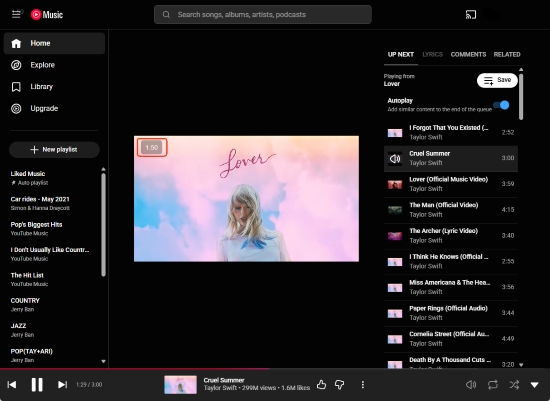
Now you can adjust YouTube Music playback speed according to your preference.
Besides using the on-screen controls, you can also use keyboard shortcuts - press D to speed up, S to slow down, and R to reset to normal speed. This method (Video Speed Controller) allows you to set your own speed increment or decrement values for precision adjustments in steps as small as 0.01x (e.g., 1.01x or 0.99x).
Pros and Cons of Using Browser Extensions
You can adjust speed immediately while streaming from YouTube Music;
Your playlists and recommendations remain available;
Quick installation with minimal setup
Browser extensions cannot add speed control to the official YouTube Music mobile app;
If YouTube Music updates its web player, some extensions may temporarily stop working;
This method only works for online playback and does not support offline listening
Part 3. How to Adjust YouTube Music Playback Speed on Phone (Third-Party Player Method)
Unlike desktop browsers, mobile devices do not support browser extensions that can modify the YouTube Music app. Therefore, if you want to change playback speed on YouTube Music songs using an iPhone or Android device, you need another solution.
The main challenge is that YouTube Music songs are protected within the streaming platform. Even if you download music for offline listening inside the YouTube Music app, those files are stored in an encrypted format and cannot be accessed as normal audio files such as MP3 or FLAC.
To use advanced playback features like speed adjustment, you need to first create compatible local audio files and then play them through a music player that supports speed control.
The general workflow is: YouTube Music → Local Audio Files → Speed-Control Music Player.
For this purpose, you can use a tool like AudFree YouTube Music Converter to save YouTube Music tracks as local audio files, then import them into a flexible player such as VLC Media Player. VLC supports adjustable playback speeds ranging from 0.25x to 8x, making it suitable for slowing down songs for practice or speeding them up for quick listening.
Why Choose AudFree YouTube Music Converter?

- Batch convert YouTube Music to MP3, FLAC, WAV, AIFF, and more
- Support multiple streaming platforms, including YouTube Music, Spotify, and Apple Music
- Preserve ID3 tags and important metadata such as song titles, artists, and album information
- Maintain original audio quality without unwanted ads or interruptions
- Compatible with both Windows & Mac
Steps to Change YouTube Music Playback Speed on Mobile
Step 1. Download and install AudFree YouTube Music Converter on your Windows or Mac computer.
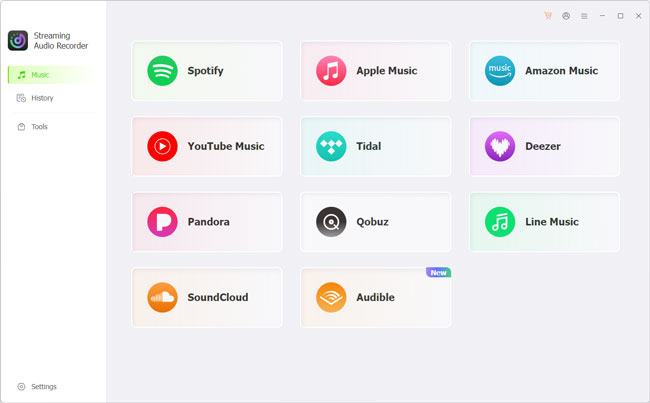
Step 2. Open the built-in YouTube Music web player in AudFree, then add your favorite songs, albums, or playlists. Next, go to the 'Settings' and select a common audio format, such as MP3 or FLAC, depending on your preferred player and device compatibility.
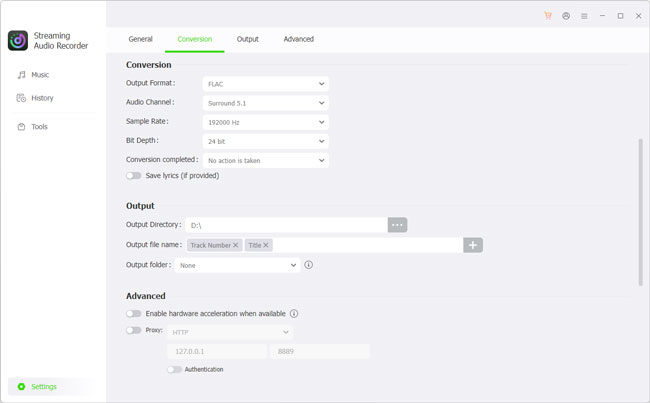
See also: How to Convert YouTube Music to FLAC
Step 3. Start the conversion process. Once completed, the converted songs will be saved to the selected local folder on your computer. You can then access the audio files directly from your hard drive and use them with other music players.
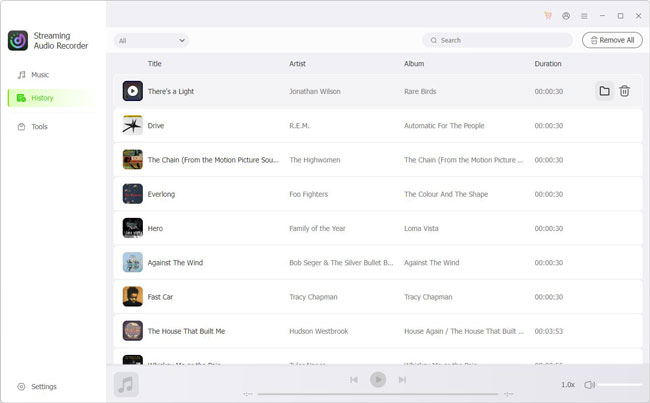
Step 4. Transfer the converted audio files to your iPhone or Android device via USB or cloud storage.
Step 5. Open the songs in VLC Media Player or another speed-control music player and adjust the playback speed as needed.
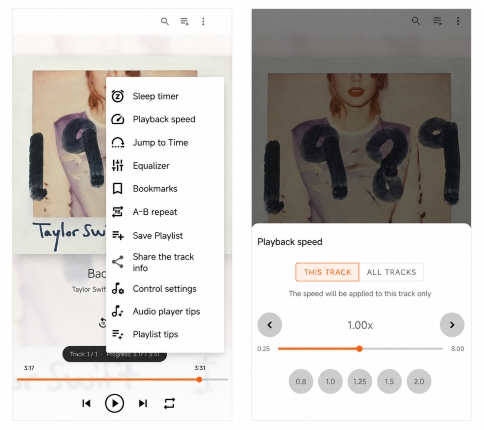
AudFree can also preserve lyrics, provided they are available for the songs on YouTube Music.
Pros and Cons of Using a Third-Party Player
Works across iPhone, Android devices, and computer;
Supports music from multiple streaming platforms;
Enables offline playback without an internet connection;
Provides more flexible speed controls than YouTube Music;
Allows you to keep local audio files for personal playback across compatible devices permanently
Requires an additional conversion step before playback;
Converted files need to be transferred to your mobile device;
You cannot directly control playback speed inside the official YouTube Music app
Part 4. FAQs About YouTube Music Playback Speed
Can I Speed Up Offline Downloaded Tracks Within the YouTube Music App?
No. Songs downloaded for offline listening in the YouTube Music app cannot be played at a different speed within the app.
YouTube Music offline downloads are stored inside the app and are designed for playback through YouTube Music only. They are not available as regular audio files that can be opened in other players or adjusted with external speed controls.
If you want to change the speed of offline music, you need to use local audio files that can be imported into a compatible music player with playback speed support, like VLC Media Player or Poweramp.
Will Changing the Playback Speed Alter the Song's Pitch?
It depends on the playback method or tool you use. Most modern playback speed controllers use pitch correction technology, which allows you to speed up or slow down a song while keeping the original pitch. In this case, the vocals and instruments will sound natural even when the tempo changes.
However, some basic speed adjustment tools may change both the playback speed and pitch at the same time. When this happens, faster playback makes the song sound higher, while slower playback makes it sound deeper.
If maintaining the original sound quality and pitch is important, choose a player or tool that supports pitch preservation or time-stretching technology.
Conclusion
YouTube Music does not currently offer a built-in playback speed control feature for regular songs, which makes it difficult for users who want to speed up playlists, slow down tracks for practice, or customize their listening experience.
For desktop users, browser extensions provide a simple way to add speed controls to the YouTube Music web player. They allow quick adjustments without changing your music library, although they depend on browser compatibility and internet access.
For mobile users, a more flexible solution is to use local audio files with third-party players such as VLC or Poweramp. By moving beyond the limitations of the YouTube Music app, you can enjoy more control over playback speed, offline listening, and audio customization.
Whether you want to listen faster, study a song in detail, or practice along with a track, the right method depends on your device and how much control you need over your music playback experience.

Staff Editor


