


YouTube Music has grown significantly in popularity as a go-to platform for music streaming. However, one common issue many users encounter is content becoming unavailable on the platform. Whether you're using YouTube Music on Android, iPhone, or the web version, facing an error stating that the content is unavailable can be frustrating.
While some issues are temporary, others may be more persistent, requiring intervention from the user or the service itself. Understanding why content is unavailable on YouTube Music and how to address these problems can help ensure a smoother listening experience.
This article will explore the unavailable reasons in 2026, provide common fixes to resolve this issue, and introduce a permanent solution to avoid these problems. Feel interested? Let's get started.


Part 1. Why Is Content Unavailable on YouTube Music?
Why are so many songs unavailable on YouTube Music? Many YouTube Music users may wonder why some of their favorite songs or albums are suddenly unavailable. This can be a confusing and disappointing experience. Understanding the underlying reasons for content unavailability can help users navigate this issue more effectively. Let's take a closer look at the main reasons why content might be restricted on YouTube Music.
1. Geographic Restrictions
One of the most common reasons for unavailable songs on YouTube Music is licensing restrictions. Music streaming platforms often secure licenses based on geographical regions, meaning that certain songs may only be available in specific regions. If you are located outside these regions, you might see an error message when trying to play restricted content.
For instance, a song might be available in the United States but unavailable in Europe, causing it to be marked as "unavailable" in some locations.
2. Account or Subscription Level
YouTube Music offers both free and Premium tiers, with some content reserved exclusively for Premium subscribers. If your YouTube Music subscription is expired or there is a billing issue, you might lose access to premium content. Non-subscribers typically don't have access to some songs, albums, or features. Additionally, some music videos may be restricted to YouTube Premium members, which might cause them to show as unavailable.
3. Copyright and Licensing Issues
YouTube Music is a platform that heavily relies on licensing agreements with record labels and music distributors. Sometimes, due to expired licenses or unresolved copyright disputes, certain tracks or videos may become temporarily or permanently unavailable. If a content creator or label decides to pull their music from the platform, it can lead to unavailability.
4. Platform Updates
Occasionally, YouTube Music updates its content library, which can temporarily make some songs or playlists inaccessible. These updates are usually brief, but they can impact availability, causing some users to see the 'Content Unavailable' message until the platform finalizes its updates.
5. Network Issues
Sometimes, the issue isn't with YouTube Music itself but rather with your internet connection. A weak or unstable connection may cause the platform to be unable to load or stream the content, which can result in the "content unavailable" error. Additionally, streaming at a high quality can put extra pressure on your network, causing some content to become unavailable.
6. Server-side Issues
On occasion, YouTube Music may experience temporary server outages. During these times, users may not be able to access certain content due to technical difficulties on YouTube Music's end. These issues usually resolve themselves after a short period.
See also: How to Fix YouTube Music Keeps Stopping
Part 2. How to Make YouTube Music Content Available (Common Fixes)
Knowing why YouTube Music content is unavailable is only half the battle. Fortunately, there are various solutions to address this problem. Whether the issue is due to region-based limitations, subscription restrictions, or others, users have options to work around these barriers and enjoy their music. Below are some practical solutions that may help you regain access to unavailable content on YouTube Music.
1. Check Your Internet Connection
The first step in troubleshooting is to ensure that your internet connection is stable. Slow or intermittent internet can prevent YouTube Music from loading content. Try switching to a more stable Wi-Fi network or using mobile data if available. You can also check the speed of your connection by running a speed test.
2. Clear YouTube Music Cache
Sometimes, content may appear unavailable due to temporary issues within the app itself, like cached date. Clearing the cache can resolve these glitches.
Step 1. Go to your device's settings. On Android, find 'Apps' > 'YouTube Music' > 'Storage usage'. On iOS, find 'General' > 'iPhone Storage' > 'YouTube Music'.

Step 2. Next, tap 'Clear Cache'/'Clear Data' on Android or 'Documents & Data'/'Offload app' on iPhone.

Step 3. Reopen the app and try accessing the content again.
3. Update the YouTube Music App
App updates often include bug fixes and improvements. If you're using an outdated version of YouTube Music, it could cause issues with streaming. Make sure you have the latest version of the app installed
Step 1. Visit the Google Play Store or Apple App Store.

Step 2. Search for YouTube Music and check if there's an available update.
Step 3. If an update is available, click it, and then reinstall the app.
4. Switch Accounts or Upgrade to Premium
If you're a free-tier user, upgrading to YouTube Music Premium can grant access to a more extensive library and exclusive content. Alternatively, signing in with a different account that has Premium status may provide access to unavailable content.
In short, make sure your YouTube Music subscription is active. You can check the status of your subscription by going to the YouTube Music app settings or checking your Google Account subscriptions.
Step 1. Go to YouTube Music's settings or visit the YouTube Music Premium page.
Step 2. Choose the Premium subscription and follow the instructions to upgrade.
Step 3. Once upgraded, access the additional Premium content and features.

5. Use a VPN to Access Region-Restricted Content
YouTube Music's content library varies depending on the country or region. If the YouTube Music content is unavailable in your region, mostly due to geographic restrictions, you might need to use a VPN (Virtual Private Network) to change your location. A VPN allows you to mask your IP address and appear as if you're browsing from a different country, allowing access to specific regional content.
6. Try Other Music Platforms
If specific content is entirely removed or still unavailable, you may find it on other streaming platforms like Spotify, Apple Music, or Tidal. Each streaming service has its own licensing agreements, so content availability may vary.
Part 3. How to Fix YouTube Music Content Unavailable Permanently (Best Method)
While the fixes mentioned above are great for resolving temporary issues, they don't offer a permanent solution for users who regularly face unavailable content. The best way to ensure you always have access to your favorite songs, even when they're unavailable on YouTube Music. To make it, you need a dedicated music downloader to back up your YouTube Music library.
A professional downloader, called AudFree YouTube Music Downloader, can help you a lot. It is a powerful tool designed to help users download songs, albums, playlists, and entire libraries from YouTube Music, but not limited to YouTube Music.
AudFree YouTube Music Downloader supports over 10 major streaming services, offering lossless playback for Spotify, Apple Music, and Tidal, alongside full integration for YouTube Music.
This software allows you to save your favorite tracks locally on your device in high-quality formats like MP3, FLAC, WAV, and more. By downloading music using the AudFree tool, you can avoid issues with unavailable content and ensure you always have access to your music, even if it gets removed from the platform.
AudFree YouTube Music Downloader

- Automatically recognize and retain ID3 tags
- Ad-free output with original audio quality
- Save songs and playlists in FLAC, WAV, MP3, and more with no quality loss
- Batch converting YouTube Music entire albums or playlists at 30x speed
- Download music from any region without worrying about geographic limitations
- Fully compatible with Windows & Mac
How to Make YouTube Music Always Available via AudFree
- Step 1. Set YouTube Music Output Parameters

- Launch the AudFree YouTube Music Converter and navigate to "Menu > Preferences > Conversion". Select your desired output format (such as FLAC, MP3, or WAV). To ensure the best audio fidelity, you can further adjust the bitrate, sample rate, and audio channels. Finally, set your preferred destination folder and ensure ID3 tags are selected to maintain organized metadata.
- Step 2. Add YouTube Music Playlist to Conversion List
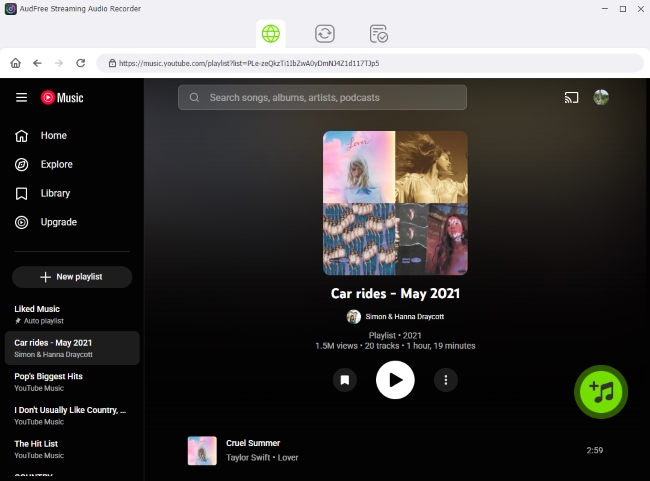
- Return to the main interface and click the YouTube Music icon to open the built-in web player. Log in to your account to browse your library. When you find a song, album, or playlist you want to save, click the green "+" button to add it to the queue. There are no limits - you can add as many tracks as you like.
- Step 3. Convert and Save YouTube Music Permanently

- Switch to the "Converting" tab and click the "Convert" button. The software will efficiently process your list and remove DRM restrictions. Once the process is complete, you can find your stable, offline-ready files in the "Converted" section or your local output folder.
Part 4. FAQs About YouTube Music Content Unavailable
How to fix YouTube Music content unavailable on Android or iPhone?
Try checking your internet connection, clearing the app's cache, updating the app, and ensuring your YouTube Music subscription is active. If the issue persists, reinstall the app or use a VPN to bypass region restrictions.
Why is my YouTube Music not working?
There could be several reasons, including a weak internet connection, outdated app version, or server-side issues. Follow the troubleshooting steps mentioned earlier to resolve the issue.
What should I do if the YouTube Music video is unavailable?
If a video is unavailable, check whether it's region-locked, whether there's a licensing issue, or whether there's a bug in the app. If you have a premium subscription, you should have access to most content, but sometimes temporary issues might arise. You can fix it via the following three methods:
1. Close the YouTube Music app completely (swipe it away) or refresh the browser page.
2. Switch from Wi-Fi to Mobile Data (or vice versa). YouTube Music requires a stable connection to verify licenses.
3. Go to your phone's Settings > Apps > YouTube Music > Storage and tap Clear Cache. This removes temporary data without affecting your downloads.
In Conclusion
YouTube Music is an excellent choice for streaming, despite the occasional 'unavailable content' errors that can be tricky to navigate. By understanding the causes of these issues and using the fixes provided in this article, you can often resolve the problem.
For a more permanent solution, tools like AudFree YouTube Music Downloader offer the ability to download and save your favorite music offline, ensuring you never have to worry about unavailable content again. Whether you're dealing with regional restrictions or subscription issues, these solutions will help you enjoy uninterrupted music on YouTube Music.

Staff Editor


